Zavedení
The HOMPOW F4 Mini Projector is designed to provide a versatile and high-quality viewing experience. This manual provides essential information for setting up, operating, and maintaining your projector to ensure optimal performance and longevity.
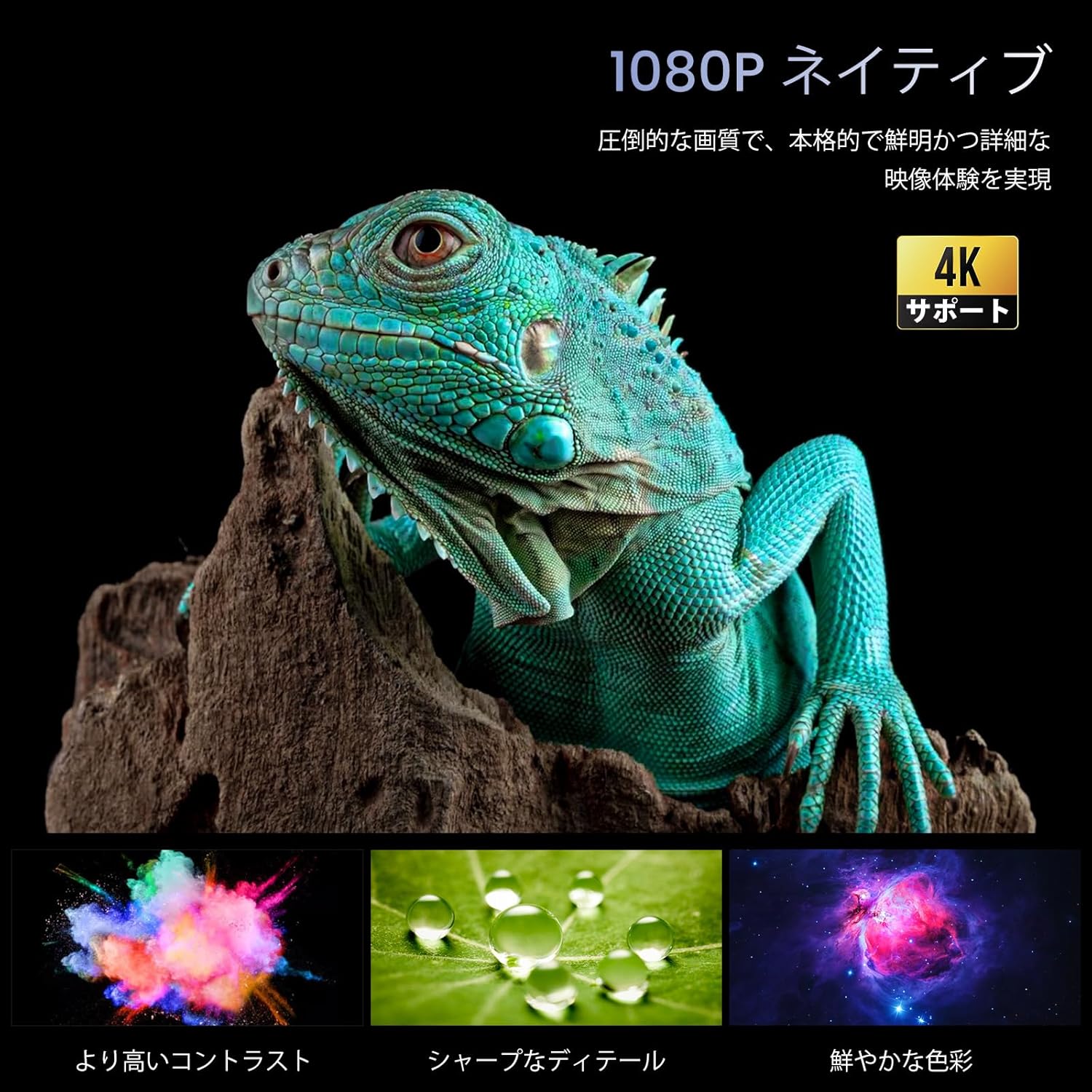
Image: The HOMPOW F4 Mini Projector, a compact device designed for various projection needs.
Klíčové vlastnosti
- 5G Wi-Fi & Wired Connectivity: Supports AirPlay and MiraCast for seamless wireless connection with smartphones and computers. Also allows wired connection via USB cable when Wi-Fi is unavailable.
- High Brightness & Native 1080P with 4K HD Support: Delivers 12000 lumens brightness and native 1080P resolution, with support for 4K HD video playback, ensuring clear and detailed images.
- Wide Compatibility & Bluetooth 5.2: Equipped with AV, 2 USB, and 2 HDMI input ports, compatible with PCs, laptops, TV boxes, smartphones, DVD players, USB memory, Amazon Fire TV Stick, Xbox, PS4, and PS5. Bluetooth 5.2 allows connection to external Bluetooth speakers, headphones, and soundbars for an immersive audio experience.
- Integrated 15W HIFI Speaker & 200-inch HD Large Screen: Features an upgraded 15W HIFI speaker chip for clear sound, stereo separation, and powerful presence. Supports projection sizes up to 200 inches, with a recommended projection distance of 2.3-3 meters.
- Long Lifespan & High Contrast: LED lamp has a lifespan of over 120,000 hours (approximately 25 years of use). A high dynamic contrast ratio of 12000:1 ensures high-quality images and audio.
Průvodce nastavením
1. Vybalení a umístění
Opatrně vyjměte všechny součásti z obalu. Umístěte projektor na stabilní, rovný povrch. Zajistěte dostatečné větrání kolem zařízení.
2. Připojení napájení
- Připojte napájecí adaptér ke vstupnímu portu stejnosměrného proudu projektoru.
- Zapojte napájecí adaptér do elektrické zásuvky.
- Stisknutím tlačítka napájení na projektoru nebo dálkovém ovladači jej zapněte.
3. Physical Connections (HDMI/USB)
The projector supports various wired connections for media input.

Obrázek: Zadní view of the projector showing AV, USB, and HDMI input ports.
- HDMI: Connect your HDMI-enabled device (e.g., laptop, game console, Fire TV Stick) to one of the HDMI ports.
- USB: Insert a USB drive for media playback or connect a smartphone via USB cable for wired mirroring.
- AV: Pro starší zařízení použijte AV port.
Video: Demonstration of connecting a TV Stick to the projector's HDMI port and USB power. This video illustrates the process of physically connecting a streaming device and selecting the correct input source.
4. Wireless Connection (5G Wi-Fi)
The projector supports 5G Wi-Fi for screen mirroring and online streaming.
- Navigate to the projector's main menu and select the Wi-Fi settings.
- Choose your desired 5G Wi-Fi network and enter the password.
- For screen mirroring, select AirPlay (for iOS devices) or MiraCast (for Android devices) from the menu and follow the on-screen instructions to connect your smartphone or computer.

Obrázek: Přamples of projection sizes ranging from 40 to 200 inches, illustrating the flexibility of the projector's display capabilities.
5. Párování Bluetooth
Connect external audio devices via Bluetooth 5.2.
- V nabídce projektoru přejděte do nastavení Bluetooth.
- Povolte Bluetooth a vyhledejte dostupná zařízení.
- Select your Bluetooth speaker, headphones, or soundbar from the list to pair.

Image: The projector wirelessly connected to two external Bluetooth speakers, enhancing the audio experience.
6. Zaostření a korekce lichoběžníkového zkreslení
Adjust the image for clarity and proper shape.
- Manuální ostření: Otáčejte zaostřovacím kroužkem na objektivu projektoru, dokud se obraz nezobrazí ostrý a jasný.
- Korekce lichoběžníkového zkreslení: Use the projector's menu settings to adjust the keystone (trapezoidal distortion) if the image appears wider at the top or bottom.

Image: A close-up of the projector lens with a focus ring, indicating manual focus adjustment for a clear image.
Návod k obsluze
1. Pohyb v nabídce
Use the remote control or the buttons on the projector to navigate through the on-screen menu. Select options using the 'OK' or 'Enter' button.
2. Výběr zdroje vstupu
From the main menu, select the appropriate input source (e.g., HDMI1, HDMI2, USB, AV, Screen Mirroring) corresponding to your connected device.
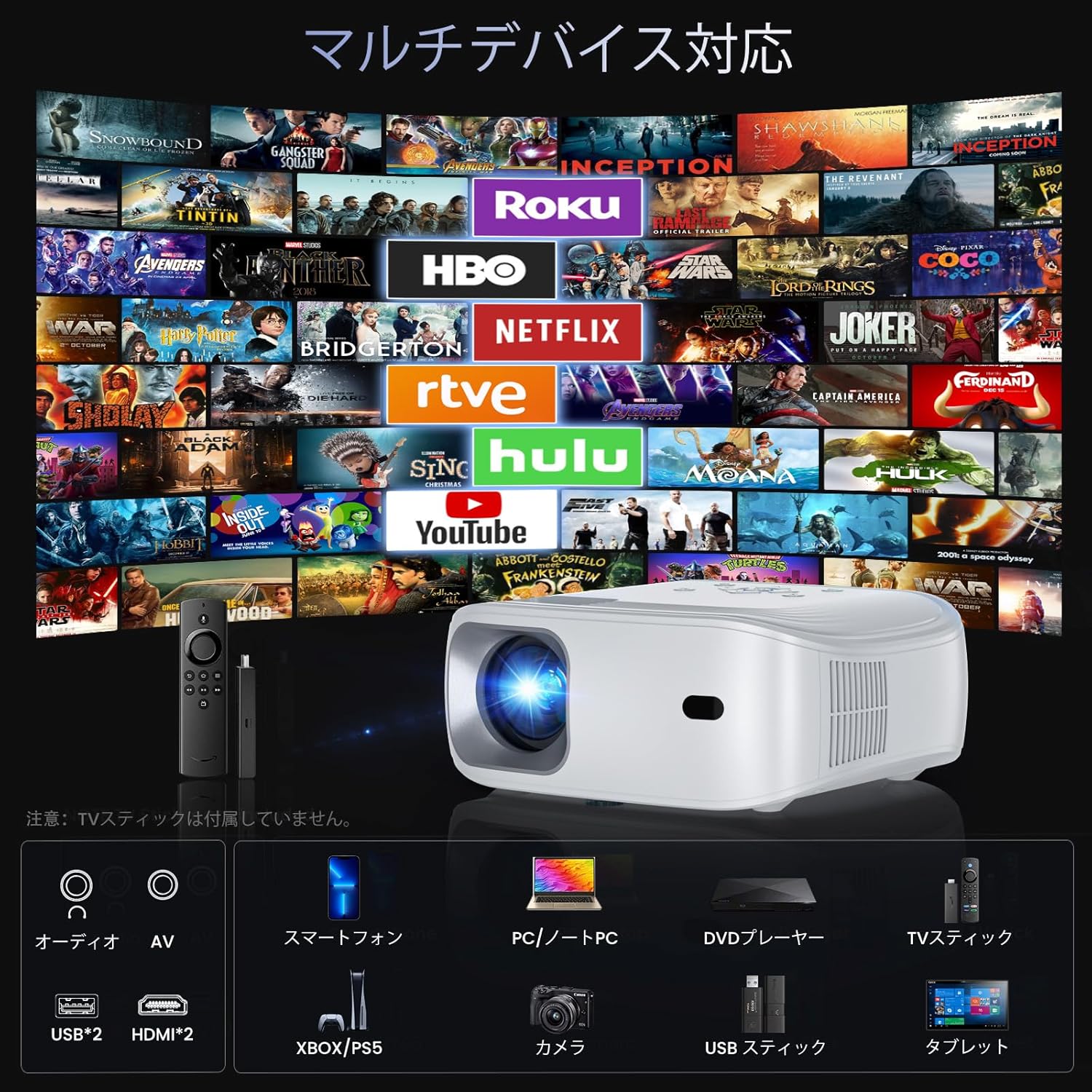
Image: The projector demonstrating compatibility with various devices including smartphones, PCs, DVD players, and TV sticks.
3. Screen Mirroring
To mirror your smartphone or computer screen:
- Ujistěte se, že vaše zařízení a projektor jsou připojeny ke stejné síti Wi-Fi.
- Select 'Screen Mirroring' from the projector's menu.
- On your smartphone/computer, activate screen mirroring (e.g., AirPlay for iOS, Smart View/Cast pro Android) a vyberte projektor ze seznamu dostupných zařízení.
Video: Demonstration of FUNLOGY Projector Usage. This video provides a general overview of how to use the projector in various settings.
4. Funkce zoomu
The projector features a 50% zoom function to adjust the image size without moving the projector. Access this feature through the display settings in the menu.
5. Ceiling Projection
For ceiling projection, orient the projector vertically. Adjust the image orientation in the display settings if necessary.
6. Scheduled Shutdown
The HOMPOW F4 Projector can be set to automatically shut down after a specified period (up to 4 hours). This feature helps conserve energy and prevents the projector from running unnecessarily.

Image: A couple enjoying a movie in bed, highlighting the convenience of the scheduled shutdown feature.
7. Scénáře použití
The projector is suitable for various environments:
- Domácí kino: Užijte si filmy a televizní pořady na velké obrazovce.
- Hraní: Connect game consoles for an immersive gaming experience.
- Prezentace: Ideal for business meetings or educational purposes.
- Venkovní zábava: Portable design allows for outdoor movie nights or events.

Image: A collage showing the projector being used for outdoor movies, exercise sessions, party projections, and business presentations.
Video: Philoent Home Mini Projector Overview. This video showcases the projector's features and its suitability for various home entertainment and professional uses.
Údržba
1. Čištění čočky
K jemnému otření čočky projektoru použijte měkký hadřík bez žmolků, speciálně určený pro optické čočky. Nepoužívejte abrazivní čisticí prostředky ani nadměrnou sílu, mohlo by dojít k poškrábání čočky.
2. Čištění těla projektoru
Vnější povrch projektoru otřete měkkým, suchým hadříkem. Nepoužívejte tekuté čisticí prostředky přímo na zařízení.
3. Větrání
Ensure that the projector's ventilation openings are not blocked. The dual-fan cooling system requires clear airflow to prevent overheating and maintain optimal performance.
4. Skladování
When not in use for extended periods, store the projector in a cool, dry place, away from direct sunlight and excessive dust. Consider using a protective cover.
Odstraňování problémů
If you encounter issues with your HOMPOW F4 projector, refer to the following common problems and solutions:
| Problém | Možná příčina | Řešení |
|---|---|---|
| Žádný obraz nebo hláška „Žádný signál“ | Vybrán nesprávný vstupní zdroj; uvolněné připojení kabelu; zařízení není zapnuté. | Verify the input source matches the connected device. Check all cable connections (HDMI, USB). Ensure the source device is powered on. |
| Rozmazaný obraz | Není nastavené zaostření; nesprávná projekční vzdálenost. | Adjust the manual focus ring on the lens. Ensure the projector is within the recommended projection distance (1.4m to 5m). |
| Obrázek má lichoběžníkový tvar (širší nahoře/dole) | Projektor není kolmý k promítací ploše. | Adjust the keystone correction in the projector's display settings. Reposition the projector to be more aligned with the screen. |
| Žádný zvuk | Volume too low; external audio device not connected or paired; incorrect audio output selected. | Increase the projector's volume. If using Bluetooth, ensure the external device is paired and its volume is up. Check audio output settings. |
| Wi-Fi or Screen Mirroring issues | Weak Wi-Fi signal; incorrect password; device compatibility. | Ensure the projector and source device are close to the Wi-Fi router. Re-enter Wi-Fi password. Check device compatibility for AirPlay/MiraCast. |
| Projector overheating or fan noise | Zablokované větrání; dlouhodobé používání. | Ensure ventilation ports are clear. Allow the projector to cool down if used for extended periods. |
Specifikace
| Funkce | Detail |
|---|---|
| Značka | HOMPOW |
| Model | HOMPOW F4 |
| Nativní rozlišení | 1920 x 1080 (Full HD) |
| Podporované rozlišení | Až 4K HD |
| Jas | 12000 XNUMX lumenů |
| Kontrastní poměr | 12000:1 |
| Lamp Životnost | 120,000 hodiny |
| Velikost projekce | Až 200 palce |
| Projekční vzdálenost | 1.4m - 5m (Recommended: 2.3m - 3m) |
| Funkce zvětšení | 50% digitální zoom |
| Konektivita | 5G Wi-Fi, Bluetooth 5.2, 2x HDMI, 2x USB, AV |
| Zvuk | Vestavěný 15W HIFI reproduktor |
| Barva | Bílý |
| Rozměry | 34 x 27.4 x 13 cm |
| Hmotnost | 1.94 kg |
| Doporučené použití | Domácí kino |

Image: A vivid display demonstrating the projector's 1080P native resolution and 4K support, highlighting high contrast, sharp details, and rich colors.

Image: An illustration of the projector's internal 15W HIFI speaker, emphasizing lossless audio quality.
Video: About the Projector. This video provides a general overview of the projector's design and capabilities.
Záruka a podpora
For detailed warranty information, please refer to the product packaging or the official HOMPOW website. For technical support, troubleshooting assistance, or any other inquiries, please contact HOMPOW customer service through the contact information provided with your purchase or on the official webmísto.


