Zavedení
This user manual provides comprehensive instructions for the installation, operation, and maintenance of your QttyElok Wifi Access Control System. This smart Tuya APP RFID access controller is designed for secure and convenient access management, featuring IP68 waterproofing and dual-frequency RFID support.
Bezpečnostní informace
Please read all safety warnings and instructions carefully before installing and operating this device. Failure to follow these instructions may result in electric shock, fire, or serious injury. Keep this manual for future reference.
- Ensure power is disconnected before any installation or wiring.
- Pokud si nejste jisti, měl by instalaci provést kvalifikovaný personál.
- Do not expose the power supply unit to moisture.
- Use only the specified power supply (DC12V).
Obsah balení
Ověřte, zda jsou v balení přítomny všechny položky:
- Wifi Tuya Access Control Keypad
- Napájecí jednotka
- Tlačítko východu dveří
- 10 x RFID Keyfobs
- (Electric lock is NOT included)

Figure 1: Main components of the QttyElok Wifi Access Control System.
Konec produktuview
The QttyElok Wifi Access Control System is a robust and versatile solution for managing access to your premises. It combines advanced RFID technology with smart Tuya APP integration for flexible control.
Klíčové vlastnosti:
- Large User Capacity: Podporuje až 10,000 uživatelů.
- Multiple Verification Modes: RFID Cards, Password, RFID Card + Password, Tuya APP.
- Wifi Tuya Integration: Add users, open doors, view unlock records via the Tuya APP (supports Chinese, English).
- Dual Frequency Support: Works with 125KHz and 13.56MHz.
- IP68 voděodolný: Suitable for outdoor installation, resistant to rain and storm.
- Dotykový panel: Features a responsive touch keypad with blue backlight for easy use in low light.
- Funkce dveřního zvonku: Integrated doorbell button for visitor convenience.
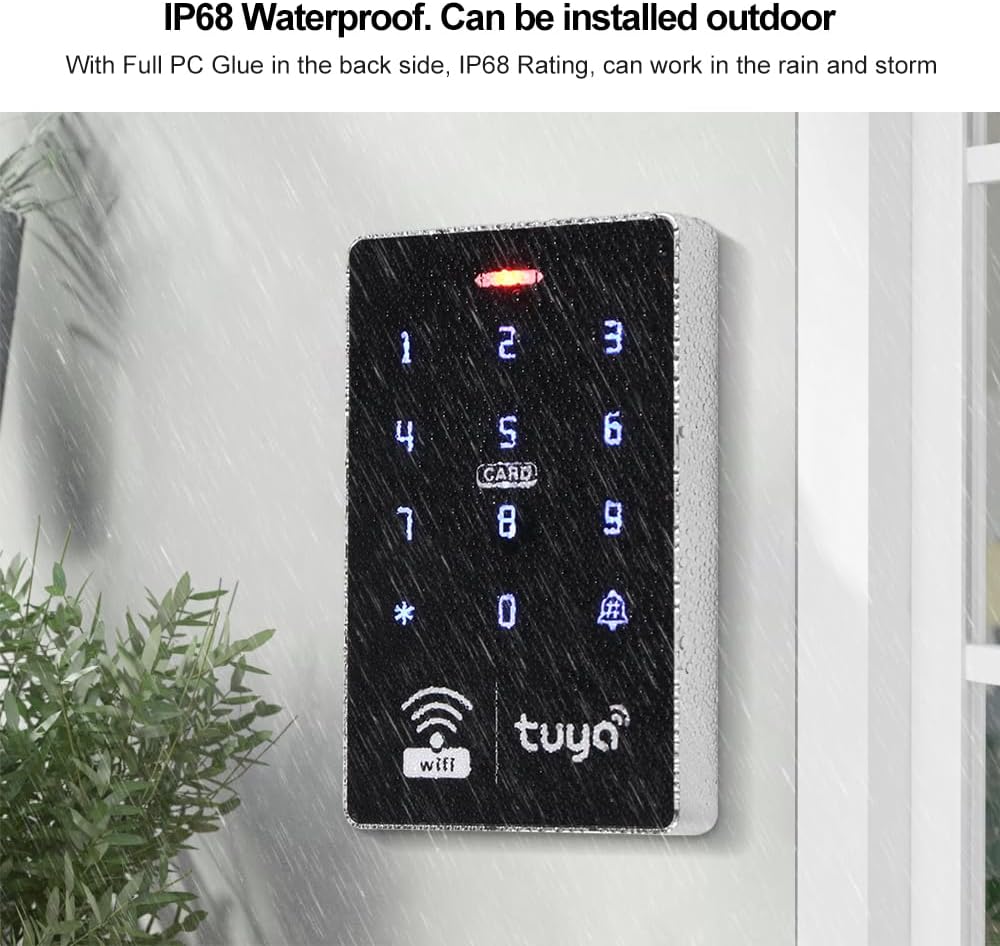
Figure 2: The access control keypad is IP68 waterproof, allowing for outdoor installation.

Obrázek 3: Detailní view of the keypad's touch screen, work indicator, and doorbell button.

Figure 4: Keypad dimensions for installation planning.
Nastavení
Schéma zapojení
Proper wiring is crucial for the system's functionality. Refer to the diagram below for connecting the access controller, power supply, exit button, and electric lock (if applicable).

Obrázek 5: Schéma zapojení systému.
Specifikace napájecího zdroje
The included power supply unit provides stable power to the access control system.
- Vstupní objemtage: 110~240VAC
- Výstupní objemtage: DC 12V
- Momentary Current: 3A
- Časová prodleva: 0~15 seconds delay locks

Figure 6: Power Supply Control Unit and its specifications.
Připojování k aplikaci Tuya APP
Follow these steps to add your access control system to the Tuya APP for smart control:
- Turn on the Tuya APP on your smartphone.
- Na klávesnici zadejte * 123456 # 041 #.
- In the Tuya APP, click "Add device".
- Zadejte své heslo Wifi.
- Once added, click "Done".
Video 1: Demonstrates the process of adding the access control keypad to the Tuya APP (0:00-0:16).
Návod k obsluze
Metody odemykání
The system offers various convenient ways to unlock the door:
1. Unlock with Tuya APP
Once connected to the Tuya APP, you can remotely unlock the door from your smartphone.
Video 2: Shows how to unlock the door using the Tuya APP (0:16-0:28).
2. Set Temporary Password
Generate a temporary password via the Tuya APP. This password is valid for 6 hours and can be used only once, ideal for one-time access.
Video 3: Guide on setting and sharing a temporary password through the Tuya APP (0:28-0:46).
3. Add Private Password
You can add a permanent private password for regular users through the Tuya APP.
- In the Tuya APP, navigate to "Member manage" and click "Add".
- Input a 6-digit code for the private password.
- Click "Save".
Video 4: Instructions for adding a private password via the Tuya APP (0:49-0:55).
4. Unlock with RFID Card
Simply swipe a registered RFID card on the keypad to unlock the door.
Video 5: Demonstrates unlocking the door using an RFID card (1:08-1:13).

Obrázek 7: Přesview of unlocking methods: Tuya APP, RFID Card, and Password.
5. Unlock with Combined Method (RFID Card + Password)
To enable this secure method, first turn on the combined door opening method:
- Vstupte * programming password # 0 21 # (např, * 123456 # 0 21 #).
Then, to unlock, swipe your RFID card and immediately enter your private password.
Video 6: Demonstrates turning on the combined door opening method and unlocking with RFID card plus password (3:32-3:46).
To turn off the combined door opening method, enter * programming password # 0 20 # (např, * 123456 # 0 20 #).
Video 7: Shows how to turn off the combined door opening method (3:46-3:52).
Správa uživatelů
Manage users, cards, and passwords efficiently through the Tuya APP or directly on the keypad.
1. Add Administrator and Ordinary Member
In the Tuya APP, click "Member manage" to add new users as administrators or ordinary members.
Video 8: How to add administrator and ordinary members in the Tuya APP (0:48-0:55).
2. Add Card (via Tuya APP)
To add an RFID card using the Tuya APP:
- Click "Add" in the card section of the Tuya APP.
- Swipe the RFID card on the keypad.
- Click "Done" in the APP.
Video 9: Steps to add an RFID card using the Tuya APP (0:56-1:02).
3. Set Management Card (via Keypad)
A management card allows for easy addition or deletion of user cards directly from the keypad.
- To set: Enter * programming password # 7, then swipe the card you wish to designate as the management card. (e.g., * 123456 # 7 then swipe card).
Video 10: How to set a management card for adding/deleting user cards (1:40-1:47).
4. Add User Card (Method 1: Using "Add Card" mode)
This method allows you to add multiple user cards sequentially.
- Vstupte * programming password # 1, then swipe each card you wish to add. Press * to exit. (e.g., * 123456 # 1 then swipe cards).
Video 11: Adding user cards using the "Add card" mode (2:29-2:40).
5. Add User Card (Method 2: Using User Code)
This method allows you to add a specific user card by its user code.
- Vstupte * programming password # 1 user code #, then swipe the card. Press * to exit. (e.g., * 123456 # 1 002 # then swipe card).
Video 12: Adding user cards using a specific user code (2:40-2:50).
6. Delete User Card (Method 1: Using "Delete Card" mode)
This method allows you to delete multiple user cards sequentially.
- Vstupte * programming password # 3, then swipe each card you wish to delete. Press * to exit. (e.g., * 123456 # 3 then swipe cards).
Video 13: Deleting user cards using the "Delete card" mode (2:51-2:58).
7. Delete User Card (Method 2: By Card Number)
Delete a specific user card by inputting its unique card number.
- Vstupte * programming password # 3 card number #. (e.g., * 123456 # 3 0008719254 #).
Video 14: Deleting a user card by inputting its card number (2:58-3:14).
8. Delete User Card (Method 3: By User Code)
Delete a specific user card by inputting its assigned user code.
- Vstupte * programming password # 3 user code #. (e.g., * 123456 # 3 002 #).
Video 15: Deleting a user card by inputting its user code (3:14-3:22).
9. Odstranit všechny uživatele
This action will delete all registered users from the system.
- Vstupte * programming password # 4 programming password #. (e.g., * 123456 # 4 123456 #).
Video 16: How to delete all users from the system (3:22-3:31).
Režimy dveří
1. Turn on Normally Open Mode
In this mode, the door will remain unlocked. To activate, swipe a valid card and then press 0 #.
Video 17: Activating the normally open mode (3:53-4:00).
2. Turn off Normally Open Mode
To exit the normally open mode, swipe a valid card or enter a valid password to open the door. The system will then return to its default locked state.
Video 18: Deactivating the normally open mode (4:00-4:06).
Správa hesla
1. Default Public Unlocking Password
The default public unlocking password is 7890.
Video 19: Demonstrates the default public unlocking password (4:06-4:11).
2. Modify Public Unlocking Password
To change the public unlocking password:
- Vstupte * programming password # 2 new password # new password #. (e.g., * 123456 # 2 3698 # 3698 #).
Video 20: Steps to modify the public unlocking password (4:11-4:29).
3. Modify Programming Password
To change the programming password (default is 123456):
- Vstupte * programming password # 9 new programming password # new programming password #. (e.g., * 123456 # 9 456789 # 456789 #).
Video 21: How to modify the programming password (4:29-4:40).
View Odemknout záznamy
The Tuya APP keeps a log of all unlock events. To view these records, click on the reminder information within the app.
Video 22: Accessing unlock records in the Tuya APP (1:35-1:39).
Údržba
To ensure the longevity and optimal performance of your access control system, follow these maintenance guidelines:
- Regularly clean the keypad surface with a soft, damp tkanina. Vyhněte se abrazivním čisticím prostředkům.
- Check wiring connections periodically for any signs of wear or corrosion.
- Ensure the power supply unit is in a dry, well-ventilated area.
- Keep RFID cards and keyfobs away from strong magnetic fields to prevent demagnetization.
- Update the Tuya APP regularly to ensure compatibility and access to the latest features.
Odstraňování problémů
If you encounter issues with your QttyElok Wifi Access Control System, refer to the following common problems and solutions:
| Problém | Možná příčina | Řešení |
|---|---|---|
| Klávesnice nereaguje. | Žádné napájení nebo uvolněné připojení. | Check power supply and all wiring connections. Ensure DC12V output. |
| RFID karta nebyla rozpoznána. | Karta není registrována nebo je poškozená. | Ensure the card is properly registered. Try adding the card again. Test with another registered card. |
| Tuya APP cannot connect to device. | Incorrect Wi-Fi password, poor Wi-Fi signal, or device not in pairing mode. | Verify Wi-Fi password. Ensure strong Wi-Fi signal near the device. Re-enter pairing mode on the keypad and try adding the device again. |
| Door does not unlock after valid input. | Lock mechanism issue or incorrect wiring to the lock. | Check the electric lock's functionality independently. Verify wiring between the access controller and the lock. |
| Keypad beeps continuously. | Tamper alarm or error state. | Check for any physical tampering. Refer to the programming section for alarm reset codes if applicable. |
Obnovit tovární nastavení
To restore the device to its factory default settings (this will delete all users and reset passwords):
- Vstupte * new programming password # 6 new programming password #. (e.g., * 456789 # 6 456789 # if you changed the programming password, otherwise use default 123456).
Video 23: How to restore the access control system to factory settings (4:40-4:50).
Specifikace
| Funkce | Specifikace |
|---|---|
| Značka | QttyElok |
| Model | Bez zámku |
| Zdroj napájení | Elektrický kabel |
| Kompatibilní zařízení | Smartphone |
| Rozměry položky (D x Š x V) | 7.87 x 1.97 x 3.94 palce |
| Technologie připojení | Bezdrátový |
| Typ instalace | Samolepící |
| Typ upozornění | Pouze pohyb |
| svtage | 12 voltů |
| Kontrolní metoda | Dotek |
| Hmotnost položky | 1.5 libry |
| Země původu | Čína |
Záruka a podpora
For warranty information and technical support, please refer to the contact details provided with your product packaging or visit the official QttyElok webUschovejte si účtenku jako doklad o koupi pro případ reklamace.


