Zavedení
Thank you for choosing the CITLLA L570 Wireless Bluetooth Mouse. This advanced multi-device mouse is designed for enhanced productivity and comfort across various platforms. Please read this manual carefully to ensure proper setup and optimal performance of your new mouse.
Klíčové vlastnosti
- Připojení více zařízení: Connects to up to three devices via one 2.4G USB-A receiver and two independent Bluetooth channels.
- 4-Way Scrolling: Features a scroll wheel that supports both vertical (smart fly scroll) and horizontal movement for efficient navigation.
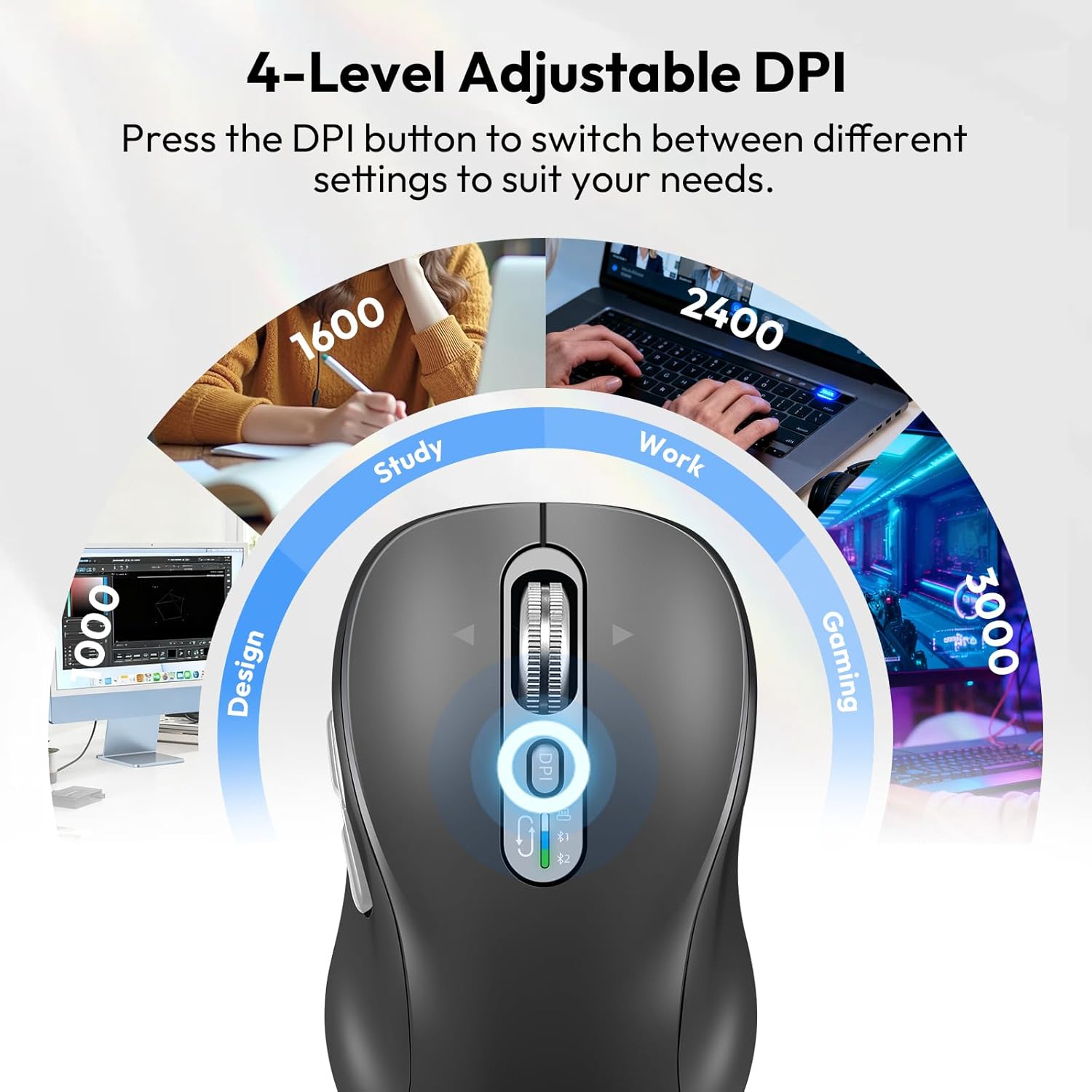
- Nastavitelné DPI: Four customizable DPI settings (1000/1600/2400/3000) for precision control.
- Tiché kliknutí: Designed with quiet buttons to minimize noise and distractions.
- Dobíjecí baterie: Equipped with a Type-C charging port and a long-lasting battery, providing approximately 60 days of use on a one-hour charge.
- Široká kompatibilita: Supports Windows, Linux, Mac, Chrome OS, iOS, and Android operating systems.
Co je v krabici
- CITLLA L570 Wireless Mouse
- Nabíjecí kabel typu C.
- Wireless USB-A Receiver
- Uživatelská příručka
Pokyny pro nastavení
1. Connecting via 2.4G USB-A Receiver
- Locate the USB-A receiver stored in the battery compartment of the mouse.
- Plug the USB-A receiver into an available USB port on your computer or device.
- Turn on the mouse using the ON/OFF switch located on the bottom. The mouse should automatically connect to your device.
2. Připojení přes Bluetooth
- Zapněte myš pomocí vypínače ON/OFF na spodní straně.
- Press and hold the device switch key (usually located near the scroll wheel or on the bottom) for three seconds until the Bluetooth indicator light starts flashing. This indicates the mouse is in pairing mode.
- Na svém zařízení (notebooku, tabletu, chytrém telefonu) přejděte do nastavení Bluetooth a vyhledejte nová zařízení.
- Select "CITLLA L570" or a similar name from the list of available devices to pair.
- Repeat steps 2-4 to connect to a second Bluetooth device using the other Bluetooth channel.
3. Přepínání mezi zařízeními
To switch between connected devices, simply press the device switch key on the mouse. The indicator light will show which connection (2.4G, BT1, BT2) is currently active.

Image: The CITLLA L570 mouse demonstrating its ability to connect to a desktop via 2.4G wireless, a tablet via Bluetooth 2, and a laptop via Bluetooth 1, with a visual indicator for the active connection.
Video: This video demonstrates the multi-device connectivity, 4-way navigation, adjustable DPI, and quiet click features of the CITLLA L570 Wireless Bluetooth Mouse.
Návod k obsluze
1. 4-Way Scrolling
The L570 mouse features a versatile scroll wheel:
- Vertical Scrolling: Roll the scroll wheel up or down for standard vertical navigation. The smart fly scroll provides super-fast scrolling on long web stránky.
- Horizontální rolování: Press the scroll wheel to the left or right to enable horizontal scrolling across the page. Note that left and right scrolling is not high-speed.
Obrázek: Podrobný view of the CITLLA L570 mouse's 4-way scroll wheel, with arrows indicating left, right, up, and down movement for comprehensive navigation.
2. Nastavení citlivosti DPI
The mouse offers four adjustable DPI settings to match your preference and task:
- Press the DPI button (located near the scroll wheel) to cycle through the available settings: 1000, 1600, 2400, and 3000 DPI.
- Choose a lower DPI for precise tasks like graphic design, or a higher DPI for faster cursor movement in gaming or general browsing.

Image: The CITLLA L570 mouse with an overlay illustrating its four adjustable DPI levels (1000, 1600, 2400, 3000) and suggested applications like design, study, work, and gaming.
3. Silent Click Functionality
The L570 mouse is designed with silent click buttons to provide a quiet working environment, reducing distractions for you and those around you. The buttons have a lifespan of 10 million clicks.

Image: A user operating the CITLLA L570 mouse in a quiet office setting, highlighting the silent click feature that prevents disturbance.
Nabíjení myši
The CITLLA L570 mouse is equipped with a rechargeable battery and a Type-C charging port.
- Connect the included Type-C charging cable to the mouse's charging port and to a USB power source.
- A full charge takes approximately one hour and provides up to 60 days of normal use.
- The low power indicator will illuminate when the remaining power is sufficient for less than 7 days of use, giving you ampčas na dobití.

Image: The CITLLA L570 mouse connected to a Type-C charging cable, with text indicating a 1.5-2 hour charge time for 90 days of use from its 500mAh battery.
Kompatibilita
The CITLLA L570 Wireless Bluetooth Mouse is compatible with a wide range of devices and operating systems:
- Operační systémy: Windows (8/10/11 and later), Mac OS (10.15 and later; USB: Mac OS 10.10 and later), Chrome OS (11 and later; USB: Chrome OS 9 and later), iOS (13.4 and later), Android (5.0 and later), Linux (10 and later; USB: Linux 8 and later).
- Zařízení: Desktops, laptops, tablets, smartphones, all-in-one PCs.

Image: A graphic displaying the compatible operating systems for the CITLLA L570 mouse, including Windows, Mac OS, Linux, Chrome OS, iOS, and Android, with specific version requirements.
Odstraňování problémů
- Myš nereaguje: Ensure the mouse is turned on and fully charged. Check if the USB receiver is securely plugged in or if Bluetooth is enabled and paired correctly on your device.
- Problémy s připojením: If using Bluetooth, ensure the mouse is in pairing mode (flashing indicator) and your device's Bluetooth is active. Try re-pairing the mouse. For 2.4G, try plugging the USB receiver into a different port.
- Pohyb kurzoru je nepravidelný: Clean the optical sensor on the bottom of the mouse. Ensure you are using the mouse on a suitable surface. Adjust the DPI setting to a lower value if the cursor is too fast.
- Scroll wheel not working: Check for any debris obstructing the scroll wheel. Ensure the mouse is properly connected.
- Indikátor slabé baterie: When the indicator lights up, connect the mouse to the Type-C charging cable to recharge.
Specifikace
| Funkce | Detail |
|---|---|
| Číslo modelu | L570 |
| Technologie připojení | 2.4G USB-A Receiver, Bluetooth-1, Bluetooth-2 |
| Nastavení DPI | 1000/1600/2400/3000 |
| Speciální funkce | 4-Way Scrolling, Forward/Back button, Multi-Device (3 connections), Quiet Clicks (10 million click lifespan), Rechargeable (Type-C charging) |
| Detekce pohybu | Optický |
| Baterie | Rechargeable (Type-C) |
| Hmotnost položky | 5.6 unce |
| Rozměry balení | 5.59 x 3.11 x 2.13 palce |
Záruka a podpora
For warranty information, technical support, or any inquiries regarding your CITLLA L570 Wireless Bluetooth Mouse, please refer to the contact information provided with your product packaging or visit the official CITLLA webmísto. Uschovejte si doklad o koupi pro případ záručních reklamací.


