1. Úvod
This instruction manual provides essential information for the safe and efficient use of your COOPERS Android 15 Tablet 10-inch, model CP10PRO. Please read this manual thoroughly before using the device and retain it for future reference.
2. Obsah balení
Ověřte, zda jsou v balení produktu přítomny všechny níže uvedené položky:
- COOPERS Android 15 Tablet (10-inch)
- Bezdrátová klávesnice
- Bezdrátová myš
- Ochranné pouzdro
- Stylus Pen
- Nabíjecí kabel typu C.

Image: COOPERS Android 15 Tablet and its accompanying accessories.
3. Konec produktuview
The COOPERS Android 15 Tablet is a versatile 10-inch device designed for various tasks, from entertainment to productivity. Key features include:
- Zobrazit: 10.1-inch HD IPS screen with 1280x800 resolution.
- Výkon: Quad-Core processor, 6GB RAM (2GB physical + 4GB virtual), 32GB internal storage, expandable up to 1TB via microSD card.
- Operační systém: Android 15 with Google Mobile Service (GMS) certification.
- Konektivita: 2.4GHz Wi-Fi, Bluetooth.
- Kamery: 2MP front camera, 8MP rear camera.
- Baterie: 6000mAh capacity, providing up to 8 hours of video playback.
- Příslušenství: Includes a wireless keyboard, mouse, stylus, and protective case for a 2-in-1 computing experience.
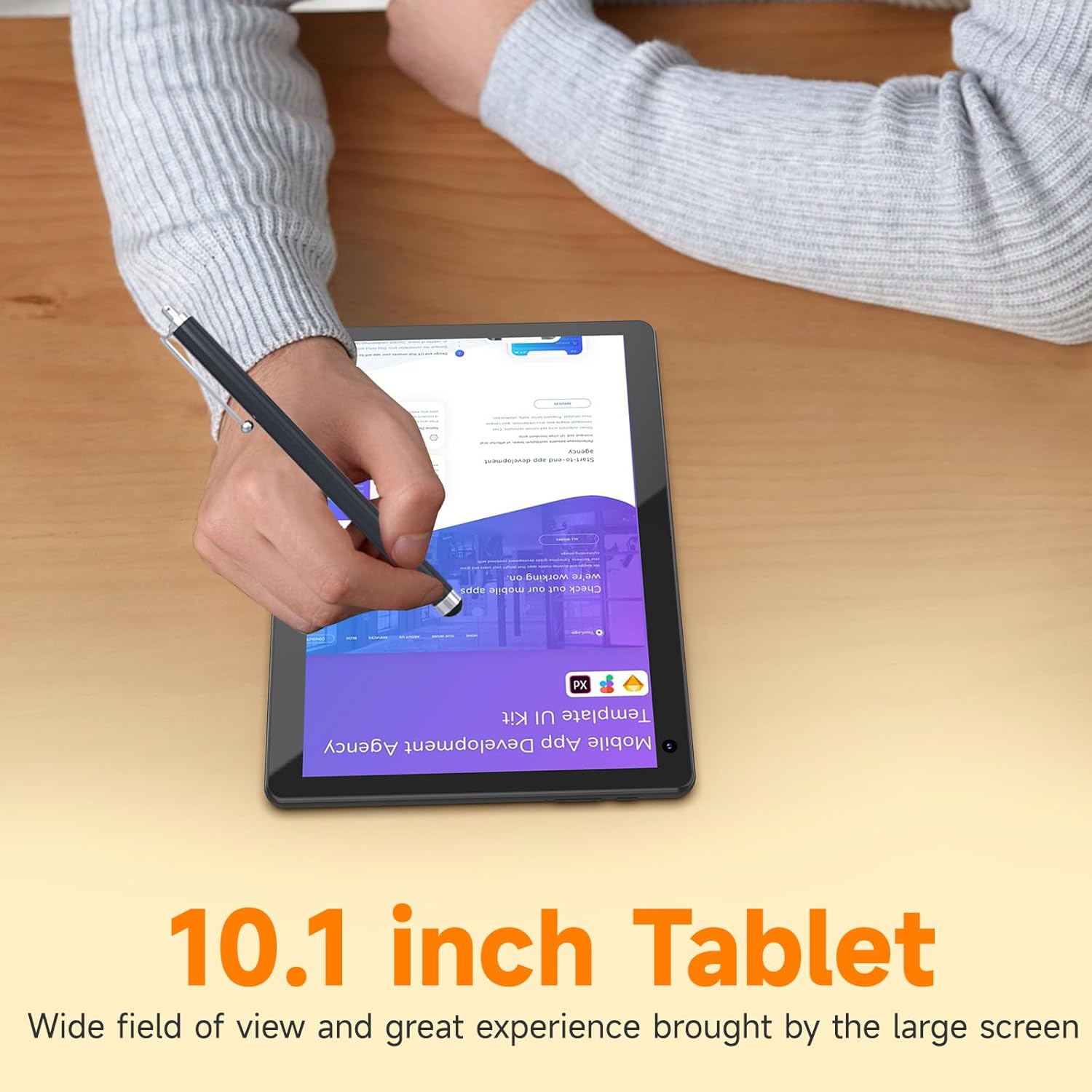
Image: The 10.1-inch display of the COOPERS tablet, demonstrating stylus interaction.

Image: Illustration of the tablet's dual camera system, featuring a 2MP front camera and an 8MP rear camera.
4. Nastavení
4.1 Počáteční nabíjení
Before first use, fully charge the tablet using the provided Type-C cable and a compatible power adapter (not included). The battery indicator on the screen will show charging status. A full charge typically takes several hours.

Image: Tablet connected to a charger, highlighting its 6000mAh battery and Type-C fast charging capability.
4.2 Zapnutí/vypnutí
- Zapnutí: Stiskněte a podržte tlačítko napájení na boku tabletu, dokud se obrazovka nerozsvítí.
- Vypnutí: Stiskněte a podržte tlačítko Napájení a poté z možností zobrazených na obrazovce vyberte možnost „Vypnout“.
- Restartovat: Stiskněte a podržte tlačítko napájení a poté z možností vyberte „Restartovat“.
4.3 Počáteční nastavení systému Android
Upon first power-on, follow the on-screen prompts to complete the initial setup. This includes selecting your language, connecting to a Wi-Fi network, and signing in with your Google account. A Google account is required to download applications from the Google Play Store.
4.4 Připojení příslušenství (klávesnice, myš)
The included keyboard and mouse connect wirelessly via Bluetooth.
- Ensure the keyboard and mouse are powered on and in pairing mode (refer to their individual manuals if necessary).
- Na tabletu přejděte na Nastavení > Připojená zařízení > Bluetooth.
- Toggle Bluetooth to "On" if it's not already.
- Tap "Pair new device" and select the keyboard or mouse from the list of available devices.
- Dokončete proces párování podle pokynů na obrazovce.
5. Návod k obsluze
5.1 Základní navigace
- Dotek: Klepnutím na ikonu otevřete aplikaci nebo vyberete položku.
- Výpad: Tažením prstu po obrazovce můžete procházet stránky nebo seznamy.
- Přiblížení/zvětšení prsty: Pro přiblížení nebo oddálení obrázků použijte dva prsty a web stránky.
- Domovská obrazovka: Tap the Home button (usually a circle or house icon) to return to the main screen.
- Zadní: Tap the Back button (usually an arrow) to return to the previous screen.
5.2 Připojení k Wi-Fi
Připojení k síti Wi-Fi:
- Přejít na Nastavení > Síť a internet > Wi-Fi.
- Ensure Wi-Fi is turned on.
- Vyberte ze seznamu požadovanou 2.4GHz síť.
- Pokud se zobrazí výzva, zadejte heslo a klepněte na „Připojit“.
5.3 Using the Google Play Store
Your tablet is GMS certified, allowing full access to the Google Play Store for downloading applications, games, movies, and books.
- Open the "Play Store" app from your home screen or app drawer.
- Hledat požadovanou aplikaci.
- Tap "Install" to download and install the app.

Image: Android 15 interface on the tablet, showing common app icons.
5.4 Obsluha kamery
The tablet features a 2MP front camera and an 8MP rear camera.
- Otevřete aplikaci „Fotoaparát“.
- Klepnutím na ikonu přepínače fotoaparátu přepínáte mezi předním a zadním fotoaparátem.
- Klepnutím na tlačítko spouště pořídíte fotografie nebo spustíte/zastavíte nahrávání videa.
5.5 Správa úložiště
The tablet comes with 32GB of internal storage. You can expand this by inserting a microSD card (up to 1TB) into the designated slot.
- To insert a microSD card, locate the card slot on the side of the tablet and gently push the card in until it clicks.
- Chcete-li spravovat úložiště, přejděte na Nastavení > Úložiště.
6. Údržba
6.1 Čištění zařízení
Use a soft, lint-free cloth to clean the screen and body of the tablet. Avoid using harsh chemicals or abrasive materials, which can damage the surface.
6.2 Péče o baterii
- Vyhněte se extrémním teplotám, protože mohou ovlivnit životnost baterie.
- Nenechávejte tablet delší dobu zcela vybitý.
- Pro nabíjení používejte pouze dodaný kabel typu C.
6.3 Aktualizace softwaru
Pravidelně kontrolujte aktualizace systému, abyste zajistili optimální výkon a zabezpečení. Přejděte na Nastavení > Systém > Aktualizace systému zkontrolovat a nainstalovat dostupné aktualizace.
7. Řešení problémů
| Problém | Možné řešení |
|---|---|
| Tablet se nezapne | Ensure the battery is charged. Connect the tablet to a power source and try again. If unresponsive, press and hold the power button for 10-15 seconds to force a restart. |
| Pomalý výkon nebo zamrzání | Zavřete nepoužívané aplikace. Vymažte mezipaměť aplikací v Nastavení > Aplikace. Restartujte tablet. Zajistěte dostatek volného úložného prostoru. |
| Problémy s připojením Wi-Fi | Ensure Wi-Fi is enabled. Restart your router and the tablet. Forget the network and reconnect. Verify the Wi-Fi password. |
| Accessories (keyboard/mouse) not connecting | Ensure accessories are charged and in pairing mode. Re-pair them via Bluetooth settings. Restart the tablet. |
| Touchscreen unresponsive in certain areas | Restart the tablet. Ensure the screen is clean and free of debris. If the issue persists, contact customer support. |
If troubleshooting steps do not resolve the issue, please refer to the support information provided by your retailer or the manufacturer.
8. Specifikace
| Funkce | Detail |
|---|---|
| Číslo modelu | CP10PRO |
| Značka | COOPERS |
| Operační systém | Android 15 |
| Velikost obrazovky | 10.1 palce |
| Rozlišení obrazovky | 1280 x 800 Pixels (HD IPS) |
| Procesor | Quad-Core, 1.8 GHz (Allwinner ARM chipset) |
| BERAN | 6 GB (2 GB fyzické + 4 GB virtuální) |
| Interní úložiště | 32 GB |
| Rozšiřitelné úložiště | Až 1 TB přes microSD kartu |
| Bezdrátové připojení | 802.11n (2.4GHz Wi-Fi), Bluetooth |
| Přední kamera | 2 MP |
| Zadní kamera | 8 MP |
| Kapacita baterie | 6000 XNUMX mAh |
| Průměrná životnost baterie | Až 8 hodin (přehrávání videa) |
| Rozměry (DxŠxV) | 10 x 5 x 0.31 palce |
| Hmotnost položky | 2.72 libry |
9. Záruka a podpora
For warranty information and customer support, please refer to the documentation provided at the time of purchase or contact your retailer. Specific warranty terms and conditions may vary.
For technical assistance or further inquiries, please reach out to COOPERS customer service through their official channels, if available, or the seller from whom the product was purchased.


