Zavedení
This manual provides instructions for the Alienware AW520H Wired Gaming Headset. It covers setup, operation, maintenance, and troubleshooting to ensure optimal performance and longevity of your device.
The Alienware AW520H headset is designed to deliver precision audio with Hi-Res certified drivers and Dolby Atmos spatial audio support, integrated into a comfortable and adjustable design.
Co je v krabici
Ověřte, zda jsou v balení přítomny všechny komponenty:
- Alienware AW520H Wired Gaming Headset
- Dokumentace (uživatelská příručka, informace o záruce)
Konec produktuview
Familiarize yourself with the key components and features of your Alienware AW520H headset.
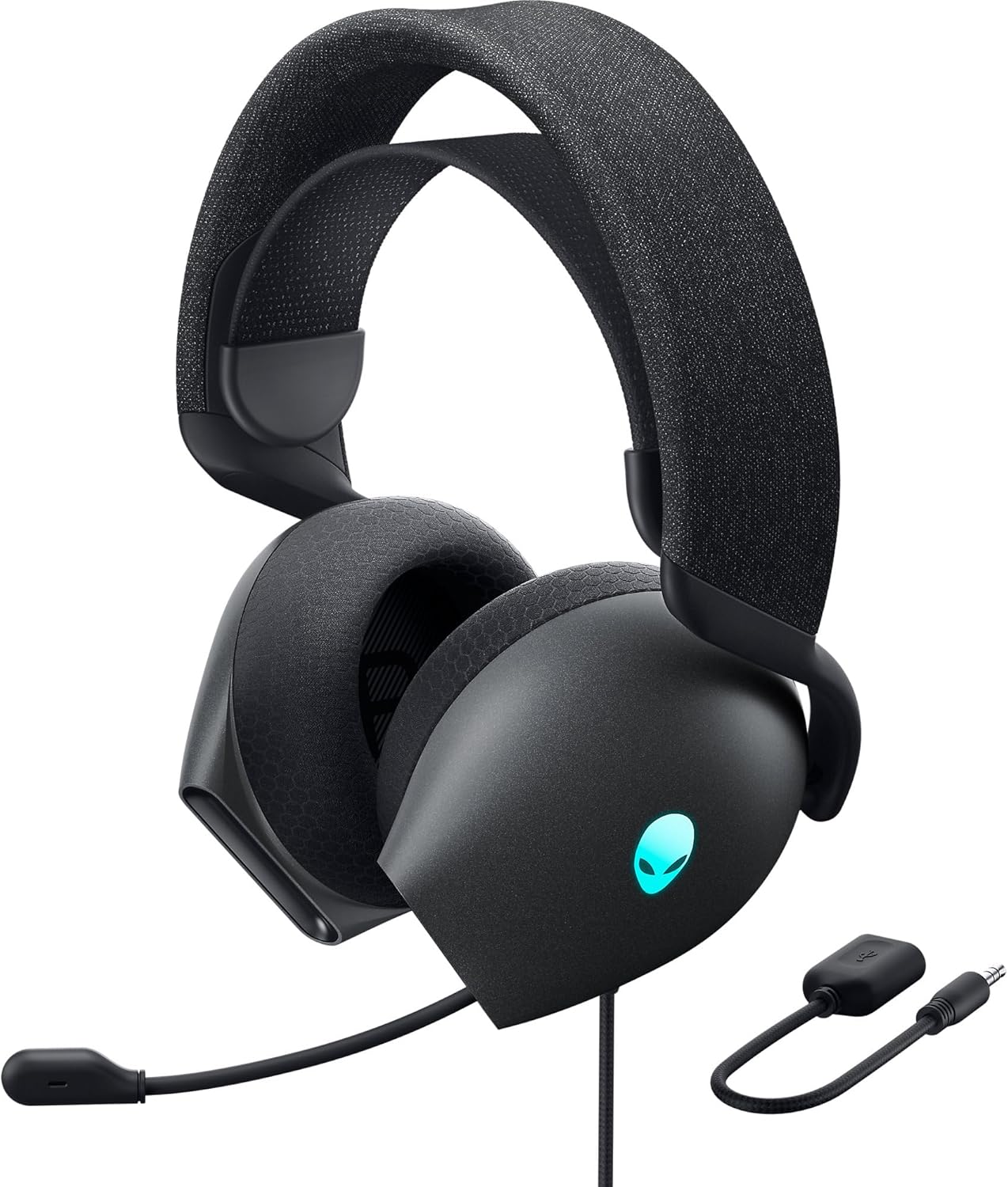

Klíčové vlastnosti:
- Hi-Res Certified Drivers: Delivers clear and rich sound across a wide frequency range.
- Dolby Atmos Spatial Audio: Provides precise positional audio for an immersive experience.
- AI-Driven Noise Cancellation Microphone: Retractable boom mic focuses on your voice, reducing ambient noise.
- Pohodlný design: Features soft memory foam ear pads with breathable fabric and an adjustable suspension headband for extended wear.
- AlienFX RGB Lighting: Customizable RGB lighting on the earcups, controllable via Alienware Command Center.
- Všestranná konektivita: Supports both USB and 3.5mm connections for broad compatibility.
Nastavení
Follow these steps to set up your Alienware AW520H headset.
1. Připojení náhlavní soupravy
The AW520H offers flexible connectivity options:
- 3.5mm audio jack: Connect the 3.5mm cable directly to your PC, gaming console controller, or any other compatible device with a 3.5mm audio port. This provides basic audio and microphone functionality.
- USB připojení: For full functionality, including Dolby Atmos spatial audio and AlienFX RGB lighting customization, connect the headset via USB to your PC. This typically involves using a 3.5mm to USB adapter if your PC does not have a combined audio jack.


2. Software Installation (Optional, for full features)
To unlock the full potential of your headset, including Dolby Atmos and AlienFX RGB lighting customization, install the Alienware Command Center software on your PC. This software allows for personalized audio profiles a světelné efekty.
- Download the latest version of Alienware Command Center from the official Alienware support webmísto.
- Dokončete instalaci podle pokynů na obrazovce.
- Connect your headset via USB to ensure it is recognized by the software.
Návod k obsluze
Ovládání zvuku
The headset features integrated controls for convenient audio management:
- Kolečko hlasitosti: Located on the earcup, rotate the wheel to increase or decrease the audio volume.
- Tlačítko ztlumení mikrofonu: Press the button on the earcup to mute or unmute the microphone.

Použití mikrofonu
The AW520H features an AI-driven noise-canceling retractable boom microphone:
- Vysunutí/zasunutí: Gently pull the microphone boom out from the earcup to extend it for use. Push it back into the earcup to retract it when not needed.
- Umístění: Pro optimální srozumitelnost hlasu umístěte mikrofon přibližně 1–2 cm od úst.
- Zrušení hluku: The AI-driven noise cancellation automatically works to filter out ambient sounds, focusing on your voice.

Úprava pro pohodlí
The headset is designed for comfort during long gaming sessions:
- Suspension Headband: Slide the suspension headband up or down to find the ideal fit for your head size.
- Otočení náušníků: The earcups can slightly pivot to conform to the shape of your ears.
- Memory Foam Ear Pads: The soft memory foam ear pads with breathable fabric provide cushioning and ventilation.

AlienFX RGB Lighting
Customize the RGB lighting on your headset using the Alienware Command Center software:
- Otevřete Alienware Command Center.
- Navigate to the lighting settings for your AW520H headset.
- Select desired colors, effects, and brightness levels.
- Ensure the headset is connected via USB for lighting customization.
Údržba
Správná údržba zajistí dlouhou životnost a výkon vaší sluchátkové soupravy.
- Čištění: K otření náušníků a hlavového mostu použijte měkký, suchý hadřík. V případě odolných nečistot použijte lehceamp Lze použít hadřík, ale vyhněte se nadměrné vlhkosti. Nepoužívejte agresivní chemikálie ani abrazivní čisticí prostředky.
- Skladování: Store the headset in a clean, dry place away from extreme temperatures and direct sunlight. Retract the microphone when not in use to protect it.
- Péče o kabely: Avoid sharp bends or kinks in the audio cable. Do not pull on the cable to disconnect the headset.
- Náušníky: The ear pads are made of breathable fabric and memory foam. While durable, they are not designed for frequent removal. If replacement is needed, consult Alienware support.
Odstraňování problémů
If you encounter issues with your Alienware AW520H headset, refer to the following common solutions:
No Audio or Low Volume
- Zkontrolujte připojení: Ensure the 3.5mm cable or USB connection is securely plugged into both the headset and your device.
- Úrovně hlasitosti: Verify that the volume wheel on the headset is turned up. Check the audio output settings on your PC or console to ensure the headset is selected as the default output device and volume is not muted.
- Software/Ovladače: If connected via USB, ensure Alienware Command Center is installed and updated. Check your operating system's sound settings for driver issues.
- Test na jiném zařízení: Connect the headset to a different device (e.g., smartphone, another PC) to determine if the issue is with the headset or the original device.
Mikrofon nefunguje
- Zkontrolujte tlačítko Ztlumit: Ujistěte se, že tlačítko ztlumení mikrofonu na náhlavní soupravě není aktivované.
- Pozice mikrofonu: Verify the microphone boom is fully extended and positioned correctly.
- Nastavení vstupu: Check your PC or console's sound input settings to ensure the headset microphone is selected as the default input device. Adjust microphone volume levels.
- Nastavení aplikace: Some applications (e.g., Discord, Zoom) have their own microphone settings. Verify the correct microphone is selected within these applications.
- Software/Ovladače: If connected via USB, ensure Alienware Command Center is installed and updated.
AlienFX RGB Lighting Not Working
- USB připojení: Ensure the headset is connected via USB to your PC. RGB lighting functionality requires a USB connection.
- Velitelské centrum Alienware: Verify that Alienware Command Center is installed and running. Check the lighting settings within the software for the headset.
- Aktualizace softwaru: Ensure Alienware Command Center and headset firmware are up to date.
Specifikace
| Funkce | Detail |
|---|---|
| Název modelu | AW520H |
| Technologie připojení | Wired (USB, 3.5 mm Jack) |
| Typ zvukového ovladače | Dynamický ovladač |
| Frekvenční odezva | 40 KHz (40,000 Hz) |
| Impedance | 32 Ohmy |
| Kontrola hluku | Active Noise Cancellation (AI-driven for mic) |
| Mikrofon | Retractable, Unidirectional |
| Ovládací prvky | Volume Control, Microphone Mute (On-headset) |
| Umístění uší | Přes ucho |
| Form Factor | Na uchu |
| Materiál | Memory foam, breathable fabric |
| Barva | Dark Side of the Moon |
| Rozměry produktu | 7.28 x 4.35 x 8.46 palce |
| Hmotnost položky | 11.8 unce |
| Výrobce | Dell |
| Kompatibilní zařízení | Windows, wired devices |
Záruka a podpora
For warranty information and technical support, please refer to the documentation included with your product or visit the official Alienware support webmísto.
Výrobce: Dell
Číslo modelu: AW520H
Datum první dostupnosti: 30. června 2023
For further assistance, please contact Alienware customer support through their official channels.


