1. Introduction to Your Google Pixel 7a
This manual provides essential information for setting up, operating, and maintaining your Google Pixel 7a 5G smartphone. The Pixel 7a is designed to offer a seamless and intelligent user experience, powered by the Google Tensor G2 chip and advanced camera capabilities.
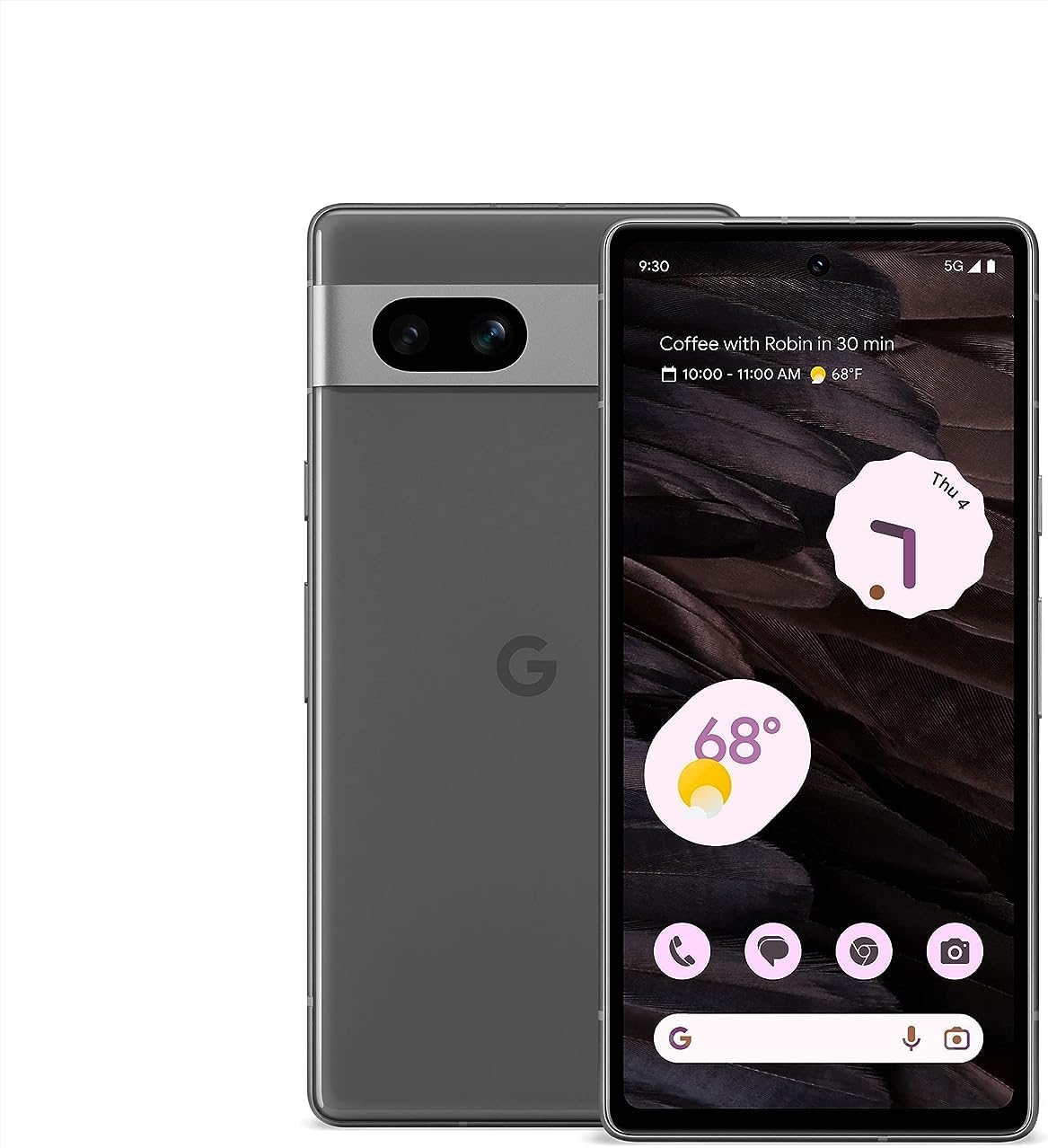
Obrázek 1.1: Přední a zadní strana view of the Google Pixel 7a 5G smartphone. The device features a sleek design with a prominent camera bar on the rear.
Your Pixel 7a comes equipped with features like advanced image processing for clear photos, enhanced security, and intelligent call management. This guide will help you get the most out of your device.
2. Počáteční nastavení
Follow these steps to set up your new Google Pixel 7a.
2.1. Unboxing and Device Overview
Carefully remove all items from the packaging. The box typically contains the Pixel 7a smartphone and a USB-C to USB-C cable. Other accessories may vary.
2.2. Vložení SIM karty
- Locate the SIM card tray on the side of your Pixel 7a.
- Insert the SIM ejector tool (if provided, or a small paperclip) into the small hole on the SIM tray. Press firmly until the tray pops out.
- Place your nano-SIM card into the tray with the gold contacts facing down. Ensure it fits securely.
- Jemně zatlačte držák SIM karty zpět do telefonu, dokud nezacvakne na místo.
2.3. Zapnutí a počáteční konfigurace
- Press and hold the Power button (located on the right side) until the Google logo appears.
- Follow the on-screen prompts to select your language, connect to a Wi-Fi network, and copy data from an old device (optional).
- Sign in with your Google Account or create a new one. This is essential for accessing Google services and the Play Store.
- Pro zabezpečení si nastavte zámek obrazovky (PIN, vzorec, heslo, otisk prstu nebo odemknutí obličejem).
3. Operating Your Pixel 7a
Tato část se zabývá hlavními funkcemi a vlastnostmi vašeho smartphonu.
3.1. Volání a odesílání zpráv
- Telefonní aplikace: Tap the Phone icon to make calls. Use the dial pad or select a contact.
- Aplikace Zprávy: Klepnutím na ikonu Zprávy můžete odesílat a přijímat textové zprávy.
- Call Assist: The Google Assistant can screen calls from unknown numbers, show optimal times to call businesses, and wait on hold for you. This feature enhances call management.

Image 3.1: Illustration of the Call Assist feature, highlighting its ability to screen calls, suggest optimal call times, and wait on hold.
3.2. Funkce fotoaparátu
The Pixel 7a camera system offers advanced capabilities for capturing high-quality photos and videos, even in challenging conditions.
- Rozmazání fotografie: Improves the clarity of blurry images.
- Magická guma: Removes unwanted objects or distractions from your photos.
- Noční vidění: Enhances photos taken in low-light environments, capturing more detail and color.

Obrázek 3.2: Vizuální příkladamples of Photo Unblur, Magic Eraser, and Night Sight features in action, demonstrating their effects on images.
3.3. Bezpečnost a soukromí
Your Pixel 7a integrates multiple layers of security to protect your data and online activity.
- Google Tensor G2 & Titan M2: The custom Google Tensor G2 chip and the dedicated Titan M2 security chip work together to provide robust hardware-level security.
- VPN by Google One: Helps secure your internet connection across various apps and browsers.
- Security & Privacy Hub: Access and manage all your security settings from one central location.

Image 3.3: Screenshot of the Pixel 7a's Security & privacy settings, showing options for app security, device lock, Google Security Checkup, and Find My Device.
3.4. Live Translate
The Live Translate feature allows for real-time language translation, facilitating communication across different languages.
- Face-to-face conversations: Překládejte mluvený jazyk v reálném čase.
- Messaging apps: Translate text within your messaging applications.
- Překlad z fotoaparátu: Use your camera to translate text from signs, menus, and documents.

Image 3.4: A person using the Google Pixel 7a to translate a conversation in real-time, demonstrating the Live Translate feature.
4. Údržba a péče
Proper care ensures the longevity and optimal performance of your Pixel 7a.
4.1. Battery Management and Charging
- Adaptivní baterie: Your Pixel 7a's battery is designed to last over 24 hours with typical usage.
- Extreme Battery Saver: Activate this mode to extend battery life up to 72 hours by limiting app activity and features.
- Bezdrátové nabíjení: The device supports wireless charging for convenience. Place the phone on a compatible wireless charger.
- Kabelové nabíjení: Use the provided USB-C cable and a compatible power adapter for wired charging.

Image 4.1: The Google Pixel 7a being charged wirelessly on a charging stand, illustrating its wireless charging capability.
4.2. Aktualizace softwaru
Google regularly releases software updates that include security patches, bug fixes, and new features. Ensure your device is updated to maintain optimal performance and security.
- Chcete-li zkontrolovat aktualizace: Přejděte na Nastavení > Systém > Aktualizace systému.
- It is recommended to perform updates over a Wi-Fi connection and with sufficient battery charge.
4.3. Čištění zařízení
K čištění obrazovky a těla telefonu používejte měkký hadřík, který nepouští vlákna. Vyhněte se abrazivním materiálům ani agresivním chemikáliím.
5. Odstraňování běžných problémů
This section addresses common problems you might encounter with your Pixel 7a.
- Zařízení se nezapne: Ensure the battery is charged. Connect the phone to a charger for at least 15 minutes, then try powering it on again.
- Aplikace padá nebo zamrzá:
- Zavřete a restartujte aplikaci.
- Clear the app's cache and data (Settings > Apps > See all apps > [App Name] > Storage & cache).
- Aktualizujte aplikaci z Obchodu Google Play.
- Slabá výdrž baterie:
- Zkontrolujte v Nastavení spotřebu baterie a identifikujte aplikace s vysokou spotřebou energie.
- Snižte jas obrazovky a dobu trvání vypnutí obrazovky.
- Pokud nepoužíváte nepotřebné funkce, jako je GPS, Bluetooth nebo Wi-Fi, vypněte je.
- Enable Adaptive Battery or Extreme Battery Saver.
- Network connectivity issues (Wi-Fi/Cellular):
- Vypněte a zapněte Wi-Fi nebo mobilní data.
- Restartujte telefon.
- Obnovte nastavení sítě (Nastavení > Systém > Možnosti obnovení > Obnovit Wi-Fi, mobilní připojení a Bluetooth).
- Nefunkční snímač otisků prstů:
- Ujistěte se, že máte prst čistý a suchý.
- Re-register your fingerprints in Settings > Security & privacy > Device unlock > Fingerprint Unlock.
If issues persist, consider performing a factory reset (back up your data first) or contacting Google Support.
6. Technické specifikace
Key technical specifications for the Google Pixel 7a:
| Funkce | Specifikace |
|---|---|
| Název modelu | Pixel 7a |
| Operační systém | Android |
| Model CPU | Google Tensor G2 |
| BERAN | 8 GB |
| Kapacita paměti | 128 GB |
| Velikost obrazovky | 6.1 palce |
| Rezoluce | 1080 x 2400 pixelů |
| Kapacita baterie | 4385 miliamp hodiny |
| Hmotnost položky | 6.7 unce |
| Rozměry produktu | 5.89 x 2.87 x 0.35 palce |
| Speciální funkce | Always On Display, Wireless Charging |
| Bezdrátový nosič | Odemčený |

Image 6.1: Diagram illustrating the Google Tensor G2 chip, the core processor of the Pixel 7a, emphasizing its role in efficiency, security, and media quality.
7. Záruka a podpora
For information regarding your device's warranty, please refer to the warranty card included with your purchase or visit the official Google support website. As this is a renewed product, warranty terms may differ from new devices. Please consult your seller for specific warranty details.
For technical assistance, troubleshooting, or further inquiries, please visit the official Google Pixel Support page or contact your retailer.
- Podpora Google: support.google.com/pixelphone
- Podpora prodejců: Contact the seller from whom you purchased this renewed device for specific support related to your purchase.


