1. Úvod
This manual provides essential information for the proper setup, operation, and maintenance of your Cisco C1121-4P ISR 1100 Series Integrated Services Router. The Cisco ISR 1000 Series offers a flexible solution combining routing, switching, Wi-Fi, integrated security, and various uplink connectivity options in a single, high-performance device. The C1121-4P model specifically includes an integrated 4-port Power over Ethernet (PoE) switch.
Please read this manual thoroughly before installing or operating the device to ensure optimal performance and safety.
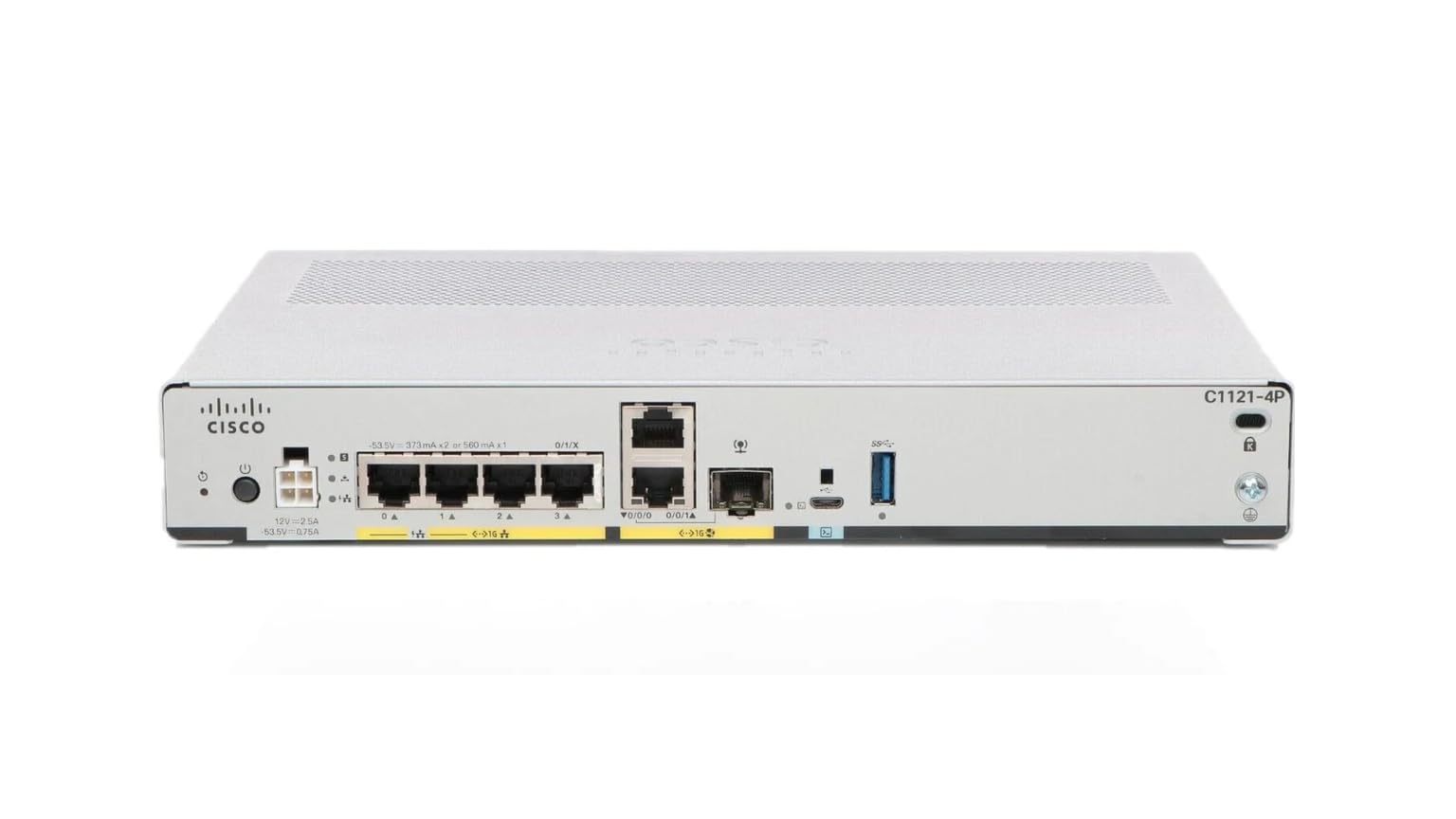
Figure 1: Cisco C1121-4P ISR 1100 Series Router. This image displays the front view of the router, highlighting its compact design and port layout.
2. Bezpečnostní informace
Dodržujte následující bezpečnostní opatření, abyste předešli zranění a poškození zařízení:
- Zdroj napájení: Používejte pouze napájecí adaptér dodaný se zařízením. Ujistěte se, že je zásuvka řádně uzemněna.
- Větrání: Neblokujte žádné větrací otvory. Zajistěte dostatečné proudění vzduchu kolem zařízení, abyste zabránili přehřátí.
- Prostředí: Operate the device in a dry, well-ventilated area, away from direct sunlight, heat sources, and excessive moisture.
- Zacházení: S přístrojem zacházejte opatrně. Zabraňte jeho pádu nebo silným nárazům.
- Servis: Nepokoušejte se tento výrobek opravit sami. Veškerý servis svěřte kvalifikovanému servisnímu personálu.
3. Obsah balení
Ověřte, zda váš balíček obsahuje následující položky:
- Cisco C1121-4P ISR 1100 Series Router
- Napájecí adaptér
- Ethernetový kabel (může se lišit v závislosti na balení)
- Dokumentace (Stručný průvodce, Bezpečnostní informace)
Pokud některé položky chybí nebo jsou poškozené, ihned kontaktujte svého prodejce.
4. Fyzický overview
The Cisco C1121-4P router features several ports and indicators for connectivity and status monitoring.
4.1 Přední panel
- Stavové LED diody: Indicators for power, system status, and network activity.
- Port konzoly: For direct management access using a serial connection.
4.2 Zadní panel
- Příkon: Konektor pro připojení externího napájecího adaptéru.
- Ethernetové porty:
- 1 x Copper Ethernet Port (WAN/LAN)
- 1 x Copper/SFP Ethernet Port (WAN/LAN, supports SFP modules for fiber connectivity)
- 4 x Integrated PoE Ethernet Ports (LAN, provide power to connected devices)
- USB port: For external storage or other compatible devices.
5. Nastavení
5.1 Vybalení a umístění
- Opatrně vyjměte router a veškeré příslušenství z obalu.
- Place the router on a stable, flat surface or mount it in a rack (rack-mounting kit sold separately if applicable).
- Ensure there is adequate space around the device for proper ventilation. Avoid placing it near heat sources or in enclosed spaces.
5.2 Připojení napájení
- Connect the power adapter to the power input port on the router.
- Zapojte napájecí adaptér do vhodné elektrické zásuvky.
- The power LED on the front panel should illuminate, indicating the device is receiving power.
5.3 Připojení síťových kabelů
- Připojení k WAN: Connect your Internet Service Provider's (ISP) modem or network cable to one of the WAN-designated Ethernet ports (e.g., the copper or copper/SFP port configured for WAN).
- Připojení k LAN: Connect your local network devices (computers, switches, access points) to the integrated 4-port PoE Ethernet ports. These ports can also provide power to compatible PoE devices.
- SFP Module (Optional): If using fiber connectivity, insert a compatible SFP module into the copper/SFP port and connect the fiber optic cable.
5.4 Přístup k počáteční konfiguraci
The Cisco C1121-4P runs Cisco IOS-XE. Initial configuration typically involves:
- Port konzoly: Connect a console cable from your computer to the router's console port. Use a terminal emulation program (e.g., PuTTY, Tera Term) with appropriate serial settings (e.g., 9600 baud, 8 data bits, no parity, 1 stop bit, no flow control).
- Web Interface (if enabled): If a basic configuration is already present, you might be able to access a web-based management interface via a default IP address (refer to specific Cisco documentation for default IP and credentials).
Note: For detailed IOS-XE configuration, refer to the official Cisco documentation and command reference guides.
6. Obsluha routeru
6.1 Zapnutí/vypnutí
- Zapnutí: Once the power adapter is connected, the router will automatically power on. Observe the system LEDs for boot-up status.
- Vypnout: To safely power off the router, disconnect the power adapter from the electrical outlet. For controlled shutdowns, use the appropriate IOS-XE commands (e.g.,
reload) if logged in via console or network.
6.2 Rozhraní pro správu
The primary management interface for the C1121-4P is the Cisco IOS-XE Command Line Interface (CLI). Access it via the console port or remotely via SSH/Telnet once configured.
- Přístup k rozhraní CLI: Use the CLI to configure routing protocols, security features, VLANs, QoS, and other advanced network settings.
- Web UI (Cisco Configuration Professional Express): Some configurations may support a web-based GUI for simplified management. Refer to Cisco documentation for availability and access.
6.3 Klíčové vlastnosti
- Směrování: Supports various routing protocols for efficient data forwarding.
- Přepínání: Integrated 4-port PoE switch for local area network connectivity and power delivery.
- Zabezpečení: Features like VPN, firewall, and intrusion prevention capabilities.
- WAN Connectivity: Flexible WAN options including Ethernet and SFP for diverse network environments.
7. Údržba
7.1 aktualizací firmwaru
Pravidelně kontrolujte podporu Cisco website for the latest IOS-XE software updates. Keeping your router's firmware up-to-date ensures optimal performance, security, and access to new features. Follow Cisco's official procedures for software upgrades.
7.2 Čištění
To maintain proper ventilation and prevent dust buildup:
- Power off the device and disconnect it from the power source before cleaning.
- Use a soft, dry cloth to wipe the exterior of the router.
- Pomocí stlačeného vzduchu jemně odstraňte prach z větracích otvorů.
- Nepoužívejte tekuté čisticí prostředky ani aerosolové spreje přímo na zařízení.
7.3 Environmentální hlediska
Ensure the operating environment remains within specified temperature and humidity ranges to prevent hardware failure. Avoid exposing the router to extreme temperatures or high humidity.
8. Řešení problémů
Tato část obsahuje řešení běžných problémů, se kterými se můžete setkat.
8.1 LED indikátory
Monitor the front panel LEDs for diagnostic information:
- LED napájení: Solid green indicates power is on. If off, check power connections.
- Systémová LED: Indicates system status (e.g., solid green for normal operation, blinking for boot-up or errors). Refer to Cisco documentation for specific blink codes.
- Link/Activity LEDs (Ethernet Ports): Solid green indicates a link, blinking indicates activity. If off, check cable connections or connected device.
8.2 Běžné problémy
- Bez napájení: Ensure the power adapter is securely connected to both the router and a working electrical outlet.
- Bez síťového připojení:
- Zkontrolujte všechna připojení ethernetového kabelu.
- Verify that the modem/ISP connection is active.
- Confirm IP address configuration on connected devices.
- Check router configuration for interface status and routing tables.
- Pomalý výkon:
- Check for network congestion or high CPU utilization on the router.
- Ověřte šířku pásma poskytovatele internetových služeb.
- Ujistěte se, že je firmware aktuální.
8.3 Obnovení továrního nastavení
A factory reset will erase all configurations and restore the router to its default settings. This is typically done via the CLI using specific commands (e.g., erase startup-config a reload). Use this option only as a last resort and ensure you have a backup of your configuration if needed.
9. Specifikace
| Funkce | Popis |
|---|---|
| Název modelu | C1121-4P |
| Rozměry produktu | 9 x 13 x 2 palce |
| Hmotnost položky | 3 libry |
| Ethernetové porty | 1 x Copper Ethernet, 1 x Copper/SFP Ethernet, 4 x Integrated PoE Ethernet |
| DOUŠEK | 4 GB |
| Operační systém | Cisco IOS-XE |
| Technologie připojení | Ethernet |
| Třída frekvenčního pásma | Dual-Band (for Wi-Fi models, though not explicitly listed as Wi-Fi for C1121-4P) |
10. Záruka a podpora
This Cisco C1121-4P router is a renewed product. Warranty terms for renewed products may vary from new products. Please refer to the specific warranty information provided by your reseller or the Amazon Renewed program at the time of purchase.
For technical support, documentation, and software downloads, please visit the official Cisco Support website. You will need your product serial number to access certain support resources.
- Podpora Cisco Webmísto: https://www.cisco.com/c/en/us/support/index.html
- Obnovená podpora Amazonu: Refer to your Amazon order details for specific return and support policies for renewed items.