Zavedení
This manual provides detailed instructions for the installation, operation, and maintenance of your HIKVISION DS-7616NXI-K1 16 Channel 8MP 4K Network Video Recorder (NVR). Please read this manual thoroughly before using the product to ensure proper and safe operation. Keep this manual for future reference.
Obsah balení
Po vybalení zkontrolujte, zda jsou všechny níže uvedené položky přítomny a v dobrém stavu:
- HIKVISION DS-7616NXI-K1 NVR Main Unit
- Napájecí adaptér
- USB myš
- Ethernetový kabel
- Kabely SATA (pro připojení pevného disku)
- HDMI Cable (USEWEll HDMI Included)
- Rychlý průvodce

Figure 1: Package Contents. The image displays the NVR unit, power adapter, USB mouse, Ethernet cable, SATA cables, and a quick start guide, all neatly arranged as they would appear upon unboxing.
Konec produktuview
Klíčové vlastnosti
- Supports up to 16 IP camera inputs.
- Advanced H.265+/H.265/H.264+/H.264 video formats for efficient storage and bandwidth usage.
- Equipped with Motion Detection 2.0 for enhanced security.
- Up to 160 Mbps incoming bandwidth to support multiple high-resolution cameras.
- AcuSense technology for intelligent analysis and reduced false alarms.
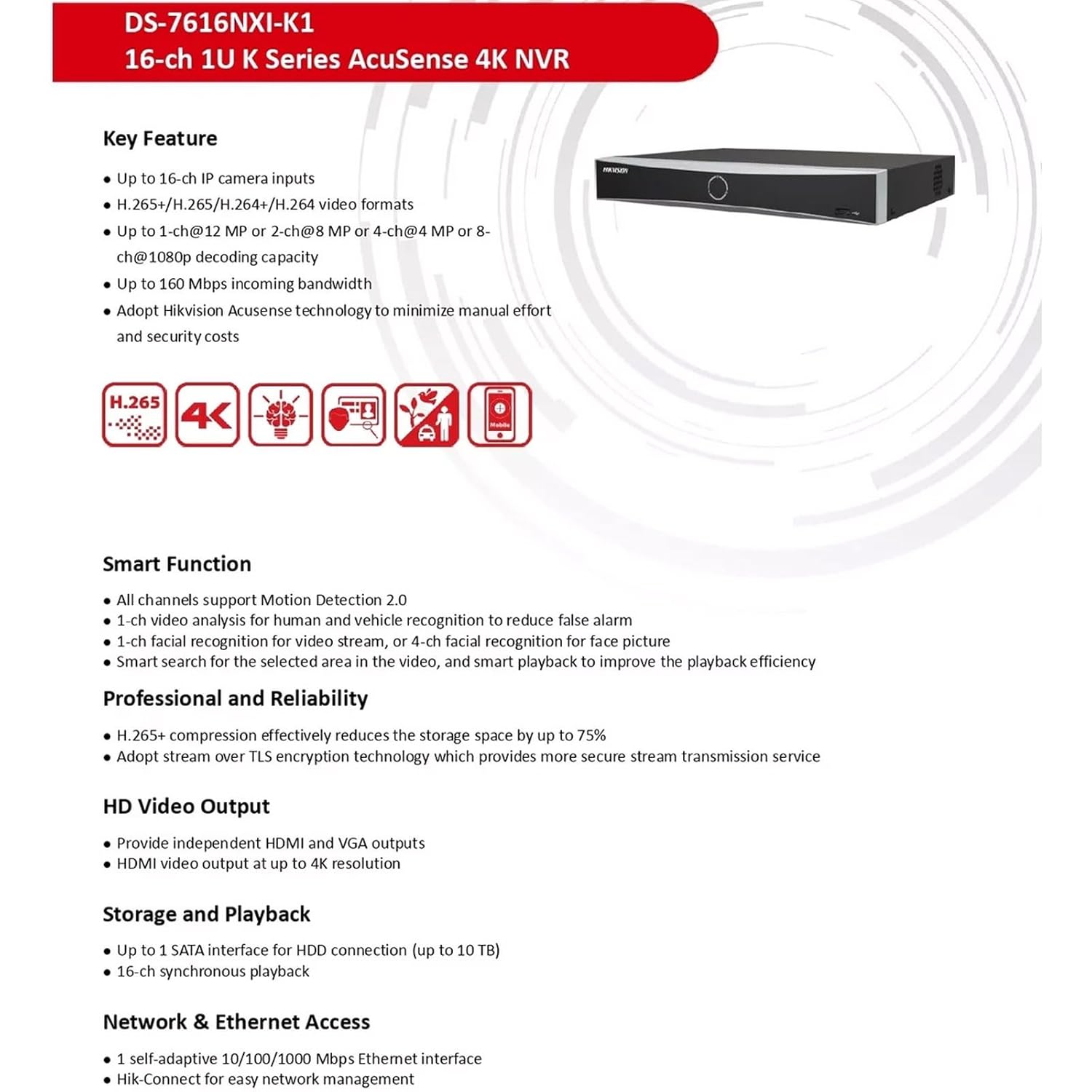
Figure 2: Key Features. This image highlights the main capabilities of the NVR, such as H.265+ compression, 4K resolution support, AcuSense technology, and various smart functions.
Fyzické rozhraní
The NVR features a well-organized rear panel with various ports for connectivity. Refer to the diagram below for a detailed layout.

Figure 3: Physical Interface. This diagram illustrates the rear panel of the NVR, labeling ports such as LAN, Audio In/Out, HDMI, VGA, USB, and Power Supply.
| Žádný. | Popis | Žádný. | Popis |
|---|---|---|---|
| 1 | síťové rozhraní LAN | 6 | USB rozhraní |
| 2 | AUDIO VSTUP | 7 | Napájení |
| 3 | AUDIO VÝSTUP | 8 | Vypínač |
| 4 | Rozhraní HDMI | 9 | GND |
| 5 | VGA rozhraní |

Figure 4: NVR Front and Rear ViewTento obrázek poskytuje jasný view of the NVR's front panel with its minimalist design and the rear panel showcasing all connectivity options.
Nastavení
Follow these steps to set up your HIKVISION NVR:
- Instalace pevného disku (volitelné): If a hard drive is not pre-installed, open the NVR casing, connect the SATA power and data cables to the hard drive, and secure it within the NVR. Close the casing.
- Připojení displeje: Connect a monitor to the NVR's HDMI or VGA output port using the provided HDMI cable or a VGA cable.
- Připojení myši: Zapojte USB myš do jednoho z USB portů NVR.
- Internetové připojení: Connect the NVR to your local network using an Ethernet cable. Ensure your network has internet access for remote viewfunkce.
- Zapnutí: Connect the power adapter to the NVR and then to a power outlet. Turn on the NVR using the power switch on the rear panel.
- Počáteční konfigurace: Follow the on-screen prompts to complete the initial setup, including setting up a password, network settings, and hard drive initialization.
- Připojení IP kamer: Connect your IP cameras to the same network as the NVR. The NVR will automatically search for and add compatible cameras. For non-PoE cameras, ensure they are powered separately and connected to the network.
Návod k obsluze
Once the NVR is set up, you can begin monitoring and managing your surveillance system.
Žít View a Nahrávání
- Přístup k živému vysílání view interface from the connected monitor or via the Hik-Connect app/web rozhraní.
- Configure recording schedules and motion detection settings for each camera through the NVR's menu.
AcuSense Features
The NVR's AcuSense technology enhances security by providing intelligent detection capabilities:
- Detekce pohybu 2.0: Reduces false alarms caused by environmental factors (e.g., rain, leaves) by accurately classifying human and vehicle targets.
- Rozpoznávání obličeje: Supports face picture comparison and facial detection for specific applications.
- Obvodová ochrana: Utilizes deep learning algorithms to reduce false alarms in intrusion detection and line crossing scenarios.
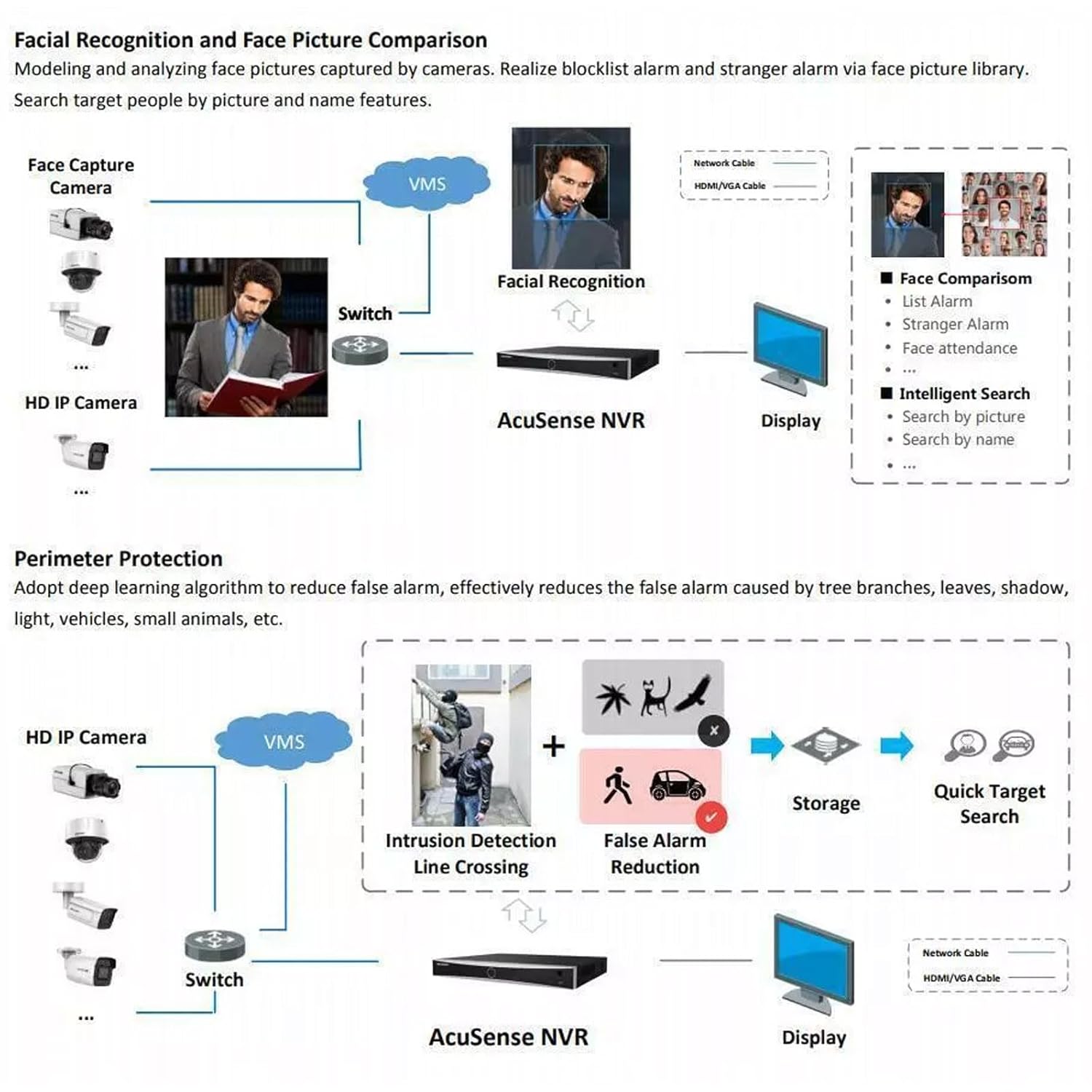
Figure 5: AcuSense Detection Capabilities. This image visually explains how AcuSense technology works for facial recognition and perimeter protection, showing the integration with cameras and the NVR.
Vzdálený přístup
Utilize the Hik-Connect P2P function for easy remote management and live viewing from your mobile device or web prohlížeč.
Údržba
Pravidelná údržba zajišťuje optimální výkon a dlouhou životnost vašeho NVR systému.
- Čištění: Periodically clean the exterior of the NVR with a soft, dry cloth. Ensure ventilation openings are free from dust and obstructions.
- Aktualizace firmwaru: Check the official HIKVISION website for the latest firmware updates. Regularly updating the firmware can improve system stability and add new features.
- Správa pevných disků: Monitor the health of your hard drive(s) through the NVR's system settings. Ensure sufficient storage space is available for recordings.
- Konfigurace zálohy: Regularly back up your NVR's configuration settings to a USB drive or network location.
Odstraňování problémů
Tato část se zabývá běžnými problémy, se kterými se můžete setkat.
- Žádný video výstup: Check all cable connections (HDMI/VGA, power). Ensure the monitor is on and set to the correct input. Restart the NVR.
- Kamery se nezobrazují: Verify that IP cameras are powered on and correctly connected to the network. Check network settings on both the NVR and cameras. Ensure cameras are added to the NVR.
- Problémy s připojením k síti: Confirm the Ethernet cable is securely connected. Check your router/switch status. Verify NVR network settings (IP address, gateway, DNS).
- Hard Drive Detection Issues: If the hard drive is not detected or shows errors, ensure it is properly connected inside the NVR. In some cases, an insufficient power supply to the NVR can cause HDD issues. Consider using a 12V 2A power adapter if the supplied 12V 1.5A adapter proves insufficient for your HDD.
- Falešné poplachy: Adjust the sensitivity and detection zones for motion detection. Utilize AcuSense features (Motion Detection 2.0, Perimeter Protection) to filter out non-human/vehicle events.
Specifikace
Detailed technical specifications for the HIKVISION DS-7616NXI-K1 NVR.
| Funkce | Detail |
|---|---|
| IP video vstup | 16-kanálový |
| Příchozí šířka pásma | 160 Mbps |
| Odchozí šířka pásma | 80 Mbps |
| HDMI výstup | 1-ch, 4K (3840 × 2160)/30Hz, 2K (2560 × 1440)/60Hz, 1920 × 1080/60Hz, 1600 × 1200/60Hz, 1280 × 1024/60Hz, 1280 × 720/60Hz, 1024 × 768/60Hz |
| Výstup VGA | 1 kanál, 1920 × 1080/60 Hz, 1280 × 1024/60 Hz, 1280 × 720/60 Hz |
| Formát dekódování | H.265 + / H.265 / H.264 + / H.264 |
| Rozlišení nahrávání | 12 MP/8 MP/6 MP/5 MP/4 MP/3 MP/1080p/UXGA/720p/VGA/4CIF/DCIF/2CIF/CIF/QCIF |
| Synchronní přehrávání | 16-ch |
| Rozhraní SATA | Rozhraní 1 SATA |
| Kapacita paměti | Up to 10 TB per HDD |
| Rozhraní USB | Přední panel: 1 × USB 2.0; Zadní panel: 1 × USB 2.0 |
| Síťové rozhraní | 1 RJ-45 10/100/1000 Mbps self-adaptive Ethernet interface |
| Napájení | 12 V DC, 1.5 A |
| Spotřeba energie | ≤ 10 W (bez HDD) |
| Pracovní teplota | -10 °C až 55 °C (14 °F až 131 °F) |
| Pracovní vlhkost | 10 % až 90 % |
| Rozměry (Š × H × V) | 320 mm × 240 mm × 48 mm (12.6" × 9.4" × 1.9") |
| Hmotnost | ≤ 1 kg (without HDD), 1.5 kg (Item Weight) |
| Země původu | Indie |

Figure 6: NVR Dimensions. This technical drawing provides precise measurements of the NVR unit in millimeters.
Oficiální video produktu
Video 1: HIKVISION 16 Channel 8MP 4K NVR Overview. This video provides a brief visual introduction to the HIKVISION DS-7616NXI-K1 NVR, showcasing its design, package contents, and key features.
Záruka a podpora
Your HIKVISION DS-7616NXI-K1 NVR comes with a 2-letá záruka, ensuring peace of mind regarding product quality and performance. For technical support, troubleshooting assistance, or warranty claims, please contact HIKVISION customer service or your authorized dealer.
Additionally, extended warranty plans are available for purchase:
- 1 Year Extended warranty by OneAssist
- 2 Year Extended warranty by OneAssist
For further information, visit the official HIKVISION website or consult your product documentation.


