Zavedení
This manual provides essential information for the setup, operation, and maintenance of your Focusrite Scarlett 4i4 4th Gen USB Audio Interface. Designed for musicians, songwriters, guitarists, and content creators, the Scarlett 4i4 offers high-fidelity, studio-quality recording capabilities. Please read this manual thoroughly to ensure optimal performance and longevity of your device.

Obrázek: Přední strana view of the Focusrite Scarlett 4i4 4th Gen USB Audio Interface, showcasing its inputs and controls.
Nastavení
To begin using your Scarlett 4i4 4th Gen, follow these steps:
- Rozbalení: Carefully remove the Scarlett 4i4, USB C-C cable, USB C-A adaptor, and USB-C 5V 3A power supply from the packaging.
- Instalace softwaru: Visit the Focusrite website and follow the 'Easy Start' guide to download and install the necessary drivers and included software bundle. This process typically involves registering your device.
- Připojení k počítači: Connect the Scarlett 4i4 to your computer using the provided USB C-C cable. If your computer only has USB-A ports, use the included USB C-A adaptor.
- Připojení napájení: Connect the USB-C 5V 3A power supply to the Scarlett 4i4 and a power outlet. While the device can draw power from USB, the dedicated power supply ensures stable operation, especially when using phantom power or multiple inputs.
- Audio připojení: Connect your microphones, instruments, or line-level devices to the appropriate inputs on the Scarlett 4i4. Connect your headphones to the headphone output and studio monitors to the line outputs.
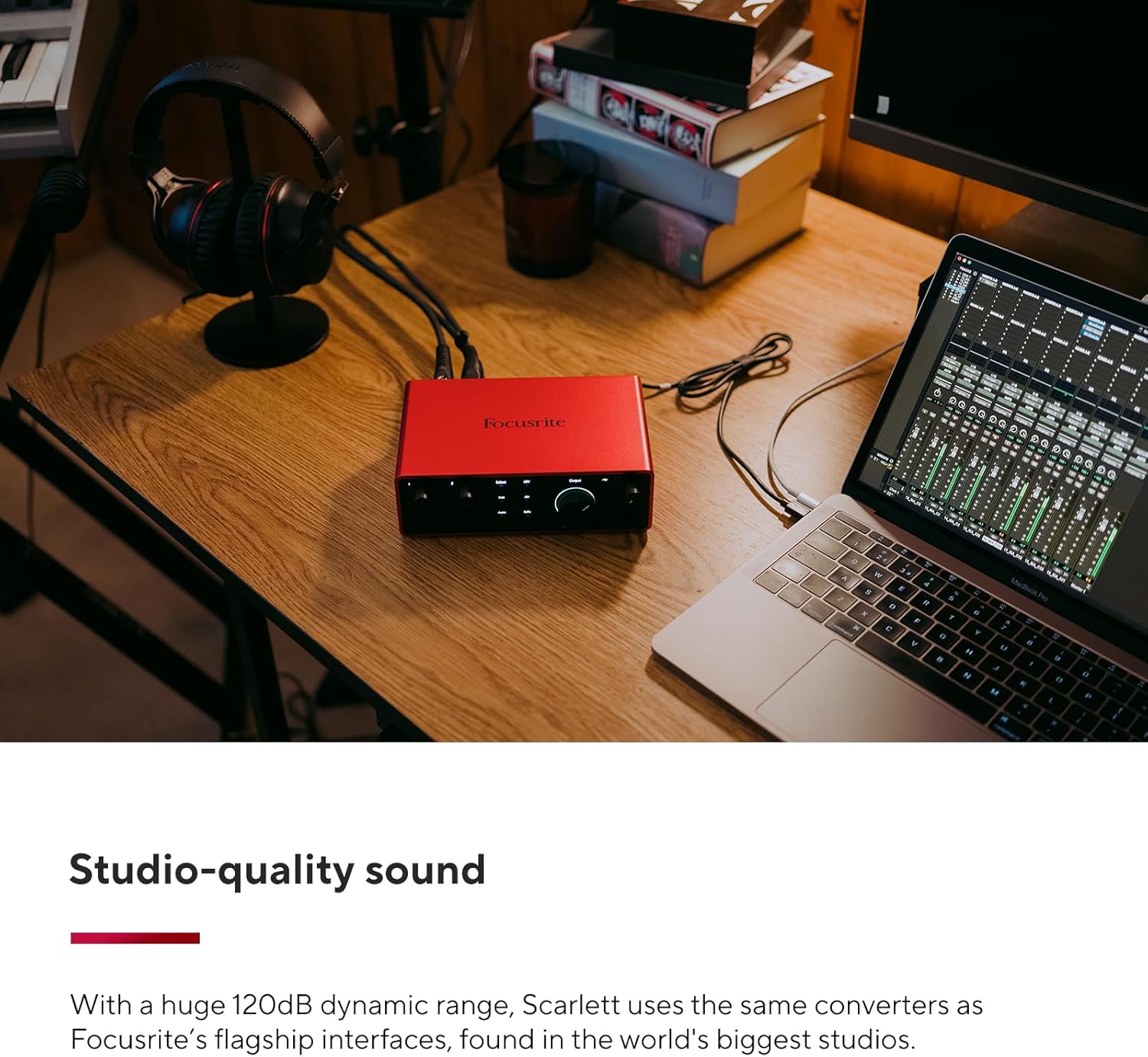
Image: A user connecting cables to the rear of the Scarlett 4i4, which is placed on a desk next to a laptop.
Operating Your Scarlett 4i4
The Scarlett 4i4 features intuitive controls for managing your audio inputs and outputs.
Ovládací prvky vstupu
- Knoflíky zesílení (1 a 2): Adjust the input level for microphones or instruments connected to inputs 1 and 2. The gain halos around the knobs indicate signal level (green for good, amber for approaching clip, red for clipping).
- 48V (Phantom Power): Activates +48V phantom power for condenser microphones connected to inputs 1 and 2. Ensure your microphone requires phantom power before enabling.
- Inst (Instrument Mode): Engages high-impedance mode for direct connection of guitars or basses to inputs 1 and 2.
- Vzduchový režim: Enhances vocals and guitars by adding a musical presence and rich harmonic drive, emulating classic Focusrite transformer-based preamps.
- Automatické zesílení: Automatically sets the optimal input level for your microphone or instrument, preventing clipping and ensuring a clean recording.
- Clip Safe: A safety feature that automatically reduces gain if the input signal approaches clipping, preserving your take.
Ovládání výstupu
- Monitor Output Knob: Controls the overall volume of your main studio monitor outputs (outputs 1-2).
- Headphone Output Knob: Adjusts the volume for the dedicated headphone output.
MIDI I / O
The Scarlett 4i4 includes MIDI In and Out ports, allowing you to connect MIDI keyboards, controllers, and other MIDI-compatible devices for sequencing and control within your digital audio workstation (DAW).
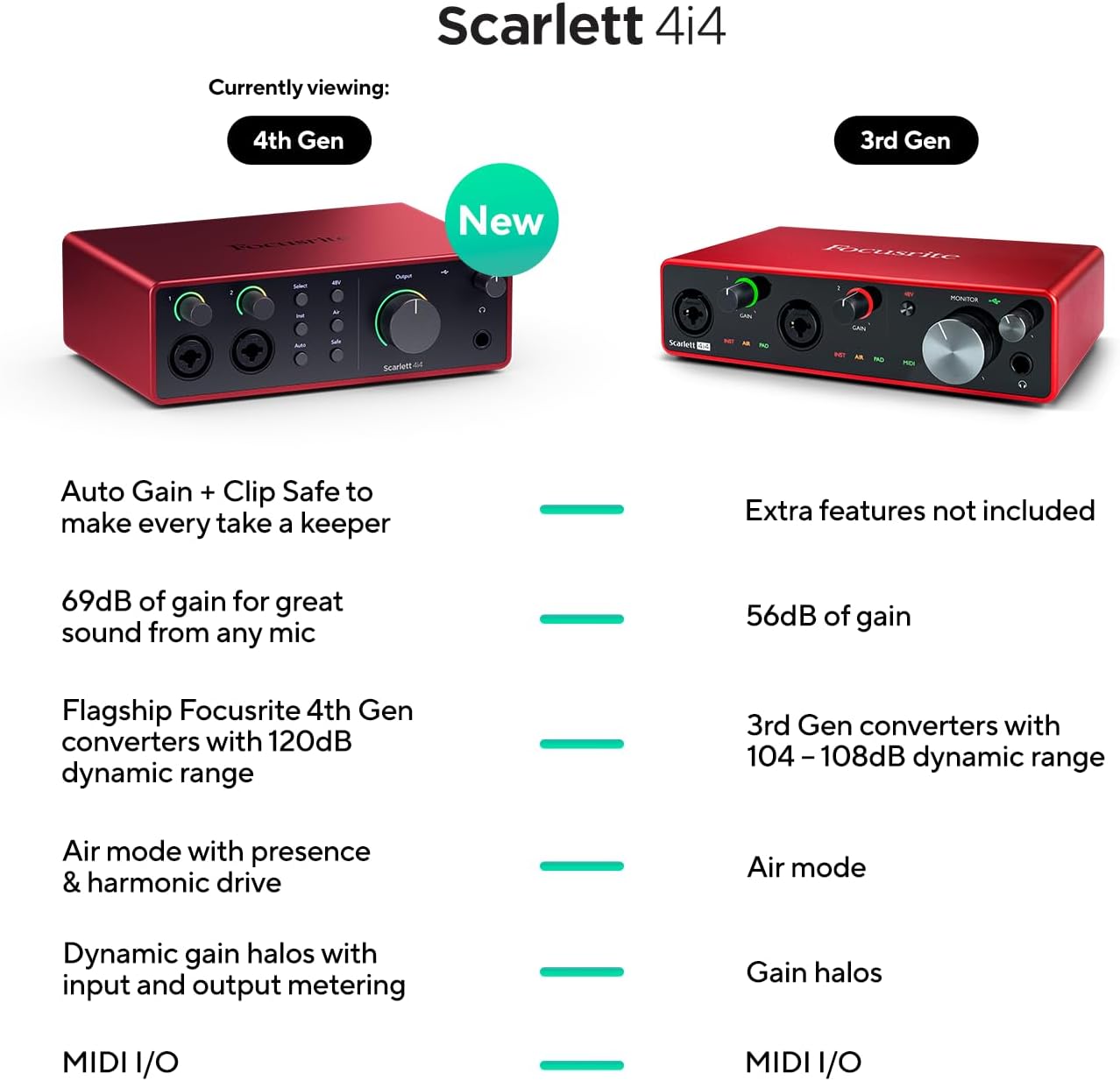
Image: A visual comparison highlighting new features of the Scarlett 4i4 4th Gen, including Auto Gain, Clip Safe, increased gain, improved converters, enhanced Air mode, and dynamic gain halos.
Údržba
Proper care ensures the longevity and performance of your Scarlett 4i4:
- Čištění: K čištění vnějšího povrchu používejte měkký, suchý hadřík. Nepoužívejte abrazivní čisticí prostředky ani rozpouštědla.
- Skladování: Přístroj skladujte na chladném a suchém místě mimo dosah přímého slunečního záření a extrémních teplot.
- Zacházení: Zabraňte pádu jednotky na zem nebo jejímu vystavení silným nárazům.
- Větrání: Zajistěte dostatečné proudění vzduchu kolem jednotky, aby se zabránilo přehřátí.
Odstraňování problémů
If you encounter issues with your Scarlett 4i4, consider the following common solutions:
- Žádný zvuk: Check all cable connections (USB, power, audio inputs/outputs). Verify that the correct audio device is selected in your computer's sound settings and your DAW. Ensure gain levels are appropriately set and not muted.
- Zkreslený zvuk/ořezávání: Reduce the input gain using the gain knobs. Utilize the Auto Gain and Clip Safe features to prevent clipping. Check for proper impedance matching for instruments (Inst mode).
- Problémy s ovladači: Reinstall the latest drivers from the Focusrite webweb. Ujistěte se, že máte aktuální operační systém.
- MIDI nefunguje: Verify MIDI connections and ensure MIDI devices are properly configured in your DAW.
- Přerušované připojení: Try a different USB port or cable. Ensure the dedicated power supply is connected and functioning.
For further assistance, refer to the Focusrite support webnebo kontaktujte jejich zákaznický servis.
Specifikace
| Funkce | Detail |
|---|---|
| Hmotnost položky | 2.23 libry |
| Rozměry produktu | 7.09 x 5.08 x 2.32 palce |
| Číslo modelu položky | AMS-SCARLETT-4I4-4G |
| Materiál těla | Hliník |
| Název barvy | Červený |
| Kompatibilní zařízení | Microphone, Instrument, Personal Computer, Headphones, Studio Monitors |
| Typ konektoru | USB-C |
| Hardwarové rozhraní | USB 2.0 |
| Podporovaný software | All audio recording software |
| Hardwarová platforma | Audio rozhraní |
| Operační systém | Mac OS, operační systém Windows |
| Technologie připojení | USB |
| Počet kanálů | 4 |
| Dynamický rozsah | 120 dB |
Co je v krabici
Your Focusrite Scarlett 4i4 4th Gen package includes:
- Scarlett 4i4 4th Gen Audio Interface
- USB CC kabel
- USB C-A Adaptor
- USB-C 5V 3A Power Supply
Záruka a podpora
Focusrite provides a three-year warranty for the Scarlett 4i4 4th Gen, ensuring peace of mind regarding your investment. Additionally, 24/7/365 support is available to assist you with any questions or issues you may encounter.
For detailed warranty information and to access support resources, please visit the official Focusrite webmísto: focusrite.com/support