1. Úvod
The BuzzTV B5 is an advanced Android 11 TV Box designed to deliver a superior 4K UHD streaming experience. This device allows you to access a wide range of entertainment, including movies, TV shows, and applications, directly on your television. This manual provides essential information for the proper setup, operation, maintenance, and troubleshooting of your BuzzTV B5.
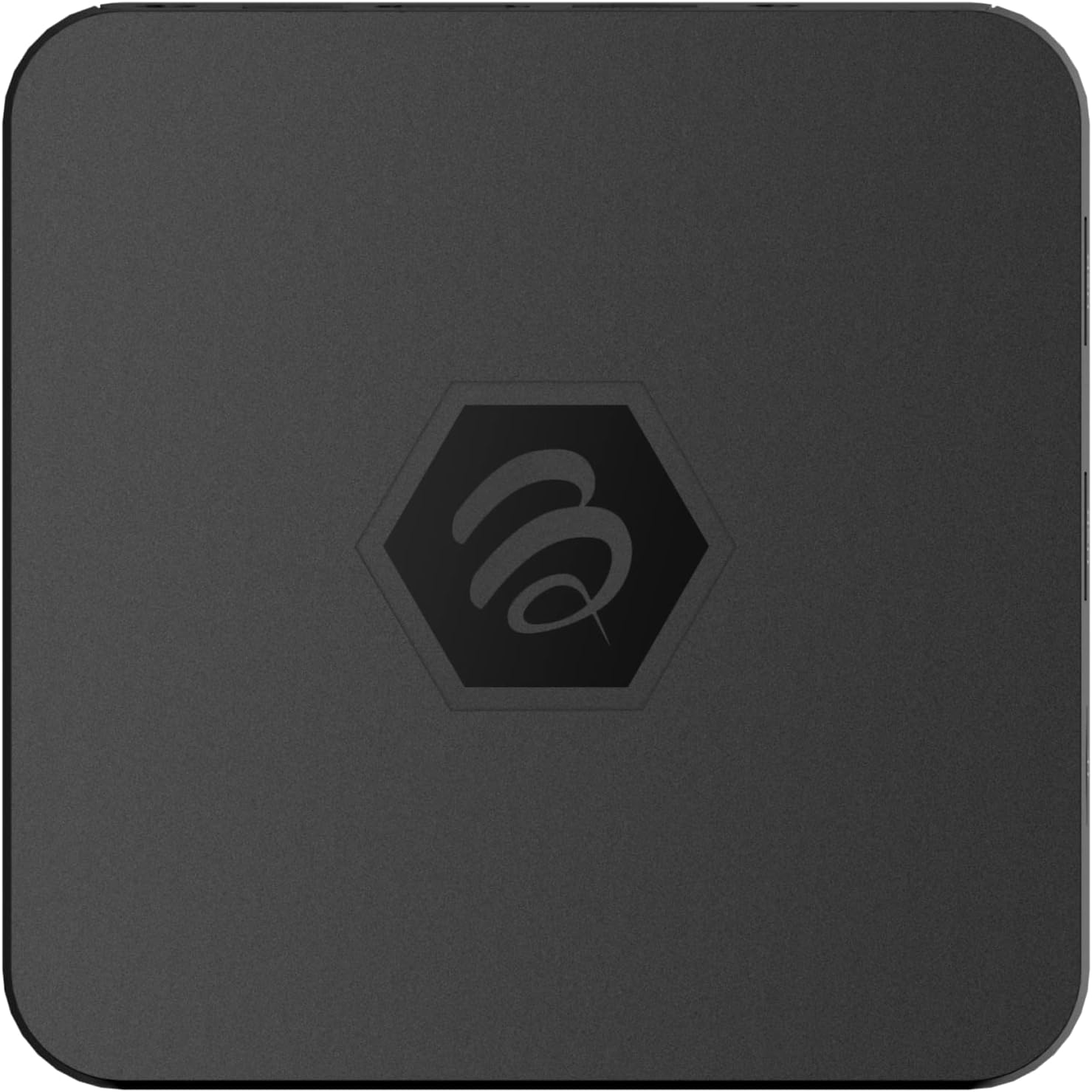
Obrázek 1.1: Nahoře view of the BuzzTV B5 Android 11 TV Box.
2. Obsah balení
Please verify that all items listed below are included in your BuzzTV B5 package:
- BuzzTV B5 Set Top Box
- IR-100 Remote Control
- Napájecí adaptér
- 2x AAA baterie (pro dálkové ovládání)
- HDMI kabel
- Uživatelská příručka (tento dokument)

Image 2.1: Contents included in the BuzzTV B5 retail package.
3. Průvodce nastavením
Follow these steps to set up your BuzzTV B5 TV Box:
- Připojení k televizi: Connect one end of the provided HDMI cable to the HDMI port on the BuzzTV B5 and the other end to an available HDMI input on your television.
- Připojte napájení: Plug the power supply adapter into the DC 5V port on the BuzzTV B5, then plug the adapter into a wall outlet. The device should power on automatically or can be powered on using the remote control.
- Vložení baterií do dálkového ovladače: Open the battery compartment on the back of the IR-100 Remote Control and insert the two AAA batteries, ensuring correct polarity (+/-).
- Internetové připojení: Once the device boots up, follow the on-screen instructions to connect to your network. You can choose between Wi-Fi (wireless) or Ethernet (wired) connection. For a wired connection, connect an Ethernet cable from your router to the Ethernet port on the BuzzTV B5.
- Počáteční nastavení: Complete the initial Android setup process, which may include language selection, Google account login, and time zone settings.

Image 3.1: Rear ports of the BuzzTV B5 for connectivity.
4. Návod k obsluze
The BuzzTV B5 operates on Android 11, providing a user-friendly interface for navigation and content access.
4.1 Funkce dálkového ovládání
The IR-100 Remote Control is your primary interface for the BuzzTV B5. Key functions include:
- Vypínač: Zapíná nebo vypíná zařízení.
- Navigační tlačítko (nahoru/dolů/vlevo/vpravo/OK): Používá se k navigaci v nabídkách a výběru položek.
- Tlačítko Zpět: Vrátí se na předchozí obrazovku nebo nabídku.
- Tlačítko Domů: Návrat na hlavní domovskou obrazovku systému Android.
- Tlačítka hlasitosti: Nastavuje hlasitost zvuku.
- App/Menu Buttons: Accesses specific applications or context menus.

Image 4.1: Layout of the IR-100 Remote Control.
4.2 Přístup k aplikacím
From the home screen, you can access pre-installed applications like Netflix and YouTube, or download new applications from the Google Play Store. Use the navigation pad on your remote to select and launch applications.
4.3 4K UHD Streaming
The BuzzTV B5 supports 4K UHD resolution. Ensure your television is 4K compatible and that you are using a high-speed HDMI cable for optimal picture quality. Streaming quality will also depend on your internet connection speed and the content source.
5. Údržba
To ensure the longevity and optimal performance of your BuzzTV B5, consider the following maintenance tips:
- Čištění: K čištění vnější strany zařízení používejte měkký, suchý hadřík. Nepoužívejte tekuté čisticí prostředky ani abrazivní materiály.
- Větrání: Ujistěte se, že je zařízení umístěno v dobře větraném prostoru, aby se zabránilo přehřátí. Nezakrývejte větrací otvory.
- Aktualizace softwaru: Periodically check for and install system updates to benefit from new features, performance improvements, and security patches. These can usually be found in the device's settings menu.
- Cyklus napájení: Pokud zařízení přestane reagovat, odpojte napájecí adaptér, počkejte 10 sekund a poté jej znovu připojte, aby se provedl cyklus napájení.
6. Řešení problémů
If you encounter issues with your BuzzTV B5, refer to the following common problems and solutions:
| Problém | Možná příčina | Řešení |
|---|---|---|
| Žádná síla | Napájecí adaptér není připojen; zásuvka nefunguje. | Ujistěte se, že je napájecí adaptér bezpečně připojen k zařízení a k funkční zásuvce. Zkuste jinou zásuvku. |
| Žádný signál na televizi | Incorrect HDMI input selected; faulty HDMI cable. | Select the correct HDMI input on your TV. Check HDMI cable connections or try a different HDMI cable. |
| Dálkové ovládání nereaguje | Vybité baterie; dálkový ovladač není spárovaný (pokud je k dispozici); překážka. | Replace AAA batteries. Ensure no obstructions between remote and device. |
| Problémy s připojením k síti | Nesprávné heslo k Wi-Fi; problémy s routerem; slabý signál. | Verify Wi-Fi password. Restart your router. Move the device closer to the router or use an Ethernet cable. |
| Applications Crashing/Freezing | Insufficient memory; outdated app; software glitch. | Close background apps. Update the app or the device's firmware. Clear app cache/data in settings. |
7. Specifikace
Detailed technical specifications for the BuzzTV B5 Android 11 TV Box:
- Operační systém: OS Android 11
- CPU: Amlogic S905W2 Quad-Core A-35
- GPU: Mali-G31 MP2
- BERAN: 2GB DDR
- Skladování: 16GB eMMC
- Wi-Fi: Dual Band AC
- LAN: 10 / 100 Mbps Ethernet
- Bluetooth: 4.2
- USB porty: 2x USB 2.0
- Slot microSD: 1
- Napájecí rozhraní: DC 5V
- HDMI výstup: 1
- Optický audio výstup: 1
- Výstupní rozlišení: 4K (32 FPS)
- Rozměry: 9.06 x 5.63 x 2.32 palce
- Hmotnost položky: 1.01 libry

Image 7.1: BuzzTV B5 with a summary of its technical specifications.
8. Informace o záruce
For detailed warranty information regarding your BuzzTV B5, please refer to the warranty card included in your product packaging or visit the official BuzzTV webZáruční podmínky se mohou lišit v závislosti na regionu a prodejci.
9. Podpora
If you require further assistance or have questions not covered in this manual, please contact BuzzTV customer support or visit their official website for FAQs, software downloads, and additional resources.
BuzzTV Official Webmísto: www.buzztv.com


