Zavedení
This manual provides comprehensive instructions for the Taiahiro Retro Typewriter Keyboard (Model 981). This mechanical keyboard combines a vintage aesthetic with modern functionality, offering a unique typing experience. It features blue mechanical switches, customizable LED backlighting, and versatile connectivity options for various devices.
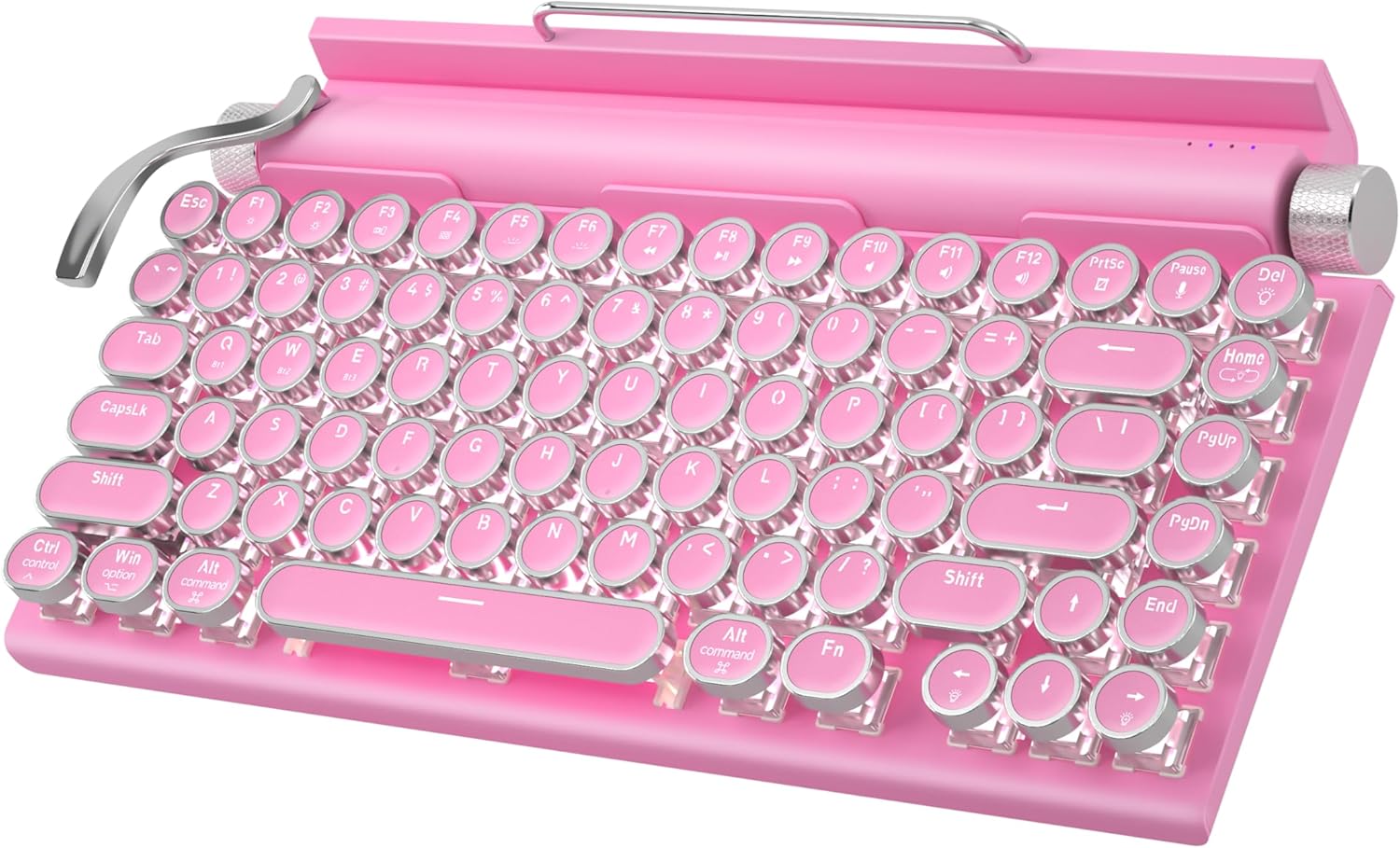
Figure 1: Taiahiro Retro Typewriter Keyboard (Pink Model)
Obsah balení
Ověřte prosím, zda jsou ve vašem balení obsaženy všechny níže uvedené položky:
- Retro Typewriter Backlit Mechanical Gaming Keyboard
- Odnímatelný USB-C kabel
- Stahovač klíčů
- Blue Switches (2 extra)
- Uživatelská příručka (tento dokument)

Obrázek 2: Obsah balení produktu.
Nastavení
The Taiahiro Retro Typewriter Keyboard offers both wired and wireless (Bluetooth) connectivity options. Ensure the keyboard is charged before initial use.
Nabíjení klávesnice
The keyboard is equipped with a 2000mAh rechargeable battery. To charge, connect the provided USB-C cable to the Type-C charging port on the keyboard and the other end to a compatible USB power source (e.g., computer USB port, wall adapter).

Figure 3: Keyboard charging via USB-C port.
Kabelové připojení (USB-C)
For a direct and stable connection, use the provided USB-C cable:
- Connect one end of the USB-C cable to the keyboard's Type-C port.
- Connect the other end of the USB-C cable to an available USB port on your computer or device.
- Klávesnice bude automaticky rozpoznána a připravena k použití.
Bluetooth připojení
The keyboard supports Bluetooth 5.0 and can connect to up to three different devices. It is compatible with Windows, macOS, Android, and iOS.
- Ensure the keyboard is powered on and sufficiently charged.
- Stiskněte tlačítko Fn key simultaneously with one of the Bluetooth channel keys (BT1, BT2nebo BT3) to select a channel.
- Stiskněte a podržte Fn + BT[1/2/3] for 3-5 seconds until the indicator light for the selected channel flashes rapidly, indicating pairing mode.
- On your device (PC, laptop, tablet, or phone), enable Bluetooth and search for new devices.
- Select "Taiahiro Keyboard" (or similar name) from the list of available devices to pair.
- Po spárování přestane kontrolka blikat a zůstane svítit.
Chcete-li přepínat mezi spárovanými zařízeními Bluetooth, jednoduše stiskněte Fn + BT1/BT2/BT3 corresponding to the desired device.
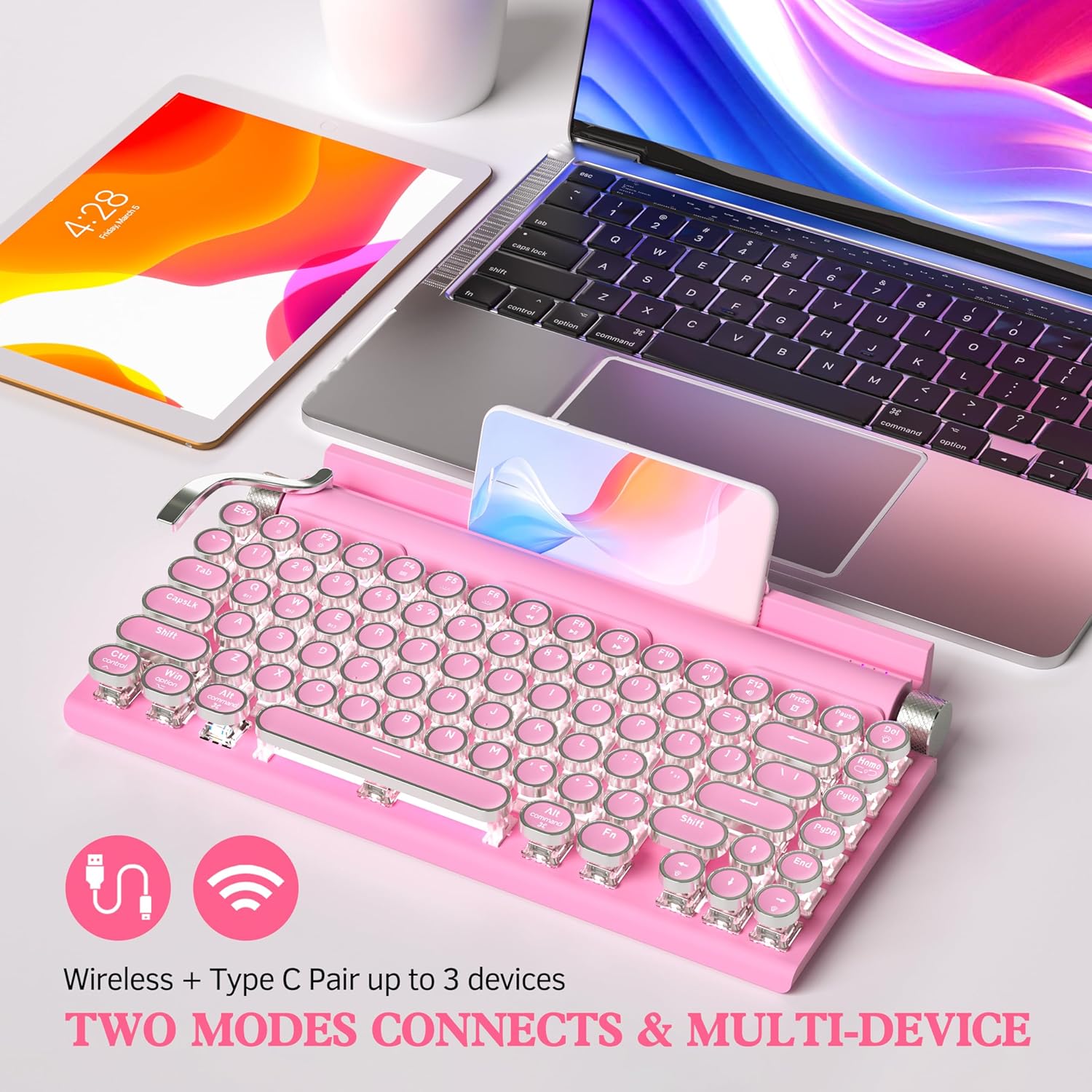
Figure 4: Dual-mode connectivity (Wireless & Type-C) for up to 3 devices.

Figure 5: Connectivity options and charging port details.
Návod k obsluze
Authentic Typewriter Experience (Blue Switches)
This keyboard features blue mechanical switches, designed to provide a satisfying clicky sound and tactile feedback, similar to a traditional typewriter. This design aims to reduce finger and hand fatigue during extended typing sessions.

Figure 6: Detail of the mechanical blue switch, offering high precision and fast response.
Ovládání podsvícení LED
The keyboard features 14 distinct LED backlight modes. The white backlighting can be adjusted using the stainless-steel lever located on the left side of the keyboard. Pulling the lever will cycle through the available backlight modes.
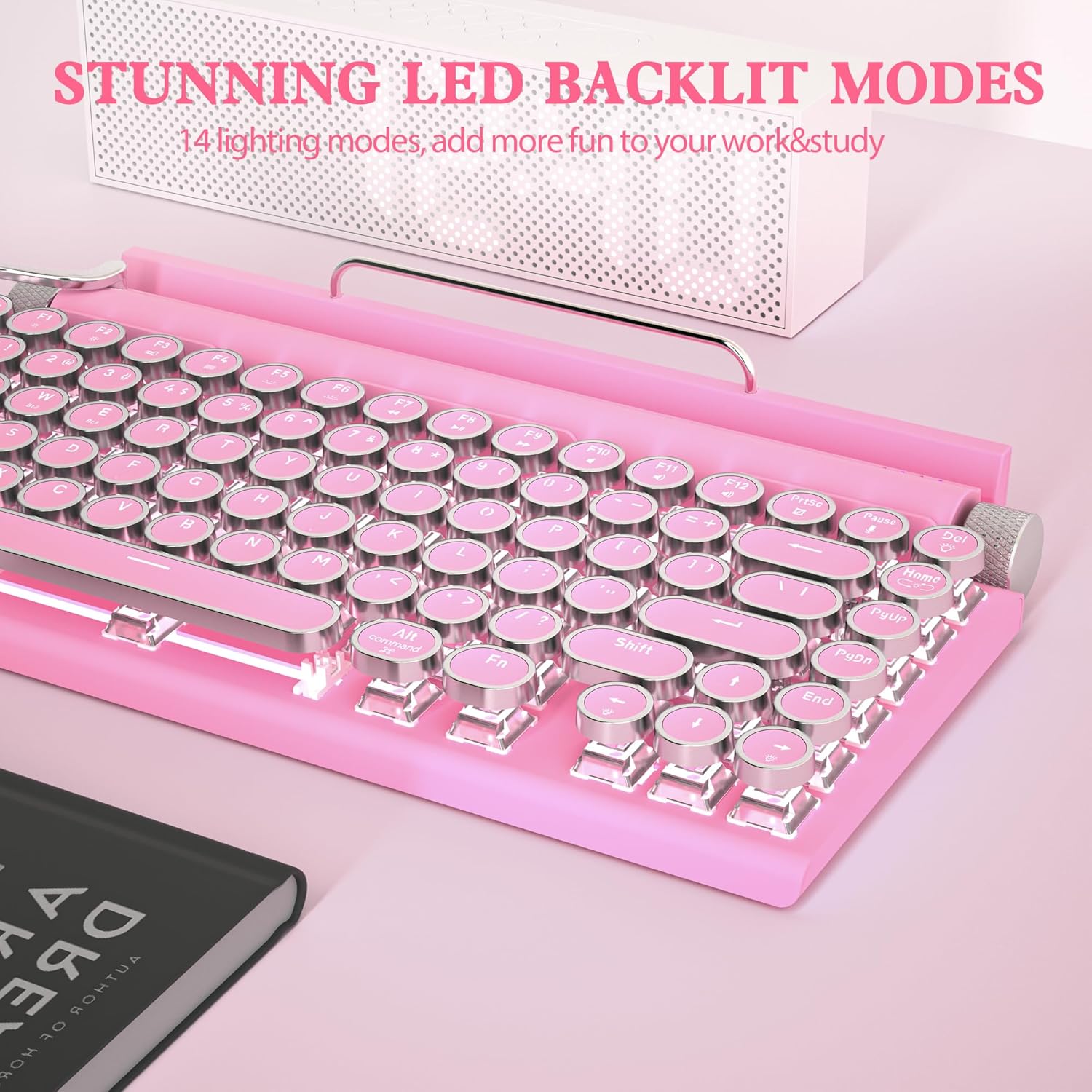
Figure 7: Keyboard displaying one of the 14 LED backlight modes.
Volume and Brightness Knobs
The keyboard includes two rotary knobs for quick adjustments:
- Levý knoflík: Controls the brightness of the LED backlight. Rotate to increase or decrease brightness.
- Pravý knoflík: Controls the system volume. Rotate to adjust the audio output level.
Design vyměnitelný za provozu
The keyboard features a hot-swappable design, allowing you to easily change keycaps and switches without soldering. This enables customization of your typing experience.
- Pomocí dodaného stahováku na klávesy jemně vyjměte požadovanou klávesu.
- Use the switch puller (often integrated with the keycap puller) to carefully remove the mechanical switch from its socket.
- Zarovnejte piny nového spínače s otvory na desce plošných spojů a pevně zatlačte, dokud nezacvakne na místo.
- Place the new keycap onto the switch stem.
The package includes two extra blue switches for replacement or experimentation.

Figure 8: Hot-swappable feature allowing easy replacement of keycaps and switches.
Integrovaný držák zařízení
The keyboard includes a built-in slot designed to hold smartphones and tablets, providing convenient access to your devices while typing. This feature enhances efficiency when working across multiple devices.

Figure 9: Keyboard with a tablet securely placed in the integrated device holder.
Údržba
To ensure the longevity and optimal performance of your Taiahiro Retro Typewriter Keyboard, follow these maintenance guidelines:
- Čištění: Use a soft, dry cloth to wipe down the keyboard surface. For deeper cleaning, use a can of compressed air to remove dust and debris from between the keycaps. The keycap puller can be used to remove keycaps for thorough cleaning underneath.
- Vyhněte se tekutinám: Do not expose the keyboard to liquids. Spills can cause damage to the internal components.
- Skladování: Klávesnici skladujte na chladném a suchém místě mimo dosah přímého slunečního záření a extrémních teplot.
- Péče o baterie: For optimal battery life, avoid fully discharging the battery frequently. Charge the keyboard regularly.
Odstraňování problémů
Pokud narazíte na problémy s klávesnicí, podívejte se na následující běžné problémy a jejich řešení:
Keyboard Not Responding (Wired)
- Ujistěte se, že je kabel USB-C bezpečně připojen ke klávesnici i k zařízení.
- Zkuste připojit klávesnici k jinému USB portu na vašem zařízení.
- Pokud je k dispozici, otestujte klávesnici s jiným kabelem USB-C.
- Restartujte počítač nebo zařízení.
Keyboard Not Connecting (Bluetooth)
- Ensure the keyboard is charged. Low battery can prevent Bluetooth connection.
- Ověřte, že je na vašem zařízení povoleno Bluetooth.
- Make sure the keyboard is in pairing mode (indicator light flashing rapidly). If not, re-enter pairing mode by holding Fn + BT[1/2/3].
- Check if the keyboard is already paired to another device. Switch to an available channel or disconnect from the other device.
- Odeberte klávesnici ze seznamu Bluetooth zařízení a zkuste ji znovu spárovat.
- Move the keyboard closer to your device to ensure it's within range.
Backlight Not Working or Dim
- Adjust the backlight brightness using the left rotary knob.
- Cycle through backlight modes using the stainless-steel lever.
- Ujistěte se, že je baterie klávesnice dostatečně nabitá.
Klávesy se neregistrují nebo se píší dvakrát
- Clean around and under the affected keycap using compressed air.
- If the issue persists, consider replacing the switch using the hot-swappable feature and the provided extra switches.
Specifikace
| Rozměry produktu | 12.6 x 7 x 1.5 palce |
| Hmotnost položky | 2.18 libry |
| Číslo modelu | 981 |
| Baterie | Vyžaduje 1 lithium-iontovou baterii (součástí balení) |
| Kompatibilní zařízení | Notebook, Mac, PC, chytrý telefon, tablet |
| Technologie připojení | Bluetooth, USB-C |
| Popis klávesnice | Typewriter Mechanical Hot-Swap Bluetooth Keyboard |
| Speciální funkce | Blue switch keyboard wireless, Hot swappable mechanical keyboard, Rechargeable typewriter keyboard, Round key retro vintage gaming keyboard, iPad Mac Bluetooth mechanical keyboard |
| Barva | Růžový |
| Počet klíčů | 83 |
| Podsvícení klávesnice | Single Color (White LED), 14 Modes |
| Styl | 83 Keys Retro Typewriter Mechanical Keyboard |
Záruka a podpora
For warranty information and technical support, please refer to the official Taiahiro webnebo se obraťte na jejich zákaznický servis. Uschovejte si doklad o koupi pro případ reklamace.
Additional resources, including a PDF user guide and manual, may be available:


