1. Úvod
Thank you for choosing the CUPEISI CP20 Android 15 Tablet. This manual provides essential information for setting up, operating, and maintaining your device. Please read it thoroughly to ensure optimal performance and longevity of your tablet.
2. Co je v krabici
Ověřte, zda jsou v balení přítomny všechny položky:
- CUPEISI CP20 Android 15 Tablet
- Bezdrátová klávesnice
- Skládací ochranný kryt
- myš Bluetooth
- Stylus
- Kabel typu C
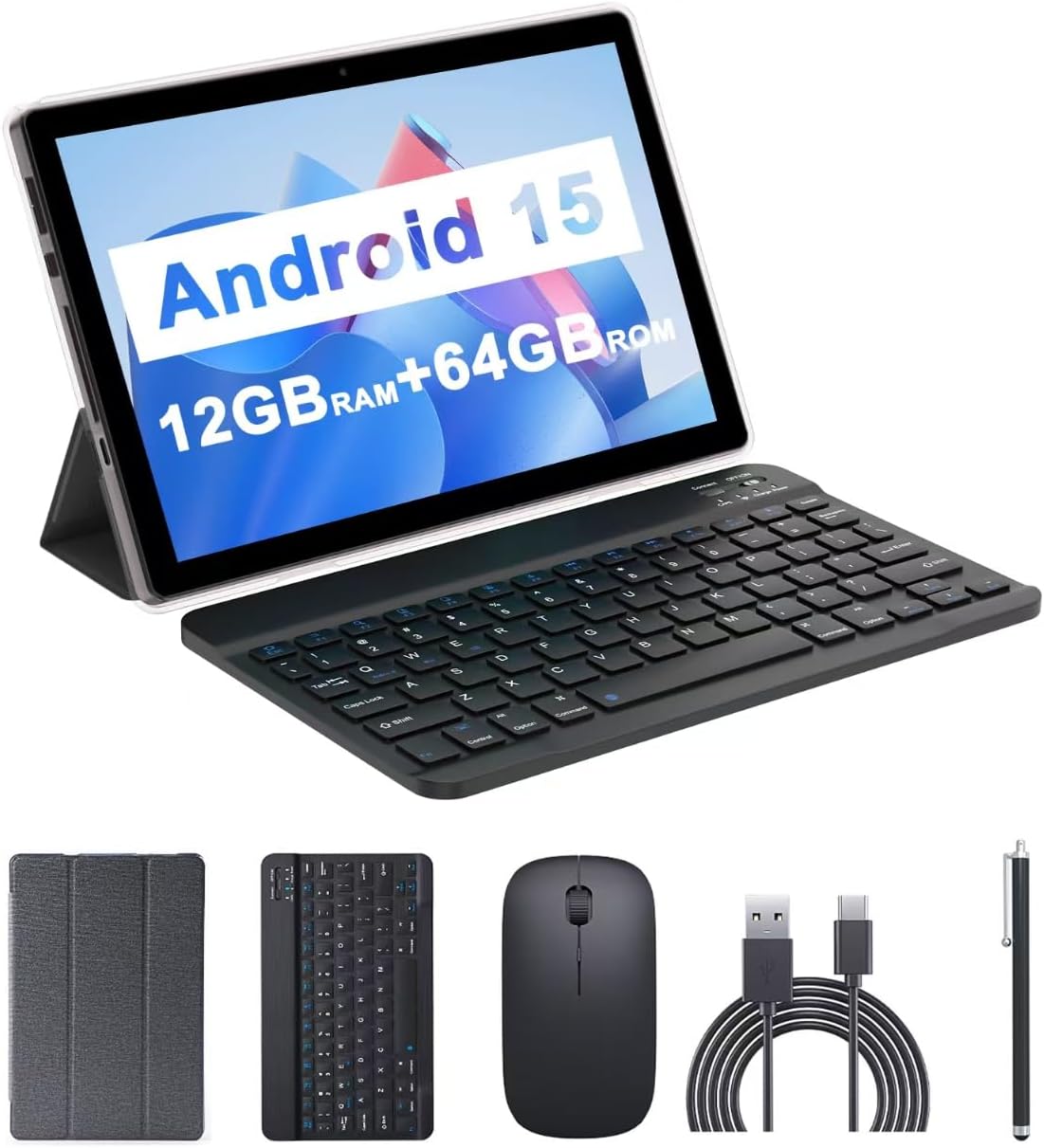
Image: The CUPEISI CP20 Tablet alongside its accessories, including the wireless keyboard, Bluetooth mouse, stylus, and foldable protective cover.
3. Vlastnosti a komponenty produktu
The CUPEISI CP20 Tablet is designed for versatility and performance, offering a seamless user experience for both work and entertainment.
3.1 Klíčové vlastnosti
- Operační systém: Stable Android 15.0 system.
- Procesor: Built-in 1.8GHz Quad-core CPU for efficient multitasking.
- Paměť a úložiště: 12GB RAM (4GB+8GB expansion) and 64GB ROM, expandable up to 1TB via microSD card.
- Zobrazit: Stunning 10.1-inch 1280x800 IPS HD touch screen for immersive visuals and eye protection.
- Baterie: Powered by a 6000mAh battery, providing approximately 6 hours of regular operation and up to 12 hours of standby time. Charges via 5V2A Type-C port.
- Kamery: 8MP rear camera with auto-focus and flash, and a 2MP front camera for clear video calls and photos.
- Konektivita: Supports 5G WiFi 6 and Bluetooth 5.0.
- Funkce 2 v 1: Transforms into a laptop or computer mode with the included Bluetooth keyboard, wireless mouse, and foldable protective case.

Obrázek: Overview of the tablet's core specifications and features.
3.2 Fyzické komponenty
Familiarize yourself with the tablet's physical layout:
- Vypínač: Nachází se na boku, slouží k zapnutí/vypnutí tabletu nebo k probuzení/uspání obrazovky.
- Tlačítka hlasitosti: Upravte úrovně zvuku.
- Port typu C: Pro nabíjení a přenos dat.
- Slot pro TF/SIM kartu: Vložte kartu microSD pro rozšíření úložiště.
- Přední kamera: Pro videohovory a selfie.
- Rear Camera & Flash: For high-quality photos and videos.
- Řečníci: Two speakers for audio output.

Image: Labeled diagram of the tablet's ports and buttons.
4. Průvodce nastavením
4.1 Počáteční nabíjení
Before first use, fully charge your tablet. Connect the Type-C cable to the tablet's charging port and the other end to a compatible power adapter (5V2A recommended). The battery indicator will show charging status.
4.2 Zapnutí/vypnutí
- Zapnutí: Stiskněte a podržte tlačítko napájení, dokud se obrazovka nerozsvítí.
- Vypnutí: Press and hold the Power Button, then select 'Power off' from the options that appear on the screen.
- Restartovat: Press and hold the Power Button, then select 'Restart'.
4.3 Připojení k Wi-Fi
- Přejít na Nastavení > Síť a internet > Wi-Fi.
- Zapněte Wi-Fi.
- Vyberte ze seznamu požadovanou síť Wi-Fi.
- Pokud se zobrazí výzva, zadejte heslo a poté klepněte na Připojit.
4.4 Pairing Bluetooth Accessories
To use the wireless keyboard and Bluetooth mouse, they must be paired with your tablet.
- Ujistěte se, že klávesnice a myš jsou nabité a zapnuté.
- Na tabletu přejděte na Nastavení > Připojená zařízení > Bluetooth.
- Zapněte Bluetooth.
- The tablet will scan for available devices. Select the keyboard or mouse from the list.
- Dokončete proces párování podle pokynů na obrazovce.

Image: Instructions for connecting the wireless keyboard and mouse via Bluetooth.
4.5 Vložení karty MicroSD
To expand storage, insert a microSD card (up to 1TB) into the TF/SIM card slot. Ensure the tablet is powered off before inserting or removing the card.
5. Ovládání tabletu
5.1 Základní navigace
Navigate the Android interface using touch gestures:
- Klepněte na: Vyberte položku nebo otevřete aplikaci.
- Výpad: Procházení stránek nebo seznamů.
- Přiblížení roztažením/roztažením prstů: Zvětšit nebo zmenšit obsah.
- Dlouhý stisk: Přístup k kontextovým nabídkám nebo přesun ikon.
5.2 Používání klávesnice a myši
Once paired, the keyboard and mouse function similarly to a laptop. The keyboard allows for efficient typing, while the mouse provides precise cursor control, enhancing productivity.

Image: The tablet in laptop mode, demonstrating its use for productivity tasks.
5.3 Použití kamery
Open the Camera app to capture photos and videos. Switch between the 2MP front camera and the 8MP rear camera as needed. The rear camera features auto-focus and flash for improved image quality.

Image: Demonstrating the tablet's front and rear camera functionality for video calls and photography.
5.4 Instalace a správa aplikací
Download and install applications from the Google Play Store. To manage installed apps, go to Nastavení > Aplikace.

Image: The tablet running Android 15 OS, showing popular applications like YouTube, Google Play, and Netflix.
6. Údržba
6.1 Čištění
K čištění obrazovky a těla tabletu používejte měkký hadřík, který nepouští vlákna. Nepoužívejte agresivní chemikálie ani abrazivní materiály. V případě odolných šmouh lehceampOtřete hadřík vodou nebo čističem obrazovek určeným pro elektroniku.
6.2 Aktualizace softwaru
Pravidelně kontrolujte a instalujte aktualizace softwaru, abyste zajistili, že váš tablet má nejnovější funkce, bezpečnostní záplaty a vylepšení výkonu. Přejděte na Nastavení > Systém > Aktualizace systému.
6.3 Správa úložiště
To maintain optimal performance, periodically review and manage your tablet's storage. Delete unnecessary fileodinstalujte nepoužívané aplikace a přesuňte velká média files to external storage (microSD card) if applicable. Go to Nastavení > Skladování na view využití a uvolnění místa.
7. Řešení problémů
This section addresses common issues you might encounter with your CUPEISI CP20 Tablet.
7.1 Tablet se nezapíná
- Ujistěte se, že je tablet dostatečně nabitý. Připojte jej k nabíječce alespoň na 30 minut.
- Perform a forced restart by pressing and holding the Power Button for 10-15 seconds.
7.2 Pomalý výkon
- Zavřete nepoužívané aplikace běžící na pozadí.
- Clear cached data for apps (Settings > Apps > [App Name] > Storage & cache > Clear cache).
- Zajistěte dostatek volného úložného prostoru.
- Tablet pravidelně restartujte.
7.3 Problémy s připojením k Wi-Fi
- Zapněte a vypněte Wi-Fi v Nastavení.
- Restartujte Wi-Fi router.
- Forget the network and reconnect (Settings > Network & internet > Wi-Fi > [Network Name] > Forget).
7.4 Rychlé vybíjení baterie
- Snižte jas obrazovky.
- Vypněte Wi-Fi, Bluetooth a GPS, když je nepoužíváte.
- Omezit aktualizaci aplikací na pozadí.
- Zkontrolujte spotřebu baterie v Nastavení > Baterie a identifikujte aplikace s vysokou spotřebou energie.
8. Specifikace
| Funkce | Specifikace |
|---|---|
| Značka | CUPEISI |
| Název modelu | CP20 |
| Operační systém | Android 15 |
| Velikost obrazovky | 10 palce |
| Rozlišení obrazovky | 1280 x 800 pixelů (IPS HD) |
| Procesor | 1.8 GHz čtyřjádrový procesor |
| BERAN | 12 GB (4GB+8GB expansion) |
| Velikost paměti Flash | 64 GB |
| Rozšiřitelné úložiště | Až 1 TB (microSD) |
| Zadní WebRozlišení vačky | 8 MP |
| Rozlišení předního fotoaparátu | 2 MP |
| Bezdrátový typ | 802.11ax (5G Wi-Fi 6) |
| Bluetooth | Bluetooth 5.0 |
| Kapacita baterie | Lithium-polymer 6000 mAh |
| Průměrná životnost baterie | 8 hodiny |
| Hmotnost položky | 1 libry |
| Rozměry produktu | 9.7 x 6.5 x 0.3 palce |
9. Záruka a podpora
For warranty information and technical support, please refer to the documentation included with your purchase or visit the official CUPEISI webUschovejte si doklad o koupi pro případ reklamace.
If you encounter issues not covered in this manual, please contact CUPEISI customer service for assistance.


