1. Úvod
This manual provides detailed instructions for the installation, operation, maintenance, and troubleshooting of your MUNBYN P047 Bluetooth 5.0 Thermal Receipt Printer. Please read this manual thoroughly before using the printer to ensure proper function and longevity of the device.
The MUNBYN P047 is designed for efficient receipt printing in various business environments, offering both wired USB and wireless Bluetooth connectivity. It is compatible with Windows, Android, Linux, and Chrome OS systems.
2. Bezpečnostní informace
- Ujistěte se, že je tiskárna připojena ke zdroji napájení se správným napětím.tage, jak je uvedeno.
- Nevystavujte tiskárnu vodě, vlhkosti ani extrémním teplotám.
- Neumísťujte tiskárnu na přímé sluneční světlo ani do blízkosti zdrojů tepla.
- Nepokoušejte se tiskárnu rozebírat ani opravovat sami. Požádejte o pomoc zákaznickou podporu.
- Use only recommended thermal paper rolls to prevent damage to the print head.
3. Obsah balení
Ověřte, zda jsou v balení přítomny všechny položky:
- MUNBYN P047 Thermal Receipt Printer
- Napájecí adaptér
- USB kabel
- Starter Thermal Paper Roll
- Uživatelská příručka (tento dokument)
4. Konec produktuview
The MUNBYN P047 printer features a compact design with essential ports for connectivity and operation.

Obrázek: Přední strana view of the MUNBYN P047 printer, illustrating its compact design and the output of a sample receipt with USB and Bluetooth connectivity indicators.
4.1. Komponenty a porty
- Vypínač: Zapíná nebo vypíná tiskárnu.
- Napájecí port: Připojuje se k napájecímu adaptéru.
- USB port: For wired connection to a computer.
- Modul Bluetooth: Pro bezdrátové připojení ke kompatibilním zařízením.
- Paper Cover Release: Opens the paper compartment for roll installation.
- Indikátory stavu: LEDs to show power, error, and paper status.
5. Nastavení
5.1. Připojení napájení
- Připojte napájecí adaptér k napájecímu portu tiskárny.
- Zapojte napájecí adaptér do elektrické zásuvky.
- Press the power button to turn on the printer. The power indicator light should illuminate.
5.2. Instalace papírové role
- Press the paper cover release button to open the top cover.
- Insert a new 80mm thermal paper roll into the compartment, ensuring the paper feeds from the bottom and the leading edge extends out of the printer.
- Pevně zavřete horní kryt, dokud nezacvakne na místo.
5.3. Možnosti připojení

Image: The MUNBYN P047 printer demonstrating both Bluetooth and USB connection capabilities to a desktop computer and a smartphone, highlighting its versatile connectivity.
5.3.1. USB Connection (Windows, Android, Linux, Chrome OS, Mac)
- Connect the USB cable from the printer's USB port to an available USB port on your computer or Android device (with appropriate adapter).
- For Windows, Linux, Chrome OS, and Mac, the printer will typically be recognized as a standard thermal printer. You may need to download and install specific drivers from the MUNBYN webstránky pro plnou funkčnost.
- Postupujte podle pokynů na obrazovce pro instalaci ovladače.
5.3.2. Bluetooth Connection (Windows, Android)
- Ujistěte se, že je tiskárna zapnutá a v dosahu vašeho zařízení.
- On your Windows or Android device, navigate to the Bluetooth settings.
- Hledat available Bluetooth devices. The printer should appear as 'MUNBYN P047' or a similar name.
- Select the printer to pair. If prompted for a PIN, enter '0000' or '1234'.
- Once paired, the printer will be ready for use with compatible applications.
5.4. Instalace na zeď (volitelné)

Image: The MUNBYN P047 printer shown mounted on a kitchen wall, demonstrating its space-saving installation option in a commercial setting.
The printer includes two hanging holes on its base, allowing for wall-mounted installation. This can be beneficial for saving counter space in busy environments.
- Identify a suitable location on a wall, ensuring it is sturdy and allows for easy access to power and data cables.
- Mark the positions for two screws based on the printer's mounting holes.
- Install two screws into the wall, leaving a small gap between the screw head and the wall.
- Align the printer's mounting holes with the screws and slide the printer down to secure it.
6. Návod k obsluze
6.1. Základní tisk

Image: The MUNBYN P047 printer actively printing a receipt, illustrating its fast printing speed of 260 mm/s, designed to reduce customer waiting times.
Once the printer is set up and connected to your device, you can initiate printing from your point-of-sale (POS) software or application. The P047 supports high-speed printing up to 260mm/sec.
- Open your desired application (e.g., POS software, text editor).
- Select the print option within the application.
- Choose the MUNBYN P047 as your printer.
- Adjust any necessary print settings (e.g., paper size, margins) and confirm the print job.
6.2. Automatic Paper Cutting

Image: The MUNBYN P047 printer demonstrating its automatic paper cutting function, which helps shorten transaction times and provides neat receipts.
The P047 printer is equipped with an automatic paper cutter to provide clean and efficient receipt separation. This feature can typically be enabled or disabled through the printer's driver settings or your POS software.
6.3. Poznámky ke kompatibilitě
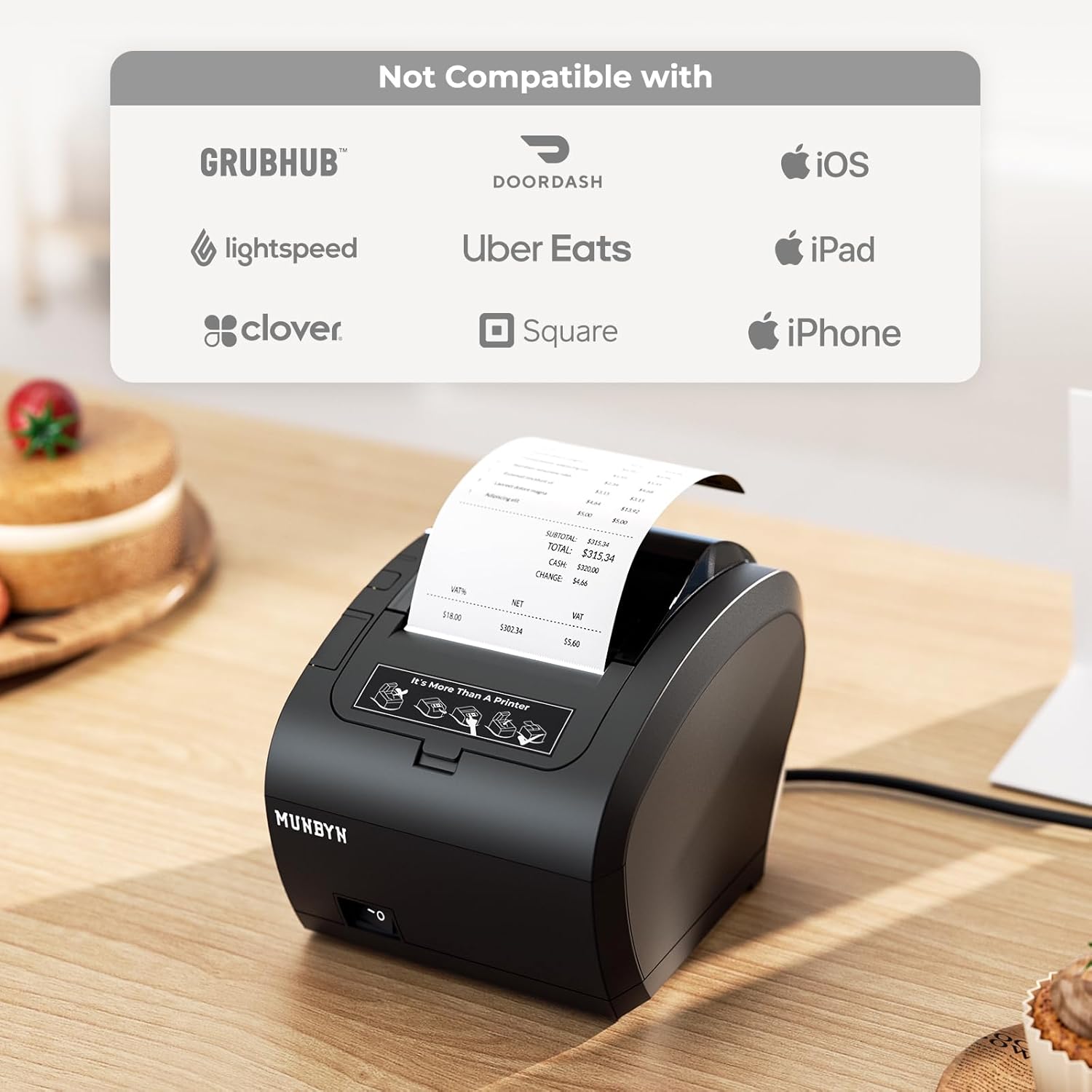
Image: The MUNBYN P047 printer displayed alongside a graphic indicating its incompatibility with certain platforms and devices, including Grubhub, DoorDash, Uber Eats, Lightspeed, Clover, Square (via Bluetooth), iOS, iPad, and iPhone.
Please note the following important compatibility information:
- The Bluetooth receipt printer is není kompatibilní with Uber Eats, iPad, iPhone, DoorDash, Grubhub, Lightspeed, Clover, and Square Stand POS (specifically via Bluetooth).
- Compatibility with specific POS software should be verified with the software vendor.
7. Údržba
7.1. Čištění tiskové hlavy
Pravidelné čištění tiskové hlavy zajišťuje optimální kvalitu tisku a prodlužuje životnost tiskárny.
- Vypněte tiskárnu a odpojte napájecí kabel.
- Otevřete papírový kryt.
- Jemně otřete termotiskovou hlavu (tmavý proužek uvnitř krytu) vatovým tamponem, lehceampzakončené isopropylalkoholem.
- Před zavřením krytu a opětovným připojením napájení nechte tiskovou hlavu zcela vyschnout.
7.2. Výměna role papíru
Replace the paper roll when the paper-out indicator illuminates or when print quality degrades due to low paper.
- Otevřete papírový kryt.
- Remove the empty paper core.
- Insert a new 80mm thermal paper roll as described in Section 5.2.
- Zavřete papírový kryt.
8. Řešení problémů
Běžné problémy a jejich řešení naleznete v následující tabulce:
| Problém | Možná příčina | Řešení |
|---|---|---|
| Tiskárna se nezapne | No power, faulty adapter, or power button issue. | Check power cable connection. Ensure outlet is functional. Try a different power adapter if available. |
| Žádný tiskový výstup | Paper out, paper installed incorrectly, print head dirty, or connectivity issue. | Check paper roll and re-install if necessary. Clean print head. Verify USB/Bluetooth connection and driver installation. |
| Poor print quality (faded, blank lines) | Low quality paper, dirty print head, or print head damage. | Replace paper roll with high-quality thermal paper. Clean the print head. If issue persists, contact support. |
| Připojení Bluetooth se nezdařilo | Incorrect pairing, device incompatibility, or Bluetooth interference. | Ensure printer is in pairing mode. Re-attempt pairing with PIN '0000' or '1234'. Check compatibility (refer to Section 6.3). Try connecting via USB. |
| Počítač nerozpoznává tiskárnu | Driver not installed, incorrect USB port, or faulty USB cable. | Install/reinstall printer drivers from MUNBYN website. Try a different USB port or cable. Restart computer and printer. |
9. Specifikace
| Funkce | Specifikace |
|---|---|
| Název modelu | P047 |
| Značka | MUNBYN |
| Technologie tisku | Přímé tepelné |
| Technologie připojení | Bluetooth 5.0, USB |
| Maximální rychlost tisku (černobíle) | 260 mm/s |
| Tiskový výstup | Monochromatický |
| Maximální velikost média | 80mm (3 1/8") x 230' Thermal Receipt Paper |
| Kompatibilita operačního systému | Windows, Android (via Bluetooth/USB), Mac, Chrome OS, Linux (via USB) |
| Rozměry produktu | 28.6 x 16.38 x 15.98 cm |
| Hmotnost položky | 1.67 kg |
| Speciální funkce | Automatic Paper Cutter, Energy Star |
10. Záruka a podpora
MUNBYN provides technical support for its products. If you encounter any issues not covered in this manual or require further assistance, please contact MUNBYN customer support.
For the latest support information, drivers, and contact details, please visit the official MUNBYN webweb nebo jejich stránka v obchodě na Amazonu: MUNBYN Amazon Store.
Information regarding product warranty is typically provided with your purchase documentation or available on the MUNBYN webstránky. Uschovejte si prosím doklad o koupi pro případ reklamace.


