1. Konec produktuview
The ProtoArc K100-A is an ultra-slim wireless Bluetooth keyboard specifically designed for Mac devices. It features a full-size layout with a numeric keypad, responsive scissor-switch keys for quiet typing, and adjustable white LED backlighting. This keyboard supports connection to up to three devices simultaneously, allowing for seamless switching between your MacBook, iMac, iPad, or iPhone. Its built-in rechargeable battery ensures long-lasting use.

Image: The ProtoArc K100-A keyboard connected to a MacBook, iPad, and iPhone, showcasing jeho schopnost pracovat s více zařízeními.
2. Obsah balení
- Podsvícená Bluetooth klávesnice ProtoArc K100-A
- Nabíjecí kabel USB-C
- Uživatelská příručka (tento dokument)
3. Začínáme
3.1 Nabíjení klávesnice
Before first use, fully charge the keyboard. Connect the provided USB-C charging cable to the keyboard's Type-C port and the other end to a USB power source (e.g., computer USB port, USB wall adapter). A full charge takes approximately 4-5 hours. The built-in 1200mAh lithium-ion battery provides a standby time of 3-4 months.

Image: The keyboard's Type-C charging port with the charging cable inserted.
3.2 Zapnutí/vypnutí
Locate the power switch on the side or back of the keyboard. Slide it to the "ON" position to power on the keyboard. Slide it to "OFF" when not in use to conserve battery.
4. Připojení Bluetooth
The ProtoArc K100-A keyboard supports connection to three different devices via Bluetooth. Follow these steps to pair your devices:
- Ujistěte se, že je klávesnice zapnutá.
- Press and hold one of the Bluetooth channel keys (BT1, BT2nebo BT3) po dobu 3–5 sekund, dokud odpovídající kontrolka nezačne rychle blikat. To znamená, že klávesnice je v režimu párování.
- On your Mac device (MacBook, iMac, iPad, iPhone), go to Nastavení systému (nebo Předvolby systému) > Bluetooth.
- Zapněte Bluetooth a vyhledejte dostupná zařízení.
- Vyberte "ProtoArc K100-A" ze seznamu zařízení.
- Follow any on-screen prompts to complete the pairing process. The indicator light will stop flashing and remain solid for a few seconds, then turn off, indicating successful pairing.
- Tyto kroky opakujte až pro dvě další zařízení pomocí ostatních tlačítek kanálů Bluetooth.

Image: The dedicated Bluetooth channel keys (BT1, BT2, BT3) on the keyboard.
4.1 Přepínání mezi zařízeními
To switch between paired devices, simply press the corresponding Bluetooth channel key (BT1, BT2nebo BT3) once. The keyboard will connect to the selected device within a few seconds.
5. Návod k obsluze
5.1 ovládání podsvícení
The keyboard features soft white LED backlighting with three adjustable brightness levels (low, medium, high). To adjust the backlight brightness, press the backlight key (often indicated by a sun icon or similar) located on the top right of the keyboard. Pressing it repeatedly cycles through the brightness levels and turns the backlight off.

Image: The keyboard with its white adjustable backlight at different brightness levels.
5.2 Klávesové zkratky
The keyboard includes 12 shortcut keys for enhanced productivity on Mac devices. These keys provide quick access to functions such as brightness adjustment, mission control, media playback, volume control, and more. Refer to the key labels for specific functions.

Image: Detail of the keyboard's silent scissor-switch keys, designed for quiet and responsive typing.
6. Údržba a péče
- Keep the keyboard clean by wiping it with a soft, dry cloth. Avoid using harsh chemicals or abrasive materials.
- Nevystavujte klávesnici extrémním teplotám, vlhkosti ani přímému slunečnímu záření.
- Avoid spilling liquids on the keyboard. If a spill occurs, immediately power off the keyboard and allow it to dry completely before use.
- When not in use for extended periods, power off the keyboard to preserve battery life.
- The keyboard automatically enters sleep mode after 30 minutes of inactivity to save power. Press any key to wake it up.
7. Řešení problémů
- Keyboard not connecting/disconnecting frequently:
- Ujistěte se, že je klávesnice plně nabitá.
- Verify Bluetooth is enabled on your device and the keyboard is within range (up to 10 meters).
- Zkuste znovu spárovat klávesnici se zařízením.
- Ujistěte se, že žádné jiné silné bezdrátové signály neruší.
- Keys not responding or delayed response:
- Zkontrolujte úroveň nabití baterie a v případě potřeby ji dobijte.
- Ujistěte se, že je klávesnice správně připojena přes Bluetooth.
- If the keyboard has entered sleep mode, press any key and wait a few seconds for it to reconnect.
- Podsvícení nefunguje:
- Ujistěte se, že je klávesnice zapnutá.
- Press the backlight key to cycle through brightness levels and turn it on.
- If the battery is very low, the backlight may not function to conserve power. Charge the keyboard.
8. Specifikace
| Číslo modelu | K100-A |
| Značka | ProtoArc |
| Technologie připojení | Bluetooth |
| Kompatibilní zařízení | Mac OS 12.2 or higher (MacBook, MacBook Pro, MacBook Air, iMac, iMac Pro, Mac Pro/Mini, iPad, iPhone) |
| Speciální funkce | Backlit, Rechargeable, Multi-Device Connection (3 devices) |
| Kapacita baterie | 1200mAh Lithium-iont |
| Doba nabíjení | 4-5 hodin |
| Pohotovostní doba | 90-120 dní |
| Rozměry produktu | 16.79" D x 4.78" Š x 0.57" V |
| Hmotnost položky | 1.59 libry |
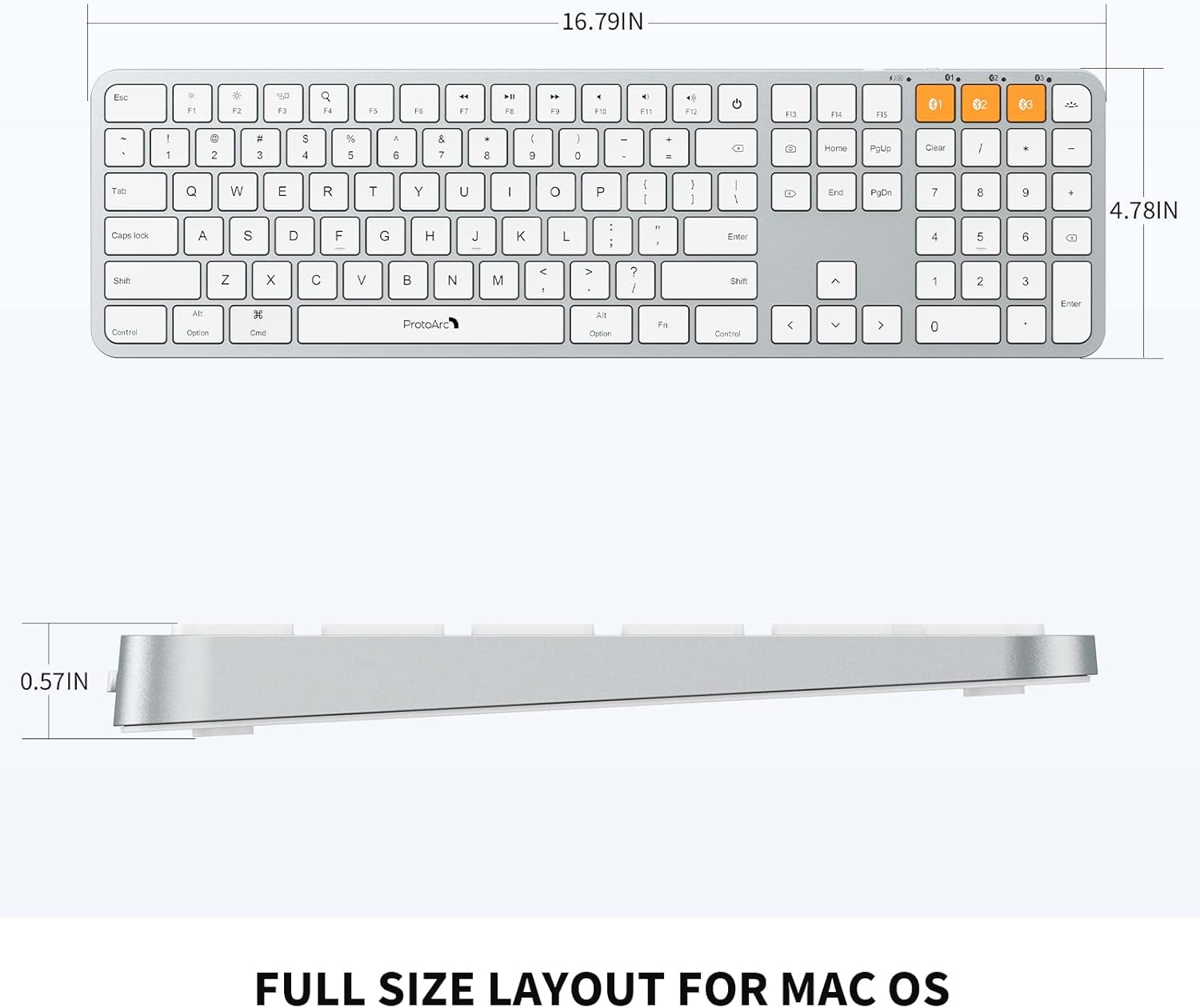
Image: Dimensional diagram of the ProtoArc K100-A keyboard.
9. Záruka a podpora
For warranty information and technical support, please refer to the official ProtoArc webnebo se obraťte přímo na jejich zákaznický servis. Uschovejte si doklad o koupi pro případ reklamace.


