1. Úvod
This manual provides detailed instructions for the setup, operation, and maintenance of your Logitech MK670 Comfort Wave Wireless Keyboard and Mouse Combo, along with the included Mini Bluetooth Speaker, Gel Wrist Pad, and Gel Mouse Pad. Please read this manual thoroughly before using the products to ensure optimal performance and longevity.

Image 1.1: Complete bundle including the Logitech MK670 keyboard, mouse, mini Bluetooth speaker, and gel pads.
2. Komponenty produktu
Váš balíček by měl obsahovat následující položky:
- Logitech MK670 Comfort Wave Wireless Keyboard
- Bezdrátová myš Logitech
- Logitech Unifying USB Receiver
- Mini přenosný bezdrátový Bluetooth reproduktor
- Gel Wrist Pad
- Gel Mouse Pad
- Micro USB Charging Cable (for speaker)
- Uživatelská dokumentace (tato příručka)
3. Pokyny k nastavení
3.1. Logitech Keyboard and Mouse Setup
- Rozbalit: Opatrně vyjměte klávesnici a myš z obalu.
- Vložte baterie: The keyboard and mouse typically come with pre-installed batteries or require standard AA/AAA batteries. Open the battery compartments (usually on the underside of each device) and ensure batteries are correctly inserted.
- Locate Unifying Receiver: The small USB Unifying receiver is often stored inside the mouse's battery compartment for safekeeping. Remove it.
- Připojení přijímače: Zapojte USB přijímač Logitech Unifying do volného USB portu v počítači.
- Zapnutí: Turn on the keyboard and mouse using their respective power switches (usually located on the underside or side). The devices should automatically connect to your computer.

Image 3.1: The Logitech MK670 wireless keyboard and mouse, ready for connection via the Unifying receiver.
3.2. Mini Bluetooth Speaker Setup
- Nabíjecí reproduktor: Before first use, fully charge the mini Bluetooth speaker using the provided Micro USB charging cable. Connect the Micro USB end to the speaker and the USB-A end to a power source (e.g., computer USB port, USB wall adapter). The charging indicator light will typically turn off or change color when fully charged.
- Zapnutí: Press and hold the power button on the speaker until you hear an audible prompt or see an indicator light flash, indicating it is in pairing mode.
- Párování přes Bluetooth:
- Na svém zařízení (chytrý telefon, tablet, notebook) přejděte do nastavení Bluetooth.
- Ujistěte se, že je povoleno Bluetooth.
- Hledat available devices. The speaker will typically appear as a name like "Mini Speaker" or similar.
- Select the speaker to pair. Once paired, you will hear a confirmation sound.
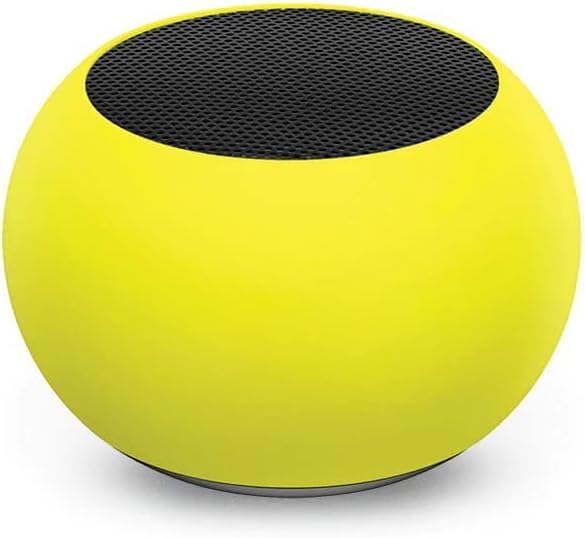
Obrázek 3.2: Detailní záběr view of the compact mini Bluetooth speaker, highlighting its design.
3.3. Gel Pads Placement
- Keyboard Wrist Rest: Place the longer gel wrist pad directly in front of your Logitech MK670 keyboard, aligning it to support your wrists while typing.
- Mouse Pad with Wrist Rest: Position the gel mouse pad on your desk where you typically use your mouse. Ensure the integrated wrist rest provides comfortable support for your mousing hand.

Image 3.3: The ergonomic gel wrist pad and gel mouse pad, designed for comfort and support.
4. Návod k obsluze
4.1. Použití klávesnice
- psaní: The Comfort Wave design provides an ergonomic layout for natural hand and wrist positioning.
- Numerická klávesnice: Utilize the full-size numeric keypad for efficient data entry.
- Klávesové zkratky: Access common functions quickly using the dedicated shortcut keys (e.g., media controls, volume, application launch). Refer to the key legends for specific functions.
- Nastavitelné sklopné nohy: Flip out the tilt legs on the underside of the keyboard to adjust the typing angle for personalized comfort.

Obrázek 4.1: Boční strana view of the Logitech MK670 keyboard, illustrating the adjustable tilt legs for ergonomic customization.
4.2. Použití myši
- Ukazování a klikání: Use the mouse for precise cursor control, left-clicks, and right-clicks.
- Posouvání: Rolovací kolečko umožňuje plynulou navigaci v dokumentech a web stránky.
- Oboustranný design: Myš je navržena pro pohodlné používání leváky i praváky.
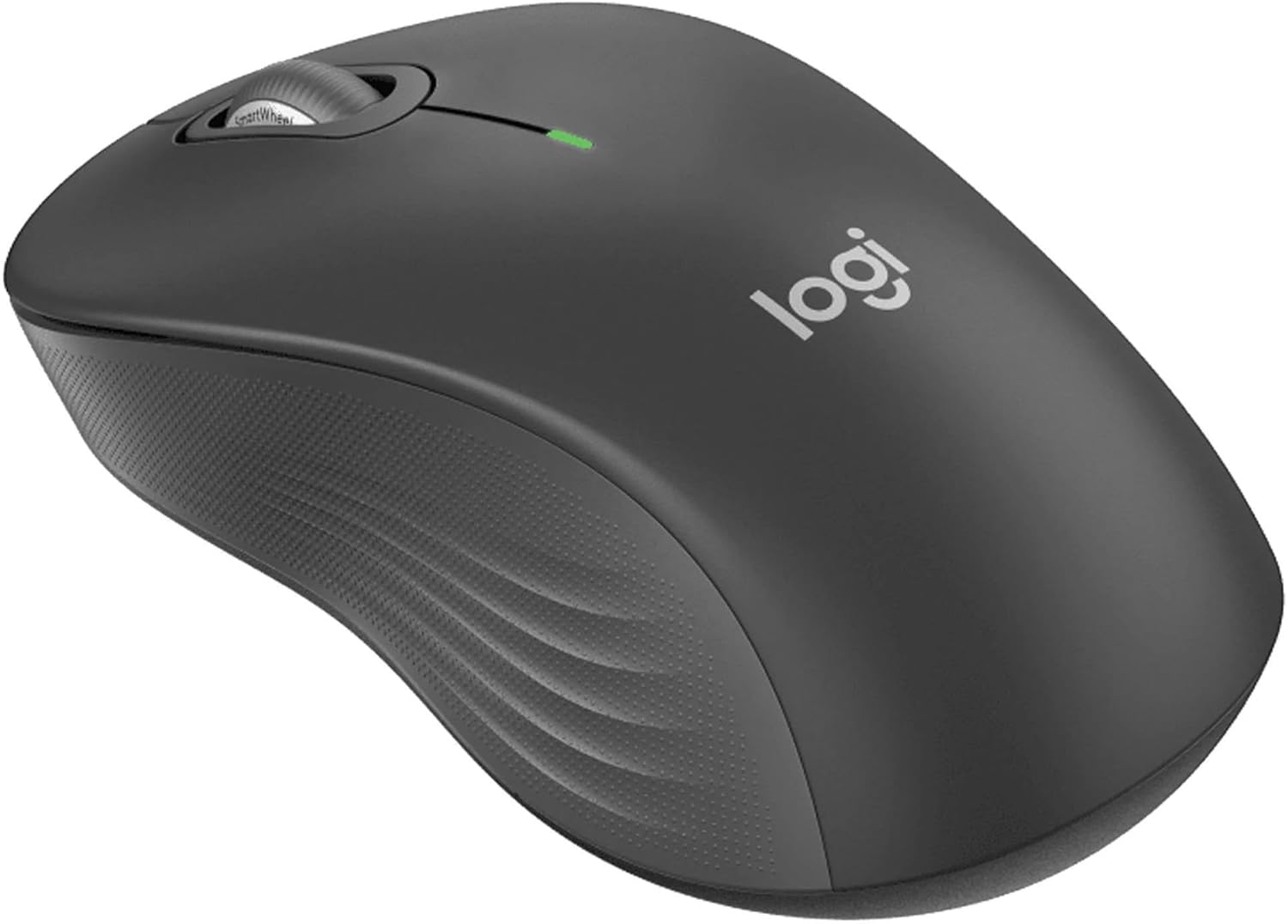
Obrázek 4.2: Podrobný view of the Logitech wireless mouse, showcasing its ergonomic shape.
4.3. Mini Bluetooth Speaker Usage
- Zapnutí/vypnutí: Stisknutím a podržením tlačítka napájení zapnete nebo vypnete reproduktor.
- Bluetooth párování: Once powered on, the speaker will automatically attempt to connect to the last paired device. If not, it will enter pairing mode for new connections (refer to Section 3.2).
- Ovládání hlasitosti: Volume is typically controlled via the connected device. Some speakers may have integrated volume buttons.
- Selfie Remote: The speaker may feature a remote selfie button. Consult the speaker's specific instructions for activation and use with your device's camera.
- Hands-free volání: With its built-in microphone, the speaker can be used for hands-free calls when connected to a smartphone.
5. Údržba
5.1. Čištění
- Klávesnice a myš: Použijte měkký hadřík, který nepouští vlákna dampened with water or a mild cleaning solution. Avoid harsh chemicals or abrasive materials. For dust between keys, use compressed air.
- Mini Bluetooth Speaker: Wipe the exterior with a soft, dry cloth. Do not immerse in water.
- Gel Pads: Vymazat s reklamouamp cloth and mild soap if necessary. Allow to air dry completely before reuse.
5.2. Battery Replacement (Keyboard and Mouse)
When the battery indicator light on your keyboard or mouse signals low power, replace the batteries with new ones of the same type (e.g., AA or AAA). Ensure correct polarity when inserting new batteries.
6. Řešení problémů
6.1. Klávesnice/myš nereaguje
- Zkontrolujte baterie: Ujistěte se, že jsou baterie správně vloženy a dostatečně nabité. V případě potřeby je vyměňte.
- Vypínače: Verify that both the keyboard and mouse power switches are in the 'ON' position.
- USB přijímač: Ensure the Logitech Unifying USB receiver is securely plugged into a working USB port on your computer. Try a different USB port.
- Blízkost: Ensure the keyboard and mouse are within the operational range (up to 33 feet) of the USB receiver.
- Opravit: If issues persist, you may need to re-pair the devices using Logitech's Unifying software (downloadable from the Logitech support webstránky).
6.2. Mini Bluetooth Speaker Connection Issues
- Výkon reproduktoru: Ujistěte se, že je reproduktor nabitý a zapnutý.
- Bluetooth zapnuto: Verify Bluetooth is enabled on your source device.
- Zapomenout zařízení: On your source device, 'forget' or 'unpair' the speaker from your Bluetooth device list, then attempt to pair again.
- Blízkost: Keep the speaker and source device within close range (typically 10 meters or 33 feet) for stable connection.
- Rušení: Přesuňte se dále od jiných bezdrátových zařízení, která mohou způsobovat rušení.
6.3. Z reproduktoru nejde žádný zvuk
- Úrovně hlasitosti: Check the volume on both the speaker and the connected device.
- Výstup zdrojového zařízení: Ensure your device's audio output is set to the Bluetooth speaker.
- Přehrávání médií: Verify that media is playing on your source device.
7. Specifikace
| Funkce | Detail |
|---|---|
| Značka | Logitech |
| Model | MK670 (Keyboard & Mouse Combo) |
| Technologie připojení | 2.4GHz Wireless (Keyboard & Mouse), Bluetooth 5.0 (Speaker) |
| Bezdrátové Dosah | Až 33 stop (10 metrů) |
| Funkce klávesnice | Ergonomic Comfort Wave design, Full-size with numeric keypad, Shortcut keys, Cushioned palm rest, Adjustable tilt legs |
| Funkce myši | Ambidextrous design, Precise tracking |
| Rozměry reproduktoru | 45.45 mm x 33 mm (1.75 ”x 1.3”) |
| Hmotnost reproduktoru | 2.46 unce |
| Kapacita baterie reproduktoru | 400 XNUMX mAh |
| Speaker Playback Time | Až 4 hodin |
| Speaker Special Features | Magnetic base, Built-in mic, Remote selfie button, Glow in the Dark (Yellow variant) |
| Kompatibilní zařízení | Laptops, Gaming Consoles (for keyboard/mouse functionality), Bluetooth-enabled devices (for speaker) |
| Hmotnost položky (balíček) | 4 libry |
| Rozměry balení | 23 x 10 x 10 palce |
8. Informace o záruce
Logitech products are typically covered by a limited hardware warranty. For specific warranty terms and conditions, including duration and coverage details, please refer to the warranty card included with your product or visit the official Logitech webUschovejte si doklad o koupi pro případ reklamace.
9. Podpora
For further assistance, technical support, or to download the latest drivers and software for your Logitech products, please visit the official Logitech support webweb. Najdete tam také často kladené otázky a komunitní fóra.
Podpora Logitech Webmísto: https://support.logi.com/


