1. Úvod
Thank you for choosing the Cherry KW 9100 Slim Wireless Rechargeable Keyboard. This extra-slim, low-profile keyboard is designed for Mac computers, offering versatile connectivity options and a comfortable typing experience. This manual provides essential information for setting up, operating, maintaining, and troubleshooting your new keyboard.
The keyboard features dual wireless connectivity (Bluetooth and 2.4 GHz wireless USB receiver), allowing you to easily switch between devices. It incorporates high-quality CHERRY SC scissor technology for quiet and precise keystrokes, and includes AES-128 encryption for secure data transmission. The integrated rechargeable battery provides weeks of use on a single charge, and the keyboard can be charged while in use via the included USB-A to USB-C cable.

Image 1.1: The Cherry KW 9100 Slim Wireless Rechargeable Keyboard, showcasinjeho plné rozvržení a štíhlý designfile.
2. Bezpečnostní informace
- Do not expose the keyboard to liquids, excessive moisture, or extreme temperatures.
- Zabraňte pádu klávesnice na zem nebo jejímu vystavení silným nárazům.
- Chraňte klávesnici před silnými magnetickými poli.
- Nepokoušejte se klávesnici rozebírat ani upravovat. Ztratíte tak záruku.
- K nabíjení používejte pouze dodaný kabel USB-A na USB-C.
3. Obsah balení
Ověřte, zda jsou v balení přítomny všechny položky:
- Cherry KW 9100 Slim Wireless Rechargeable Keyboard
- Kabel USB-A na USB-C
- 2.4 GHz Wireless USB Receiver
- Magnetic Strip (for angle adjustment)
- Uživatelská příručka (tento dokument)
4. Nastavení
4.1. Nabíjení klávesnice
Before first use, or when the battery indicator shows low power, connect the keyboard to a USB power source (e.g., computer USB port, USB wall adapter) using the provided USB-A to USB-C cable. The keyboard can be used while charging.
4.2. Connecting via 2.4 GHz Wireless USB Receiver
- Locate the 2.4 GHz wireless USB receiver.
- Insert the USB receiver into an available USB-A port on your Mac computer.
- On the keyboard, slide the connectivity switch (located on the side) to the 'RF' position.
- Klávesnice by se měla automaticky připojit k počítači.
4.3. Připojení přes Bluetooth
Ensure your Mac computer has Bluetooth 4.0 or higher.
- On the keyboard, slide the connectivity switch (located on the side) to the 'BT' position.
- Na počítači Mac přejděte Nastavení systému (nebo Předvolby systému) > Bluetooth.
- Zkontrolujte, zda je Bluetooth zapnutý.
- The keyboard should appear in the list of discoverable devices (e.g., "CHERRY KW 9100"). Select it to pair.
- Dokončete proces párování podle pokynů na obrazovce.

Obrázek 4.1: Boční strana view of the keyboard, highlighting the RF/BT connectivity switch and the USB-C charging port.
4.4. Nastavení úhlu klávesnice
The keyboard includes a removable magnetic strip that can be attached to the underside to adjust the typing angle for improved ergonomics. Simply attach the strip to the designated area on the bottom of the keyboard.
5. Ovládání klávesnice
5.1. Switching Between Connectivity Modes
Use the slide switch on the side of the keyboard to toggle between 'RF' (2.4 GHz wireless) and 'BT' (Bluetooth) modes. This allows you to seamlessly switch between two connected devices, for example, a laptop via Bluetooth and a desktop PC via the USB receiver.
5.2. Key Functions and Mac Layout
The keyboard features a Mac-specific layout, including Command, Option, and Control keys. The function keys (F1-F15) provide quick access to various system functions such as brightness, media control, and volume. Some function keys may require pressing the 'Fn' key simultaneously depending on your Mac's system settings.
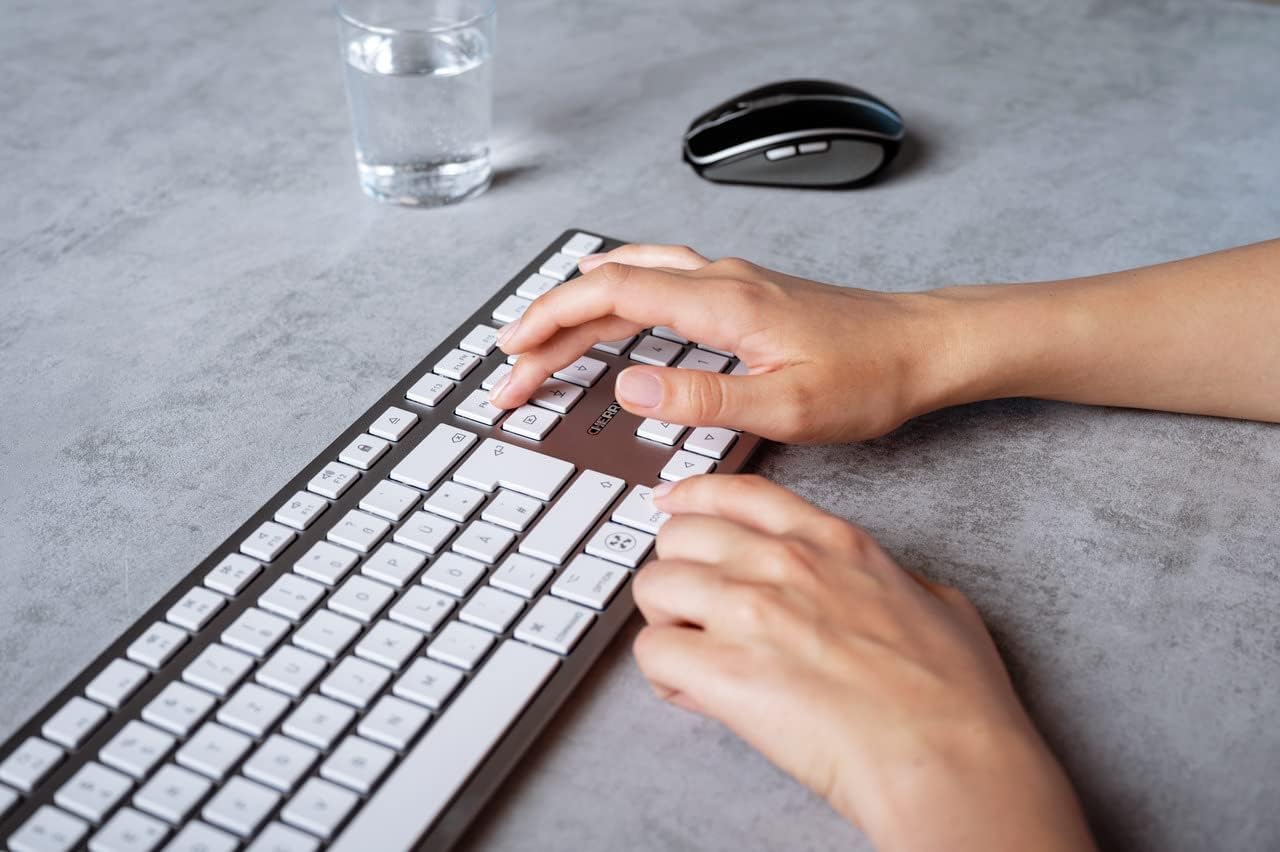
Image 5.1: A user typing on the Cherry KW 9100 keyboard, demonstrating its ergonomic design and key spacing.
5.3. Řízení spotřeby
To conserve battery life, the keyboard will enter a sleep mode after a period of inactivity. To wake it up, simply press any key. The keyboard will reconnect automatically to the last active device.
6. Údržba
6.1. Čištění
Klávesnici jemně otřete povrch měkkým hadříkem, který nepouští vlákna. V případě odolných nečistot ji lehce otřete.ampen the cloth with water or a mild, non-abrasive cleaning solution. Ensure no liquid enters the keyboard. Do not use harsh chemicals or abrasive materials.
6.2. Skladování
When not in use for extended periods, store the keyboard in a dry, cool place. It is recommended to fully charge the battery before long-term storage.
7. Řešení problémů
| Problém | Možná příčina | Řešení |
|---|---|---|
| Keyboard not connecting via 2.4 GHz. | USB receiver not properly inserted; keyboard switch in 'BT' mode; low battery. | Ensure receiver is fully inserted. Slide keyboard switch to 'RF'. Charge the keyboard. Try a different USB port. |
| Klávesnice se nepřipojuje přes Bluetooth. | Keyboard switch in 'RF' mode; Bluetooth off on Mac; low battery; pairing issue. | Slide keyboard switch to 'BT'. Ensure Bluetooth is enabled on your Mac. Charge the keyboard. Remove and re-pair the keyboard in Mac's Bluetooth settings. |
| Keys are unresponsive or delayed. | Low battery; interference; keyboard in sleep mode. | Charge the keyboard. Move closer to the receiver/Mac. Press any key to wake the keyboard. |
| Function keys (F1-F15) not working as expected. | System settings; 'Fn' key usage. | Check your Mac's Keyboard settings (System Settings > Keyboard) for function key behavior. Try pressing the 'Fn' key simultaneously with the desired function key. |
| Baterie se rychle vybíjí. | Frequent use; keyboard not entering sleep mode. | Ensure the keyboard is allowed to enter sleep mode when idle. Fully charge the keyboard. |
8. Specifikace
| Funkce | Detail |
|---|---|
| Číslo modelu | JK-9110US-1 |
| Značka | Třešeň |
| Technologie připojení | Bluetooth, USB-A (for receiver), USB-C (for charging) |
| Kompatibilní zařízení | Mac computers with Bluetooth 4.0 or higher and USB-A connections |
| Popis klávesnice | Low-profile, extra-slim, wireless, scissor-switch keyboard with adjustable angle and rechargeable battery |
| Speciální funkce | Magnetic (for angle adjustment), Travel |
| Barva | Stříbro |
| Materiál | Kov, Plast |
| Rozměry produktu | 17.32 x 5.12 x 0.59 palce (44 x 13 x 1.5 cm) |
| Hmotnost položky | 1.94 libry (0.88 kg) |
| Výrobce | TŘEŠEŇ |
9. Záruka a podpora
Your Cherry KW 9100 Slim Wireless Rechargeable Keyboard is covered by a manufacturer's warranty. For detailed warranty information, technical support, or service inquiries, please visit the official Cherry webwebové stránky nebo se obraťte přímo na jejich zákaznickou podporu. Uschovejte si doklad o koupi pro případ reklamace.
Online podpora: www.cherry.de


