Zavedení
Děkuji za nákupasing the Nedis Alarm Clock with Wireless Charger. This device combines a digital alarm clock with a Qi-certified wireless charging pad, a USB-A charging port, a dimmable display, dual alarm settings, and a color-changing night light. This manual provides essential information for safe and efficient use of your new device.
Bezpečnostní informace
- Před použitím si pečlivě přečtěte všechny pokyny.
- Udržujte zařízení mimo dosah vody, vlhkosti a extrémních teplot.
- Nepokoušejte se zařízení rozebírat ani opravovat sami. Veškerý servis svěřte kvalifikovanému personálu.
- Ensure the power adapter used is compatible with the device's power requirements. For fast charging, a QC3.0 power adapter (not included) is recommended.
- Avoid placing metal objects on the wireless charging pad, as this may interfere with charging or cause overheating.
Obsah balení
- Nedis Alarm Clock with Wireless Charger (Model WCACQ30WT)
- Power Adapter (if included, otherwise sold separately)
- Uživatelská příručka
Konec produktuview
Familiarize yourself with the various components of your alarm clock:

Obrázek 1: Přední strana View. This image displays the front of the alarm clock, featuring the large digital time display and the touch-sensitive control buttons located above it. The buttons include controls for display brightness, time setting, and alarm adjustments.
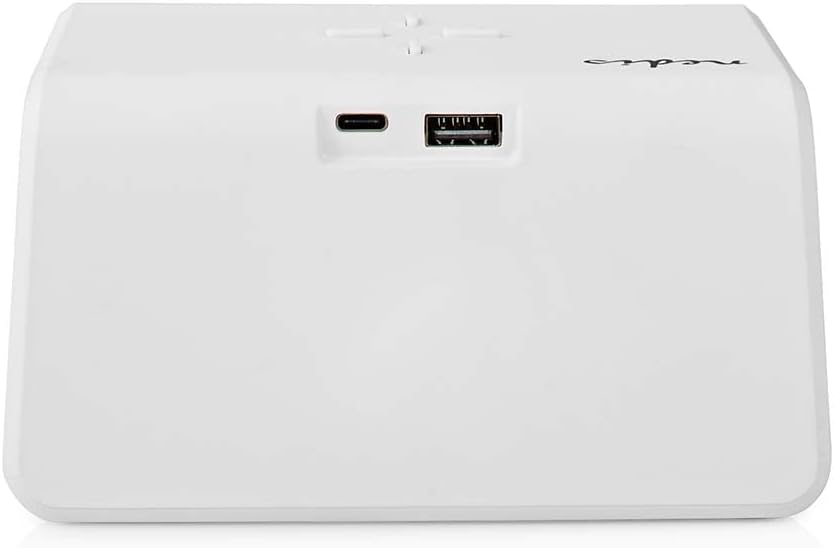
Obrázek 2: Zadní strana View. The back of the alarm clock is shown, highlighting the USB-C port for power input and a standard USB-A port for charging external devices.
- Digitální displej: Zobrazuje čas, stav budíku a další indikátory.
- Ovládací tlačítka: (Located on top)
- Light Button: Controls night light.
- Time/Alarm Set Button: For setting time and alarms.
- +/- Buttons: Adjust values.
- Bezdrátová nabíjecí podložka: (Top surface) For Qi-compatible devices.
- USB-C vstup: (Rear) For connecting the power adapter.
- Výstup USB-A: (Rear) For charging other devices via cable.
- Night Light Panel: (Side/Rear) Emits ambient light.
Nastavení
- Připojte napájení: Plug the provided power adapter into the USB-C input port on the back of the alarm clock. Connect the other end to a wall outlet. The display will light up.
- Počáteční nastavení času: The clock may display a default time. Proceed to the 'Operating Instructions' section to set the correct time.
Návod k obsluze
1. Nastavení času
- Stiskněte a podržte Time/Alarm Set button (usually marked with a clock icon) until the hour digits start flashing.
- Použijte + or - tlačítka pro nastavení hodiny.
- Stiskněte tlačítko Time/Alarm Set button again to switch to minute adjustment. The minute digits will flash.
- Použijte + or - tlačítka pro nastavení minut.
- Stiskněte tlačítko Time/Alarm Set ještě jednou pro potvrzení a ukončení režimu nastavení času.
2. Nastavení alarmů (Alarm 1 a Alarm 2)
This device supports two independent alarm times.
- Stiskněte tlačítko Time/Alarm Set button once to enter Alarm 1 setting mode. The alarm icon and hour digits for Alarm 1 will flash.
- Použijte + or - buttons to adjust the hour for Alarm 1.
- Stiskněte tlačítko Time/Alarm Set button again to switch to minute adjustment for Alarm 1.
- Použijte + or - buttons to adjust the minutes for Alarm 1.
- Stiskněte tlačítko Time/Alarm Set button again to confirm Alarm 1 and move to Alarm 2 setting mode (if applicable). Repeat steps 2-4 for Alarm 2.
- After setting Alarm 2, press the Time/Alarm Set tlačítko pro potvrzení a ukončení režimu nastavení budíku.
- Pro aktivaci/deaktivaci budíku krátce stiskněte Time/Alarm Set button until the desired alarm icon (e.g., 'AL1' or 'AL2') appears or disappears on the display.
3. Funkce odložení buzení
When an alarm sounds, press any button (except the alarm off button, if present) to activate the snooze function. The alarm will temporarily stop and sound again after a few minutes (typically 5-10 minutes, refer to specific model details if available). To turn off the alarm completely, press the designated alarm off button or follow the instructions for deactivating the alarm.
4. Wireless Charging (Qi)
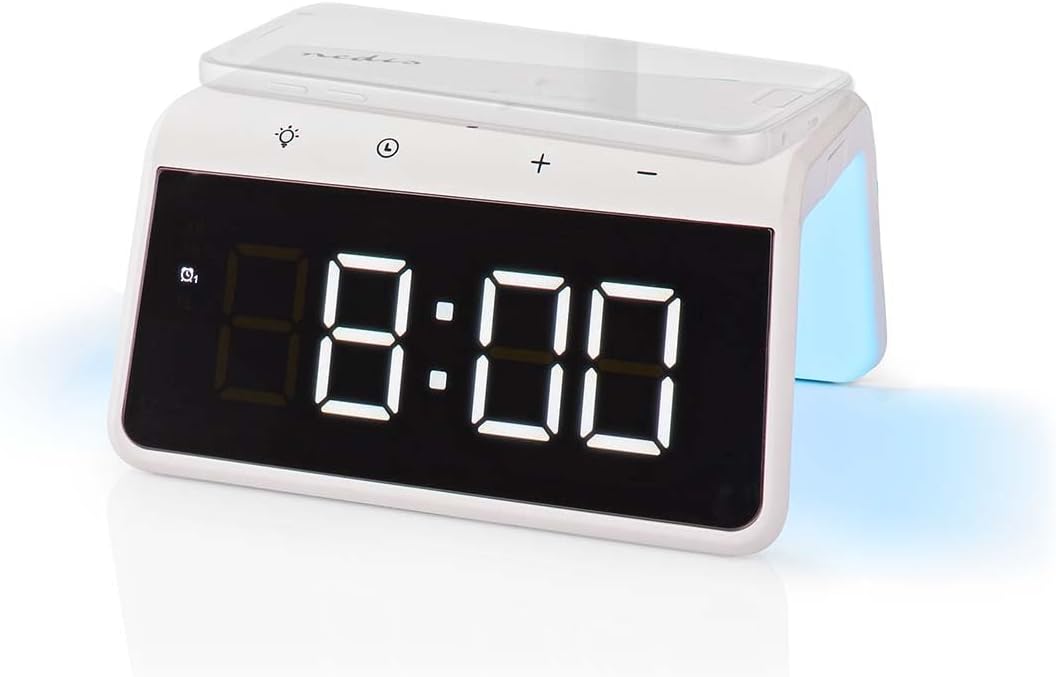
Image 3: Wireless Charging. A smartphone is shown resting on the top surface of the alarm clock, which functions as a Qi wireless charging pad.
- Place your Qi-compatible smartphone or device directly onto the wireless charging pad located on the top surface of the alarm clock.
- Ensure the device is centered on the charging pad for optimal performance.
- A charging indicator (e.g., an icon on the display or an LED light) will typically illuminate to confirm that charging has begun.
- The charger supports 5W, 7.5W, 10W, and 15W output, automatically adjusting to your device's requirements. For 15W fast charging, a QC3.0 power adapter (not included) is required.
5. USB-A Charging Output
The alarm clock features an additional USB-A port for charging devices that are not Qi-compatible or for simultaneous charging.
- Connect your device's USB charging cable to the USB-A output port on the back of the alarm clock.
- Připojte druhý konec kabelu k zařízení.
- Nabíjení se spustí automaticky.
6. Funkce nočního světla

Image 4: Night Light. This image shows the side of the alarm clock with its integrated night light emitting a soft glow.
- Stiskněte tlačítko Světlo button (usually marked with a light bulb icon) to turn the night light on or off.
- Opakovaně stiskněte tlačítko Světlo button to cycle through different color modes or to set a specific color. The night light can display a diverse changing color palette.
- The night light can be set to remain on or to be manually activated as needed.
7. Nastavení jasu displeje
The digital display features dimmable backlighting for comfortable viewza různých světelných podmínek.
- Look for a dedicated brightness button or a combination of buttons (e.g., a short press of the Light button or +/- buttons when not in setting mode) to adjust the display brightness.
- Cycle through available brightness levels (e.g., high, medium, low, off).
Údržba
- Čištění: Otřete zařízení měkkým, suchým nebo lehce vlhkým hadříkemamp tkanina. Nepoužívejte abrazivní čisticí prostředky nebo rozpouštědla.
- Skladování: Pokud zařízení delší dobu nepoužíváte, odpojte jej a uložte jej na chladném a suchém místě.
Odstraňování problémů
- Zařízení se nezapíná: Ensure the power adapter is securely connected to both the alarm clock and a working power outlet.
- Bezdrátové nabíjení nefunguje:
- Ověřte, zda je vaše zařízení kompatibilní s Qi.
- Ujistěte se, že je zařízení vycentrováno na nabíjecí podložce.
- Remove any thick phone cases or metal objects between the phone and the charging pad.
- USB-A charging not working: Check the USB cable for damage and ensure it is properly connected to both the alarm clock and your device.
- Alarm nezní: Ensure the alarm is activated (check for the alarm icon on the display) and the volume is not set to zero (if adjustable).
- Příliš tmavý/jasný displej: Adjust the display brightness using the dedicated controls.
Specifikace
| Funkce | Specifikace |
|---|---|
| Číslo modelu | WCACQ30WT |
| Značka | NEDIS |
| Rozměry produktu | 14 x 3.81 x 7 cm |
| Hmotnost položky | 242 gramů |
| Bezdrátový nabíjecí výstup | 5W / 7.5W / 10W / 15W (Qi Certified) |
| Výstup USB-A | Ano |
| Typ zobrazení | Digitální |
| Speciální funkce | Alarm, Charging Port, Dimmable Display, Night Light (Color Changing) |
| Zdroj napájení | Elektrický kabel |
| Barva | Bílý |
Záruka a podpora
Nedis products are manufactured to high quality standards. In the unlikely event of a defect during the warranty period, please contact your retailer for support. The warranty period is subject to the terms and conditions of the retailer and local consumer laws.
For further assistance or technical support, please refer to the official Nedis webwebu nebo se obraťte přímo na jejich zákaznický servis. Uschovejte si účtenku jako doklad o koupi.


