Zavedení
The ASRock B650E PG-ITX WiFi motherboard is designed for AMD Ryzen 7000 Series processors, offering advanced features in a compact Mini-ITX form factor. This manual provides essential information for the proper installation, operation, and maintenance of your motherboard.
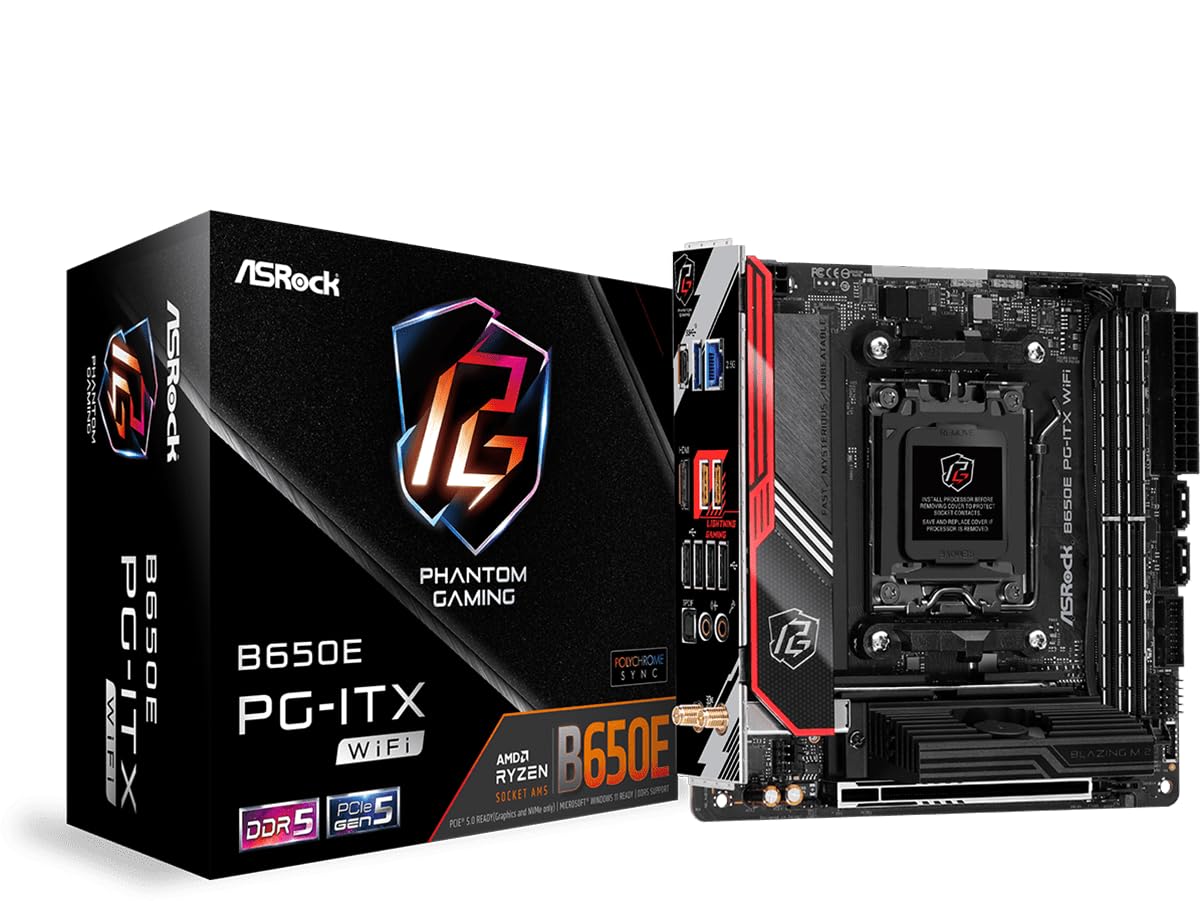
Obrázek 1: Shora dolů view of the ASRock B650E PG-ITX WiFi Motherboard.
Klíčové vlastnosti:
- Supports AMD Ryzen 7000 Series Processors (Socket AM5)
- 10+2+1 Phase Power Design with SPS
- 2 x DDR5 DIMM slots, supporting up to 6400+(OC) MHz
- 1 slot PCIe 5.0 x16
- Graphics Output Options: 1 HDMI, eDP
- 7.1 kanálový HD zvuk (zvukový kodek Realtek ALC1220), zvuk Nahimic
- 1 Blazing M.2 (PCIe Gen5x4), 1 Hyper M.2 (PCIe Gen4x4), 2 SATA3
- USB Connectivity: 1 USB 3.2 Gen2x2 Type-C (Front), 1 USB 3.2 Gen2 Type-C (Rear), 3 USB 3.2 Gen2 Type-A (Rear), 2 USB 3.2 Gen1 (Front), 6 USB 2.0 (4 Rear, 2 Front)
- Killer 2.5G LAN
- Killer 802.11ax Wi-Fi 6E + Bluetooth 5.3

Figure 2: Diagram highlighting key features and components of the motherboard.
Nastavení a instalace
Tato část vás provede fyzickou instalací základní desky a jejích hlavních součástí.
1. Vybalení a kontrola
Carefully remove the motherboard from its packaging. Inspect for any visible damage. Ensure all accessories are present.
Video 1: Produkt Overview and Unboxing. This video provides a visual overview of the ASRock B650E PG-ITX motherboard and its components, including the unboxing process.
2. Instalace procesoru
- Najděte patici procesoru AM5 na základní desce.
- Jemně zvedněte páčku zátěže a otevřete kryt patice procesoru.
- Zarovnejte trojúhelníkovou značku na procesoru s odpovídající značkou na patici.
- Opatrně vložte procesor do patice, aniž byste na něj tlačili.
- Zavřete kryt zásuvky a zatlačte páku nabíjení dolů, dokud nezapadne na místo.

Figure 3: CPU socket with protective cover. Ensure to remove the cover before installing the processor.

Figure 4: CPU socket ready for processor installation.
3. Instalace paměti RAM
- Otevřete klipy na obou koncích slotů DDR5 DIMM.
- Zarovnejte zářez na modulu RAM s výstupkem ve slotu DIMM.
- Pevně zasuňte modul RAM do slotu, dokud nezacvaknou klipy.
4. Instalace M.2 SSD disku
- Locate the M.2 slots (Blazing M.2 and Hyper M.2).
- Pokud je k dispozici, odstraňte chladič/kryt M.2.
- Vložte disk M.2 SSD do slotu pod úhlem.
- Gently push down the SSD and secure it with the provided screw or standoff.
- Reattach the M.2 heatsink/cover.
5. Motherboard Mounting and Connections
- Install the motherboard into your PC case, aligning it with the standoffs.
- Zajistěte základní desku šrouby.
- Connect the 24-pin ATX power connector and the 8-pin 12V CPU power connector from your power supply.
- Připojte konektory na předním panelu (tlačítko napájení, tlačítko resetování, USB, audio).
- Connect SATA devices to the SATA3 ports if applicable.
- Install your graphics card into the PCIe 5.0 x16 slot.
- Attach the Wi-Fi antennas to the rear I/O panel connectors.
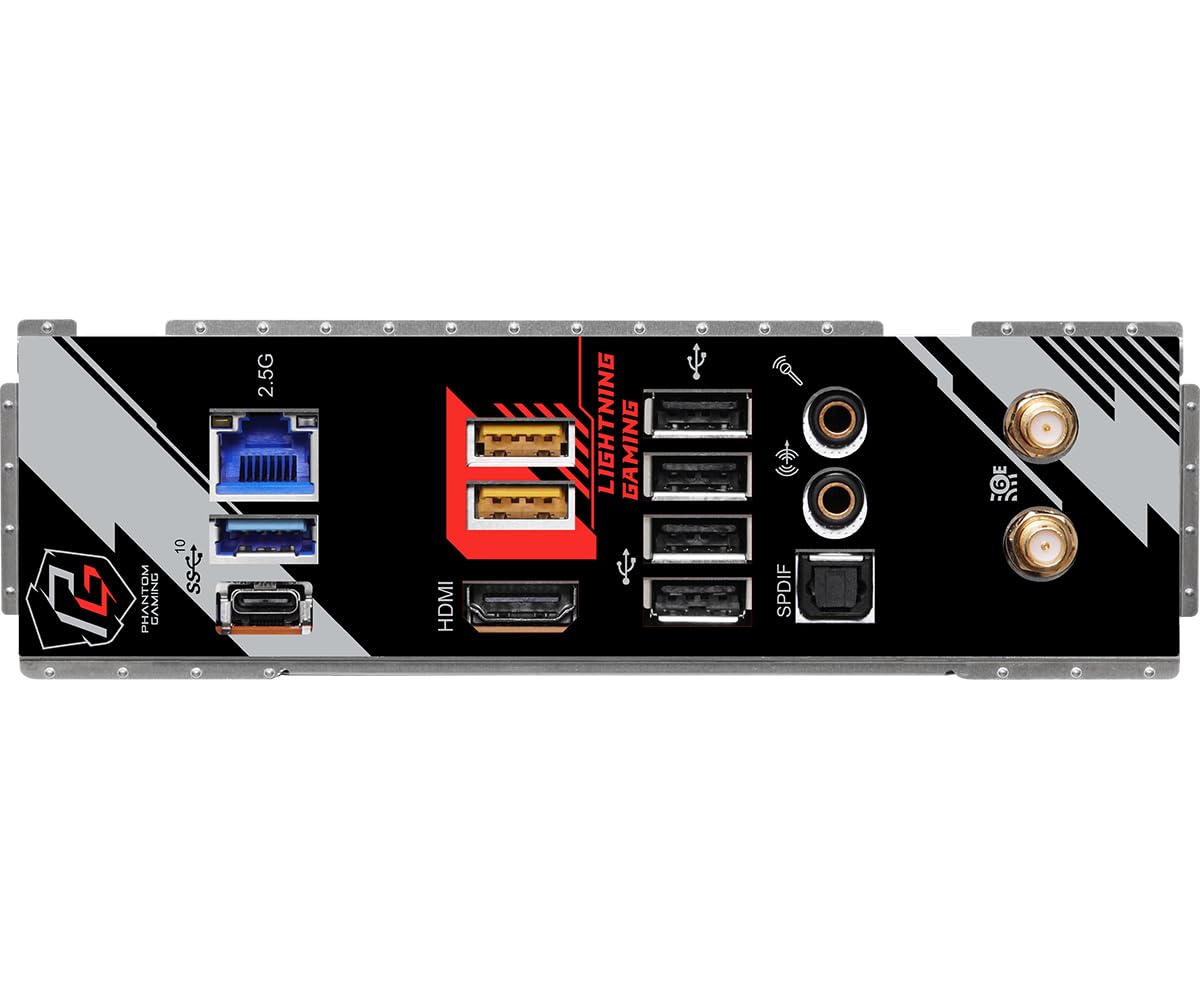
Figure 5: Rear I/O panel showing various ports including USB, HDMI, LAN, and Wi-Fi antenna connectors.
Návod k obsluze
After successful hardware installation, follow these steps to operate your system.
1. Počáteční spuštění a nastavení systému BIOS
- Připojte monitor, klávesnici a myš.
- Power on your system. Press Del or F2 během spouštění pro vstup do nástroje pro nastavení systému BIOS/UEFI.
- In the BIOS, verify that all installed components (CPU, RAM, SSDs) are detected correctly.
- Configure boot order to install your operating system from a USB drive or other media.
- Uložte změny a ukončete BIOS.
2. Instalace operačního systému
Follow the on-screen instructions of your chosen operating system (e.g., Windows, Linux) to complete the installation process.
3. Instalace ovladače
After OS installation, install the necessary drivers for your motherboard components (chipset, LAN, Wi-Fi, audio, etc.). These can typically be found on the ASRock support webweb pro váš konkrétní model.
4. Aktualizace BIOSu
Pravidelně kontrolujte ASRock website for BIOS updates. BIOS updates can improve compatibility, stability, and performance. Refer to the ASRock website for detailed instructions on how to update the BIOS safely.
Údržba
Správná údržba zajistí dlouhou životnost a optimální výkon vaší základní desky.
- Odstranění prachu: Periodically clean dust from the motherboard and case using compressed air. Ensure the system is powered off and unplugged before cleaning.
- Správa kabelů: Ensure all cables are neatly routed to promote good airflow and prevent interference.
- Aktualizace softwaru: Keep your operating system, drivers, and BIOS updated to the latest versions.
- Podmínky prostředí: Základní desku používejte v dobře větraném prostoru, mimo dosah přímého slunečního záření, nadměrného tepla a vlhkosti.
Odstraňování problémů
Tato část se zabývá běžnými problémy, se kterými se můžete setkat.
1. Systém se nezapne
- Check all power connections: 24-pin ATX, 8-pin CPU, and power supply cable to the wall outlet.
- Ujistěte se, že je vypínač napájení v poloze ON.
- Ověřte připojení tlačítka napájení na předním panelu k základní desce.
- Pokud je to možné, vyzkoušejte s jiným zdrojem napájení.
2. No Display Output (No POST)
- Ensure the monitor is connected to the correct graphics output (either integrated graphics or discrete GPU).
- Reseat the RAM modules. Try booting with only one RAM stick.
- Znovu vložte grafickou kartu.
- Clear CMOS: Locate the CLRCMOS jumper on the motherboard (refer to the full manual for exact location) and short it for a few seconds with the system powered off and unplugged.
- BIOS Compatibility: If using a newer AMD Ryzen 7000 series CPU, ensure your BIOS version supports it. An older BIOS might require an older compatible CPU for an initial update.
3. Nestabilita nebo pády systému
- Zkontrolujte teplotu CPU a GPU. Ujistěte se, že jsou chladicí systémy správně nainstalovány.
- Verify RAM stability. Run memory diagnostic tools.
- Ujistěte se, že všechny ovladače jsou aktuální.
- Zkontrolujte uvolněné spoje nebo nesprávně usazené součásti.
Specifikace
| Funkce | Detail |
|---|---|
| Značka | ASRock |
| Název modelu | B650E PG-ITX WIFI |
| Zásuvka CPU | Zásuvka AM5 |
| Kompatibilní procesory | Procesory AMD Ryzen řady 7000 |
| Typ čipové sady | AMD B650 |
| Technologie paměti RAM | DDR5 |
| Rychlost paměti | Up to 6400+(OC) MHz |
| Bezdrátový typ | 802.11ax (Wi-Fi 6E) + Bluetooth 5.3 |
| LAN | Killer 2.5G LAN |
| PCIe sloty | 1x PCIe 5.0 x16 |
| M.2 Sloty | 1× Blazing M.2 (PCIe Gen5x4), 1× Hyper M.2 (PCIe Gen4x4) |
| SATA porty | 2x SATA3 |
| USB porty (zadní) | 1 x USB 3.2 Gen2 Type-C, 3 x USB 3.2 Gen2 Type-A, 4 x USB 2.0 |
| USB porty (přední) | 1× USB 3.2 Gen2x2 typu C, 2× USB 3.2 Gen1, 2× USB 2.0 |
| Grafický výstup | 1 x HDMI, eDP |
| Zvuk | 7.1 CH HD Audio (Realtek ALC1220), Nahimic Audio |
| Form Factor | Mini-ITX |
| Rozměry produktu | 19.69 x 19.69 x 11.02 palce |
| Hmotnost položky | 2.2 libry |
Záruka a podpora
The ASRock B650E PG-ITX WiFi Motherboard comes with a 3-letá záruka from ASRock, covering defects in materials and workmanship under normal use.
For technical support, driver downloads, BIOS updates, and further information, please visit the official ASRock support website. You can also refer to the full product manual available on their website for more detailed instructions and diagrams.
For warranty claims or service, please contact ASRock customer support directly or the retailer from whom you purchased the product.