1. Přesview
This instruction manual provides essential information for the safe and effective use of your Kinstone 10.1-inch Android Kids Tablet, Model KST102SF. Designed for children, this tablet features a durable kid-proof case, parental controls, and a range of educational and entertainment applications. Please read this manual thoroughly before operating the device.

Image: Kinstone 10.1-inch Android Kids Tablet with its protective case.
2. Co je v krabici
Upon opening your Kinstone Kids Tablet package, you should find the following items:
- Kinstone 10.1-inch Android Kids Tablet (Model KST102SF)
- Food-Grade Silicone Kid-Proof Case with Adjustable Stand
- Tablet Stylus Pen
- Tempered Glass Screen Film
- Tablet Charging Cable (USB Type-C)
- Tabletový adaptér
- Two Cartoon Stickers
- Stručný průvodce / Uživatelská příručka
3. Vlastnosti produktu
The Kinstone Kids Tablet is equipped with features designed for a child-friendly experience:
- Zobrazit: 10.1-inch IPS screen with 1280x800 resolution.
- Procesor: Unisoc Quad-Core Processor (up to 2.0GHz) for smooth performance.
- Paměť a úložiště: 3GB RAM and 32GB internal storage, expandable up to 256GB via SD card.
- Operační systém: Android 12, GMS certified, offering enhanced privacy and security.
- Baterie: 6000mAh battery providing 10-14 hours of mixed usage.
- Kamery: 2MP front camera and 5MP rear camera.
- Konektivita: 2.4G+5G Wi-Fi (802.11ac) and Bluetooth 5.0.
- Ochranné pouzdro: Durable food-grade silicone case with an adjustable stand and stylus holder.
- Příslušenství: Includes a stylus pen and tempered glass screen film.
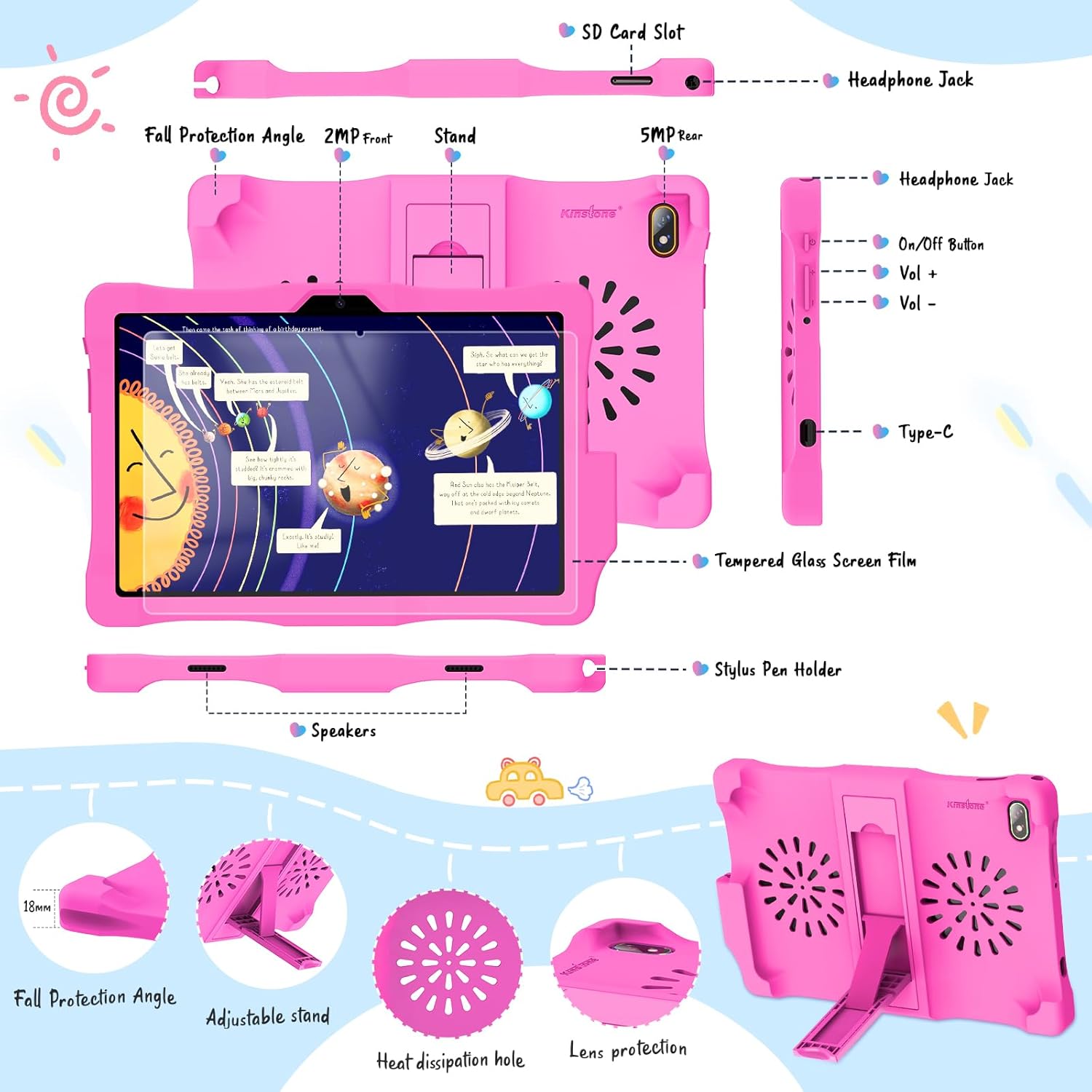
Image: Detailed diagram of the tablet's ports and features.

Image: Key features of the Kinstone Kids Tablet.
4. Nastavení
4.1 Počáteční nabíjení a zapnutí
- Connect the tablet to the power adapter using the provided USB Type-C cable.
- Allow the tablet to charge for at least 30 minutes before first use, or until the battery indicator shows sufficient charge.
- Press and hold the power button (located on the side) for a few seconds until the Kinstone logo appears on the screen.
4.2 Připojení k Wi-Fi
- Once powered on, follow the on-screen prompts to select your language and region.
- Vyberte svou síť Wi-Fi ze seznamu dostupných sítí.
- Pokud se zobrazí výzva, zadejte heslo k Wi-Fi a klepněte na tlačítko „Připojit“.
4.3 Google Account and Parental Control Setup
The tablet comes pre-installed with Google Family Link for parental controls:
- During initial setup, you will be guided to set up a Google account for your child and link it to your own Google Family Link account.
- Follow the on-screen instructions to configure screen time limits, content restrictions, app approvals, and other parental control settings.
4.4 Installing Tempered Glass Screen Film
To protect the tablet's screen, install the included tempered glass screen film:
- Clean the tablet screen thoroughly using the provided cleaning wipes (if included) to remove dust and smudges.
- Carefully align the tempered glass film with the tablet screen, ensuring proper placement around the camera and sensors.
- Gently press the center of the film, and it will adhere to the screen. Smooth out any air bubbles towards the edges.
5. Návod k obsluze
5.1 Základní navigace
- Výpad: Move your finger across the screen to navigate between home screens or scroll through content.
- Klepněte na: Touch an icon or option once to open or select it.
- Dlouhé stisknutí: Press and hold an item to reveal additional options or move icons.
- Přiblížení/zvětšení prsty: Pro přiblížení nebo oddálení obrázků použijte dva prsty nebo web stránky.
5.2 Přístup k aplikacím
Applications can be accessed from the home screen or the app drawer. Swipe up from the bottom of the screen to open the app drawer and view všechny nainstalované aplikace.
5.3 Používání stylusu
The included stylus pen can be used for drawing, writing, and precise navigation. It is stored in a dedicated holder on the protective case.

Image: Child using the stylus for creative activities.
5.4 Nastavení hlasitosti a jasu
- Objem: Use the physical Volume Up (+) and Volume Down (-) buttons located on the side of the tablet.
- Jas: Swipe down from the top of the screen to access the Quick Settings panel. Adjust the brightness slider to your desired level.
5.5 Vzdělávací a zábavní obsah
The tablet is preloaded with teacher-recommended educational games and apps. You can also download more content from the Google Play Store, including apps like YouTube Kids and ABC Mouse.

Image: Child using an educational app on the tablet.
6. Rodičovská kontrola
The Kinstone Kids Tablet utilizes Google Family Link to provide comprehensive parental control features:
- Limity času stráveného u obrazovky: Set daily screen time limits and device bedtime schedules.
- Filtrování obsahu: Manage the content your child can access on Google Play, YouTube, and other apps.
- Správa aplikací: Approve or block apps your child wants to download from the Google Play Store.
- Sledování polohy: View your child's device location (when the device is on and connected to the internet).
- Device Lock: Remotely lock your child's device.
Access and manage these settings through the Google Family Link app on your own device.

Obrázek: Overview of parental control features.
7. Údržba a péče
7.1 Čištění
- K čištění obrazovky použijte měkký hadřík, který nepouští vlákna. V případě odolných šmouh lehceamphadřík vodou nebo čisticím prostředkem na obrazovky.
- Clean the silicone case with mild soap and water if necessary. Ensure the case is completely dry before reattaching it to the tablet.
7.2 Péče o baterii
- Charge the tablet regularly using the provided charger and cable.
- Vyhněte se častému úplnému vybíjení baterie, protože to může zkrátit její životnost.
- Nevystavujte tablet extrémním teplotám.
7.3 Aktualizace softwaru
Periodically check for system updates to ensure optimal performance and security:
- Go to 'Settings' > 'System' > 'System Update'.
- Klepněte na „Zkontrolovat aktualizace“ a pokud je aktualizace k dispozici, postupujte podle pokynů na obrazovce.
7.4 Správa úložiště
If the internal 32GB storage becomes full, you can expand it up to 256GB using a microSD card. Insert the microSD card into the designated SD card slot on the tablet.
8. Řešení problémů
Zde jsou řešení běžných problémů, se kterými se můžete setkat:
| Problém | Řešení |
|---|---|
| Tablet se nezapne | Ensure the tablet is charged. Connect it to the charger for at least 30 minutes. If it still doesn't turn on, perform a hard reset by holding the power button for 10-15 seconds. |
| Problémy s připojením Wi-Fi | Check if your Wi-Fi router is working correctly. Restart the tablet and try reconnecting to the Wi-Fi network. Ensure the Wi-Fi password is correct. |
| Aplikace padá nebo běží pomalu | Close unnecessary background apps. Clear the cache of the problematic app (Settings > Apps > [App Name] > Storage > Clear Cache). Restart the tablet. Ensure sufficient storage space is available. |
| Obrazovka nereaguje | Restart the tablet. If the issue persists, ensure the screen is clean and free from debris. |
| Rodičovská kontrola nefunguje podle očekávání | Verify that the Google Family Link app on your device is updated and correctly configured. Ensure the child's tablet is connected to the internet for settings to sync. |
9. Specifikace
| Funkce | Detail |
|---|---|
| Číslo modelu | KST102SF |
| Velikost obrazovky | 10.1 palce |
| Rozlišení displeje | 1280 x 800 pixelů |
| Procesor | Unisoc Quad-Core, 2.0 GHz |
| BERAN | 3 GB DDR4 SDRAM |
| Interní úložiště | 32 GB Flash Memory (expandable to 256 GB) |
| Operační systém | Android 12 |
| Kapacita baterie | 6000mAh (approx. 10-14 hours usage) |
| Zadní WebRozlišení vačky | 5 MP |
| Rozlišení předního fotoaparátu | 2 MP |
| Bezdrátové Standardní | 802.11ac (2.4G+5G WiFi) |
| Bluetooth | Bluetooth 5.0 |
| Rozměry (D x Š x V) | 79.25 x 47.24 x 8.13 cm |
| Hmotnost položky | 1 kg |
10. Záruka a podpora
For warranty information, please refer to the Warranty Card included in your product packaging. If you encounter any issues or require technical assistance, please contact Kinstone customer support. Contact details are typically provided in the Quick Start Guide or on the manufacturer's official webmísto.


