1. Úvod
The Humax A1 is an advanced Android TV Box designed to transform your television into a smart entertainment hub. Featuring Android TV 11.0, it supports stunning 4K Ultra HD resolution, providing a superior viewing experience. With 8GB of flash storage and 2GB of RAM, it ensures smooth performance for all your applications and media. Integrated Dolby Audio, Wi-Fi 5.0, and Bluetooth 5.0 connectivity enhance your audio-visual experience and device interaction. The A1 also supports AV1 decoding for efficient streaming.

Figure 1: Humax A1 Android TV Box and Remote Control. This image displays the compact black Humax A1 streaming box alongside its sleek black remote control, highlighting the primary components of the product.
2. Klíčové vlastnosti
- Rozlišení 4K Ultra HD: Experience unparalleled visual quality with a maximum resolution of 3840 x 2160 pixels.
- Vestavěný Chromecast: Easily stream your media library from your phone, tablet, or computer directly to your TV.
- Google Assistant Voice Remote: Quickly search through over 400,000 TV shows and movies, receive personalized suggestions, and control smart home devices using voice commands.
- Smart Remote Control with Auto Learning Function: Simplifies control by allowing a single remote to manage both the TV and the set-top box.
- Android TV 11.0: Access a vast ecosystem of apps, games, and content from the Google Play Store.
- Podpora Dolby Audio: Delivers enhanced sound quality for an immersive audio experience.
- Wi-Fi 5.0 and Bluetooth 5.0: Provides stable and fast wireless connectivity for streaming and connecting peripherals.

Figure 2: Humax A1 with Key Specifications. This image highlights the Humax A1 device along with icons and text indicating its core features: Amlogic S905Y4 processor, 8GB Flash/2GB RAM, 4K Ultra HD, Wi-Fi 5, Bluetooth 5.0, AV1 support, and Dolby Audio.
3. Obsah balení
Zaškrtněte prosím políčko u následujících položek:
- Humax A1 Android TV Box
- Dálkové ovládání
- Napájecí adaptér
- HDMI kabel
- AAA baterie (2x)
- Stručný průvodce / Uživatelská příručka
4. Zařízení skončiloview
4.1. Přední a boční strana Views
The Humax A1 features a compact design with a minimalist front panel and accessible side ports.

Figure 3: Humax A1 Side ViewTento obrázek poskytuje jasný view vedlejšího profesionálafile of the Humax A1 box, showcasing its sleek and compact form factor.
4.2. Připojení zadního panelu
The rear panel of the Humax A1 provides various ports for connecting to your TV, network, and other peripherals.

Figure 4: Humax A1 Rear Panel Ports. This image displays the back of the Humax A1 device, clearly showing the various input and output ports available for connectivity.
- Micro SD: Slot for expandable storage.
- USB: Two USB ports for connecting external storage devices or other USB peripherals.
- DC 12V: Port napájení.
- Optický: Digitální audio výstup pro připojení k ozvučovacím systémům.
- HDMI: High-Definition Multimedia Interface for connecting to your TV or display.
- LAN: Ethernetový port pro kabelové připojení k síti.
- AV: Analogový audio/video výstup.
5. Dálkové ovládání
The Humax A1 comes with a smart remote control designed for intuitive navigation and voice commands. It features an auto-learning function, allowing it to control both your TV and the A1 box, reducing remote clutter.
- Vypínač: Zapíná nebo vypíná zařízení.
- Tlačítko Google Assistant: Aktivuje hlasové příkazy pro vyhledávání a ovládání.
- Navigační klávesnice (směrová a OK): Pro navigaci v menu a výběr.
- Tlačítko Domů: Návrat na domovskou obrazovku Android TV.
- Tlačítko Zpět: Vrátí se na předchozí obrazovku.
- Zvýšení/Snížení hlasitosti: Nastavuje hlasitost zvuku.
- Vyhrazená tlačítka aplikací: Quick access to popular streaming services like Netflix, YouTube, Prime Video, and Google Play.
6. Průvodce nastavením
6.1. Připojení zařízení
- Připojte napájení: Plug the power adapter into the DC 12V port on the Humax A1 and then into a power outlet.
- Připojení k televizi: Use the provided HDMI cable to connect the HDMI port on the Humax A1 to an HDMI input on your television. Note the HDMI input number (e.g., HDMI 1, HDMI 2).
- Síťové připojení (volitelné): For a wired connection, connect an Ethernet cable from your router to the LAN port on the Humax A1. For Wi-Fi, you will configure this during initial setup.
- Vložte baterie: Open the battery compartment on the remote control and insert the two AAA batteries, ensuring correct polarity.
6.2. Počáteční nastavení
- Zapnutí: Turn on your TV and select the correct HDMI input source. The Humax A1 will power on automatically or can be turned on using the remote.
- Výběr jazyka: Postupujte podle pokynů na obrazovce a vyberte preferovaný jazyk.
- Nastavení sítě: Choose your Wi-Fi network from the list and enter the password, or confirm your wired connection.
- Přihlášení k účtu Google: Sign in with your existing Google account to access Google Play Store, personalized recommendations, and other Google services. You can use your phone/computer or the remote for this.

Figure 5: Google Account Sign-in Screen. This image shows the on-screen prompt for signing in with a Google account, offering options to use a phone/computer or the remote control.
7. Návod k obsluze
7.1. Navigace v rozhraní
The Android TV 11 interface is designed for easy navigation. Use the directional pad on your remote to move between sections and select items.
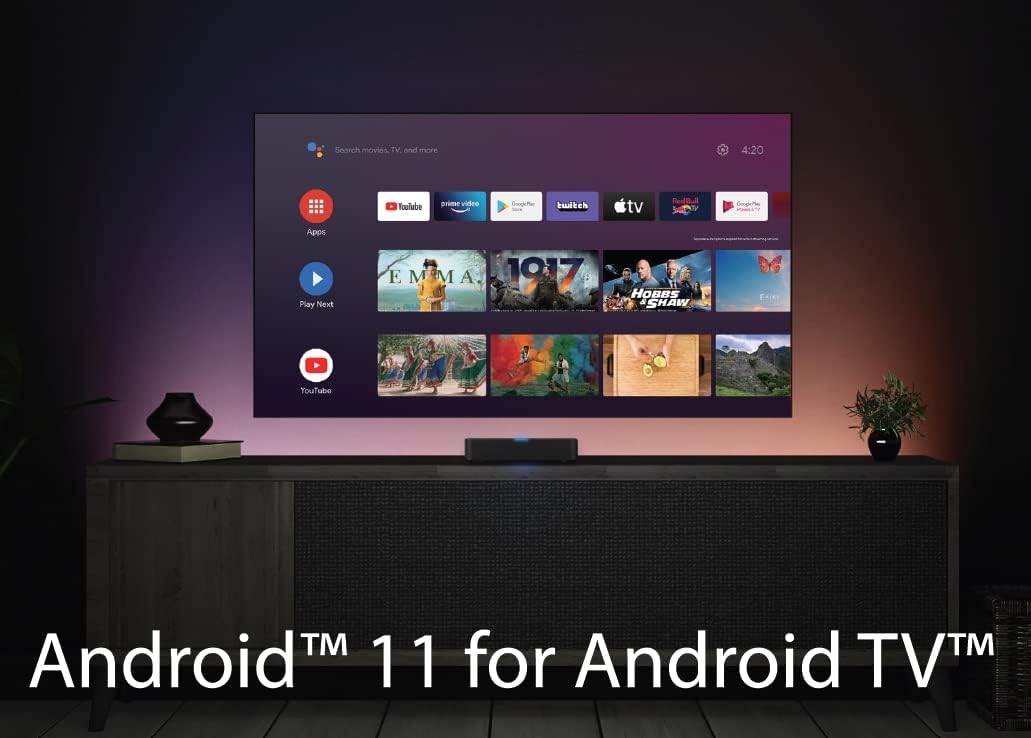
Figure 6: Android TV 11 Interface. This image displays the main home screen of the Android TV 11 operating system, showing various app icons and content recommendations.
- Domovská obrazovka: Provides quick access to your favorite apps, recently played content, and recommendations.
- Aplikace: A dedicated section to view a spusťte všechny nainstalované aplikace.
- Objevit: Offers personalized content recommendations based on your viewing habits and installed apps.
7.2. Pomocí Google Assistant
Press the Google Assistant button on your remote to activate voice control. You can ask questions, search for content, control smart home devices, and more.

Figure 7: Google Assistant Voice Control. This image illustrates the use of Google Assistant for voice commands, showing a search bar and content suggestions appearing on the TV screen.
7.3. Streamování obsahu
The Humax A1 supports various methods for streaming content:
- Předinstalované aplikace: Use the dedicated buttons or navigate to launch apps like Netflix, YouTube, and Prime Video.
- Obchod Google Play: Download and install thousands of additional streaming apps, games, and utilities.
- Vestavěný Chromecast: Cast videos, music, and photos from your compatible mobile devices or computer directly to your TV.

Figure 8: Chromecast Built-in Feature. This image demonstrates the Chromecast functionality, showing content being cast from a mobile phone to the TV screen via the Humax A1.

Figure 9: Official Android TV Device Interface. This image showcases the official Android TV interface, highlighting the wide range of content and apps available through the platform.
7.4. Personalizing Recommendations
The Discover tab helps you find new content. You can train the system by rating movies and shows to improve future recommendations.

Figure 10: Personalized Recommendations Screen. This image displays the Google Play interface with various movie and show recommendations, demonstrating how the system suggests content.
8. Údržba
- Čištění: Jemně otřete zařízení a dálkový ovladač měkkým, suchým hadříkem. Nepoužívejte tekuté čisticí prostředky ani abrazivní materiály.
- Aktualizace softwaru: The Humax A1 will periodically check for and prompt you to install software updates. It is recommended to keep your device updated for optimal performance and security.
- Větrání: Ujistěte se, že je zařízení umístěno v dobře větraném prostoru, aby nedošlo k přehřátí. Neblokujte žádné větrací otvory.
- Cyklus napájení: If the device becomes unresponsive, unplug the power adapter from the wall outlet, wait for 10 seconds, and then plug it back in.
9. Řešení problémů
If you encounter issues with your Humax A1, refer to the table below for common problems and their solutions.
| Problém | Možná příčina | Řešení |
|---|---|---|
| Zařízení se nezapne | Napájecí adaptér není připojen nebo je zásuvka vadná. | Ujistěte se, že je napájecí adaptér bezpečně připojen k zařízení a k funkční zásuvce. Zkuste jinou zásuvku. |
| Žádný obraz na televizi | Na televizoru je vybrán nesprávný vstup HDMI; kabel HDMI je uvolněný nebo vadný. | Verify TV is on the correct HDMI input. Check HDMI cable connections at both ends. Try a different HDMI cable or port. |
| Žádný zvuk | TV volume muted or too low; incorrect audio output settings. | Increase TV volume. Check audio settings on the Humax A1 and TV. Ensure external audio systems are properly connected and powered. |
| Dálkové ovládání nereaguje | Batteries are low or incorrectly inserted; remote not paired. | Replace batteries. Ensure batteries are inserted with correct polarity. Re-pair the remote if necessary (refer to device pairing instructions). |
| Nelze se připojit k Wi-Fi | Nesprávné heslo k Wi-Fi; problémy s routerem; zařízení je příliš daleko od routeru. | Double-check Wi-Fi password. Restart your router. Move the device closer to the router or consider a wired connection. |
| Aplikace padá nebo zamrzávají | Insufficient memory; app bug; outdated software. | Close background apps. Clear app cache (Settings > Apps > [App Name] > Clear Cache). Ensure device software and apps are updated. Restart the device. |
10. Technické specifikace
| Funkce | Detail |
|---|---|
| Značka | Humax |
| Číslo modelu | 9-00159 |
| Operační systém | Android TV 11.0 |
| Rezoluce | 4K Ultra HD (3840 2160 x XNUMX XNUMX) |
| Paměť (RAM) | 2 GB |
| Úložiště (flash) | 8 GB |
| Technologie připojení | Bluetooth 5.0, Wi-Fi 5.0 (802.11ac) |
| Typy konektorů | Micro USB, HDMI, Optical, LAN, AV, DC 12V |
| Speciální funkce | Chromecast, Miracast, Google Assistant |
| Rozměry produktu | 9.6 x 9.6 x 2 cm |
| Hmotnost | 124 g |
| Jsou vyžadovány baterie | 2 baterie AAA (součástí balení) |
11. Záruka a podpora
Informace o záruce: Your Humax A1 product is covered by a manufacturer's warranty. Please refer to the warranty card included in your product packaging for specific terms, conditions, and duration. Keep your proof of purchase for warranty claims.
Zákaznická podpora: For technical assistance, troubleshooting beyond this manual, or warranty inquiries, please contact Humax customer support. Contact details can typically be found on the official Humax webwebu nebo v dokumentaci k produktu.


