1. Úvod
The ASUS SIMPRO Dock 2 is a versatile docking station designed to expand the connectivity options of compatible laptops. It provides a wide array of ports for connecting external displays, USB devices, network, and power, streamlining your workspace and enhancing productivity. This manual provides essential information for setting up, operating, and maintaining your SIMPRO Dock 2.
2. Obsah balení
Ověřte, zda jsou v balení všechny položky. Pokud je některá položka poškozená nebo chybí, kontaktujte prodejce.
- ASUS SIMPRO Dock 2
- Napájecí adaptér
- Thunderbolt Cable (60cm)
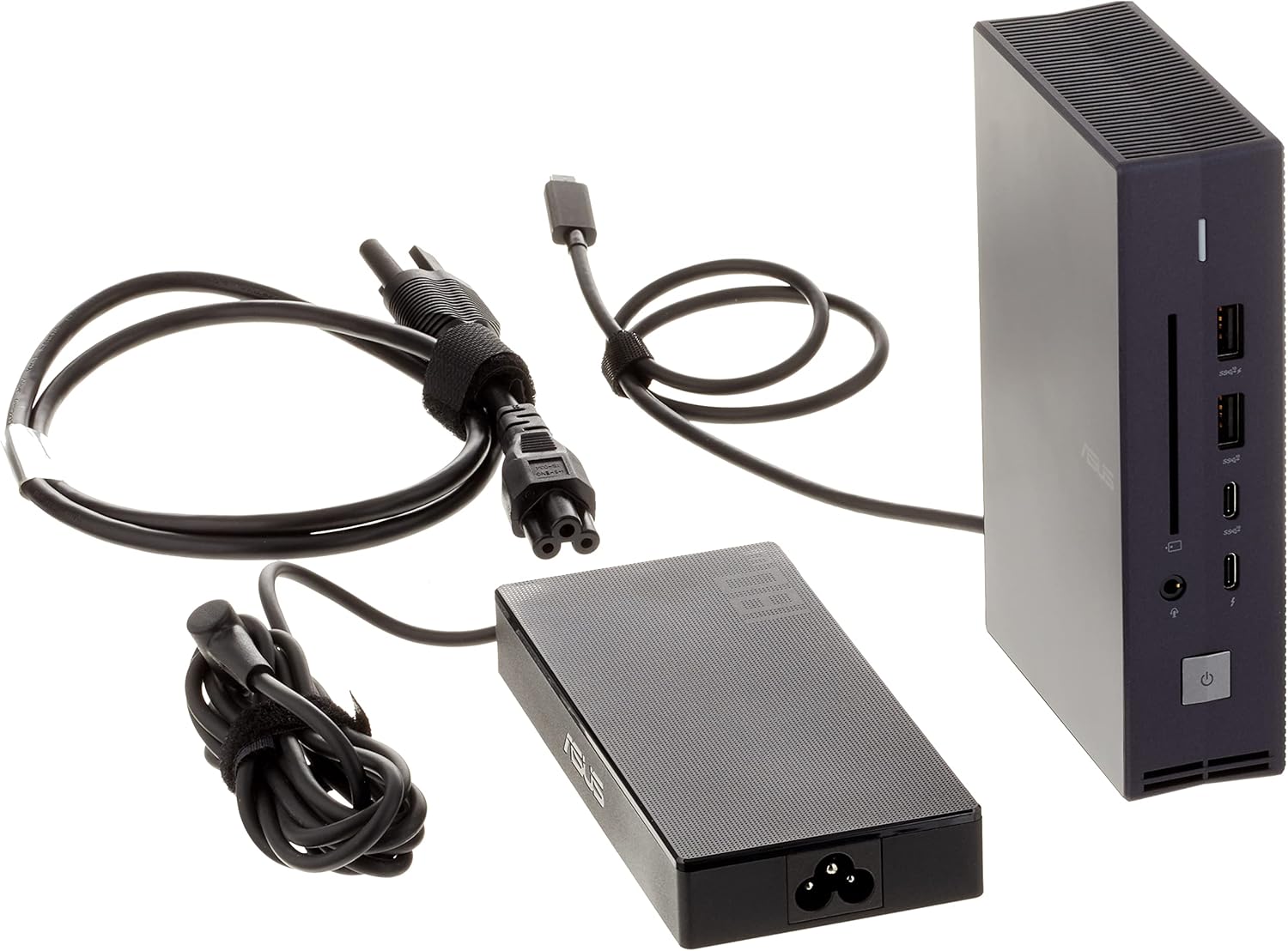
3. Konec produktuview
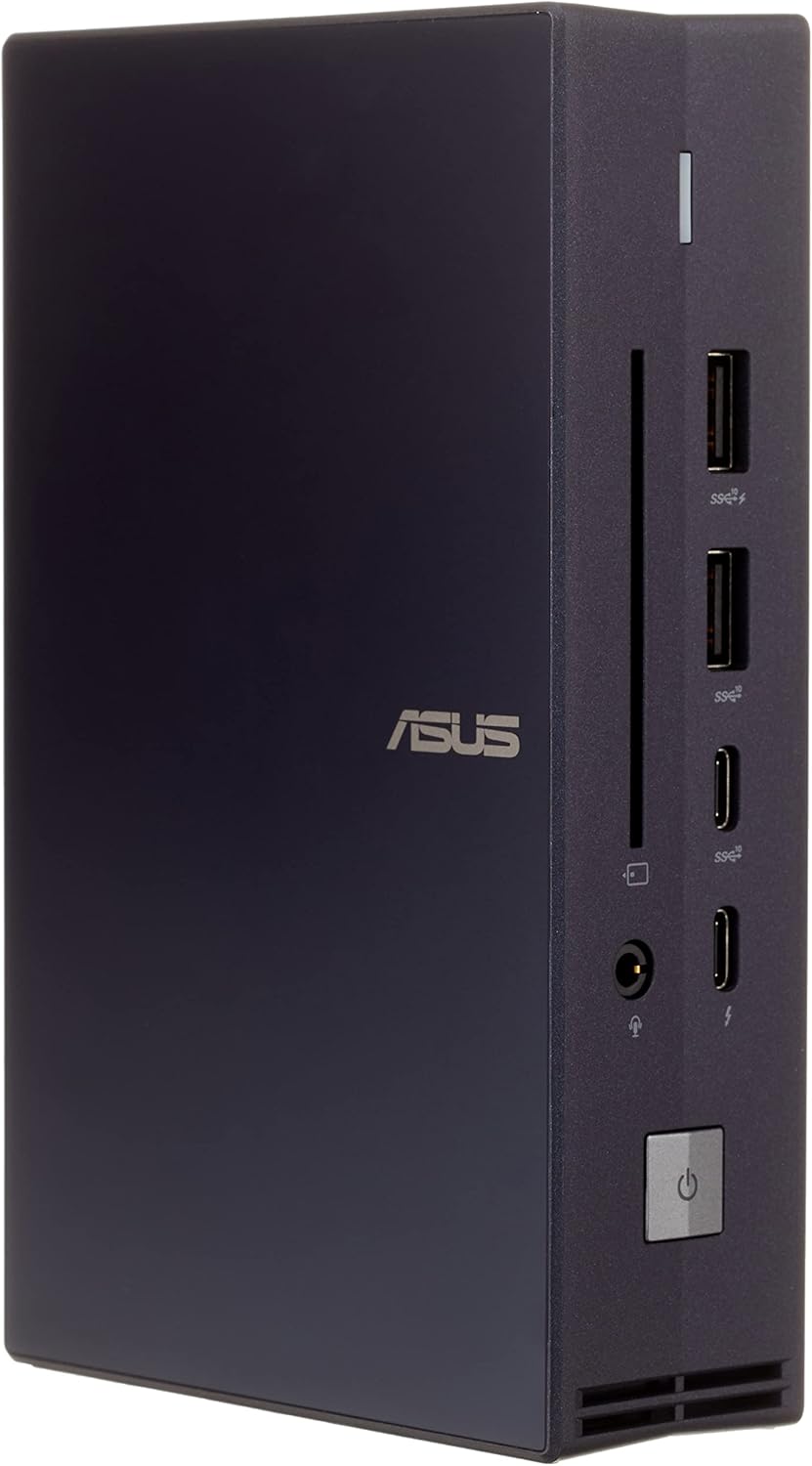
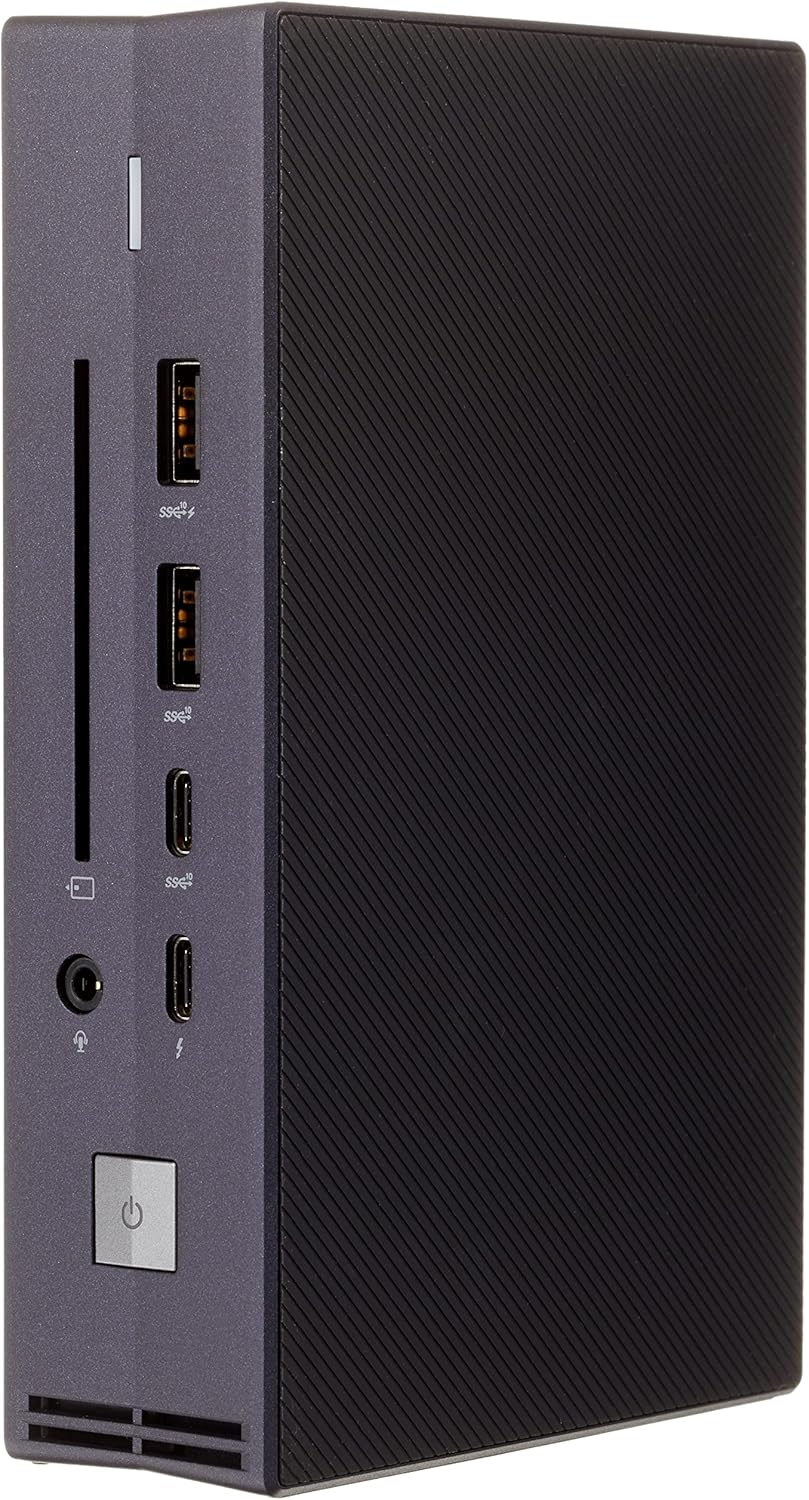
3.1 Přední panel
- Kombinovaný audio konektor: Pro připojení sluchátek nebo headsetu.
- Port Thunderbolt 3: Vysokorychlostní přenos dat a zobrazení.
- Port USB 3.2 Gen 2 typu C: Pro připojení zařízení s USB-C konektorem.
- USB 3.2 Gen 2 Type-A Port (supports fast charging): For connecting USB-A devices and fast charging compatible devices.
- Port USB 3.2 Gen 2 typu A: Pro připojení zařízení s rozhraním USB-A.
- Čtečka čipových karet: For inserting smart cards.
- Power Button and Status Indicator: To power on/off the dock and indicate operational status (for Expertbook).
3.2 Zadní panel
- Port USB 3.2 Gen1 typu A: Pro připojení zařízení s rozhraním USB-A.
- DP 1.4 Port: DisplayPort for connecting external monitors.
- Port HDMI 2.0: HDMI for connecting external monitors.
- VGA port: VGA for connecting older external monitors.
- RJ45 Giga-Lan Port: Gigabitový ethernetový port pro kabelové síťové připojení.
- Slot zámku Kensington: For securing the device with a compatible lock.
- DC Jack (6 phi): Power input for the dock.

4. Pokyny k nastavení
- Připojte napájení: Plug the power adapter into the DC Jack (6 phi) on the rear panel of the SIMPRO Dock 2, then connect the power adapter to an electrical outlet.
- Připojení k notebooku: Use the provided Thunderbolt cable to connect the Thunderbolt 3 port on the front panel of the SIMPRO Dock 2 to a compatible Thunderbolt 3 port on your laptop. The dock will provide charging functionality to your laptop through this connection.
- Připojení periferií:
- Zobrazuje: Connect your external monitors to the DP 1.4, HDMI 2.0, or VGA ports on the rear panel.
- Zařízení USB: Connect your USB devices (e.g., keyboard, mouse, external drives) to the available USB 3.2 Gen 2 Type-A, USB 3.2 Gen 2 Type-C (front), or USB 3.2 Gen1 Type-A (rear) ports.
- Síť: Connect an Ethernet cable from your router or network switch to the RJ45 Giga-Lan port on the rear panel for a wired internet connection.
- Zvuk: Connect headphones or a headset to the Audio Combo Jack on the front panel.
- Zapnutí: Press the Power Button on the front panel of the SIMPRO Dock 2. The status indicator will illuminate.
Poznámka: The ASUS SIMPRO Dock 2 is compatible with specific ASUS SKUs including P2451FA, P2451FB, B9450FA, B9450CEA, and BR1100.
5. Návod k obsluze
- Řízení spotřeby: The dock's power button controls its own power state. When connected to a compatible laptop via Thunderbolt, it can also provide power to the laptop.
- Konfigurace displeje: Once external monitors are connected, your operating system should automatically detect them. You may need to adjust display settings (e.g., resolution, extended/duplicate mode) within your laptop's display settings.
- Použití USB zařízení: Connect any USB device to the available USB ports. The USB 3.2 Gen 2 Type-A port on the front panel supports fast charging for compatible devices.
- Přístup k síti: After connecting an Ethernet cable, your laptop should automatically establish a wired network connection.
- Čtečka čipových karet: Insert a smart card into the designated slot for authentication or data access as required by your system or applications.
6. Údržba
- Čištění: Use a soft, dry cloth to clean the exterior of the dock. Avoid using liquid cleaners or solvents, as they may damage the finish or internal components.
- Větrání: Ensure the dock is placed in a well-ventilated area to prevent overheating. Do not block any ventilation openings.
- Skladování: When not in use for extended periods, store the dock in a cool, dry place away from direct sunlight and extreme temperatures.
- Správa kabelů: Udržujte kabely uspořádané a bez zauzlení nebo nadměrného ohýbání, abyste předešli poškození.
7. Řešení problémů
- Bez napájení:
- Ensure the power adapter is securely connected to both the dock and a working electrical outlet.
- Check if the power button on the dock has been pressed.
- Žádný výstup na displej:
- Verify that the Thunderbolt cable is securely connected between the dock and your laptop.
- Ensure display cables (DP, HDMI, VGA) are firmly connected to both the dock and the monitors.
- Check your laptop's display settings to ensure external monitors are detected and configured correctly.
- Zkuste aktualizovat ovladače grafické karty vašeho notebooku.
- Nefunkční zařízení USB:
- Ensure USB devices are properly connected to the dock's USB ports.
- Try connecting the USB device directly to your laptop to rule out device issues.
- Restart your laptop and the dock.
- Žádné síťové připojení:
- Check the Ethernet cable connection between the dock and your network source.
- Verify your laptop's network settings.
- Ensure your router or modem is functioning correctly.
8. Specifikace
| Funkce | Specifikace |
|---|---|
| Číslo modelu | 90NX0460-P00080 |
| Rozměry (DxŠxV) | 14.8 x 2.21 x 11.5 inches (Product) / 6.36"L x 3.9"W x 1.59"H (Dock Unit) |
| Hmotnost | 3.76 libry |
| Barva | Černý |
| Porty na předním panelu | 1 x Audio Combo Jack, 1 x Thunderbolt 3, 1 x USB 3.2 Gen 2 Type-C, 1 x USB 3.2 Gen 2 Type-A (supports fast charging), 1 x USB 3.2 Gen 2 Type-A, 1 x Smart Card Reader, 1 x Power Button |
| Porty na zadním panelu | 1 x USB 3.2 Gen1 Type-A, 1 x DP 1.4, 1 x HDMI 2.0, 1 x VGA, 1 x RJ45 Giga-Lan, 1 x Kensington Lock, 1 x DC Jack (6 phi) |
| Celkový počet portů USB | 5 |
| Celkový počet portů HDMI | 1 |
| Hardwarové rozhraní | USB, VGA |
| Kompatibilní zařízení | P2451FA, P2451FB, B9450FA, B9450CEA, BR1100 |
| Wattage | 120W |
9. Informace o záruce
ASUS products are manufactured to the highest quality standards. For specific warranty terms and conditions applicable to your region and product, please refer to the warranty card included with your purchase or visit the official ASUS support webUschovejte si doklad o koupi pro případ reklamace.
10. Podpora
Pro technickou podporu, stažení ovladačů, odpovědi na nejčastější dotazy a další pomoc navštivte oficiální stránky podpory ASUS. website. You can typically find support resources by searching for your product model number (90NX0460-P00080) on the ASUS support portal.
Online podpora: www.asus.com/support/


