1. Úvod
The ASUS ROG Keris Wireless EVA Edition Gaming Mouse is a high-performance peripheral designed for precision and customization. This mouse features tri-mode connectivity, allowing for versatile use across various platforms. Its lightweight design and advanced sensor technology provide an optimal gaming experience.
Mezi klíčové vlastnosti patří:
- Tri-mode connectivity: Dual-wireless 2.4 GHz, Bluetooth LE, and wired USB.
- Specially tuned 16,000 DPI, 400 IPS ROG optical sensor with 1000 Hz polling rate.
- Lightweight 79-gram design with a durable honeycomb inner structure.
- Exclusive ROG Push-Fit Switch Socket design for easy switch replacement.
- ROG Micro Switches with a 70-million-click lifespan.
- Premium PBT polymer L/R buttons and swappable side buttons.
- ROG Paracord cable and 100% PTFE rounded-edge mouse feet for smooth glide.
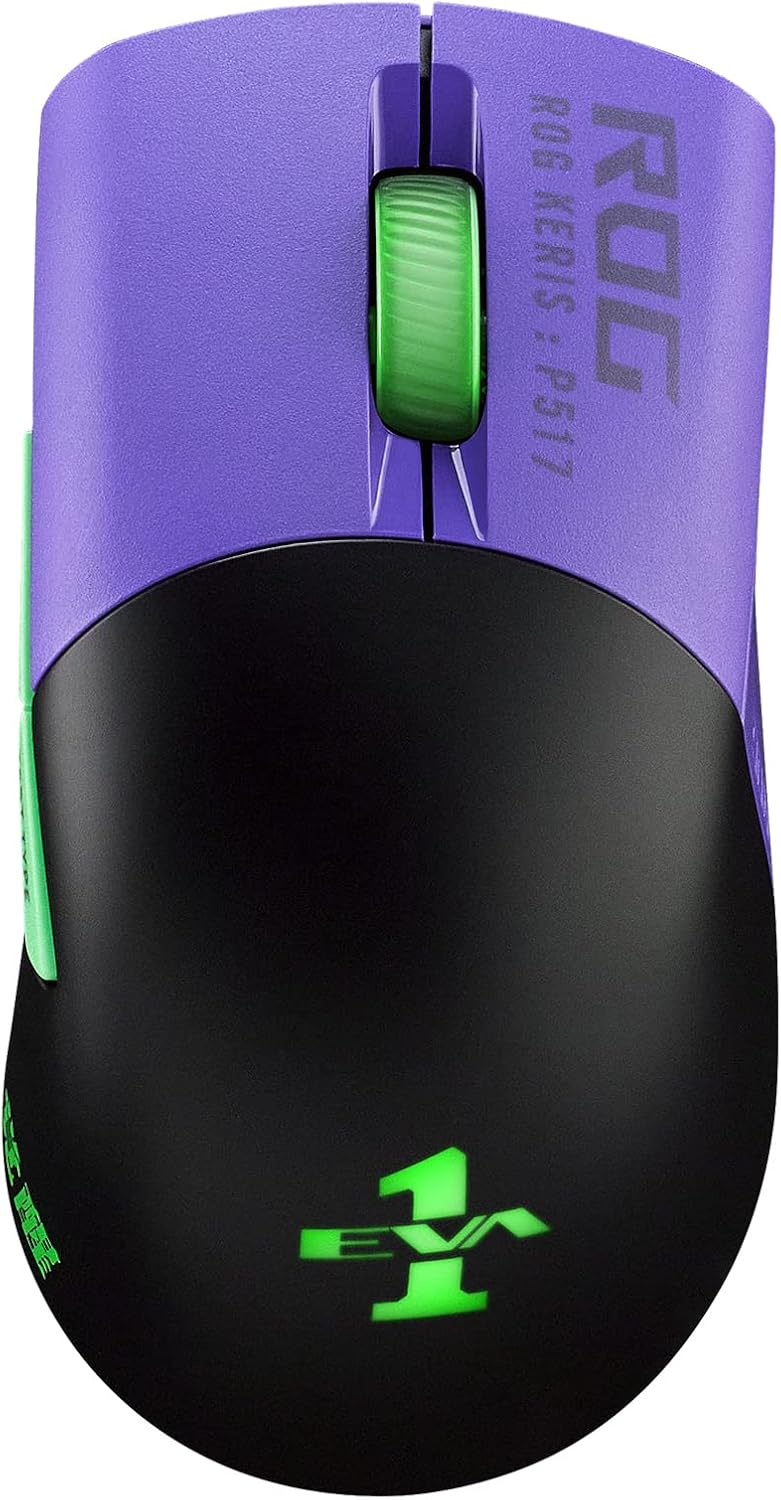
Obrázek: Nahoře view of the ASUS ROG Keris Wireless EVA Edition Gaming Mouse, showcasing its purple and black design with green accents.
2. Obsah balení
Ověřte, zda jsou v balení produktu přítomny všechny položky:
- ASUS ROG Keris Wireless EVA Edition Gaming Mouse
- USB Type-C to Type-A ROG Paracord Cable
- Bezdrátový USB klíč
- ROG Switch Kit (includes extra switches)
- Swappable Side Buttons (various colors)
- Uživatelská příručka (tento dokument)
- Záruční list
3. Nastavení
3.1 Nabíjení myši
Before first use, it is recommended to fully charge the mouse. Connect the USB Type-C end of the ROG Paracord Cable to the mouse and the USB Type-A end to an available USB port on your computer or a USB wall adapter. The mouse's LED indicator will show charging status.
3.2 Připojení myši
The ROG Keris Wireless EVA Edition supports three connectivity modes:
3.2.1 Bezdrátové připojení 2.4 GHz
- Locate the USB wireless dongle.
- Plug the dongle into an available USB Type-A port on your computer.
- On the bottom of the mouse, slide the connectivity switch to the 2.4G pozice.
- Myš by se měla automaticky připojit k počítači.
3.2.2 Bluetooth LE Connection
- On the bottom of the mouse, slide the connectivity switch to the Bluetooth pozice.
- V počítači otevřete nastavení Bluetooth a vyhledejte nová zařízení.
- Select "ROG Keris Wireless EVA Edition" from the list of available devices to pair.
3.2.3 Kabelové USB připojení
- Connect the USB Type-C end of the ROG Paracord Cable to the mouse.
- Connect the USB Type-A end of the cable to an available USB port on your computer.
- Myš bude v kabelovém režimu fungovat okamžitě a zároveň se bude nabíjet.
3.3 Instalace softwaru (Armoury Crate)
For full customization options, including DPI settings, button remapping, and RGB lighting control, download and install the ASUS Armoury Crate software from the official ASUS support webmísto. Navštivte podporu ASUS
4. Návod k obsluze
4.1 Základní funkce myši
- Levé kliknutí: Primární akce.
- Klikněte pravým tlačítkem myši: Sekundární akce/kontextová nabídka.
- Rolovací kolečko: Posun nahoru/dolů, kliknutí prostředním tlačítkem myši.
- Boční tlačítka: Default to forward/back in web browsers. Customizable via Armoury Crate.
4.2 Nastavení DPI
The mouse features a dedicated DPI button (usually located behind the scroll wheel or on the bottom) to cycle through preset DPI levels. You can customize these levels and assign them to specific buttons using the Armoury Crate software.

Image: The underside of the mouse highlighting its 16,000 DPI resolution, 400 IPS max speed, and 40G acceleration.
4.3 Customizing Switches and Side Buttons
The ROG Keris Wireless EVA Edition features an exclusive Push-Fit Switch Socket design, allowing users to easily swap out the mouse switches to customize click force or replace worn switches. The mouse also comes with swappable side buttons for aesthetic and ergonomic customization.

Obrázek: Podrobný view of the ROG Push-Fit Switch Socket, illustrating how switches can be easily inserted and removed.

Image: The mouse shown with its customizable side buttons, demonstrating the ability to change their appearance and feel.
5. Údržba
5.1 Čištění myši
To maintain optimal performance and appearance, regularly clean your mouse. Use a soft, dry cloth to wipe down the surface. For stubborn dirt, a slightly damp Lze použít hadřík namočený v jemném mýdle, ale dbejte na to, aby se do myši nedostala žádná tekutina. Nepoužívejte abrazivní čisticí prostředky ani rozpouštědla.
5.2 Péče o baterii
To prolong battery life, avoid fully discharging the mouse frequently. Charge the mouse when the battery indicator is low. If storing the mouse for an extended period, charge it to approximately 50% before storage.
6. Řešení problémů
6.1 Myš nereaguje
- Zkontrolujte baterii: Ensure the mouse is charged. Connect it via USB cable to charge and test.
- Zkontrolujte připojení: Verify the connectivity switch on the bottom of the mouse is set to the correct mode (2.4G, Bluetooth, or Wired).
- Připojení dongle: If using 2.4G wireless, ensure the USB dongle is securely plugged into a working USB port. Try a different USB port.
- Bluetooth párování: If using Bluetooth, ensure the mouse is properly paired with your device and Bluetooth is enabled on your computer. Try re-pairing.
- Restartujte počítač: Problémy s připojením může často vyřešit jednoduchý restart.
6.2 Cursor Lag or Jitter
- Čistit senzor: Ensure the optical sensor on the bottom of the mouse is clean and free of debris.
- Povrch: Use the mouse on a clean, uniform surface, preferably a mouse pad. Avoid reflective or transparent surfaces.
- Rušení: If using wireless, move the mouse closer to the dongle or computer. Avoid strong electromagnetic interference sources.
- Nastavení DPI: Adjust DPI settings via the mouse button or Armoury Crate to see if it improves performance.
6.3 Nefunkční tlačítka
- Konflikt softwaru: If you have other mouse software installed, it might conflict with Armoury Crate. Try uninstalling other software.
- Výměna spínače: If a specific button is not clicking or double-clicking unintentionally, consider replacing the switch using the provided ROG Switch Kit. Refer to online tutorials or the Armoury Crate software for guidance on switch replacement.
7. Specifikace
| Funkce | Specifikace |
|---|---|
| Číslo modelu | P517 ROG KERIS WIRELESS EVA EDITION |
| Konektivita | Tri-Mode (2.4 GHz Wireless, Bluetooth LE, USB Wired) |
| Senzor | ROG Optical Sensor |
| DPI | Až 16,000 XNUMX DPI |
| IPS | 400 IPS |
| Akcelerace | 40G |
| Míra hlasování | 1000 Hz |
| Spínače | ROG Micro Switches (70-million-click lifespan), Push-Fit Socket |
| Tlačítka | 7 programmable buttons, PBT L/R buttons, Swappable side buttons |
| Hmotnost | 79 gramů (bez kabelu) |
| Rozměry (DxŠxV) | 4.65 x 2.44 x 1.54 palce (118 x 62 x 39 mm) |
| Životnost baterie | Up to 78 hours (56 hours with RGB lighting on) |
| Kabel | ROG Paracord |
| Myší nohy | 100% PTFE rounded-edge |
| Operační systém | Windows, macOS |

Image: The mouse with its dimensions indicated: 4.65 inches length and 2.44 inches width.
8. Záruka a podpora
ASUS provides a limited warranty for this product. Please refer to the warranty card included in your package for detailed terms and conditions, including warranty period and coverage.
Pro technickou podporu, stažení ovladačů, odpovědi na nejčastější dotazy a další pomoc navštivte oficiální stránky podpory ASUS. webmísto:
Oficiální podpora ASUSu Webmísto
You can also visit the ASUS Store for more information about ROG products:


