1. Úvod
FIFINE AmpliGame A8 is a versatile USB RGB condenser microphone designed for high-quality audio capture in various applications, including live streaming, online meetings, podcasting, and video creation. Its plug-and-play functionality ensures easy setup across multiple platforms, providing clear and crisp audio for effective communication and engaging content.
Klíčové vlastnosti:
- Handy Control: Integrated 3.5mm headphone jack for real-time monitoring, gain knob for volume adjustment, and a tap-to-mute button with LED indicator.
- Optional RGB Lighting: Features 3 modes of controllable RGB lights (static, dynamic, gradient) to enhance your setup's aesthetic.
- Smooth Communication: Condenser microphone capsule delivers clear voice, complemented by a cardioid polar pattern that reduces background noise.
- Snadný start: Plug-and-play USB connectivity for quick setup with computers (MAC OS/Windows) and gaming consoles (PS4/PS5).
- Externí příslušenství: Includes a metal anti-plosive pop filter and an integrated shock mount to minimize unwanted noise from vibrations and plosives.
2. Co je v krabici
Upon opening your FIFINE AmpliGame A8 package, you will find the following components:
- USB Microphone (with based stand and shock mount)
- Šroubový adaptér
- USB Cable (6.5ft USB-C to USB-A)
- Uživatelská příručka
- Popový filtr

Obrázek: Všechny komponenty zahrnuté ve FIFINE AmpliGame A8 package.
3. Nastavení
FIFINE AmpliGame A8 microphone is designed for quick and easy setup, allowing you to start recording or communicating without complex installations.
3.1 Physical Assembly:
- Attach the microphone to its desktop stand. The stand is designed for stability and to reduce vibrations.
- Install the included pop filter onto the microphone to minimize plosive sounds (P, B, T, K sounds).
- If using a boom arm (not included), unscrew the microphone from the desktop stand and use the provided screw adapter to attach it to your boom arm.
3.2 Connecting to Your Device:
- Connect the USB-C end of the provided 6.5ft cable to the USB-C port at the bottom of the microphone.
- Connect the USB-A end of the cable to an available USB port on your computer (Windows/MAC OS) or gaming console (PS4/PS5).
- The microphone is plug-and-play and should be automatically recognized by your operating system. No additional drivers are typically required.

Obrázek: FIFINE AmpliGame A8 microphone ready for use with a computer.
3.3 Initial Audio Settings:
- Windows: Go to Sound Settings > Input > Select 'FIFINE AmpliGame A8' as your input device. Adjust the input volume as needed.
- MAC OS: Go to System Preferences > Sound > Input > Select 'FIFINE AmpliGame A8'. Adjust the input volume as needed.
- PS4/PS5: Navigate to Sound/Audio Devices in the system settings and select 'FIFINE AmpliGame A8' as the input device.
Video: An official seller video demonstrating the FIFINE AmpliGame A8 microphone's RGB lighting and features, including its use in a gaming setup.
4. Návod k obsluze
Familiarize yourself with the microphone's controls to optimize your audio experience.
4.1 Headphone Monitoring:
The 3.5mm headphone jack located at the bottom of the microphone allows for real-time audio monitoring. Plug your headphones into this jack to hear your voice and device audio directly, ensuring optimal sound levels during recording or streaming.

Image: The headphone jack for direct audio monitoring.
4.2 Gain Control:
The gain knob on the microphone allows you to adjust the microphone's sensitivity. Turn the knob to increase or decrease the input volume to prevent audio clipping or to pick up softer sounds. Adjust based on your environment and desired vocal presence.

Image: Adjusting the microphone gain for optimal sound input.
4.3 Tap-to-Mute Function:
The top of the microphone features a touch-sensitive tap-to-mute button. Tap once to mute or unmute the microphone. An LED indicator will change color (e.g., green for active, red for muted) to clearly show the microphone's status.

Image: The tap-to-mute button with visual status indicator.
4.4 RGB Lighting Control:
The microphone features controllable RGB lighting with three distinct modes: static, dynamic, and gradient. Use the dedicated RGB control button (often located near the gain knob or on the base) to cycle through different colors and lighting effects to match your setup or mood.
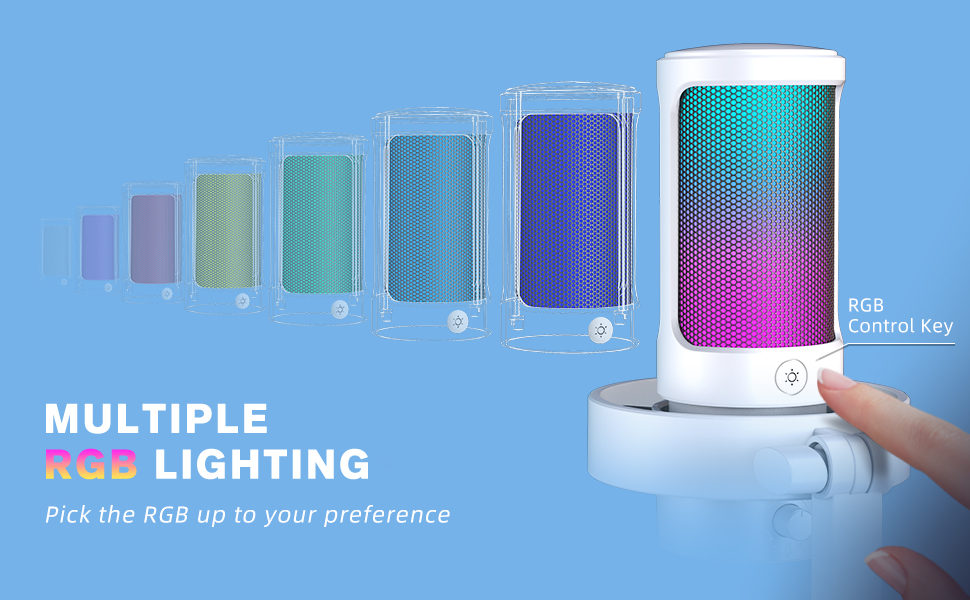
Image: Demonstrating multiple RGB lighting options on the microphone.
4.5 Cardioid Polar Pattern:
The microphone utilizes a cardioid polar pattern, which primarily picks up sound from the front, reducing unwanted noise from the sides and rear. Position the microphone with the FIFINE logo facing you for optimal voice capture and background noise rejection.
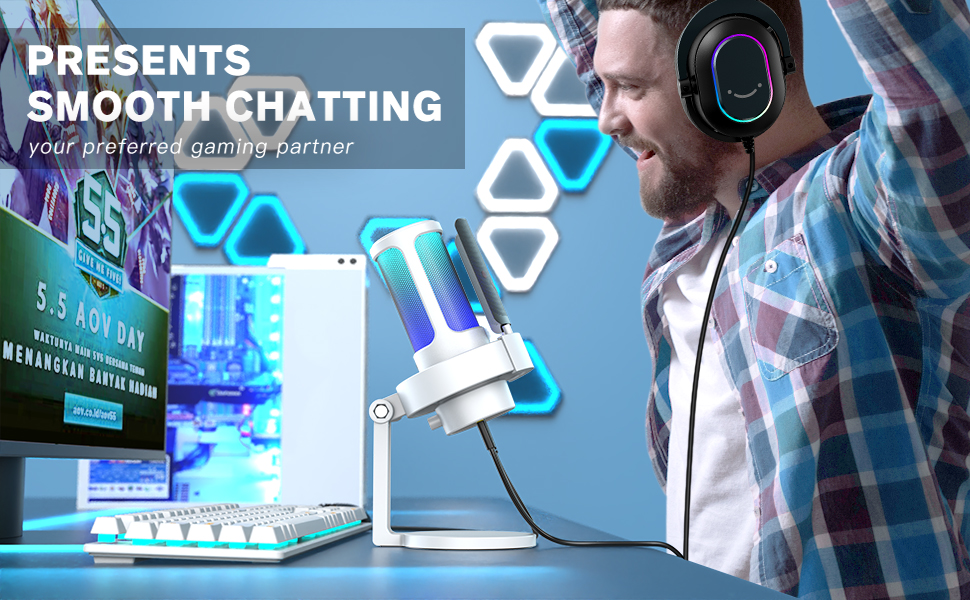
Image: The microphone positioned for clear voice capture in a gaming environment.
5. Údržba
Proper maintenance ensures the longevity and optimal performance of your FIFINE AmpMikrofon liGame A8.
5.1 Čištění:
- Gently wipe the microphone body with a soft, dry cloth to remove dust and fingerprints.
- Do not use liquid cleaners or abrasive materials, as these can damage the microphone's finish or internal components.
- The pop filter can be carefully removed and cleaned with a soft brush if necessary.
5.2 Úložiště:
- Mikrofon skladujte na chladném a suchém místě mimo dosah přímého slunečního záření a extrémních teplot.
- When not in use, ensure the microphone is disconnected from your device to prevent accidental power draw.
6. Řešení problémů
Pokud narazíte na jakékoli problémy s vaším zařízením FIFINE AmpliGame A8 microphone, refer to the following common solutions:
6.1 No Sound/Low Volume:
- Zkontrolujte připojení: Ujistěte se, že je kabel USB bezpečně připojen k mikrofonu i k zařízení.
- Ověření nastavení zařízení: Confirm that 'FIFINE AmpliGame A8' is selected as the input device in your computer's or console's sound settings.
- Adjust Gain Knob: Rotate the gain knob on the microphone clockwise to increase the input volume.
- Unmute Microphone: Tap the mute button on top of the microphone to ensure it is not muted (LED should be green).
6.2 Distorted/Peaking Audio:
- Snížení zisku: Rotate the gain knob counter-clockwise to decrease the input volume.
- Upravit vzdálenost: Move further away from the microphone. Optimal distance is typically 6-12 inches.
- Použití popového filtru: Ujistěte se, že je pop filtr správně nainstalován, aby se snížily explozivní zvuky.
6.3 Background Noise:
- Optimize Environment: Record in a quiet environment, away from fans, air conditioners, or other noise sources.
- Software Noise Reduction: Utilize noise reduction features available in your recording software or communication applications.
- Problémy s uzemněním: If experiencing persistent hums or static, try plugging your computer into a different wall outlet or using a different USB port.
6.4 RGB Lights Not Working:
- Zkontrolujte napájení: Ujistěte se, že je mikrofon správně připojen a napájen.
- Režimy cyklů: Press the RGB control button to cycle through the lighting modes.
- Resetovat: Odpojte a znovu připojte kabel USB.
7. Specifikace
| Funkce | Detail |
|---|---|
| Název modelu | AmpliGame A8 |
| Číslo modelu položky | A8W |
| Značka | FIFINE |
| Technologie připojení | USB |
| Typ konektoru | USB typu A |
| Polární vzor | Jednosměrný (kardioidní) |
| Tvarový faktor mikrofonu | Hranice |
| Kompatibilní zařízení | Laptop, Macbook, PS4/5, Personal Computer |
| Doporučená použití | Hraní her, streamování, nahrávání, tvorba videa, podcasting |
| Barva | Bílý |
| Materiál | Akrylonitrilbutadienstyren, kov |
| Hmotnost položky | 1.32 libry (600 gramů) |
| Rozměry produktu | 4.53 x 6.46 x 9.33 palce |
| Odstup signálu od šumu | 80 dB |
| Počet kanálů | 1 |
| Zdroj napájení | Elektrický kabel |
| Speciální funkce | Controllable RGB, RGB Control Button, Tap-to-Mute, Gain Knob, 6.5ft Detachable USB-C Cable, Plug and Play, Desktop Mic |
8. Záruka a podpora
For warranty information, technical support, or any product-related inquiries, please refer to the official FIFINE webnebo se obraťte přímo na jejich zákaznický servis. Uschovejte si účtenku jako doklad o koupi pro případ reklamace.
Online zdroje:
- Navštivte Obchod FIFINE na Amazonu pro další produkty a podporu.


