Zavedení
This manual provides essential information for setting up, operating, maintaining, and troubleshooting your Acer Veriton X4680G Desktop Computer. Please read this document thoroughly before using the product to ensure proper function and longevity. Keep this manual for future reference.
Obsah balení
Ověřte, zda jsou v balení přítomny všechny položky:
- Acer Veriton X4680G Desktop PC
- USB klávesnice
- USB myš
- Napájecí kabel
- Dokumentace (Stručná úvodní příručka, Záruční list)
Konec produktuview
Familiarize yourself with the physical components of your desktop computer.
Přední View
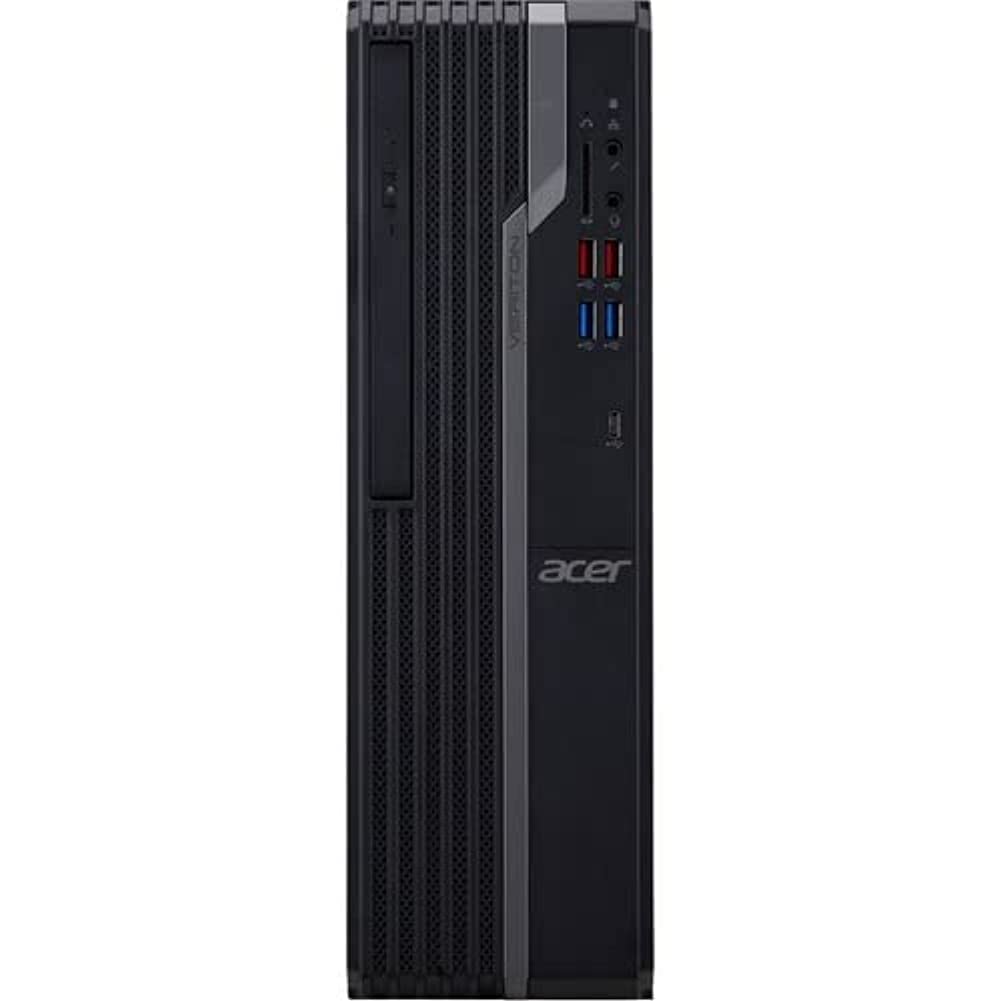
This image displays the front of the Acer Veriton X4680G desktop computer, highlighting the optical drive, front USB ports (including USB 3.2 and USB 2.0), audio jacks, and the power button. The 'Veriton' branding and Acer logo are visible on the chassis.
Zadní View

This image shows the rear panel of the Acer Veriton X4680G, detailing the various input/output ports. These include multiple USB ports, Ethernet port, audio jacks, video output ports (VGA, DisplayPort), and the power input connector. Expansion slots are also visible.
Nastavení
Follow these steps to set up your new desktop computer.
1. Připojení periferií
- Monitor: Connect your monitor to one of the video output ports (VGA or DisplayPort) on the rear of the computer using the appropriate cable.
- Klávesnice a myš: Connect the USB keyboard and mouse to any available USB ports on the front or rear of the computer.
- Síť: For a wired internet connection, connect an Ethernet cable from your router or modem to the Ethernet port on the rear of the computer. For wireless, ensure your system has Wi-Fi enabled.
- Zvuk: Připojte reproduktory nebo sluchátka k výstupnímu audio konektoru na předním nebo zadním panelu.
2. Připojení napájení
- Connect the power cord to the power input on the rear of the computer.
- Zapojte druhý konec napájecího kabelu do uzemněné elektrické zásuvky.
3. Počáteční zapnutí
- Press the power button located on the front panel of the computer.
- The computer will boot up, and the Windows 10 Pro operating system will load. Follow any on-screen instructions for initial setup, such as language selection and user account creation.
Návod k obsluze
Guidance for basic operation of your Acer Veriton X4680G.
Windows 10 Pro
Your computer comes pre-installed with Windows 10 Pro. This operating system provides a familiar interface for managing files, running applications, and browsing the internet. Utilize the Start Menu for quick access to programs and settings.
Using the Optical Drive (DVD-Writer)
The integrated DVD-Writer allows you to read and write CDs and DVDs.
- To open the tray, press the eject button on the drive face.
- Place a disc onto the tray with the label side facing up.
- Jemně zatlačte přihrádku zpět do počítače, dokud nezacvakne.
- The operating system will typically prompt you for action or automatically play media.
USB porty
The computer features multiple USB 2.0 and USB 3.2 ports for connecting external devices such as external hard drives, printers, and other peripherals. USB 3.2 ports offer faster data transfer speeds.
Údržba
Regular maintenance helps ensure optimal performance and extends the lifespan of your computer.
Čištění
- Vnější: Použijte měkký, damp cloth to wipe the exterior surfaces. Avoid harsh chemicals.
- Průduchy: Periodically use compressed air to clear dust from the ventilation grilles to prevent overheating.
- Obrazovka: For monitors, use a specialized screen cleaner and a microfiber cloth.
Aktualizace softwaru
Pro zajištění bezpečnosti a výkonu udržujte operační systém a ovladače aktualizované.
- Aktualizace systému Windows: Regularly check for and install Windows updates via the Settings app.
- Aktualizace ovladačů: Visit the Acer support webweb s nejnovějšími ovladači pro váš konkrétní model.
Zálohování dat
Pravidelně zálohujte své důležité věci filena externí disk nebo do cloudového úložiště, aby se zabránilo ztrátě dat.
Odstraňování problémů
Tato část se zabývá běžnými problémy, se kterými se můžete setkat.
Žádná síla
- Ensure the power cord is securely connected to both the computer and the electrical outlet.
- Ověřte funkčnost elektrické zásuvky zapojením jiného zařízení.
- Check the power supply unit (PSU) switch on the rear of the computer, if present, to ensure it is in the 'On' position.
Žádné zobrazení na monitoru
- Zkontrolujte, zda je napájecí kabel monitoru připojen a zda je monitor zapnutý.
- Check that the video cable (VGA or DisplayPort) is securely connected to both the computer and the monitor.
- Ensure the monitor's input source is set correctly (e.g., VGA, DisplayPort).
Zpomalení systému
- Zavřete nepotřebné aplikace běžící na pozadí.
- Check disk space; a full drive can impact performance.
- Spusťte antivirovou kontrolu a zkontrolujte, zda se neobjevuje malware.
- Ujistěte se, že systém Windows a ovladače jsou aktuální.
Specifikace
Detailed technical specifications for the Acer Veriton X4680G Desktop Computer.
| Funkce | Specifikace |
|---|---|
| Procesor | Intel Core i7-11700 Octa-core (8 Core) 2.50 GHz |
| BERAN | 8 GB DDR4 SDRAM |
| Skladování | 256 GB PCI Express SSD |
| Operační systém | Windows 10 Pro |
| Grafická karta | Grafika Intel Iris Xe |
| Optická mechanika | DVD-Writer |
| Bezdrátové připojení | 802.11ax, Bluetooth |
| Porty USB 2.0 | 4 |
| Rozměry (DxŠxV) | 16.34 x 19.49 x 6.69 palce |
| Hmotnost položky | 14.52 libry |
| Barva | Černý |
Záruka a podpora
Your Acer Veriton X4680G Desktop Computer is covered by a limited warranty. Please refer to the warranty card included in your package for specific terms and conditions, including warranty period and coverage details.
For technical support, driver downloads, or further assistance, please visit the official Acer support website or contact Acer customer service. Have your product model number (DT.VWEAA.003) and serial number ready when seeking support.
Poznámka: Záruční podmínky se mohou lišit v závislosti na regionu.


