
1. Úvod
The Keychron V1 is a highly customizable wired mechanical keyboard designed for enthusiasts and users seeking a personalized typing experience. This barebone version provides the foundation for a custom build, allowing you to choose your preferred switches and keycaps. Featuring a compact 75% layout, a programmable knob, QMK/VIA support, and hot-swappable switch sockets, the V1 offers extensive flexibility and performance for various operating systems including Mac, Windows, and Linux.

Nad hlavou view of the Keychron V1 barebone mechanical keyboard, showcasing its 75% layout and the USB-C connection port. This image illustrates the keyboard's design without switches or keycaps installed.
2. Obsah balení
Please verify that all items listed below are included in your Keychron V1 Barebone Knob package:
- 1x Keyboard Kit (without keycaps & switches)
- 1x deska plošných spojů (PCB)
- 1x ocelový plech
- 1x Pěna pohlcující zvuk
- 1x Case Silicone Pad
- 4 sady x stabilizátory
- 1x kabel Type-C to Type-C
- 1x adaptér typu A na typ C
- 1x stahovák spínačů
- 1x stahovák klíčenky
- 1x Šroubovák
- 1x hexadecimální klíč
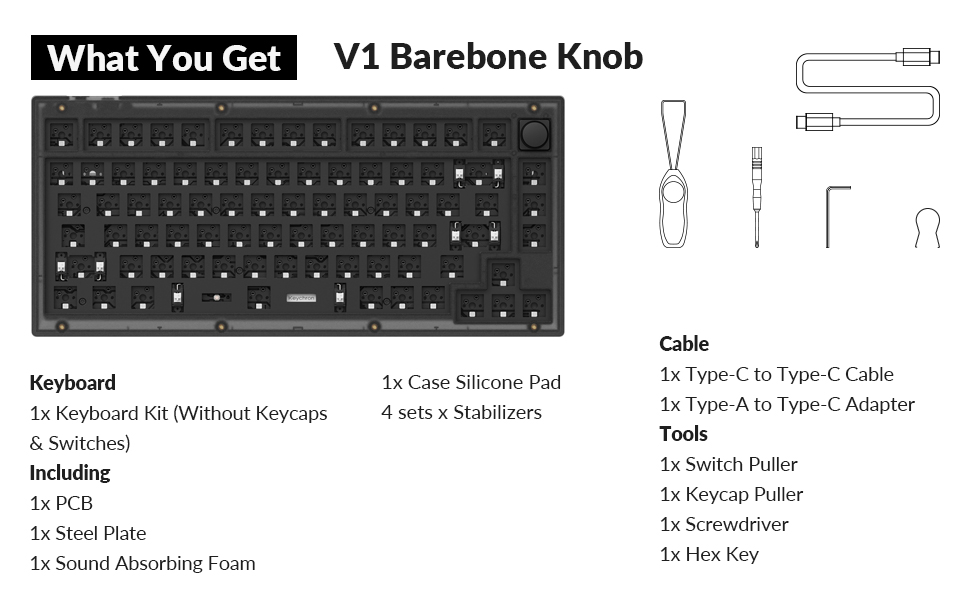
A visual list of items included in the Keychron V1 Barebone Knob package, such as the keyboard kit, case silicone pad, stabilizers, Type-C to Type-C cable, Type-A to Type-C adapter, switch puller, keycap puller, screwdriver, and hex key.
3. Nastavení
3.1 Disassembly and Assembly Overview
The Keychron V1 is designed for easy customization. The following diagram illustrates the main components and their arrangement:
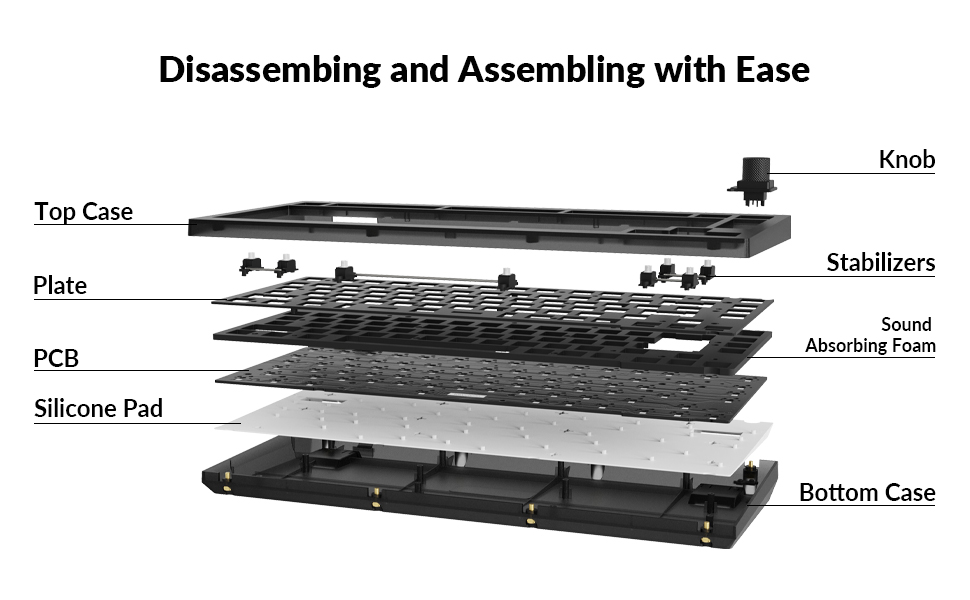
A diagram showing the disassembled components of the Keychron V1 keyboard, including the top case, knob, plate, PCB, sound absorbing foam, silicone pad, and bottom case. This illustrates the modular design.
3.2 Installing Switches
The V1 features hot-swappable sockets, allowing you to install and remove 3-pin or 5-pin MX mechanical switches without soldering.
- Align the pins of your chosen mechanical switch with the corresponding holes on the PCB.
- Gently push the switch down until it clicks into place. Ensure the switch is fully seated and the pins are not bent.
- Repeat for all desired keys.

Detailní záběr view of the hot-swappable sockets on the keyboard's printed circuit board (PCB). These sockets allow for easy installation and removal of mechanical switches without soldering.
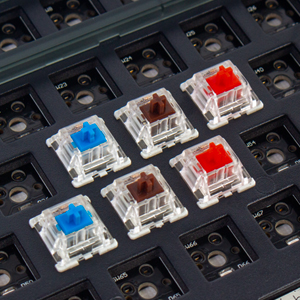
A close-up image showing various mechanical switches (red, blue, brown) being inserted into the hot-swappable sockets of the Keychron V1 keyboard, demonstrating the ease of switch installation.
3.3 stabilizátory
The V1 includes PCB-mounted screw-in stabilizers for larger keys (e.g., Space Bar, Shift, Enter, Delete) to ensure stability and smooth performance. These are pre-installed but can be adjusted or replaced if desired.
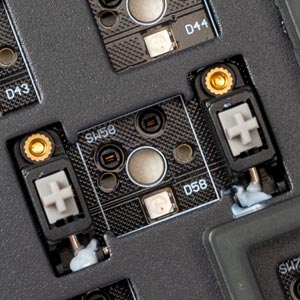
Detailní view of the PCB-mounted screw-in stabilizers for larger keys like the space bar, shift, and enter, designed to reduce wobbling and improve typing stability.
3.4 Installing Keycaps
After installing switches, place your desired keycaps onto the switches. Ensure they are firmly pressed down.
3.5 Připojení klávesnice
- Vyhledejte port USB-C na zadní straně klávesnice.
- Connect the provided Type-C to Type-C cable (or Type-A to Type-C adapter with your own Type-A cable) to the keyboard and your computer.
- Ensure the operating system switch (located near the USB-C port) is set to the correct position (Mac or Windows) for your system.

A close-up image showing the USB-C port and the operating system mode switch (Mac/Windows) on the side of the Keychron V1 keyboard, indicating where to connect the cable and select the correct mode.
3.6 Ergonomické nastavení úhlu
The Keychron V1 features adjustable feet to provide two ergonomic typing angles for enhanced comfort during extended use.

Vedlejší profesionálfile diagram of the Keychron V1 keyboard, highlighting its adjustable feet that provide two ergonomic typing angles: 8.5 degrees and 11 degrees.
4. Návod k obsluze
4.1 QMK and VIA Programming
The Keychron V1 supports QMK and VIA firmware, allowing for extensive customization of key functions, macros, and lighting effects. VIA is a graphical user interface that simplifies the programming process.
- Stáhněte si software VIA: Navštivte oficiální Keychron website or the VIA website to download the latest compatible software for your operating system.
- Připojení klávesnice: Ensure your V1 keyboard is connected to your computer via USB.
- Load Keymap: Open the VIA software. It should automatically detect your V1 keyboard. If not, you may need to load the appropriate JSON keymap file from the Keychron webmísto.
- Přizpůsobit: Use the intuitive interface to remap individual keys, create complex macros, and configure different layers for various functions. You can also adjust backlight effects.

A screenshot of the VIA software interface, demonstrating how users can remap keys, configure macros, and adjust lighting settings for the Keychron V1 keyboard. The interface shows different layers and key assignments.
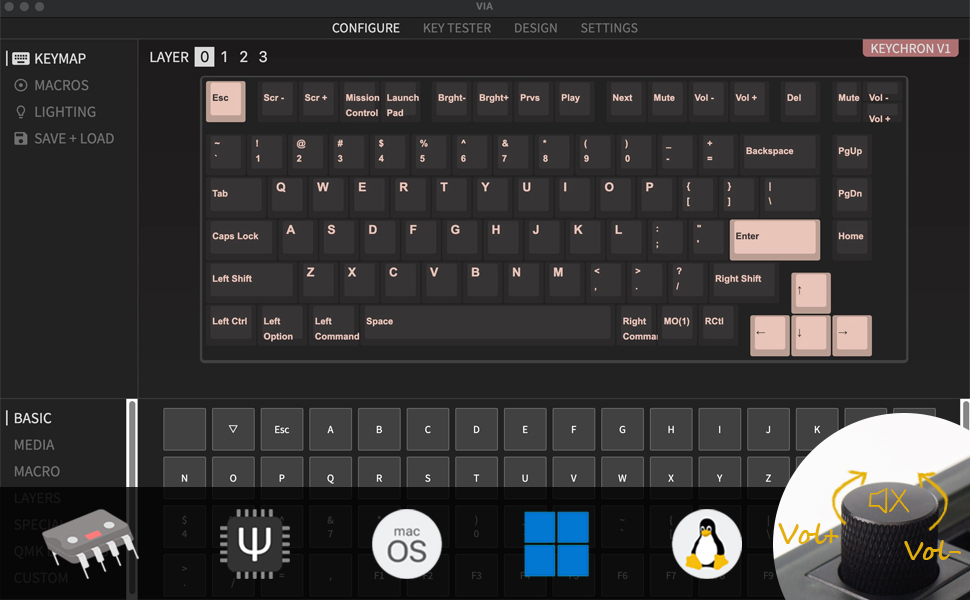
Komplexní view of the VIA software interface, showing the keyboard layout with keycaps and options for remapping keys, creating macros, and managing different layers for advanced customization.
4.2 Programovatelný knoflík
The V1 includes a versatile programmable knob, typically used for volume control by default. Its function can be customized using the VIA software to perform various actions, such as scrolling, zooming, or media control.
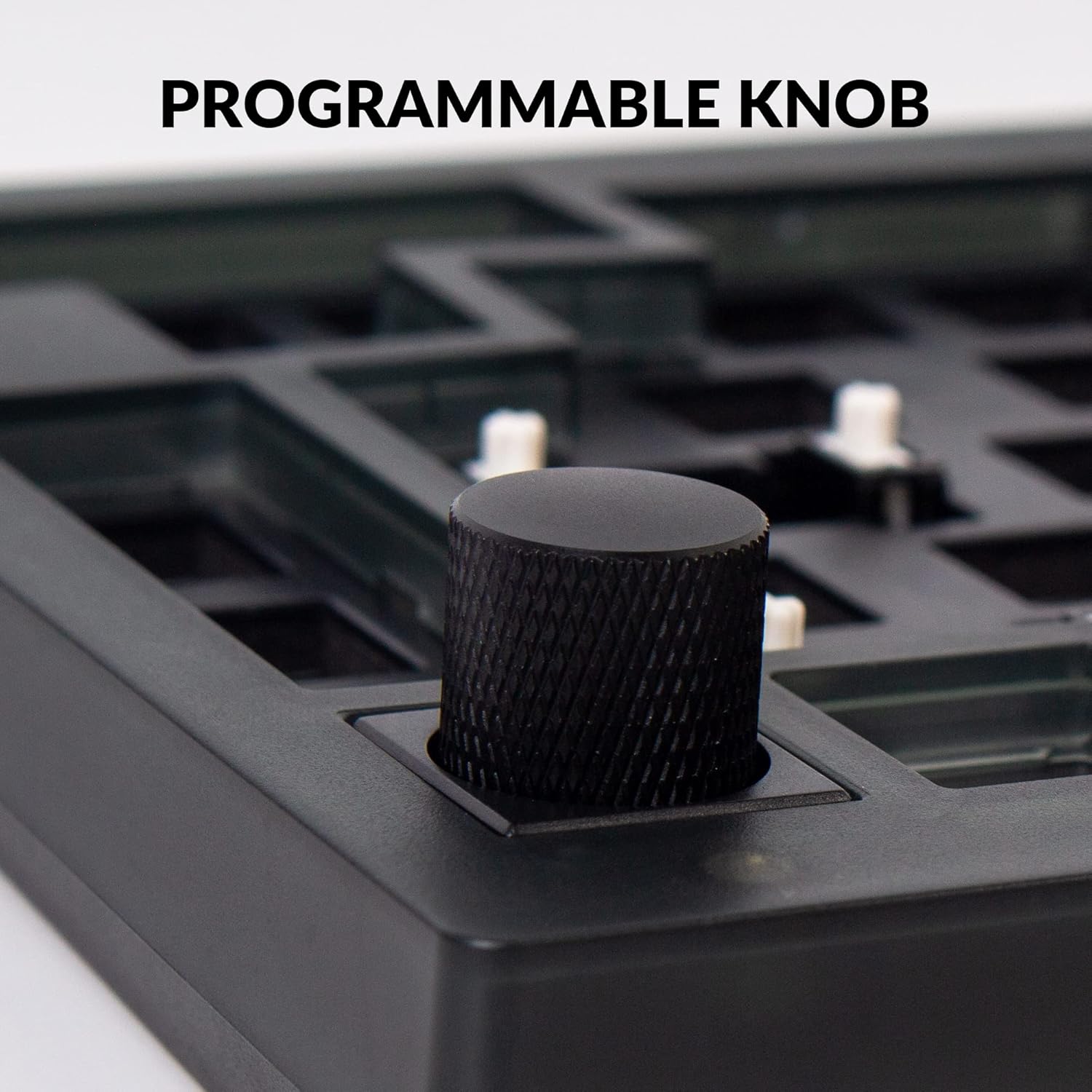
Detailní view of the textured, black programmable knob located on the top right corner of the Keychron V1 keyboard. This knob allows for customizable functions, such as volume control.
4.3 RGB podsvícení
The V1 features south-facing RGB backlighting, designed to provide optimal illumination from the typist's perspective. The lighting effects, colors, and brightness can be adjusted through the VIA software or using onboard key combinations (refer to the Keychron V1 user manual for specific key combinations).
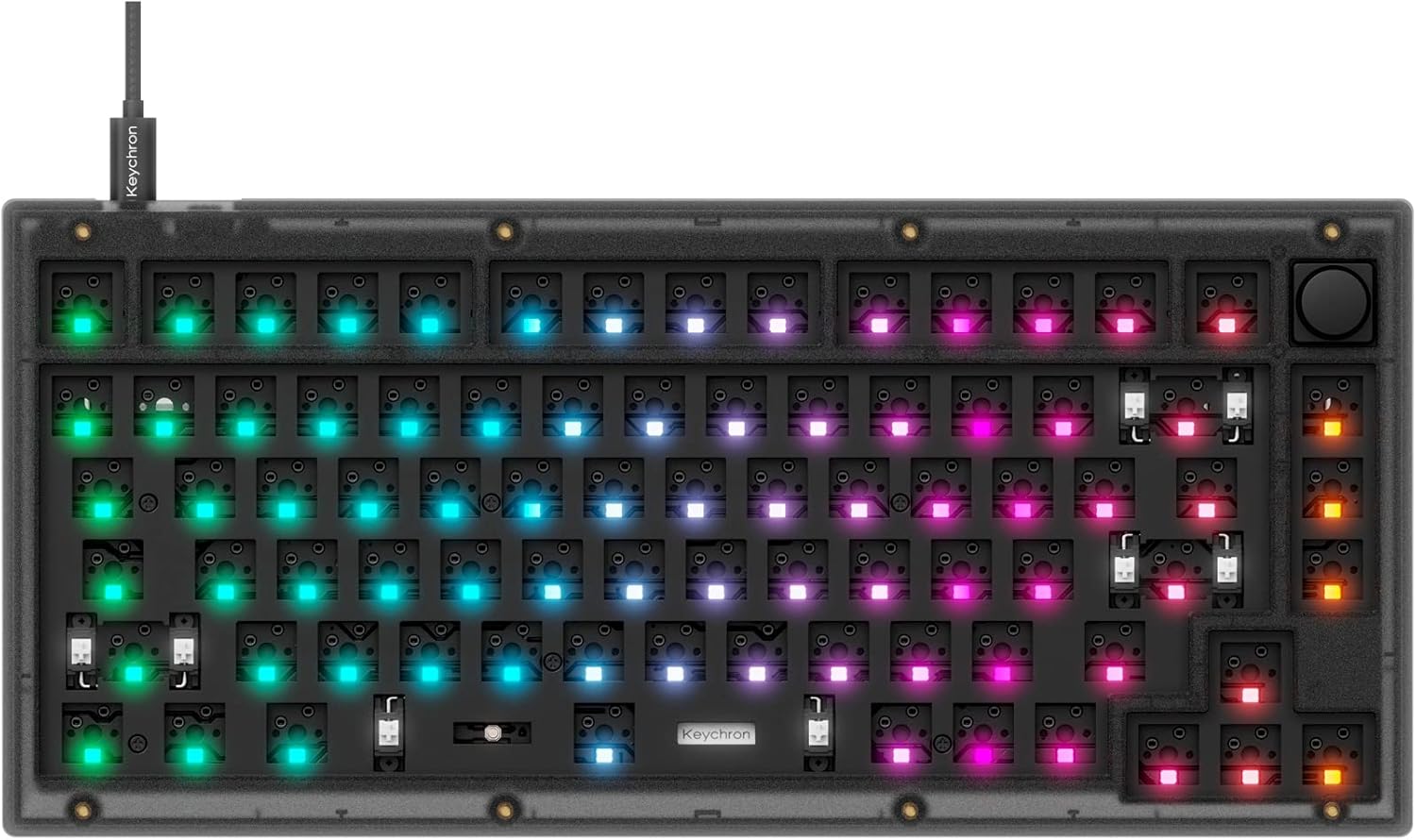
An image of the Keychron V1 barebone keyboard with its south-facing RGB backlighting illuminated in various colors, demonstrating the customizable lighting effects.
5. Údržba
- Čištění: Use a soft, dry cloth to wipe down the keyboard surface. For deeper cleaning, remove keycaps and use compressed air to clear debris from between switches.
- Péče o klávesy: If using PBT keycaps, they are generally durable. Avoid harsh chemicals.
- Péče o spínač: Hot-swappable switches can be removed for cleaning or replacement using the provided switch puller. Be gentle to avoid bending switch pins.
- Správa kabelů: Ensure the USB-C cable is not excessively bent or strained to prevent damage.
6. Řešení problémů
- Klávesnice nereaguje:
- Check the USB-C cable connection to both the keyboard and the computer.
- Ensure the operating system switch (Mac/Windows) is set correctly.
- Zkuste se připojit k jinému USB portu nebo počítači.
- Nefunkční konkrétní klávesy:
- Sejměte krytku klávesy a přepněte ji dotčenou klávesu.
- Inspect the switch pins for bends or damage. Straighten gently if bent.
- Reinsert the switch firmly. If the issue persists, try swapping with a known working switch.
- Software VIA nedetekuje klávesnici:
- Ujistěte se, že je klávesnice připojena přes USB.
- Restartujte software VIA a/nebo počítač.
- Verify you have the correct VIA firmware and JSON file for the Keychron V1.
- RGB Backlight Issues:
- Check backlight settings in VIA software.
- Ensure no key combinations have accidentally turned off the backlight.
7. Specifikace
| Funkce | Detail |
|---|---|
| Číslo modelu | V1-Z3 |
| Rozložení | 75 % (82 kláves) |
| Konektivita | Kabelové (USB-C) |
| Vyměnitelné za provozu | Yes (3-pin & 5-pin MX mechanical switches) |
| Programovatelnost | QMK/VIA Support |
| Podsvícení | South-facing RGB |
| Míra hlasování | 1000 Hz |
| Kompatibilní zařízení | Laptop, Mac, PC (Windows, Linux) |
| Rozměry produktu | 12.93 x 5.85 x 1.02 palce (32.84 x 14.86 x 2.59 cm) |
| Hmotnost položky | 2.59 libry (1.17 kg) |
| Materiál | Polybutylentereftalát, silikon |
8. Záruka a podpora
Keychron products typically come with a manufacturer's warranty. For specific warranty terms, duration, and to initiate a support request, please refer to the official Keychron website or contact Keychron customer service directly. Keep your proof of purchase for warranty claims.
For additional resources, firmware updates, and community support, visit the official Keychron webmísto: www.keychron.com


