1. Konec produktuview
The ipega PG-9156 is a versatile wireless gamepad controller designed for an enhanced gaming experience on Android devices. It supports both Bluetooth 4.0 and 2.4G wireless connections, offering broad compatibility and ease of use.
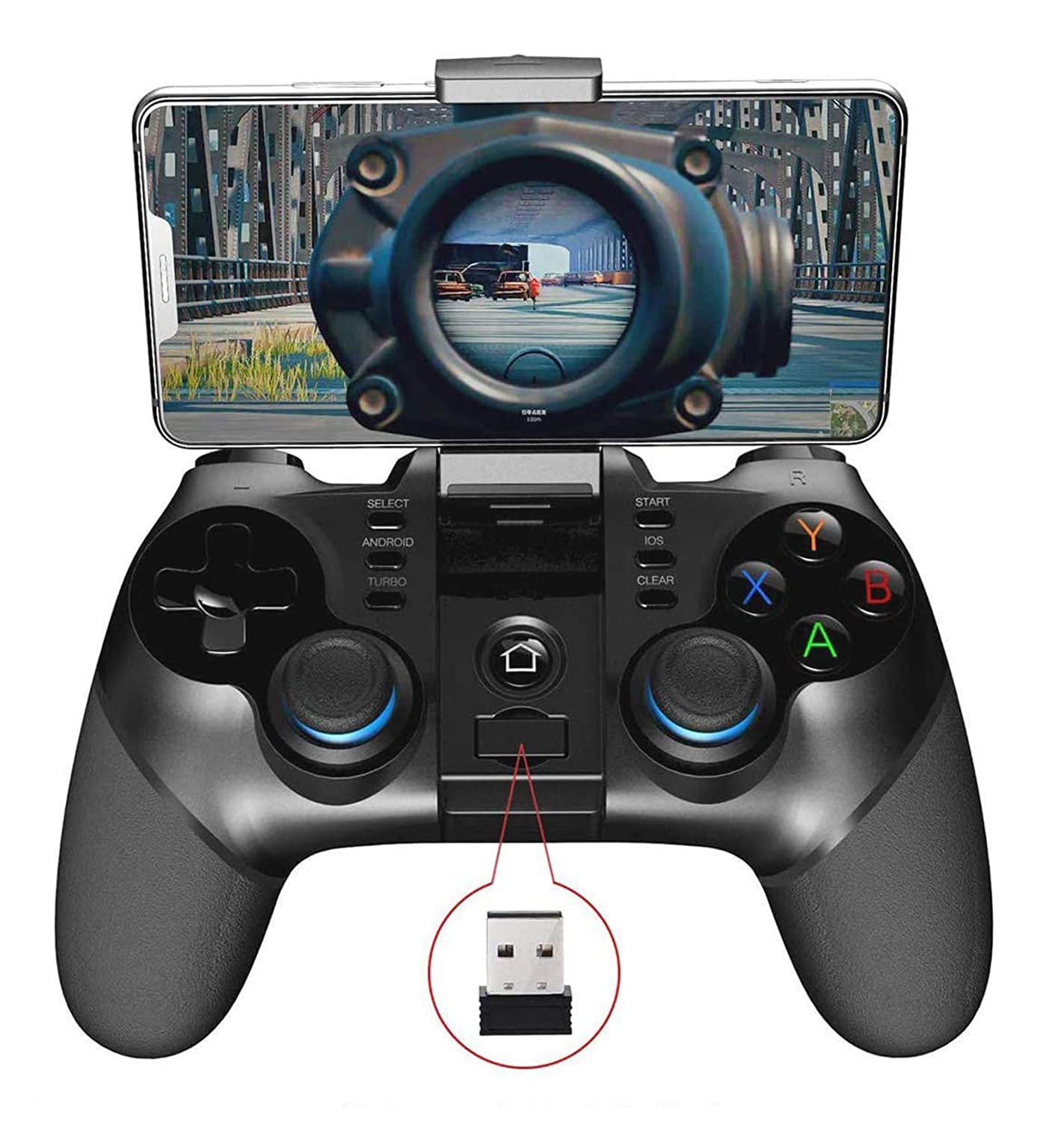
Obrázek 1: ipega PG-9156 Gamepad with a smartphone mounted, displaying a game. The image also highlights the 2.4G wireless receiver.
Klíčové vlastnosti:
- Duální konektivita: Supports Wireless 4.0 for mobile devices and 2.4G wireless for TV, TV boxes, set-top boxes, and PCs.
- Široká kompatibilita: Compatible with Android 6.0 and higher systems, including various smartphones and tablets. Note: Does not support MediaTek chip phones.
- Přizpůsobitelné ovládací prvky: Utilizes the ShootingPlus V3 app for personalized button mapping.
- Integrovaný držák telefonu: Adjustable holder suitable for 4-6 inch smartphones, with a stretching capacity of up to 85mm.
- Dlouhá výdrž baterie: Built-in 380mAh lithium battery provides over 15 hours of continuous play and up to 30 days of standby time.
- Ergonomický design: Comfortable operation with high-precision rockers and a Turbo acceleration function.
2. Nastavení a připojení
Before using the gamepad, ensure your device meets the compatibility requirements (Android 6.0 or higher). The PG-9156 offers two primary connection modes.
2.1. Režimy připojení
Select the appropriate startup mode for pairing based on your device and desired functionality:
- Android V3 Direct Mode: Stiskněte a podržte Android button + HOME button simultaneously for 2 seconds. This mode is for direct play with games supported by the ShootingPlus V3 protocol.
- Android Standard Game Mode: Stiskněte a podržte X button + HOME button simultaneously for 2 seconds. This mode is for standard Android games.

Obrázek 2: Illustration of the ipega PG-9156 gamepad highlighting the Android key, iOS key (for indication only), and the 2.4G wireless receiver for connection setup.
2.2. Počáteční párování (Bluetooth)
- Choose the desired startup mode (e.g., Android V3 Direct Mode) by pressing the corresponding buttons on the gamepad.
- Na svém mobilním zařízení povolte Bluetooth a vyhledejte dostupná zařízení.
- Select "PG-9156" from the list to pair.
- Once paired, the gamepad's indicator light will confirm the connection.
2.3. 2.4G Wireless Connection (for PC/TV Box)
- Insert the 2.4G wireless receiver into a USB port on your PC, TV box, or set-top box.
- Power on the gamepad. It should automatically connect to the receiver.
- Ensure your PC/TV box system is Android 6.0 or higher for optimal compatibility.
3. Návod k obsluze
3.1. Installing Your Smartphone

Obrázek 3: The ipega PG-9156 gamepad demonstrating its adjustable phone holder, suitable for 4-6 inch smartphones and capable of 160-degree adjustment and up to 85mm stretching.
The gamepad features an integrated phone holder:
- Gently pull up the phone holder located at the top of the gamepad.
- Adjust the holder to fit your smartphone (4-6 inches, up to 85mm stretch).
- The holder can be adjusted for angle to optimize viewing during gameplay.
3.2. Rozložení a funkce tlačítek
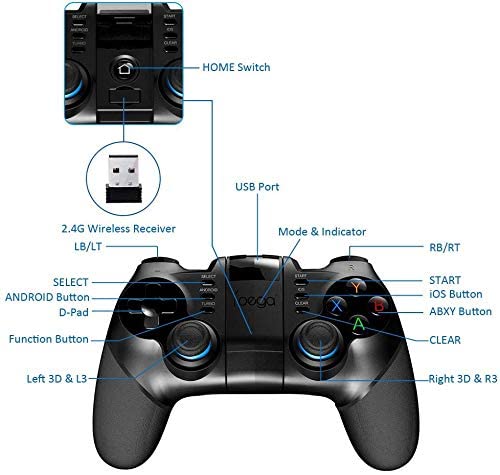
Obrázek 4: Detailed diagram of the ipega PG-9156 gamepad's button layout, including D-Pad, Left/Right 3D joysticks, ABXY buttons, Shoulder buttons (LB/LT, RB/RT), SELECT, START, TURBO, ANDROID, iOS (for indication only), CLEAR, HOME Switch, and USB Port for the 2.4G receiver.
Familiarize yourself with the gamepad's controls:
- D-Pad: Directional control.
- Left/Right 3D Joysticks: Analog movement and camera control.
- Tlačítka ABXY: Akční tlačítka.
- Shoulder Buttons (LB/LT, RB/RT): Další akční tlačítka.
- SELECT/START: Game menu and pause functions.
- Tlačítko TURBO: Activates turbo acceleration for rapid button presses.
- ANDROID Button: Used for Android V3 Direct Mode pairing.
- HOME Switch: Power on/off and mode selection.
- Tlačítko CLEAR: Used in conjunction with the ShootingPlus V3 app for button reset.
3.3. Using the ShootingPlus V3 App for Customization
For games not natively supported or to customize controls, download the ShootingPlus V3 app. You can find it by scanning the QR code in the physical manual or searching online.
- Connect the gamepad to your mobile phone via Bluetooth (Android V3 Direct Mode).
- Open the ShootingPlus V3 app. Ensure the gamepad is recognized.
- Launch your desired game.
- Tap the "V3" floating icon (or press the START button on the gamepad) to enter the custom button interface.
- Přizpůsobení tlačítek:
- Drag button icons to correspond with virtual buttons on your game screen.
- To remove an unwanted button icon, drag it to the [Dust Bucket] icon.
- To load a game screenshot for precise mapping, press and hold a blank area on the screen, then select "Select Picture". It's recommended to take a screenshot of the game's main interface beforehand.
- Resetting Buttons: Click the [New] button to clear all custom settings. Then, press buttons on the gamepad (e.g., A), and the corresponding icon will appear on screen, which you can drag to the desired virtual button.
- Ukládání nastavení: After customization, click the [Save] button (or press the START button) to exit and apply your settings.
- Nastavení joysticku: In the game's settings interface, align the virtual joystick with the gamepad's rocker to avoid deviation.
4. Údržba
Proper care will extend the life of your ipega PG-9156 gamepad.
- Uchovávejte zařízení v suchu. Zabraňte vystavení vlhkosti nebo tekutinám.
- Nevystavujte extrémním teplotám.
- Clean with a soft, dry cloth. Avoid using harsh chemicals or abrasive cleaners.
- Pokud se nepoužívá, skladujte na chladném a suchém místě.
- Avoid dropping or subjecting the gamepad to strong impacts.
5. Řešení problémů
If you encounter issues with your gamepad, refer to the following common solutions:
- Gamepad se nepřipojuje:
- Ujistěte se, že je gamepad nabitý.
- Verify you are using the correct startup mode (Android V3 Direct or Android Standard).
- Vypněte a zapněte Bluetooth na zařízení a zkuste spárování znovu.
- For 2.4G connection, ensure the receiver is properly inserted and your system is compatible.
- Buttons not responding correctly in-game:
- Ensure the gamepad is connected in the appropriate mode for the game.
- Open the ShootingPlus V3 app and verify your custom button settings. Adjust virtual joystick positions if necessary.
- Some games may require specific in-game controller settings. Check the game's options.
- Gamepad disconnects frequently:
- Ujistěte se, že je gamepad plně nabitý.
- Reduce the distance between the gamepad and your device.
- Zabraňte rušení od jiných bezdrátových zařízení.
- Does not work with MediaTek chip phones: This gamepad is not compatible with phones using MediaTek chips. Please verify your phone's processor.
For further assistance, you may search for "PG-9156 ShootingPlus V3 settings" video tutorials online or contact ipega customer support.
6. Specifikace
| Funkce | Detail |
|---|---|
| Model | PG-9156 |
| Konektivita | Wireless 4.0 (Bluetooth) + 2.4G Wireless |
| Kompatibilita | Android 6.0 and higher (Smartphones, Tablets, TV, TV box, Set-top box, PC). Not compatible with MediaTek chip phones. |
| Kapacita baterie | Lithiová baterie 380mAh |
| Doba nepřetržitého používání | > 15 hodin |
| Pohotovostní doba | Až 30 dní |
| Držák na telefon Stretch | ≤ 85 mm |
| Rozměry produktu | 10 x 5 x 5 cm (rozměry balení) |
| Hmotnost položky | 200 g |
| Výrobce | IPEGA |
7. Záruka a podpora
For warranty information or technical support, please refer to the documentation included with your purchase or contact ipega customer service directly. You can often find support contact details on the manufacturer's official webwebu nebo prostřednictvím svého prodejce.
When contacting support, please have your product model (PG-9156) and purchase details ready.