Zavedení
The TOTU 18-in-1 Thunderbolt 3 USB C Docking Station is designed to expand the connectivity of your laptop, transforming it into a powerful workstation. This docking station provides a wide array of ports, including multiple USB ports, DisplayPort, Thunderbolt 3, Gigabit Ethernet, SD/Micro SD card readers, and audio output, enabling seamless connection to various peripherals and external displays. It is compatible with laptops featuring Thunderbolt 3 or 4 ports, offering high-speed data transfer, versatile display options, and power delivery.
Klíčové vlastnosti
- Univerzální kompatibilita: Compatible with laptops equipped with Thunderbolt 3 or 4 ports, including MacBook Pro (2016 and later), MacBook Air (2018 and later), and Windows laptops (Dell, Lenovo, HP, Asus, Acer, etc.). Note: MacBook Pro with M1 chip supports only one monitor.
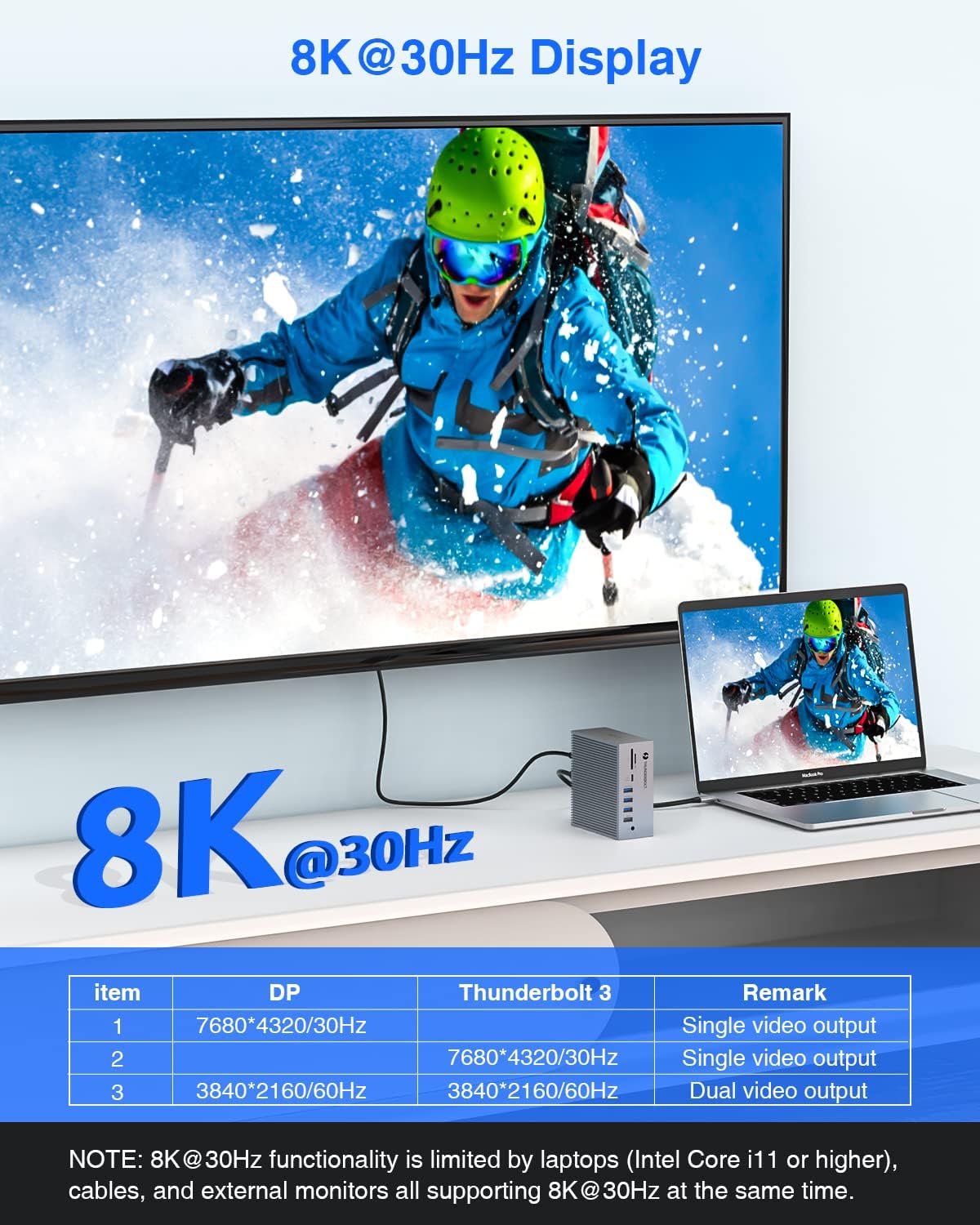
- High-Resolution Display Output: Supports single 8K@30Hz or dual 4K@60Hz extended displays via Thunderbolt 3 and DisplayPort.
- High-Speed Data Transmission: Features 2x USB 3.1 (10Gbps), 1x USB 3.0 (5Gbps), 1x USB-C (10Gbps), and 1x USB-C (5Gbps) for rapid file transfers. Includes 4x USB 2.0 ports for connecting wireless peripherals.
- Integrated Card Reader: Built-in SD/Micro SD card reader for convenient photo and video transfer.
- Gigabitový Ethernet: Provides a stable and fast wired network connection via the RJ-45 LAN port.
- Dodávka energie: The Thunderbolt 3 host port delivers up to 60W to charge your laptop, while the secondary Thunderbolt 3 port provides 15W for downstream devices.
- Komplexní konektivita: Equipped with 18 ports including 2x Thunderbolt 3, 1x DisplayPort, 2x USB 3.1, 1x USB 3.0, 2x USB-C, 4x USB 2.0, Gigabit Ethernet, SD/Micro SD, 3.5mm Audio/Microphone, and S/PDIF (Audio output).
Obsah balení
Prosím, ověřte, zda jsou v balení přítomny všechny položky:
- TOTU Thunderbolt 3 Docking Station (Model: TT-DC006C)
- 60W napájecí adaptér
- Thunderbolt 3 Cable (1.6 ft)
- Uživatelská příručka
Průvodce nastavením
1. Connecting the Dock
Follow these steps to set up your TOTU Thunderbolt 3 Docking Station:
- Připojení napájení: Connect the included 60W power adapter to the DC-IN port on the back of the docking station and then to a power outlet.
- Připojení hostitele: Use the provided Thunderbolt 3 cable to connect the "Thunderbolt 3 Host" port on the docking station to a Thunderbolt 3 or Thunderbolt 4 port on your laptop. This connection also provides up to 60W of power delivery to your laptop.
- Display Connection (DisplayPort): For a single external display, connect a DisplayPort cable from your monitor to the DisplayPort on the docking station. For dual displays, use this port for one monitor.
- Display Connection (Thunderbolt 3 Port): For a second external display (in a dual monitor setup), connect a Thunderbolt 3 compatible display or an adapter (e.g., Thunderbolt 3 to DisplayPort/HDMI) to the secondary Thunderbolt 3 port on the docking station.
- Periferní připojení: Connect your USB devices (keyboards, mice, external drives), Ethernet cable, SD/Micro SD cards, and audio devices to the corresponding ports on the docking station.
Obrázek 1: Zadní a přední strana view of the TOTU Thunderbolt 3 Docking Station with all 18 ports clearly labeled, including USB 2.0, Optical Out, DisplayPort, USB-C, Thunderbolt 3, LAN, DC-IN, SD/Micro SD card reader, and 3.5mm Audio/Mic jack.
Návod k obsluze
Konfigurace displeje
The TOTU Thunderbolt 3 Dock supports various display configurations:
- Single 8K@30Hz Display: Connect a single 8K-capable monitor to either the DisplayPort or the secondary Thunderbolt 3 port. Ensure your laptop (Intel Core i11 or higher), DP cables, and external monitor support 8K@30Hz.
- Dual 4K@60Hz Extended Displays: Connect two 4K-capable monitors, one to the DisplayPort and one to the secondary Thunderbolt 3 port. This allows for an extended desktop experience.
- Zrcadlový režim: Duplicate your laptop's display on external monitors. For macOS, do not click "Mirror Displays" in settings when you desire an extended display.
- Rozšířený režim: Extend your desktop across multiple screens, providing more workspace. For Windows, press the hotkey Klávesa Windows + P to choose your display mode.
Note: MacBook Pro with M1 chip can only support ONE monitor (does not support dual monitors) due to the limitations of the M1 chipset.

Figure 2: Illustration of a laptop connected to a single 8K@30Hz display through the TOTU Thunderbolt 3 Dock, demonstrating high-resolution video output.
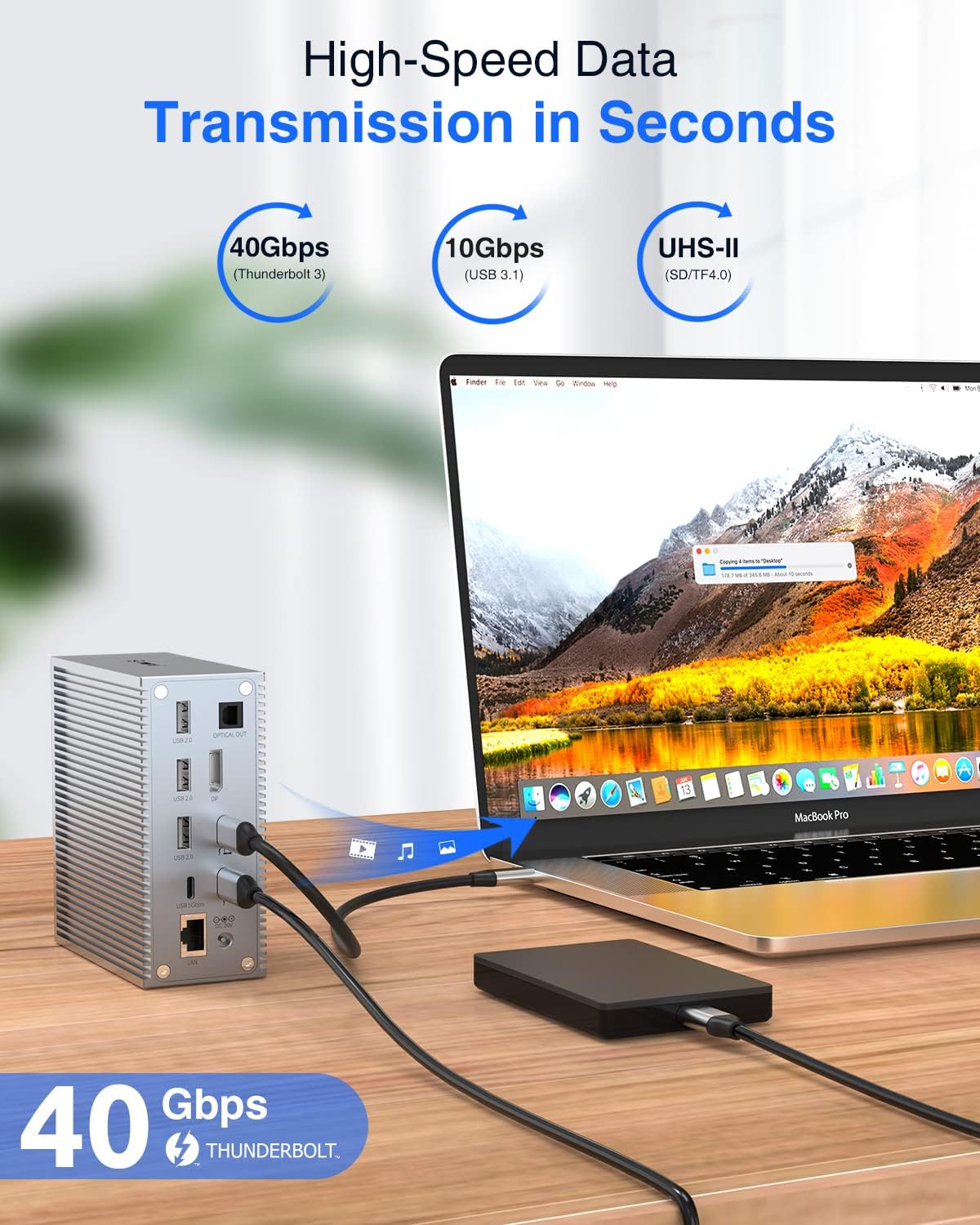
Figure 3: A user working with a laptop connected to two external 4K displays in extended mode, showcasing the multi-monitor capabilities of the docking station for enhanced productivity.

Figure 4: Visual representation of Mirror Mode and Extend Mode display configurations, illustrating how the docking station supports different multi-display setups for both macOS and Windows operating systems.
Přenos dat
Pro vysokorychlostní přenos dat využijte různé USB porty:
- USB 3.1 (10Gbps) & USB-C (10Gbps): Ideal for transferring large files quickly, such as videos, photos, and documents.
- USB 3.0 (5Gbps) & USB-C (5Gbps): Suitable for general data transfer and connecting moderately fast peripherals.
- USB 2.0 (480Mbps): Best for connecting wireless keyboard/mouse receivers, printers, and other low-bandwidth devices to avoid lag.
- SD/Micro SD Card Reader: Insert your memory cards directly into the dedicated slots to access and transfer files.

Figure 5: A laptop connected to the TOTU Thunderbolt 3 Dock, demonstrating the high-speed 40Gbps data transfer capability when connecting an external hard drive, allowing for rapid file synchronizace.
Síťové připojení
Connect to a stable wired network using the Gigabit Ethernet port:
- Plug an Ethernet cable into the RJ-45 LAN port on the docking station and connect the other end to your router or network switch.
- This provides a reliable 1 Gbps wired connection, which is often faster and more stable than Wi-Fi, especially for large downloads, online gaming, or video conferencing.

Figure 6: The TOTU Thunderbolt 3 Dock connected to a laptop and an Ethernet cable, illustrating the 1Gbps wired network expansion capability for stable and fast internet access.
Dodávka energie
The docking station provides power to your connected devices:
- The Thunderbolt 3 host port delivers up to 60W of power to charge your connected laptop.
- The secondary Thunderbolt 3 port provides 15W for charging downstream devices, such as smartphones or other accessories.
Video 1: Krátká demonstrační ukázkaasing the key features of the TOTU Thunderbolt 3 Dock, including 8K single display, dual 4K display, 40Gbps data transfer, and power delivery to connected devices and the host laptop.
Údržba
- Keep the docking station in a dry environment and away from extreme temperatures.
- Zabraňte pádu zařízení nebo jeho vystavení silným nárazům.
- Vnější povrch čistěte měkkým, suchým hadříkem. Nepoužívejte tekuté čisticí prostředky ani aerosoly.
- Zajistěte dostatečné větrání kolem doku, abyste zabránili přehřátí.
- Před čištěním nebo pokud přístroj delší dobu nepoužíváte, odpojte všechny kabely.
Odstraňování problémů
| Problém | Možné řešení |
|---|---|
| No display output or flickering screen. |
|
| USB devices not recognized or slow data transfer. |
|
| Problémy s ethernetovým připojením. |
|
| Laptop not charging via the dock. |
|
Specifikace
| Funkce | Detail |
|---|---|
| Číslo modelu | TT-DC006C |
| Rozměry produktu | 4.33 x 4.33 x 0.2 palce (11 x 11 x 0.5 cm) |
| Hmotnost položky | 1.1 liber (0.5 kilogramů) |
| Barva | Šedá |
| Celkový počet portů USB | 11 (2x USB 3.1 10Gbps, 1x USB 3.0 5Gbps, 2x USB-C 10Gbps/5Gbps, 4x USB 2.0) |
| Počet portů | 18 v 1 |
| Hardwarové rozhraní | MicroSD, DisplayPort, Ethernet, USB 3.0, Thunderbolt 3, USB 2.0, USB 3.2 Gen 2 |
| Zobrazení výstupu | Single 8K@30Hz (DP/Thunderbolt 3), Dual 4K@60Hz (DP + Thunderbolt 3) |
| Ethernet | 1 Gbps (RJ-45) |
| Power Delivery (Host) | Up to 60W via Thunderbolt 3 host port |
| Power Delivery (Downstream) | 15W via secondary Thunderbolt 3 port |
| Výrobce | TOTU |
| Země původu | Čína |
| UPC | 760701381364 |
Záruka a podpora
The TOTU Thunderbolt 3 Docking Station comes with lifetime technical support. For any issues, questions, or technical assistance, please contact TOTU customer support through the official channels provided with your product or on the manufacturer's webmísto.
Uschovejte si prosím doklad o koupi pro uplatnění záruky.


