1. Průvodce nastavením
This section provides instructions for the initial setup of your G-TiDE Klap T1 Kids Tablet.
1.1. Vybalení a počáteční nabití
Upon unboxing, ensure all components are present: the G-TiDE Klap T1 tablet, a kid-proof case, a screen protector, and the charging cable with adapter. It is recommended to fully charge the tablet before first use.
- Connect the provided USB-C charging cable to the tablet's charging port.
- Zapojte adaptér do elektrické zásuvky.
- Allow the tablet to charge until the battery indicator shows full.

Figure 1: G-TiDE Klap T1 Tablet with its protective blue case.
1.2. Zapnutí a počáteční konfigurace
To power on the tablet, press and hold the power button located on the side. Follow the on-screen prompts for initial configuration.
- Výběr jazyka: Vyberte preferovaný jazyk.
- Wi-Fi připojení: Vyberte svou síť Wi-Fi a zadejte heslo pro připojení k internetu.
- Přihlášení k účtu Google: Sign in with an existing Google account or create a new one. This is necessary for downloading apps from Google Play.
- Datum a čas: Set the correct date and time, or allow the device to set it automatically via network.
- Wallpaper Selection: Customize your tablet's appearance by choosing a wallpaper.

Figure 2: Tablet interface displaying setup options and key features.
2. Návod k obsluze
This section covers the basic operation of your G-TiDE Klap T1 Kids Tablet.
2.1. Základní navigace
- Domovská obrazovka: The main screen where you can access installed applications.
- Zásuvka aplikace: Přejeďte prstem nahoru z domovské obrazovky na view všechny nainstalované aplikace.
- Panel oznámení: Přejetím prstem dolů od horního okraje obrazovky získáte přístup k oznámením a rychlému nastavení.
- Zpět, Domů a Nedávné aplikace: Use the navigation buttons at the bottom of the screen for these functions.
2.2. Using the Klap App (Pre-installed)
The Klap app is pre-installed and designed to provide a safe and engaging environment for children. It includes various categories such as Shows, Learning, Music, and Stories.
- Tap the "Klap" icon on the home screen to launch the application.
- Navigate through different content categories using the tabs at the top.
- Select content by tapping on its icon.

Figure 3: The Klap app interface, offering diverse content for children.
2.3. Rodičovská kontrola
The Klap app features robust parental controls to manage your child's usage. Access these settings via the parental control icon within the Klap app, usually requiring a password.
- Časové limity: Stanovte si denní časové limity pro používání tabletu.
- Filtrování obsahu: Control access to specific apps or content categories.
- Dětský zámek: Lock the tablet to prevent unauthorized access.
- Více účtů: Vytvořte samostatného profesionálafiles for each child with customized settings.

Figure 4: Parental control interface for managing tablet usage.
2.4. Funkce kamery
The tablet is equipped with a 5MP front camera and an 8MP rear camera. Tap the "Camera" icon to open the camera application.
- Přepínejte mezi předním a zadním fotoaparátem pomocí ikony přepínače fotoaparátu.
- Klepnutím na tlačítko spouště můžete pořídit fotografie nebo spustit/zastavit nahrávání videa.

Figure 5: Demonstrating the tablet's dual camera capabilities.
3. Údržba
Správná údržba zajistí dlouhou životnost a optimální výkon vašeho tabletu.
3.1. Čištění
- K čištění obrazovky a těla tabletu použijte měkký hadřík, který nepouští vlákna.
- Na odolné šmouhy lehce otřeteampOpláchněte hadřík vodou nebo roztokem na čištění obrazovky. Vyhněte se agresivním chemikáliím.
- Před čištěním se ujistěte, že je tablet vypnutý a odpojený od sítě.
3.2. Péče o případ
The durable EVA kid-proof case protects the tablet from drops and bumps. Regularly inspect the case for any damage and clean it as needed with mild soap and water.
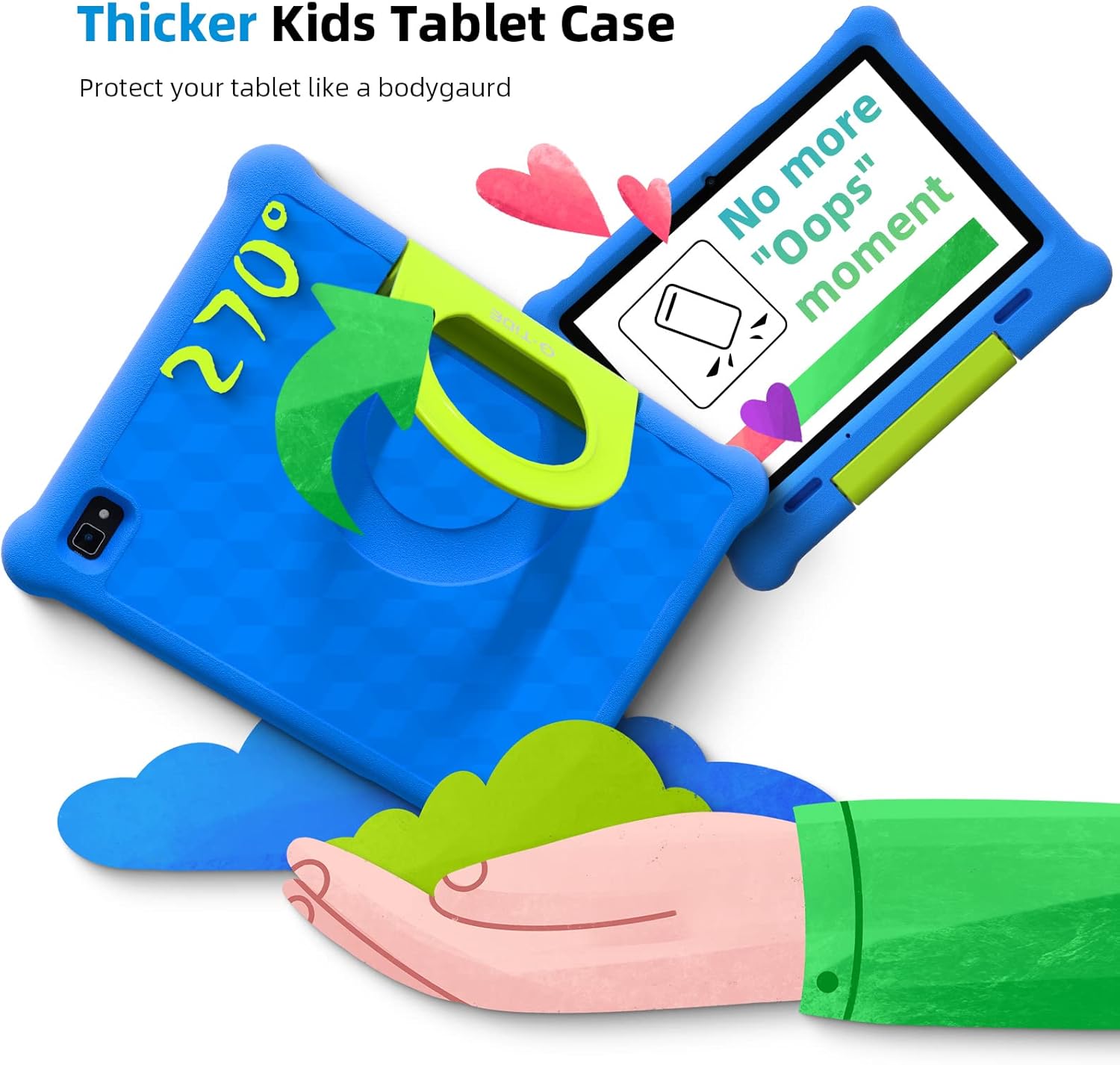
Figure 6: The tablet's protective case with adjustable stand.
3.3. Správa baterií
The tablet features a 6000mAh battery providing up to 12 hours of average use. To maximize battery life:
- Vyhněte se extrémním teplotám.
- Nenechávejte tablet nabíjet delší dobu po jeho plném nabití.
- Snižte jas obrazovky, když to není potřeba.
- Zavřete nepoužívané aplikace běžící na pozadí.

Figure 7: Battery life illustration with different usage scenarios.
4. Řešení problémů
This section addresses common issues you might encounter with your G-TiDE Klap T1 tablet.
4.1. Tablet is Slow or Unresponsive
- Restartujte tablet: Press and hold the power button, then select "Restart."
- Zavřít aplikace na pozadí: Close any applications not currently in use.
- Vymazat mezipaměť: Go to Settings > Apps & notifications > See all apps, then select an app and choose Storage & cache > Clear cache.
- Uvolněte úložiště: Smazat nepotřebné files, photos, or uninstall unused apps. The tablet has 32GB ROM, expandable up to 128GB with a TF Card.
4.2. Problémy s připojením k Wi-Fi
- Zkontrolujte router: Ujistěte se, že váš Wi-Fi router je zapnutý a funguje správně.
- Reconnect to Network: Go to Settings > Network & internet > Wi-Fi, then forget the network and reconnect.
- Restart Tablet and Router: Power off both the tablet and your Wi-Fi router, then turn them back on.
4.3. Obrazovka nereaguje
- Vynutit restart: Press and hold the power button for about 10-15 seconds until the tablet restarts.
- Zkontrolujte poškození: Inspect the screen for any physical damage.
5. Specifikace
| Funkce | Specifikace |
|---|---|
| Značka | G-TiDE |
| Název modelu | Klap T1 |
| Velikost obrazovky | 10.1 palce |
| Rozlišení obrazovky | 1280 x 800 |
| Procesor | 1.6 GHz Quad-Core Rockchip |
| BERAN | 2 GB |
| Interní úložiště | 32 GB |
| Rozšiřitelné úložiště | Up to 128 GB (TF Card) |
| Operační systém | Android 11 |
| Rozlišení zadní kamery | 8 MP |
| Rozlišení předního fotoaparátu | 5 MP |
| Výdrž baterie (průměrná) | 12 hodiny |
| Bezdrátový typ | 802.11 XNUMX n |
| Hmotnost položky | 2.29 libry |
| Rozměry produktu | 9.65 x 6.3 x 0.39 palce |
| Barva | Modrý |

Figure 8: Key specifications including storage and battery.
6. Záruka a podpora
Podrobné informace o záruce a zákaznické podpoře naleznete na oficiálních stránkách G-TiDE. website or the documentation included with your product. You can also find a User Guide (PDF) and User Manual (PDF) available for download.
- Oficiální uživatelská příručka (PDF): Stáhněte si uživatelskou příručku
- Oficiální uživatelská příručka (PDF): Stáhněte si uživatelskou příručku
- Visit the G-TiDE Store: G-TiDE Amazon Store


