Introduction to Your Kindle Paperwhite
The Kindle Paperwhite 10th Generation is designed to provide an optimal reading experience. This model features enhanced durability, water resistance, and an improved display for sharper text and better illumination. With increased storage capacity and Bluetooth audio support for audiobooks, it offers a versatile platform for digital reading.
This manual provides detailed instructions and tips to help you navigate and utilize all the features of your Kindle Paperwhite 10th Generation device effectively.
Getting Started: Setup and Basic Operations
Turning On Your Kindle
To power on your Kindle Paperwhite, locate the power button, typically on the bottom edge of the device. Press and hold the button for a few seconds until the screen illuminates and the Kindle logo appears. Release the button once the device begins to boot up.
Wi-Fi připojení
Connecting to a Wi-Fi network is essential for downloading books and accessing online features. Navigate to the Nastavení nabídce a poté vyberte Wi-Fi a Bluetooth. Choose your desired network from the list and enter the password if prompted. Your Kindle will then connect to the internet.
Připojení Bluetooth
Your Kindle Paperwhite supports Bluetooth for connecting wireless headphones or speakers, primarily for listening to audiobooks. To pair a device, go to Nastavení, pak Wi-Fi a Bluetootha vyberte Zařízení Bluetooth. Ensure your audio device is in pairing mode, then select it from the list on your Kindle to establish a connection.
Operating Your Kindle Paperwhite
Reading a Book
From the Home screen, tap on the cover of the book you wish to read. To turn pages, tap the right side of the screen for the next page or the left side for the previous page. You can also swipe left or right.
Adjusting Font Size and Style
While reading, tap the top of the screen to bring up the reading toolbar. Tap the 'Aa' icon to access font settings. Here you can adjust font size, font style, line spacing, and margins to customize your reading experience.
Vytváření sbírek
Collections help organize your library. From the Home screen, tap the three dots menu (More) and select Create New Collection. Give your collection a name, then add books to it by tapping the '+' icon next to each title.
Bookmark and Highlight Content
To bookmark a page, tap the top right corner of the screen. To highlight text, press and hold a word, then drag the selection handles to cover the desired text. A menu will appear, allowing you to highlight, add a note, or share.
Using Word Wise
Word Wise provides short, simple definitions above difficult words as you read. To enable or disable it, tap the top of the screen while reading, then tap the 'Aa' icon, and select the Více tab. Toggle Slovo moudré zapnuto nebo vypnuto.
Managing Your Library: Deleting Books
To remove a book from your device, press and hold its cover on the Home screen. A context menu will appear. Select Remove from Device. This removes the book from your Kindle but keeps it in your Amazon cloud library, allowing you to re-download it later.
Borrowing Library Books
Many public libraries offer digital books that can be borrowed and sent to your Kindle via services like OverDrive. Check your local library's website for details on their digital lending program and how to link your Kindle account.
Kindle Child Profile
You can create a child profile to manage content and set reading goals for younger users. Go to Nastavení, pak Knihovna pro domácnost a rodinua vyberte Add a New Child Profile. Follow the on-screen prompts to set up the profile and add content.
Synchronizing Kindle to iPad / Moving iPad Books to Kindle
To synchronize your reading progress across devices, ensure Whispersync is enabled in your Kindle settings and Amazon account. For moving books, if they are Kindle-compatible formats, you can send them to your Kindle via email (Send to Kindle service) or transfer them via USB. Books purchased on iPad (e.g., Apple Books) are typically DRM-protected and cannot be directly moved to Kindle.
Údržba a aktualizace
Updating Your Kindle
Your Kindle Paperwhite typically updates automatically when connected to Wi-Fi. To manually check for updates, go to Nastavení, pak Možnosti zařízenía vyberte Zkontrolujte aktualizace. Ensure your device is sufficiently charged before initiating an update.
Resetting Your Kindle
If you encounter persistent issues, a factory reset can often resolve them. Be aware that this will delete all content and settings from your device. To perform a reset, go to Nastavení, pak Možnosti zařízenía vyberte Reset Your Kindle.
Odstraňování běžných problémů
Freezing Issues
If your Kindle becomes unresponsive or freezes, try a hard restart. Press and hold the power button for a full 40 seconds (ignore any on-screen prompts) until the device restarts. If the issue persists, ensure your device is updated to the latest software version.
For other troubleshooting tips, refer to the official Amazon Kindle support webnebo kontaktujte jejich zákaznický servis.
Product Specifications (Manual Information)
This section provides details about the user manual itself, which is the product being described.
| Atribut | Detail |
|---|---|
| ASIN | B099C4Z542 |
| Vydavatel | Independently Published |
| Datum vydání | 13. července 2021 |
| Jazyk | angličtina |
| Počet stránek | 98 stran |
| ISBN-13 | 979-8536587386 |
| Hmotnost položky | 141 g |
| Rozměry | 15.24 x 0.56 x 22.86 cm |
Vizuální pomůcky
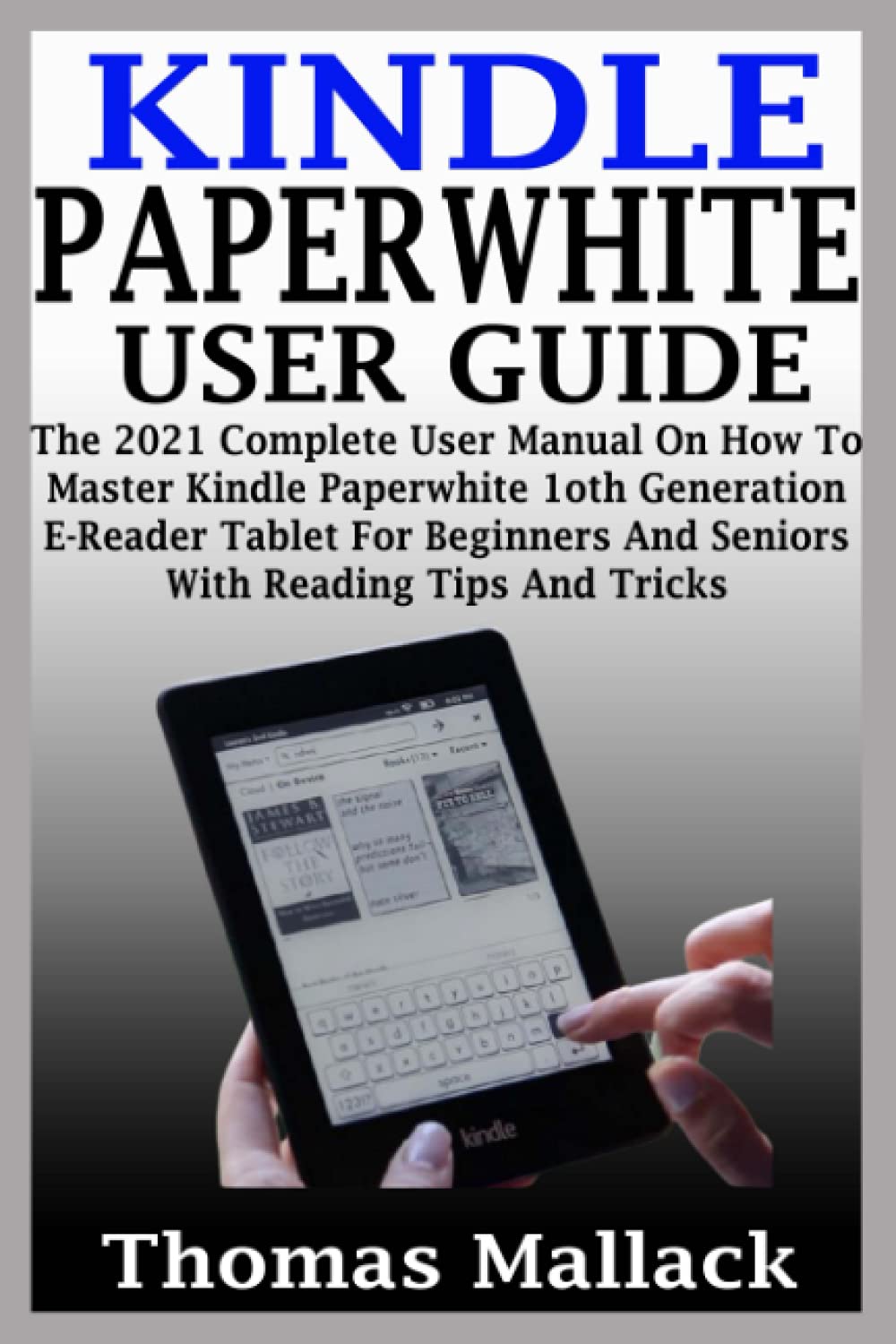
Obrázek 1: Front cover of the "Kindle Paperwhite User Guide" book. This image displays the title of the manual, "KINDLE PAPERWHITE USER GUIDE", along with a subtitle indicating it's a complete manual for the 10th Generation E-Reader. A central image on the cover shows a hand interacting with a Kindle device, illustrating its use.

Obrázek 2: Back cover of the "Kindle Paperwhite User Guide" book. The back cover features a plain grey background with the ISBN barcode and number (9798536587386) located at the bottom, indicating publishing information.
Záruka a podpora
This user manual provides guidance for operating the Kindle Paperwhite 10th Generation device. For information regarding the device's warranty, technical support, or service, please refer to the official Amazon Kindle support resources or the documentation provided with your Kindle Paperwhite device. This manual is a third-party publication and does not provide direct warranty or support services for the Kindle device itself.


