1. Úvod
Děkuji za nákupasing the SKYBASIC Wireless Digital Microscope. This portable handheld microscope offers 50X-1000X magnification, allowing for detailed observation of various objects. It features WiFi connectivity for smartphones and tablets, and USB connectivity for Windows and Mac computers. Equipped with 8 adjustable LED lights, it provides clear imaging in diverse lighting conditions. This manual provides comprehensive instructions for setup, operation, maintenance, and troubleshooting to ensure optimal performance and longevity of your device.
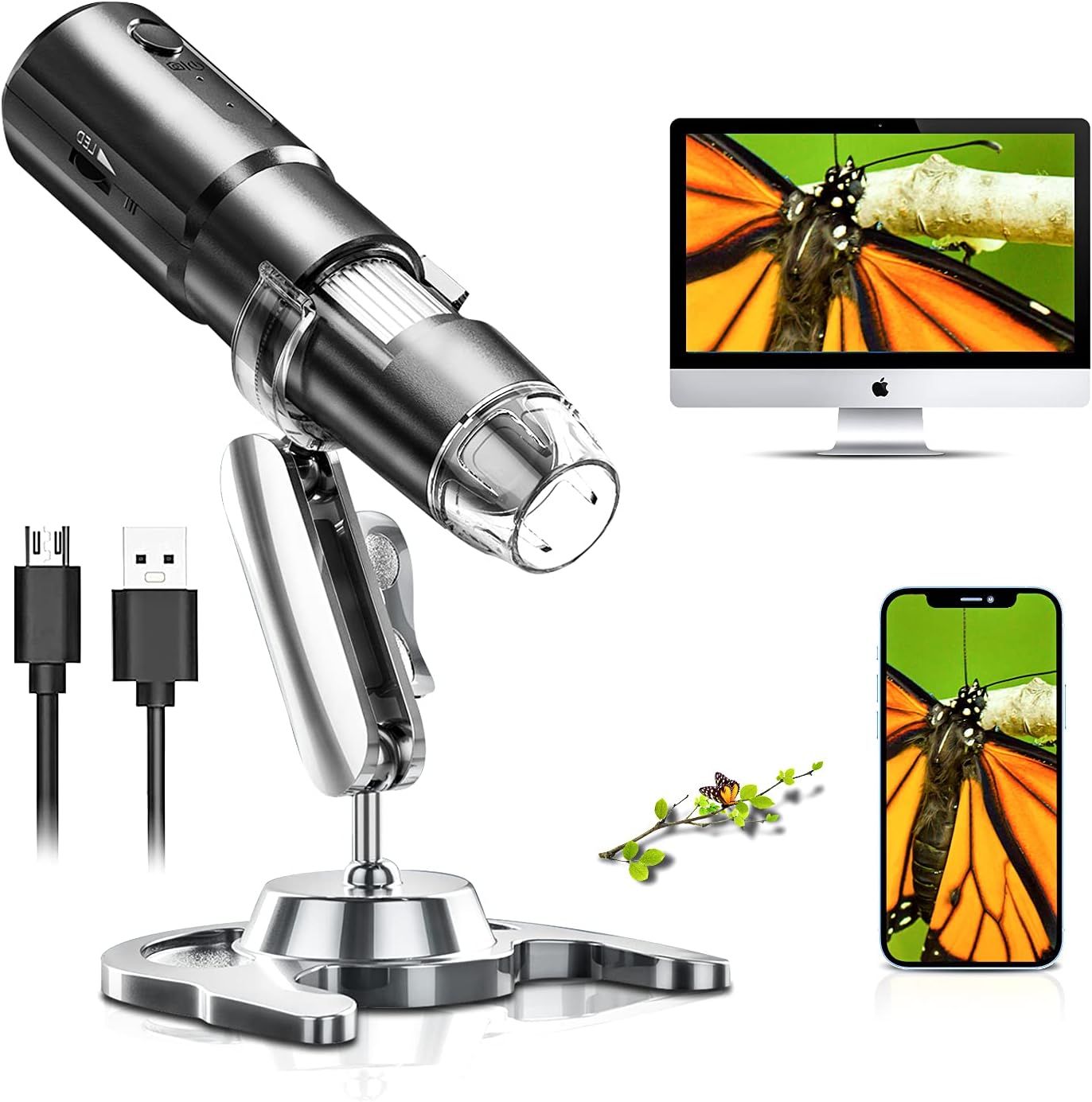
Figure 1.1: SKYBASIC Wireless Digital Microscope in use, showing connectivity options.
2. Obsah balení
Zkontrolujte prosím, zda jsou všechny níže uvedené položky součástí balení. Pokud některé položky chybí nebo jsou poškozené, kontaktujte prosím zákaznickou podporu.
- 1x SKYBASIC Wireless Digital Microscope
- 1x USB Charging Cable (adapter not included)
- 1x Adjustable Stand Bracket
- 1x podstavec
- 1x Uživatelská příručka
3. Konec produktuview
Familiarize yourself with the components of your SKYBASIC Wireless Digital Microscope.

Figure 3.1: Main components of the Wireless Digital Microscope.
- Microscope Body: Contains the lens, LED lights, and internal electronics.
- Focus Wheel: Used to adjust the focus for clear images.
- LED světla: 8 built-in adjustable LED lights for illumination.
- LED Brightness +/-: Buttons to control the intensity of the LED lights.
- Vypínač: Turns the microscope on/off and can also function as a photo/video capture button.
- Ukazatel práce: Light indicating the device's operational status.
- Indikátor nabíjení: Kontrolka indikující stav nabíjení.
- USB port: Pro nabíjení a připojení k počítači.
- Protiprachový kryt: Chrání objektiv, když se nepoužívá.
- Nastavitelný stojan: Allows for stable positioning and observation at various angles and heights.
4. Nastavení
4.1 Charging the Microscope
Before first use, fully charge the microscope. A full charge provides approximately 2 hours of continuous use.
- Connect the small end of the USB charging cable to the microscope's USB port.
- Druhý konec kabelu USB připojte ke standardnímu napájecímu adaptéru USB (není součástí balení) nebo k portu USB počítače.
- Kontrolka nabíjení se během nabíjení rozsvítí a po úplném nabití zhasne.

Figure 4.1: The microscope features a USB rechargeable design for portability.
4.2 Sestavení stojanu
The adjustable stand provides stability and allows for precise positioning of the microscope.
- Insert the adjustable bracket into the stand base.
- Secure the microscope into the bracket. Ensure it is firmly seated.
- Adjust the height and angle using the rotating joints and stand lock as needed for your observation.

Figure 4.2: The 360° rotating stand allows for flexible observation.
5. Návod k obsluze
5.1 Connecting to a Mobile Device (iOS/Android) via WiFi
This method allows you to view images and videos on your smartphone or tablet.
- Stáhněte si aplikaci: Hledat "Max-see" in the Apple App Store (for iOS) or Google Play Store (for Android) and install it.
- Power On Microscope: Long press the power button on the microscope for 3 seconds to turn it on. The work indicator light will illuminate.
- Připojení k WiFi: On your mobile device, go to Wi-Fi settings and connect to the Wi-Fi network named "Max-see_xxxx" (where xxxx is a unique identifier). No password is required.
- Otevřít aplikaci: Launch the "Max-see" app. The microscope's live view by se mělo objevit na vaší obrazovce.
- Odstraňte kryt proti prachu: Before observing, remove the transparent dust cover from the microscope lens.
- Adjust Focus and LED Lights: Use the focus wheel on the microscope to achieve a clear image. Adjust the LED brightness using the +/- buttons on the microscope body to optimize illumination.

Figure 5.1: Mobile device connection steps.
5.2 Connecting to a Computer (Windows/Mac) via USB
This method allows you to use the microscope with your desktop or laptop computer.
- Pro uživatele Windows: Download and install the "Smart Camera" software. The download link is typically provided in the physical user manual or can be found on the manufacturer's support webmísto (např. www.linskam.com/download/camera.zip).
- Pro uživatele Mac: Use the pre-installed applications "Photo Booth" or "QuickTime Player" directly.
- Power On Microscope: Long press the power button on the microscope for 3 seconds to turn it on.
- Připojení přes USB: Připojte mikroskop k počítači pomocí dodaného kabelu USB.
- Spustit software:
- For Windows: Open the "Smart Camera" software.
- For Mac: Open "Photo Booth" or "QuickTime Player".
- Vyberte zařízení: In the software, select the microscope as the video input device (it may appear as "GENERAL-UVC" or similar).
- Odstraňte kryt proti prachu: Before observing, remove the transparent dust cover from the microscope lens.
- Adjust Focus and LED Lights: Use the focus wheel on the microscope to achieve a clear image. Adjust the LED brightness using the +/- buttons on the microscope body to optimize illumination.

Figure 5.2: Computer connection steps.
5.3 Adjusting Magnification and LED Lights
The microscope offers 50X-1000X magnification and adjustable illumination.
- Zvětšení: The magnification level is primarily controlled by the distance between the microscope lens and the object, and by the focus wheel. Move the microscope closer to the object for higher magnification and further away for lower magnification. Then, fine-tune the image clarity using the focus wheel.
- LED světla: The 8 built-in LED lights ensure proper illumination. Use the LED brightness +/- buttons on the microscope body to increase or decrease the light intensity. This is crucial for obtaining clear images, especially in dark environments or when observing reflective surfaces.

Figure 5.3: Magnification and focusing capabilities.

Figure 5.4: Adjustable LED illumination for optimal viewIng.
5.4 Pořizování snímků a nahrávání videa
Once connected, you can capture still images and record videos through the "Max-see" app or "Smart Camera" software.
- Using the App/Software: Look for dedicated buttons within the application interface for "Take Photo" or "Record Video".
- Using the Microscope Button: The power button on the microscope can often be used as a quick capture button. A short press typically takes a photo, while a long press might start/stop video recording (refer to app/software specific settings for confirmation).
- Captured media will be saved to your device's gallery or the software's designated folder.
6. Údržba
Proper care and maintenance will extend the life of your digital microscope.
- Čištění objektivu: Use a soft, lint-free cloth specifically designed for optical lenses to gently wipe the microscope lens. Do not use abrasive cleaners or solvents.
- Čištění těla: Wipe the microscope body with a soft, dry cloth. If necessary, a slightly damp Lze použít hadřík, ale dbejte na to, aby se do zařízení nedostala vlhkost.
- Skladování: Store the microscope in a cool, dry place away from direct sunlight and extreme temperatures. Always replace the dust cover on the lens when not in use to prevent dust accumulation.
- Péče o baterie: Abyste zachovali stav baterie, vyvarujte se častého úplného vybíjení. Pokud ji skladujete po delší dobu, nabijte ji každé několik měsíců přibližně na 50 %.
7. Řešení problémů
If you encounter issues with your microscope, refer to the following common problems and solutions.
| Problém | Možná příčina | Řešení |
|---|---|---|
| Mikroskop se nezapne. | Slabá baterie; Tlačítko napájení nebylo stisknuto dostatečně dlouho. | Charge the microscope fully. Press and hold the power button for at least 3 seconds. |
| Cannot connect to Wi-Fi (mobile device). | Microscope not powered on; Incorrect Wi-Fi network selected; App not launched. | Ensure microscope is on. Select "Max-see_xxxx" network. Open the "Max-see" app after connecting Wi-Fi. |
| No image on computer (USB connection). | Microscope not powered on; USB cable faulty; Software not installed/launched; Incorrect device selected in software. | Ensure microscope is on. Try a different USB port/cable. Install/launch "Smart Camera" (Windows) or "Photo Booth/QuickTime Player" (Mac). Select "GENERAL-UVC" or similar as the camera source. |
| Obraz je rozmazaný nebo nezaostřený. | Focus wheel not adjusted; Lens dust cover still on; Incorrect distance to object. | Rotate the focus wheel until the image is clear. Remove the transparent dust cover from the lens. Adjust the distance between the microscope and the object. |
| Obrázek je příliš tmavý nebo příliš světlý. | Jas LED diody není nastaven. | Use the LED brightness +/- buttons on the microscope to adjust illumination. |
8. Specifikace
| Funkce | Detail |
|---|---|
| Značka | SKYBASIC |
| Model | B08YJ5RQJK |
| Rozsah zvětšení | 50x - 1000x |
| Světelný zdroj | 8 nastavitelných LED světel |
| Konektivita | WiFi (for iOS/Android), USB (for Windows/Mac) |
| Kompatibilní zařízení | Osobní počítač, chytrý telefon, tablet |
| Typ baterie | 1 lithium-polymerová baterie (součástí balení) |
| Životnost baterie | Approx. 2 hours continuous use (fully charged) |
| Hmotnost položky | 10.2 unce |
| Rozměry balení | 6.46 x 4.61 x 1.93 palce |
| Barva | Černá-2 |
| Datum první dostupnosti | 10. března 2021 |
9. Záruka a podpora
SKYBASIC offers a worry-free guarantee and a 1-year replacement or return service for this product. If you have any questions regarding your digital microscope camera or require technical support, please do not hesitate to contact SKYBASIC customer service. They are available to assist you 24/7.
For support, please refer to the contact information provided on the product packaging or the official SKYBASIC webmísto.


