1. Úvod
This manual provides essential information for the proper setup, operation, and maintenance of your OWC Thunderbolt Hub. Please read this manual thoroughly before using the device to ensure optimal performance and safety.
The OWC Thunderbolt Hub is designed to expand the connectivity of your computer, offering multiple Thunderbolt 4 ports and a USB-A port for various peripherals. It is compatible with Thunderbolt 4, Thunderbolt 3, USB-C, and USB4 machines.

Obrázek 1: Přední strana view of the OWC Thunderbolt Hub, showcasinjeho kompaktní design a uspořádání portů.
2. Obsah balení
Ověřte, zda jsou v balení přítomny všechny položky:
- OWC Thunderbolt Hub
- Napájení
- Thunderbolt kabel
- Rychlý průvodce
3. Pokyny k nastavení
3.1 Připojení napájecího adaptéru
- Connect the power supply cable to the DC IN port on the rear of the OWC Thunderbolt Hub.
- Zapojte napájecí adaptér do standardní elektrické zásuvky.
3.2 Připojení k počítači
- Using the provided Thunderbolt cable, connect one end to the upstream Thunderbolt 4 port on the OWC Thunderbolt Hub. This port is typically labeled with a computer icon and a lightning bolt.
- Connect the other end of the Thunderbolt cable to a Thunderbolt 4, Thunderbolt 3, USB-C, or USB4 port on your computer.
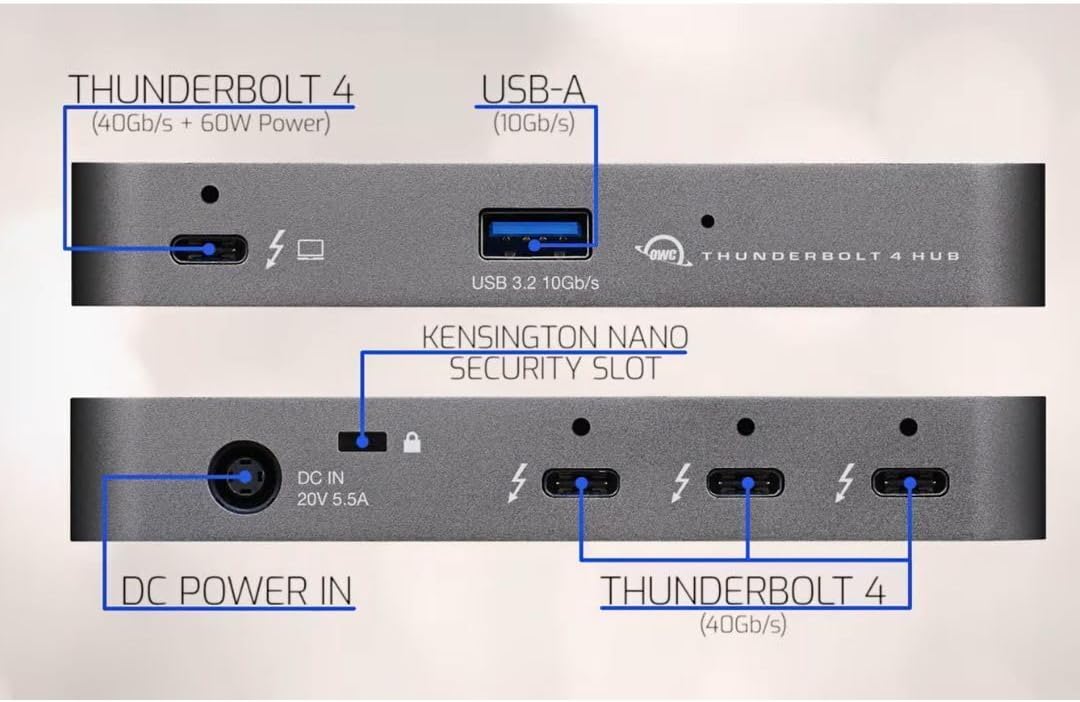
Figure 2: Diagram illustrating the ports on the OWC Thunderbolt Hub, including the Thunderbolt 4 (40Gb/s + 60W Power) upstream port, USB 3.2 10Gb/s Type-A port, DC Power In (20V 5.5A), Kensington Nano Security Slot, and three downstream Thunderbolt 4 (40Gb/s) ports.
3.3 Připojení periferních zařízení
Once the hub is connected to your computer and powered on, you can connect your peripherals:
- Zařízení Thunderbolt: Use the three downstream Thunderbolt 4 ports for connecting Thunderbolt devices such as external drives, displays, or other Thunderbolt hubs.
- Zařízení USB-A: Use the USB 3.2 10Gb/s Type-A port for connecting standard USB-A peripherals like keyboards, mice, or external storage.

Figure 3: An OWC Thunderbolt Hub connected to a laptop, tablet, and various external storage devices, demonstrating its multi-device connectivity capabilities.
4. Návod k obsluze
4.1 Zapnutí a vypnutí
The OWC Thunderbolt Hub powers on automatically when connected to a power source and a host computer. There is no separate power button. To power off, disconnect the power supply or the Thunderbolt cable from the host computer.
4.2 Nabíjení zařízení
The upstream Thunderbolt 4 port provides up to 60W of power delivery to charge your connected laptop or host device. The USB-A port also supports charging for compatible devices.

Figure 4: The OWC Thunderbolt Hub connected to a laptop, illustrating its ability to charge devices while in use.
4.3 Daisy-Chaining Thunderbolt Devices
The OWC Thunderbolt Hub supports daisy-chaining, allowing you to connect multiple Thunderbolt devices in a series. This creates an expanded workflow without compromising performance. You can connect up to three bus-powered Thunderbolt devices directly to the hub's downstream ports.
4.4 Připojení displeje
The Thunderbolt 4 ports support various display configurations, including single and dual displays at resolutions up to 8K, depending on your host computer's capabilities. Refer to the specifications section for detailed display support.
5. Specifikace
| Funkce | Detail |
|---|---|
| Číslo modelu | W125947845 |
| Rozměry produktu | 2.95 x 9.25 x 5.71 palce |
| Hmotnost položky | 2.11 libry |
| Barva | Šedá/Černá |
| Hardwarové rozhraní | Blesk |
| Porty |
|
| Podpora zobrazení | Up to 8K resolution (single display), Dual 4K displays (host dependent) |
| Kompatibilní zařízení | Desktops, Laptops, Smartphones, Tablets with Thunderbolt 4, Thunderbolt 3, USB-C, or USB4 ports. |
6. Řešení problémů
If you encounter issues with your OWC Thunderbolt Hub, refer to the following common problems and solutions:
6.1 No Power or Device Not Recognized
- Zkontrolujte připojení napájení: Ensure the power adapter is securely connected to both the hub and a working electrical outlet.
- Verify Thunderbolt Cable: Confirm that the Thunderbolt cable is properly connected to both the hub and your computer. Try using a different Thunderbolt cable if available.
- Restartujte počítač: Sometimes a simple restart of your host computer can resolve connectivity issues.
- Aktualizace ovladačů: Ensure your computer's Thunderbolt drivers are up to date. Visit your computer manufacturer's webstránky pro nejnovější ovladače.
6.2 Peripherals Not Functioning
- Test Directly: Connect the peripheral directly to your computer to confirm it is functional.
- Zkuste jiný port: Connect the peripheral to a different port on the OWC Thunderbolt Hub.
- Požadavky na napájení: Ensure that bus-powered devices are not exceeding the power output capabilities of the hub. Some high-power devices may require their own power supply.
6.3 Problémy se zobrazením
- Kvalita kabelu: Use high-quality, certified Thunderbolt or USB-C display cables.
- Podpora rozlišení: Verify that your computer and display support the desired resolution and refresh rate.
- Nastavení obrazovky: Check your computer's display settings to ensure the external monitor is detected and configured correctly.
7. Údržba
To ensure the longevity and optimal performance of your OWC Thunderbolt Hub, follow these maintenance guidelines:
- Čištění: Use a soft, dry, lint-free cloth to clean the exterior of the hub. Avoid using liquid cleaners or aerosols, which can damage the device.
- Větrání: Ensure the hub is placed in a well-ventilated area to prevent overheating. Do not block any ventilation openings.
- Skladování: When not in use for extended periods, store the hub in a cool, dry place away from direct sunlight and extreme temperatures.
- Správa kabelů: Avoid bending or crimping cables excessively, as this can lead to damage and connectivity issues.
8. Záruka a podpora
OWC products are designed for reliability and performance. For warranty information and technical support, please refer to the official OWC webwebu nebo v dokumentaci dodané s vaším produktem.
Online podpora: Visit the OWC support page for FAQs, driver downloads, and contact information.
Kontaktní údaje: For direct assistance, contact OWC customer service. Details can be found on the OWC webmísto.


