1. Konec produktuview
Černýview Tab 8 is a 10.1-inch Android tablet designed for versatile use, from entertainment to productivity. It features a vibrant FHD+ IPS display, an Octa-Core processor, 4GB of RAM, and 64GB of internal storage, expandable via a microSD card. Equipped with dual cameras (13MP rear, 5MP front), GPS, FM radio, and 5G Wi-Fi connectivity, it offers a comprehensive mobile experience.

Obrázek 1: Černáview Tab 8 Tablet highlighting key features like the 10.1-inch FHD+ IPS display and 6580mAh battery.
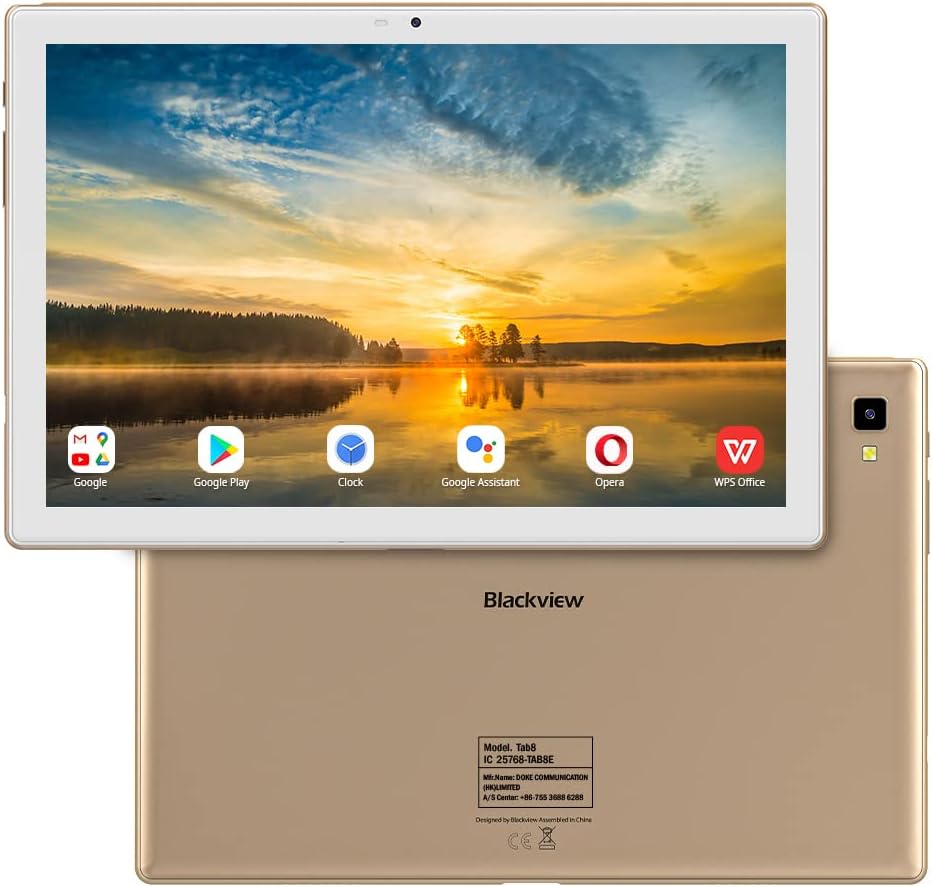
Obrázek 2: Přední a zadní část views of the Blackview Tab 8 Tablet, showcasing its design and camera placement.
2. Počáteční nastavení
2.1 Vybalení a komponenty
Upon opening the package, ensure all components are present. The Blackview Tab 8 typically includes the tablet, a leather case, a charger, a USB cable, and a user manual. The tablet comes with a protective film on the screen.
Video 1: An unboxing video demonstrating the contents of the Blackview Tab 8 package, including the tablet and its accessories.
2.2 Zapnutí a počáteční konfigurace
- Stiskněte a podržte tlačítko napájení na boku tabletu, dokud se nerozsvítí černáview zobrazí se logo.
- Postupujte podle pokynů na obrazovce a vyberte jazyk, připojte se k síti Wi-Fi a nastavte si účet Google.
- If prompted, configure security settings such as a PIN, pattern, or password. The tablet also supports Face Unlock for convenient access.
2.3 Nabíjení tabletu
Before first use, it is recommended to fully charge the tablet. Connect the provided USB cable to the tablet's charging port and the other end to the power adapter. Plug the adapter into a wall outlet. The charging indicator will appear on the screen.
2.4 Vložení SIM a MicroSD karet
Černýview Tab 8 supports dual SIM cards for cellular connectivity (Dual 4G VoLTEV) and a microSD card for expandable storage up to 128GB. Locate the SIM/microSD card tray on the side of the tablet. Use the provided SIM ejector tool to open the tray. Carefully place the SIM card(s) and/or microSD card into their respective slots, ensuring correct orientation, then reinsert the tray.
3. Ovládání tabletu
3.1 Základní navigace a gesta
- Klepněte na: Vyberte položku nebo aktivujte tlačítko.
- Výpad: Procházení obrazovek, seznamů nebo obsahu.
- Přiblížení roztažením/roztažením prstů: Zvětšit nebo zmenšit view obrázků a web stránky.
- Dlouhý stisk: Přístup k kontextovým nabídkám nebo přesun ikon.
3.2 Připojení k sítím
Chcete-li se připojit k Wi-Fi, přejděte na Nastavení > Síť a internet > Wi-Fi. Select your desired network and enter the password if required. For cellular data, ensure a SIM card is inserted and mobile data is enabled in Nastavení > Síť a internet > Mobilní síť.
3.3 Používání kamer
The tablet features a 13MP rear camera and a 5MP front camera. Open the Camera app to capture photos and videos. Tap the screen to focus, and press the shutter button to take a picture. Switch between front and rear cameras using the camera toggle icon.

Figure 3: Capturing moments with the 13MP rear camera of the Blackview Karta 8.
3.4 Multitasking a produktivita
Černýview Tab 8 supports split-screen multitasking, allowing you to run two applications side-by-side. To activate, open an app, then swipe up from the bottom of the screen and hold to access recent apps. Drag one app to the top or bottom of the screen, then select another app for the remaining space.
Video 2: Demonstrating features of the Blackview Tab 8, including split-screen multitasking and external keyboard support.
The tablet can also be paired with an external keyboard (sold separately) for enhanced typing and productivity, transforming it into a portable workstation.

Obrázek 4: Černáview Tab 8 supports diverse activities, from work to entertainment.
3.5 Odemknutí obličejem
For quick and secure access, the Blackview Tab 8 features Face Unlock. To set it up, navigate to Nastavení > Zabezpečení > Odemknutí obličejem and follow the on-screen instructions to register your face. Once configured, simply look at the front camera to unlock your device.
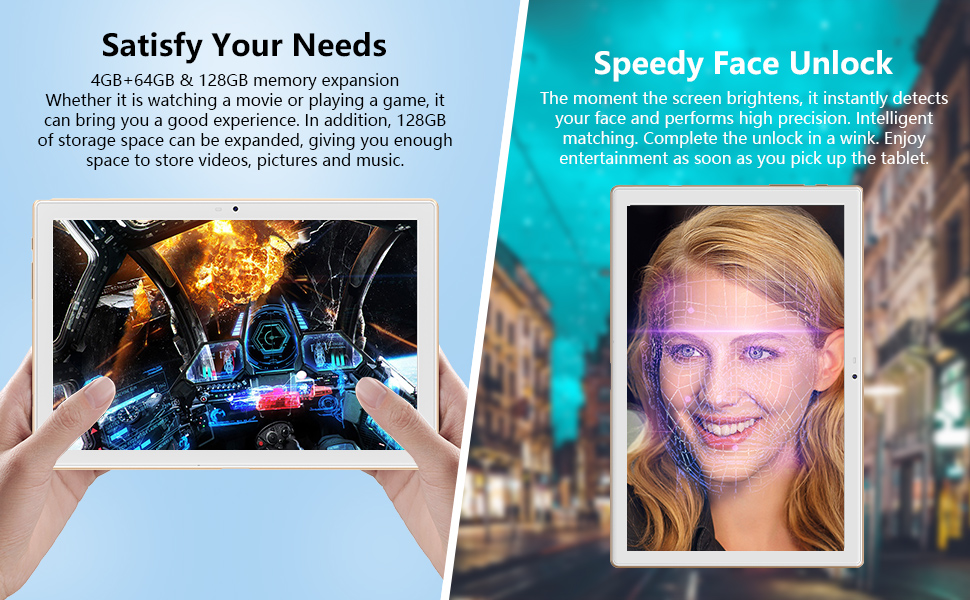
Obrázek 5: Černáview Tab 8 offers speedy face unlock and ample storage for games and media.
4. Údržba
4.1 Péče o baterii
- Nevystavujte tablet extrémním teplotám.
- Používejte pouze originální nabíječku nebo certifikovanou kompatibilní nabíječku.
- Pro optimální životnost baterie se vyvarujte častého úplného vybíjení baterie nebo jejího delšího nabití na 100 %.
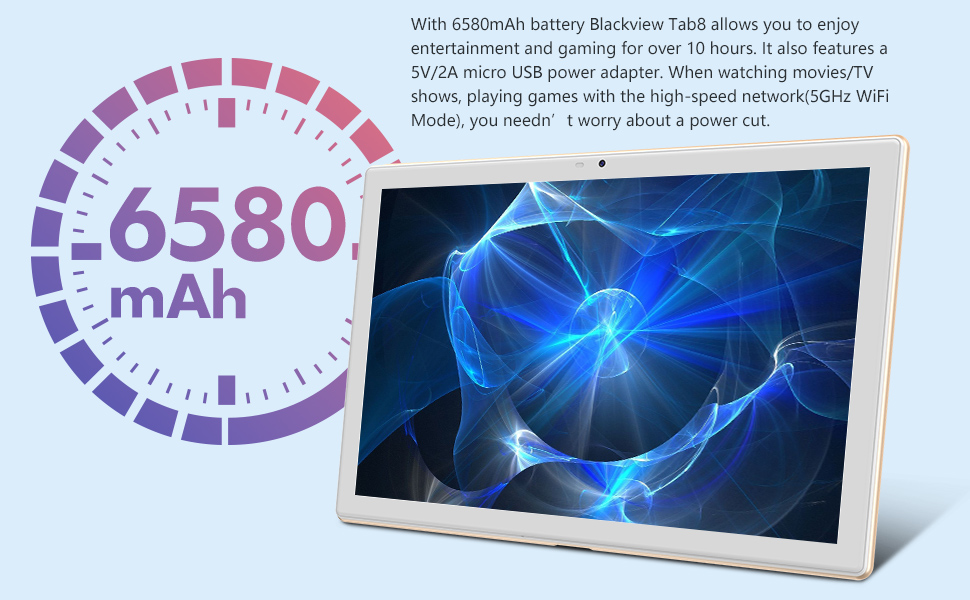
Obrázek 6: Černáview Tab 8 is equipped with a 6580mAh battery for extended use.
4.2 Čištění tabletu
K čištění obrazovky a těla tabletu použijte měkký hadřík, který nepouští vlákna. V případě odolných šmouh je lehceampOtřete hadřík vodou nebo čističem obrazovek určeným pro elektroniku. Nepoužívejte agresivní chemikálie ani abrazivní materiály.
4.3 Aktualizace softwaru
Regularly check for system updates to ensure your tablet has the latest features and security patches. Go to Nastavení > Systém > Aktualizace systému to check for and install available updates. The tablet runs on Android 10, which offers extensive compatibility and system stability.

Obrázek 7: Černáview Tab 8 operates on Android 10, ensuring broad application compatibility.
4.4 Správa úložiště
The tablet comes with 64GB of internal storage. To manage storage, go to Nastavení > ÚložištěMísto můžete uvolnit odinstalováním nepoužívaných aplikací, smazáním starých files, or moving media to a microSD card (up to 128GB supported).

Obrázek 8: Černáview Tab 8 features 4GB RAM and 64GB ROM, with support for up to 128GB expandable storage.
5. Řešení problémů
5.1 Běžné problémy a řešení
- Tablet se nezapíná: Ujistěte se, že je baterie nabitá. Připojte nabíječku a před opětovným zapnutím počkejte několik minut.
- Obrazovka nereaguje: Try restarting the tablet by holding the power button for about 10-15 seconds until it powers off and then on again.
- Problémy s připojením Wi-Fi: Zkontrolujte, zda je v nastavení povolena Wi-Fi. Restartujte router a tablet. Zapomeňte na síť a znovu se připojte.
- Aplikace padá nebo zamrzá: Vymažte mezipaměť aplikace (Nastavení > Aplikace a oznámení > [Název aplikace] > Úložiště a mezipaměť > Vymazat mezipaměť). Pokud problém přetrvává, zkuste aplikaci znovu nainstalovat.
5.2 Obnovení továrního nastavení
Pokud se setkáváte s přetrvávajícími problémy se softwarem, může je vyřešit obnovení továrního nastavení. Varování: Obnovení továrního nastavení vymaže všechna data v tabletu. Před pokračováním si zálohujte důležitá data. Chcete-li provést obnovení továrního nastavení, přejděte na Nastavení > Systém > Možnosti resetování > Vymazat všechna data (obnovení továrního nastavení) a postupujte podle pokynů.
6. Specifikace
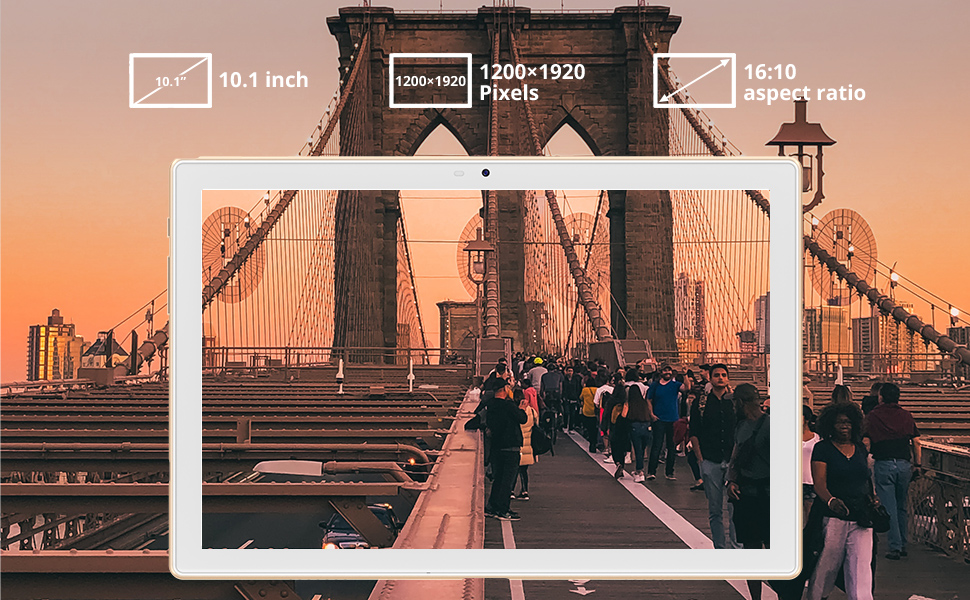
Obrázek 9: Černáview Tab 8 features a 10.1-inch FHD+ display with a 1200x1920 resolution.
| Funkce | Specifikace |
|---|---|
| Model | Černýview Karta 8 |
| Velikost displeje | 10.1 palce |
| Rozlišení displeje | 1920x1200 IPS FHD |
| Procesor | Osmijádrový |
| BERAN | 4 GB |
| Interní úložiště | 64 GB |
| Rozšiřitelné úložiště | Až 128 GB (MicroSD) |
| Operační systém | Android 10 |
| Zadní kamera | 13 MP |
| Přední kamera | 5 MP |
| Kapacita baterie | 6580 XNUMX mAh |
| Průměrná životnost baterie | 8 hodiny |
| Konektivita | 5G Wi-Fi, Dual 4G VoLTEV, Bluetooth, GPS, FM |
| Rozměry (DxŠxV) | 9.57 x 6.38 x 0.35 palce |
| Hmotnost | 1.32 libry |
7. Záruka a podpora
For warranty information and technical support, please refer to the warranty card included in your product packaging or visit the official Blackview website. Keep your proof of purchase for warranty claims. If you experience any issues not covered in this manual, please contact Blackview zákaznický servis o pomoc.


