Zavedení
The Lenovo 530 Wireless Mouse is designed for reliable and convenient navigation. Featuring 2.4 GHz wireless technology and a nano USB receiver, it offers a plug-and-play experience without the need for complex installations. Its ergonomic and contoured design ensures comfort for extended use, making it suitable for various computing tasks.
Nadview of the Lenovo 530 Wireless Mouse, highlighting its features and design.
Nastavení
Follow these steps to set up your Lenovo 530 Wireless Mouse:
- Vložte baterii: Open the battery compartment located on the underside of the mouse. Insert one AA battery, ensuring correct polarity. The mouse comes with an included AA battery.
- Locate the Nano USB Receiver: The nano USB receiver is typically stored inside the battery compartment for safekeeping during transport. Remove it from its storage slot.
- Připojte přijímač: Plug the nano USB receiver into an available USB port on your computer (PC).
- Zapnutí: Turn on the mouse using the power switch, usually located on the bottom of the mouse.
- Automatické připojení: The mouse should automatically connect to your computer. No additional drivers are typically required for Windows 7, 8, 8.1, 10, or 11.

Image showing the battery compartment and nano USB receiver storage on the underside of the mouse.

The Lenovo 530 Wireless Mouse connected wirelessly to a laptop via its 2.4 GHz nano USB receiver.
Návod k obsluze
The Lenovo 530 Wireless Mouse features a standard three-button design with a scroll wheel for intuitive control.
- Levé kliknutí: Use the left button for selecting items, opening applications, and confirming actions.
- Klikněte pravým tlačítkem myši: Pravým tlačítkem myši zobrazíte kontextové nabídky a další možnosti.
- Rolovací kolečko: Otáčením kolečka můžete procházet dokumenty svisle a web pages. The scroll wheel also functions as a middle button when pressed.
- Optický senzor: The 1200 DPI optical sensor provides precise and responsive tracking on various surfaces.

The mouse features a 1200 DPI optical sensor for smooth navigation and is compatible with Windows operating systems.
Ergonomie a pohodlí
The mouse is designed for ambidextrous use, accommodating both left-handed and right-handed users comfortably. Its contoured shape provides a natural grip for extended periods.

The ambidextrous design ensures comfortable use for both left and right-handed individuals.
Údržba
- Výměna baterie: When the mouse performance degrades or stops responding, replace the AA battery. Open the battery compartment on the underside, remove the old battery, and insert a new AA battery with correct polarity. The mouse offers up to 12 months of battery life, which may vary based on usage.
- Čištění: Use a soft, dry cloth to clean the exterior of the mouse. For the optical sensor, use a cotton swab lightly dampotřete lihem a zajistěte, aby se do myši nedostala žádná tekutina.
- Úložiště přijímače: When not in use or during travel, store the nano USB receiver in its dedicated slot within the battery compartment to prevent loss.

The mouse is lightweight and designed for portability, offering up to 12 months of battery life.
Odstraňování problémů
- Myš nereaguje:
- Ujistěte se, že je myš zapnutá.
- Zkontrolujte, zda je baterie správně vložena a zda je dostatečně nabitá. V případě potřeby ji vyměňte.
- Verify the nano USB receiver is securely plugged into a working USB port on your computer. Try a different USB port.
- Přesuňte myš blíže k USB přijímači, abyste vyloučili rušení nebo problémy s dosahem.
- Nepravidelný pohyb kurzoru:
- Vyčistěte optický senzor na spodní straně myši.
- Ujistěte se, že myš používáte na vhodném povrchu. Vysoce reflexní nebo průhledné povrchy mohou ovlivnit snímání pohybu. Doporučuje se podložka pod myš.
- Problémy s připojením:
- If the connection is lost, try unplugging and re-plugging the nano USB receiver.
- Restartujte počítač.
Specifikace
| Funkce | Detail |
|---|---|
| Číslo modelu | GY50Z18988 |
| Konektivita | Bezdrátové připojení 2.4 GHz (Nano USB přijímač) |
| technologie Sensor | Optický |
| DPI (body na palec) | 1200 DPI |
| Tlačítka | Left, Right, Scroll Wheel (Middle Click) |
| Životnost tlačítka | Up to 8 million clicks (Left/Right buttons) |
| Typ baterie | 1 x AA baterie (součástí balení) |
| Životnost baterie | Up to 12 months (actual duration may vary based on usage) |
| Kompatibilita operačního systému | Windows 7, Windows 8, Windows 8.1, Windows 10, Windows 11 |
| Rozměry (D x Š x V) | 4.17 x 2.48 x 1.46 palce (10.6 x 6.3 x 3.7 cm) |
| Hmotnost | 2.24 unce (65 g) |
| Speciální funkce | Lightweight, Ambidextrous Design, Nano USB Receiver Storage |
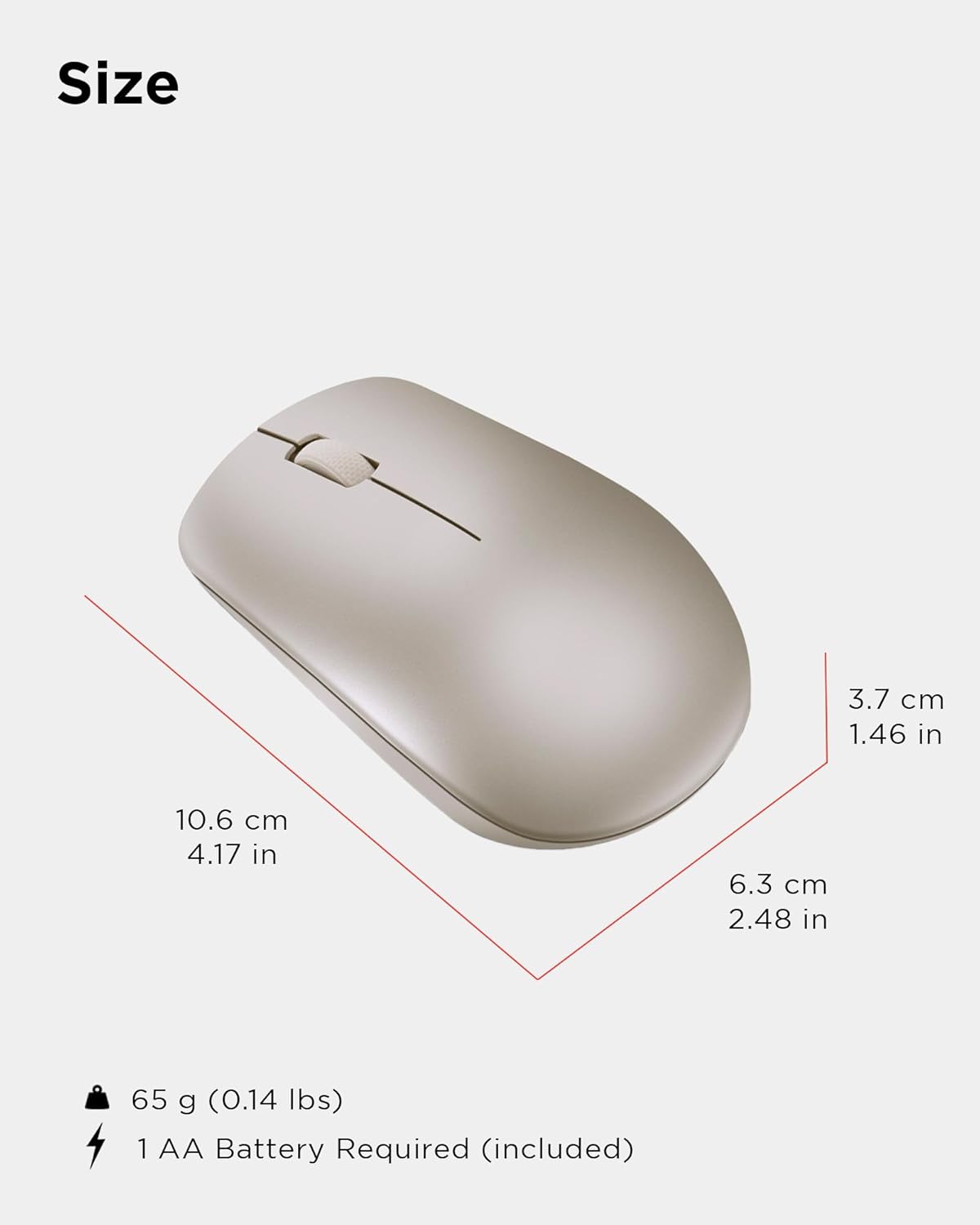
Physical dimensions and weight of the Lenovo 530 Wireless Mouse.
Záruka a podpora
Informace o záruce a technickou podporu naleznete v dokumentaci dodané s produktem nebo navštivte oficiální stránky podpory Lenovo. webZáruční doba a podmínky se mohou lišit v závislosti na regionu a prodejci.
Online podpora: Návštěva support.lenovo.com pro ovladače, manuály a průvodce řešením problémů.
Kontaktujte podporu: Refer to your product's warranty card or the Lenovo support webstránky s regionálními kontaktními čísly a možnostmi služeb.


