1. Konec produktuview
The Keychron K3 Version 2 is an ultra-slim 75% layout wireless mechanical keyboard designed for productivity and a tactile typing experience. It features low-profile Gateron mechanical switches and white LED backlighting. The keyboard supports both Bluetooth 5.1 wireless and USB wired connectivity, making it versatile for various devices and operating systems, including Mac and Windows.

Obrázek: Shora dolů view of the Keychron K3 Version 2 mechanical keyboard, showcasing its compact 75% layout and dark grey keycaps with an orange Esc key.
2. Co je v krabici
- 1 x Keychron K3 Version 2 Mechanical Keyboard
- 1 x USB-A to USB Type-C Cable
- 1 x stahovák klíčenky
- 1 x Uživatelská příručka (tento dokument)
- Extra klávesy pro operační systémy Windows a Mac
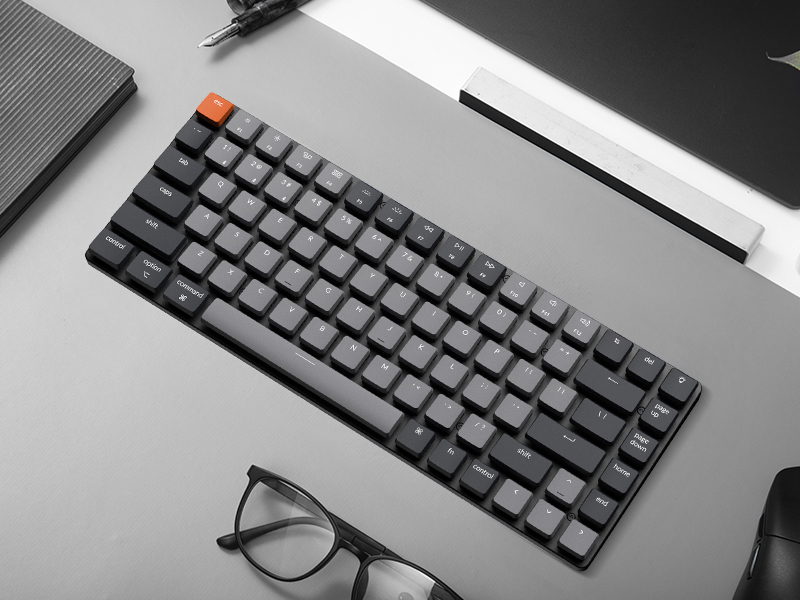
Image: Illustration showing the keyboard, USB-C cable, keycap puller, and additional keycaps included in the product packaging.
3. Nastavení
3.1 Počáteční nastavení
Before first use, ensure the keyboard is fully charged. Connect the provided USB-A to USB Type-C cable to the keyboard and a power source (e.g., computer USB port, USB wall adapter). The LED indicator will show charging status.
3.2 Připojení přes Bluetooth
- Locate the mode switch on the side of the keyboard. Slide it to the "BT" (Bluetooth) position.
- Press and hold the "Fn" + "1" (or "2" or "3") keys for 4 seconds until the LED indicator under the "1" key (or "2" or "3") flashes rapidly. This indicates the keyboard is in pairing mode.
- Na svém zařízení (počítači, tabletu, chytrém telefonu) povolte Bluetooth a vyhledejte nová zařízení.
- Select "Keychron K3" from the list of available devices.
- Follow any on-screen prompts to complete the pairing process. The LED indicator will stop flashing and remain solid when successfully connected.
- To switch between paired devices, simply press "Fn" + "1", "Fn" + "2", or "Fn" + "3".

Image: Diagram illustrating the Bluetooth connectivity options (BT1, BT2, BT3) and USB wired connection for the Keychron K3 keyboard.
3.3 Připojení přes kabel USB
To use the keyboard in wired mode, slide the mode switch on the side of the keyboard to the "Cable" position. Connect the USB-A to USB Type-C cable from the keyboard to your computer's USB port. The keyboard will be recognized automatically.
3.4 Přepínač rozložení operačního systému
The Keychron K3 is compatible with both Mac and Windows operating systems. Use the OS switch located on the side of the keyboard to select the appropriate layout for your system (Mac/iOS or Win/Android). This ensures correct key mapping for modifier keys like Command/Alt and Option/Windows key.

Image: Visual representation of the Keychron K3 keyboard highlighting its compatibility with both Mac OS and Windows, showing the respective keycap legends.
4. Návod k obsluze
4.1 Klíčové funkce a multimediální klávesy
The K3 features a 75% layout with dedicated function keys (F1-F12) that double as multimedia keys. To access the multimedia functions, press the 'Fn' key along with the desired function key. For example, 'Fn + F7' typically controls play/pause.
- Fn + F1/F2: Decrease/Increase screen brightness (Mac only)
- Fn+F3: Mission Control (Mac only)
- Fn+F4: Launchpad (Mac only)
- Fn + F7/F8/F9: Previous/Play-Pause/Next track
- Fn + F10/F11/F12: Ztlumit/Snížit hlasitost/Zvýšit hlasitost
- Fn + L/R Arrow: Adjust backlight color (if applicable)
- Fn + šipka nahoru/dolů: Upravte jas podsvícení
4.2 ovládání podsvícení
The Keychron K3 features white LED backlighting. You can adjust the brightness and change lighting effects using the dedicated keys or Fn combinations.
- Light Bulb Key (top right): Cycle through different backlight effects.
- Fn + šipka nahoru: Zvyšte jas podsvícení.
- Fn + šipka dolů: Snižte jas podsvícení.

Obrázek: Detail view of the Keychron K3 keyboard showing the white LED backlighting illuminating the keycaps.
4.3 Nabíjení klávesnice
When the battery is low, the LED indicator will flash red. Connect the USB Type-C cable to the keyboard and a USB power source. The LED will turn solid red while charging and turn off when fully charged. The keyboard can be used while charging in wired mode.
5. Údržba
5.1 Čištění klávesnice
To clean your Keychron K3, first disconnect it from all power sources and turn off the keyboard. Use a soft, lint-free cloth slightly dampened with water or a mild cleaning solution. Avoid spraying liquids directly onto the keyboard. For dust and debris between keycaps, use compressed air or a small brush.
5.2 Demontáž a výměna krytky kláves
The Keychron K3 comes with a keycap puller for easy removal and replacement of keycaps. To remove a keycap, gently place the puller over the keycap and pull upwards. To replace, align the keycap with the switch stem and press down firmly until it clicks into place. Be gentle to avoid damaging the switch.
Obrázek: Detail view of a low-profile Gateron mechanical blue switch, showing its internal mechanism. This type of switch is used in the Keychron K3 keyboard.
6. Řešení problémů
- Klávesnice se nepřipojuje přes Bluetooth:
- Ensure the keyboard is in "BT" mode and pairing mode (Fn + 1/2/3 for 4 seconds).
- Zkontrolujte, zda je ve vašem zařízení povoleno Bluetooth.
- Remove "Keychron K3" from your device's Bluetooth list and try pairing again.
- Ujistěte se, že je klávesnice nabitá.
- Try connecting to a different Bluetooth slot (1, 2, or 3).
- Klávesy nereagují:
- Switch to wired mode to check if the issue persists.
- Ujistěte se, že je klávesnice nabitá.
- If specific keys are not responding, try removing and re-seating their keycaps.
- Podsvícení nefunguje:
- Ujistěte se, že je klávesnice zapnutá.
- Press the Light Bulb key or Fn + Up Arrow to increase brightness.
- Zkontrolujte stav baterie; slabá baterie může deaktivovat podsvícení.
- Keyboard randomly disconnects:
- Ensure the keyboard is within reasonable range of your device.
- Minimize signal interference from other wireless devices.
- Ujistěte se, že je klávesnice plně nabitá.
- Consider updating the keyboard's firmware if available from the manufacturer's webmísto.
Pro podrobnější informace o řešení problémů se prosím obraťte na oficiální Průvodce řešením problémů (PDF).
7. Specifikace
| Funkce | Detail |
|---|---|
| Číslo modelu | K3A2 |
| Rozložení | 75 % (84 kláves) |
| Konektivita | Bluetooth 5.1, USB Type-C Wired |
| Spínače | Low-Profile Gateron Mechanical (Blue, Brown, Red options) |
| Podsvícení | Bílá LED |
| Rozměry (D x Š x V) | 11.81 x 4.57 x 0.79 palce (306 x 116 x 20 mm) |
| Hmotnost | 13.7 unce (388 g) |
| Baterie | 1 lithium-polymerová baterie (součástí balení) |
| Kompatibilní OS | Mac, Windows, Android, iOS |

Image: Diagram showing the dimensions of the Keychron K3 keyboard (306mm / 12.05 inches length, 116mm / 4.57 inches width) compared to a full-size keyboard.

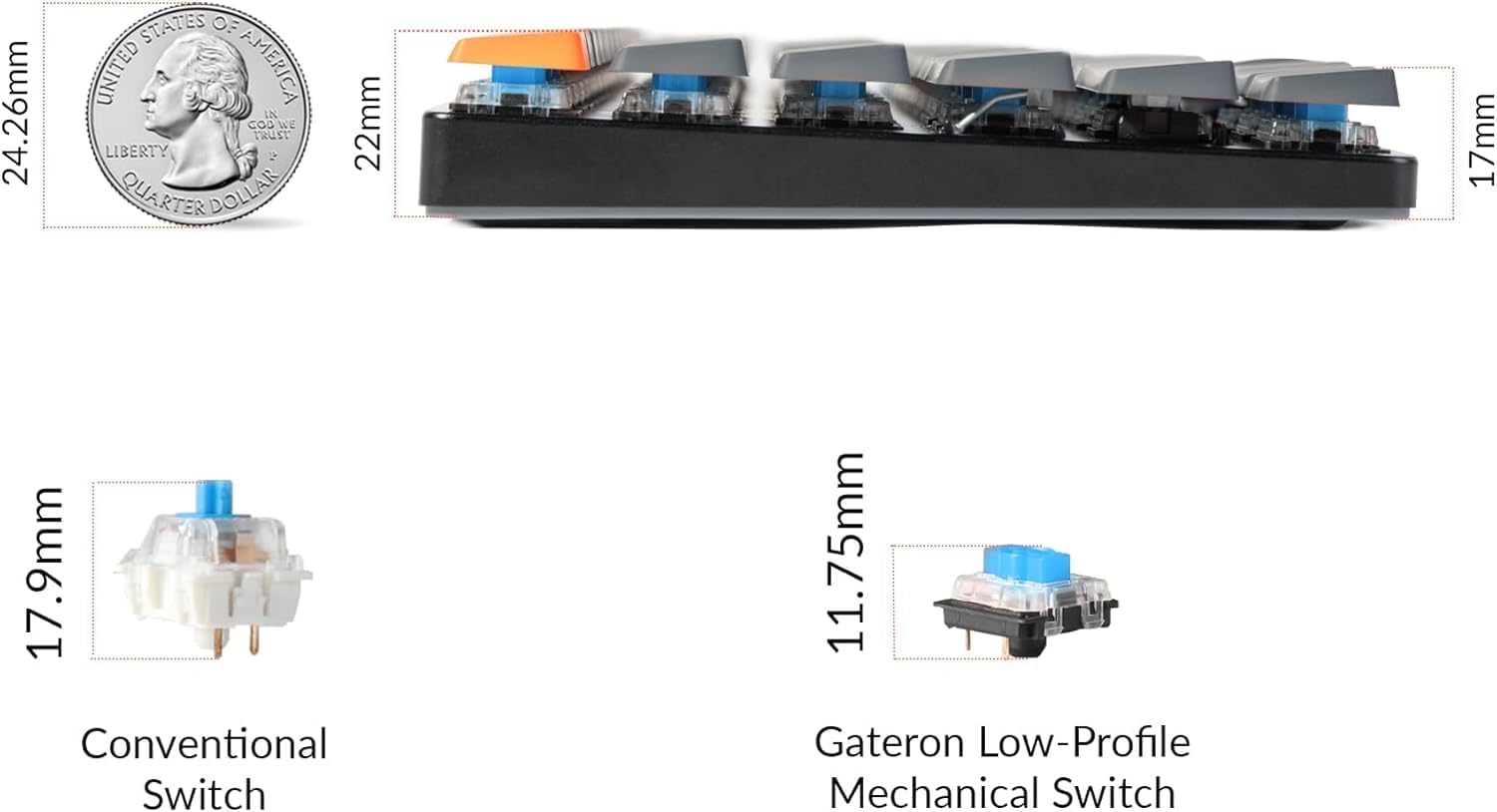
Obrázek: Boční view of the Keychron K3 illustrating its ultra-slim profile (0.79 inches) compared to a US quarter, and a comparison of conventional switches versus low-profile Gateron mechanical switches.
8. Záruka a podpora
Keychron products typically come with a manufacturer's warranty. For specific warranty terms and conditions, please refer to the official Keychron website or the warranty information included with your purchase.
For further assistance, technical support, or to download the latest firmware and drivers, please visit the official Keychron support page. You can also refer to the comprehensive PDF documents provided:


