1. Úvod
This manual provides instructions for the ELECOM M-TM10BBBK/EC Bluetooth Silent Wireless Mouse. This compact and lightweight mouse is designed for portability and quiet operation, featuring a BlueLED sensor for versatile surface compatibility and a presentation mode for enhanced functionality. Please read this manual thoroughly before use to ensure proper operation and to maximize your experience with the product.

Image 1.1: The ELECOM M-TM10BBBK/EC Bluetooth Silent Wireless Mouse in black.
2. Klíčové vlastnosti
- Ultratenký a přenosný design: With a thickness of only 28mm, this mouse is designed for easy portability, fitting comfortably into bags and pockets.
- Silent Click Switches: Equipped with silent switches for both left and right buttons, eliminating distracting click noises, ideal for quiet environments.
- BlueLED Sensor: Features a high-performance BlueLED sensor that ensures accurate tracking on various surfaces, including those with minor irregularities or dust.
- 1600 Count Resolution: Provides a resolution of 1600 counts for smooth and precise cursor movement.
- 4-Button Design with Back Button: Includes a convenient 'Back' button, enhancing navigation during web browsing and other tasks.
- Presentation Mode Functionality: Switch between normal mouse mode and a dedicated presentation mode for controlling slides (advance/return) and other presentation-specific actions.
- Přizpůsobitelná tlačítka: Utilize the free 'ELECOM Mouse Assistant' software to assign custom functions to buttons and customize presentation mode actions, including disabling scroll or cursor movement.
- Připojení Bluetooth 4.2: Complies with Bluetooth 4.2 standard, offering a reliable wireless connection up to approximately 10m on non-magnetic surfaces and 3m on magnetic surfaces.
- HOGP Compatibility: Connects directly to Bluetooth HOGP-compatible computers without the need for a separate receiver, ideal for devices with limited USB ports.
- Power Switch & Battery Indicator: Features a power switch on the bottom to prevent battery drain when not in use and a battery level indicator lamp to signal when replacement is needed.
- Symetrický design: An ambidextrous design that is comfortable for both right-handed and left-handed users.
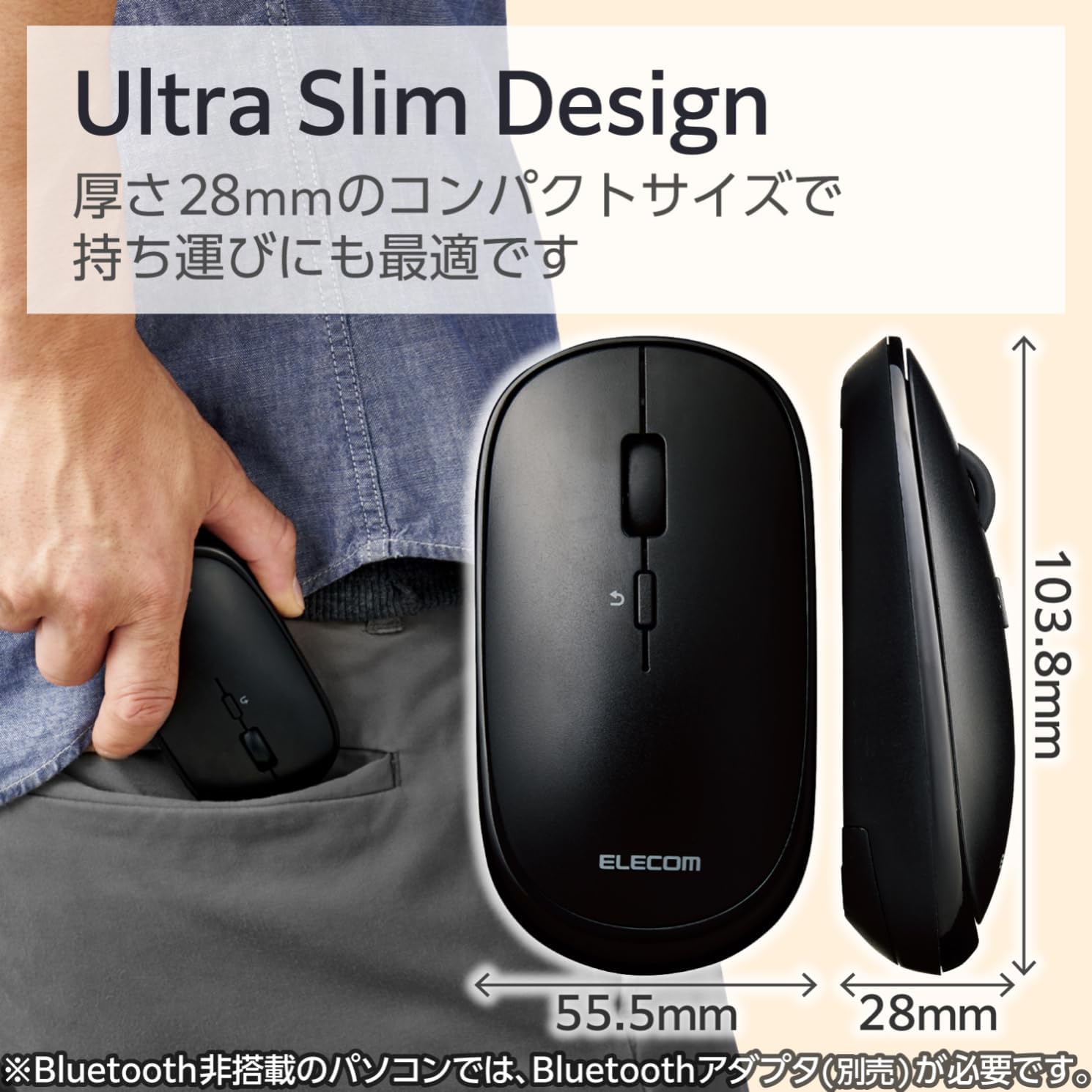
Image 2.1: The mouse features an ultra-slim design (28mm thick) for easy portability, shown here fitting into a pocket.
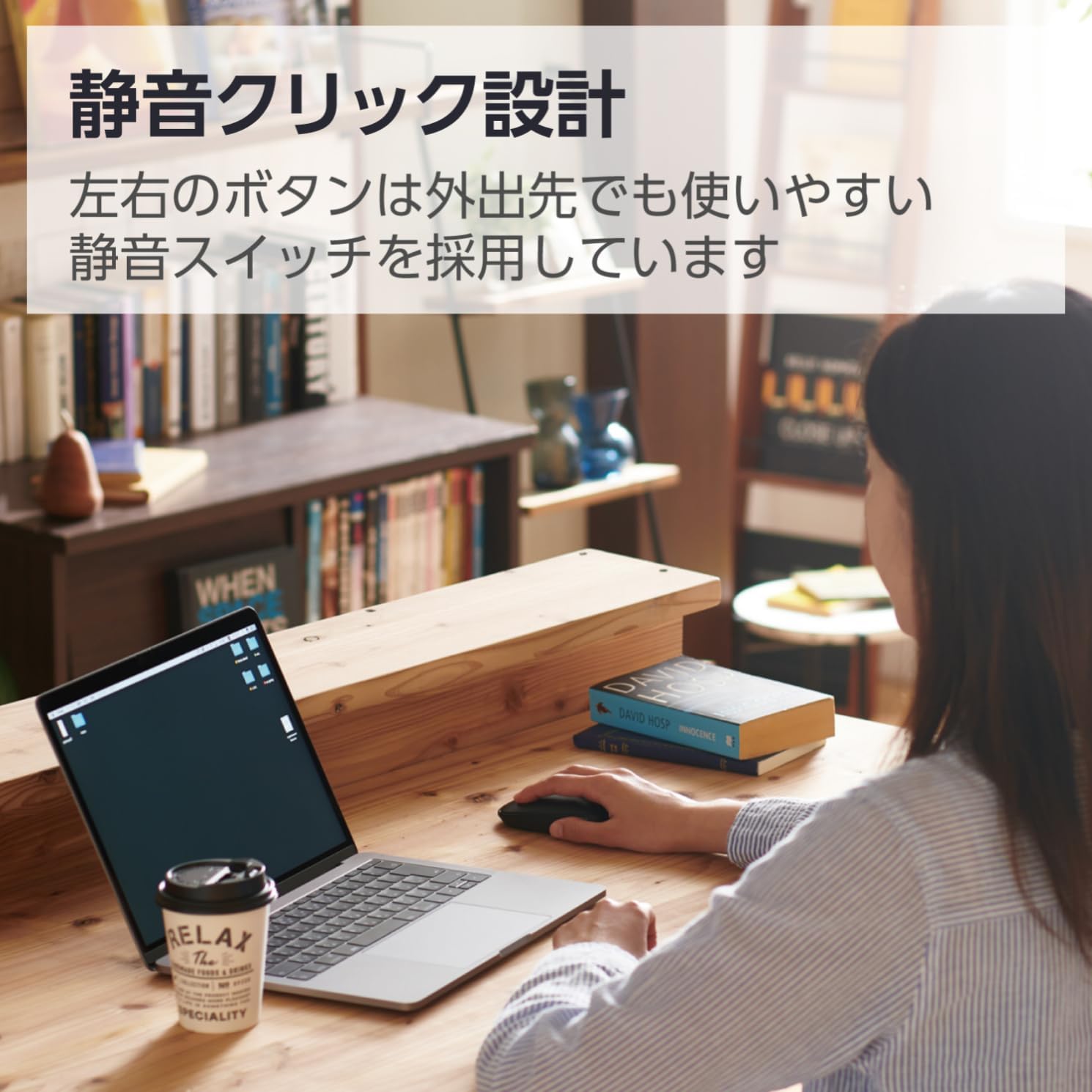
Image 2.2: The silent click design allows for quiet operation, suitable for various environments.
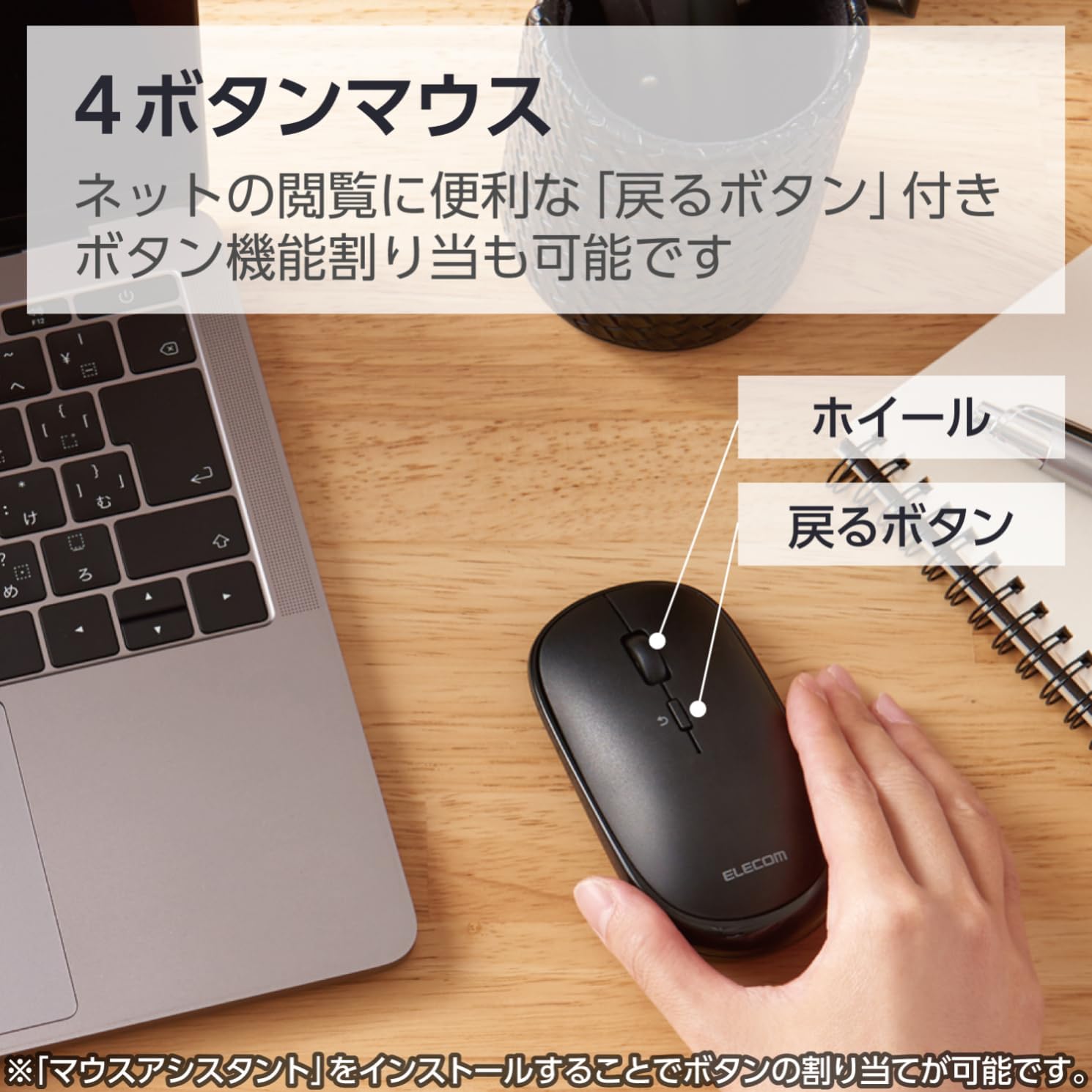
Image 2.3: Diagram illustrating the 4-button layout, including the scroll wheel and the 'Back' button.

Image 2.4: This mouse connects via Bluetooth, eliminating the need for a USB receiver.
3. Pokyny k nastavení
3.1. Instalace baterie
- Locate the battery cover on the bottom of the mouse.
- Posunutím otevřete kryt.
- Insert one AA battery (included) into the battery compartment, ensuring correct polarity (+/-).
- Pevně zavřete kryt baterie.
3.2. Párování Bluetooth
This mouse connects via Bluetooth HOGP. Ensure your device supports Bluetooth HOGP. If not, a compatible Bluetooth adapter (e.g., ELECOM LBT-UAN05C2/N, sold separately) may be required.
- Turn on the mouse using the power switch located on the bottom. The battery indicator lamp will light up briefly.
- Press and hold the pairing button (usually located near the power switch or battery compartment) for a few seconds until the LED indicator on the mouse starts blinking, indicating it is in pairing mode.
- V počítači, tabletu nebo smartphonu přejděte do nastavení Bluetooth.
- Povolte Bluetooth a vyhledejte nová zařízení.
- Select "ELECOM M-TM10BB" or a similar name from the list of available devices.
- Postupujte podle pokynů na obrazovce a dokončete proces párování. Po úspěšném spárování přestane LED indikátor na myši blikat a zůstane svítit nepřerušovaně (nebo zhasne).

Image 3.1: Visual guide for Bluetooth connection steps, showing the mouse and a device.
4. Návod k obsluze
4.1. Základní funkce myši
- Levé kliknutí: Primární výběr a aktivace.
- Klikněte pravým tlačítkem myši: Accesses context menus.
- Rolovací kolečko: Scrolls content vertically. Can also be pressed for middle-click functionality (customizable).
- Tlačítko Zpět: Naviguje zpět web prohlížeče popř file průzkumníci.
4.2. Režim prezentace
The ELECOM M-TM10BBBK/EC mouse features a presentation mode, which can be activated and customized using the free 'ELECOM Mouse Assistant' software.
- Download and install the 'ELECOM Mouse Assistant' software from the official ELECOM webmísto.
- Launch the software and navigate to the settings for your mouse.
- Enable Presentation Mode. You can customize button functions for this mode, such as assigning slide advance/return to specific buttons or disabling scroll/cursor movement during presentations.
- Once configured, you can switch between normal mouse mode and presentation mode as needed.
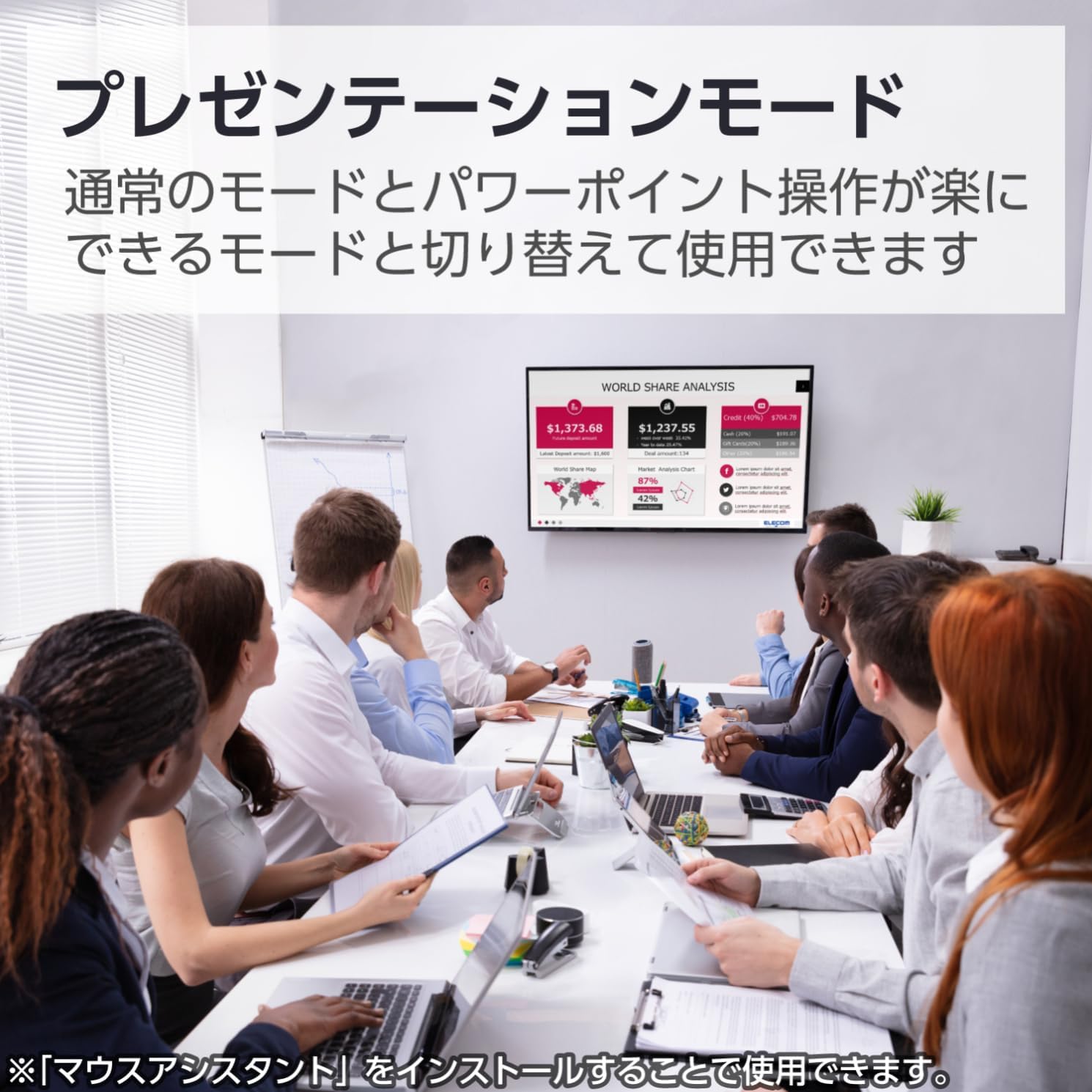
Image 4.1: The mouse being used in a presentation setting, demonstrating its presentation mode capabilities.
4.3. Multi-OS Compatibility
This mouse is compatible with a wide range of operating systems, including Windows, macOS, Android, iOS, iPadOS, and FireOS. This allows for seamless use across various devices such as laptops, tablets, and smartphones.

Image 4.2: The ELECOM mouse (shown in blue) connected to both a MacBook and an iPad, highlighting its multi-device compatibility.
5. Údržba
5.1. Čištění
- To clean the mouse, gently wipe the surface with a soft, dry cloth.
- Pro odolnou špínu lehceampen the cloth with water or a mild, non-abrasive cleaner. Ensure no liquid enters the mouse.
- Do not use harsh chemicals, solvents, or abrasive materials, as these can damage the mouse's surface.
5.2. Výměna baterie
When the battery indicator lamp signals low battery, or if the mouse performance degrades, replace the battery:
- Vypněte myš pomocí vypínače.
- Otevřete kryt baterie na spodní straně myši.
- Vyjměte starou baterii typu AA.
- Vložte novou baterii typu AA a dbejte na správnou polaritu.
- Zavřete kryt baterie.
- Staré baterie zlikvidujte v souladu s místními předpisy.
6. Řešení problémů
| Problém | Možná příčina | Řešení |
|---|---|---|
| Myš nereaguje. | Power is off, low battery, or not paired. | Ensure the power switch is ON. Replace the battery if low. Re-pair the mouse with your device. |
| Pohyb kurzoru je nepravidelný nebo nepřesný. | Dirty sensor, unsuitable surface, or interference. | Clean the BlueLED sensor. Use on a clean, uniform surface. Move closer to the device or reduce other wireless interference. |
| Cannot pair the mouse. | Mouse not in pairing mode, Bluetooth off on device, or device not HOGP compatible. | Ensure the mouse LED is blinking (pairing mode). Turn on Bluetooth on your device. Check if your device supports Bluetooth HOGP; if not, use a compatible Bluetooth adapter. |
| Buttons do not function as expected in Presentation Mode. | 'ELECOM Mouse Assistant' software not installed or configured. | Install and configure the 'ELECOM Mouse Assistant' software. Ensure Presentation Mode is enabled and button assignments are correct. |
| Připojení Bluetooth je nestabilní. | Distance too far, obstacles, or interference. | Reduce the distance between the mouse and the device. Remove obstacles. Minimize other wireless device usage nearby. |
7. Specifikace
| Funkce | Detail |
|---|---|
| Číslo modelu | M-TM10BBBK/EC |
| Značka | ELEKOM |
| Barva | Černý |
| Konektivita | Bluetooth 4.2 (HOGP) |
| Technologie detekce pohybu | Optical (BlueLED) |
| Rezoluce | 1600 počítá |
| Tlačítka | 4 (Left, Right, Scroll Wheel, Back) |
| Speciální funkce | Silent Click, Portable, Presentation Mode |
| Bezdrátové Dosah | Approx. 10m (non-magnetic surfaces), Approx. 3m (magnetic surfaces) |
| Kompatibilní OS | Windows 11, 10, 8.1; Android 7-10; macOS Catalina (10.15); iOS/iPadOS 13.5 (Latest OS versions/service packs may be required) |
| Zdroj napájení | 1 x AA baterie (součástí balení) |
| Doba nepřetržitého používání | Až 19 měsíců (liší se v závislosti na používání) |
| Rozměry produktu | 10.38 x 5.55 x 2.8 cm |
| Hmotnost položky | 66 gramů |
8. Záruka a podpora
8.1. Informace o záruce
ELECOM products are manufactured with high-quality standards. For specific warranty terms and conditions, please refer to the warranty card included with your product or visit the official ELECOM webUschovejte si doklad o koupi pro případ reklamace.
8.2. Zákaznická podpora
If you encounter any issues not covered in the troubleshooting section or require further assistance, please contact ELECOM customer support. Contact details can typically be found on the official ELECOM webmístě nebo na obalu produktu.
- Official ELECOM Webmísto: https://www.elecom.co.jp/global/
- ELECOM Mouse Assistant Software: Available for free download from the official ELECOM webmísto.


