1. Úvod
This manual provides essential information for the proper installation, configuration, and operation of your GIGABYTE B550 AORUS ELITE AX motherboard. This motherboard is designed to support 3rd Gen AMD Ryzen Processors and offers advanced features for high-performance computing.

Obrázek 1.1: Konecview of the GIGABYTE B550 AORUS ELITE AX Motherboard. This image displays the full motherboard with its various components, including the CPU socket, RAM slots, PCIe slots, and heatsinks.
Key features include a True 12+2 Phases Digital VRM Solution, advanced thermal design with enlarged surface heatsinks, an Ultra Durable PCIe 4.0 x16 Slot, dual ultra-fast NVMe PCIe 4.0/3.0 x4 M.2 slots with dual thermal guards, and integrated Intel WiFi 6 802.11ax with Bluetooth 5.
2. Nastavení a instalace
Před zahájením instalace se ujistěte, že je systém vypnutý a odpojený ze zásuvky. Základní desku vždy držte za okraje, abyste zabránili statickému výboji.
2.1. Identifikace součásti
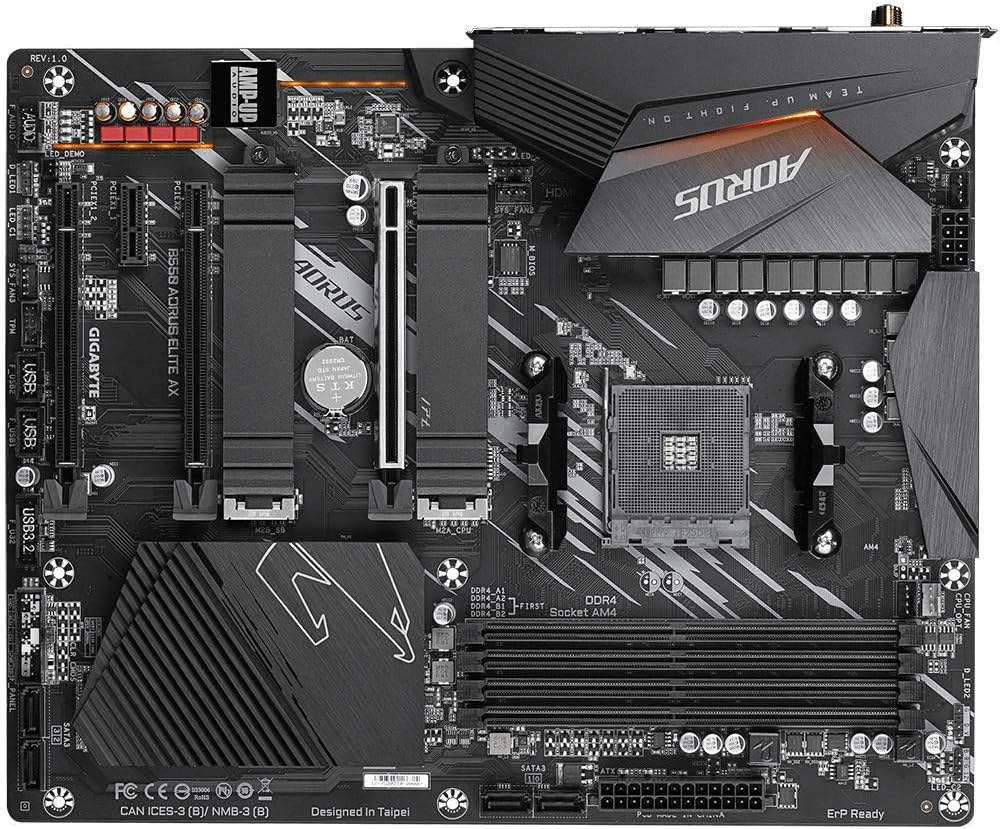
Obrázek 2.1: Shora dolů view of the GIGABYTE B550 AORUS ELITE AX Motherboard. This image highlights the layout of the CPU socket, four DDR4 DIMM slots, multiple PCIe slots, and two M.2 slots with their thermal guards.
2.2. Instalace procesoru
- Locate the AM4 CPU socket. Lift the load lever to open the socket.
- Carefully align the triangular mark on the CPU with the mark on the socket. Gently place the CPU into the socket without forcing it.
- Lower the load lever back into place to secure the CPU.
2.3. Instalace RAM
This motherboard supports Dual Channel ECC/Non-ECC Unbuffered DDR4 memory across 4 DIMM slots.
- Otevřete klipy na obou koncích slotu DIMM.
- Zarovnejte zářez na paměťovém modulu DDR4 s výstupkem na slotu DIMM.
- Pevně zatlačte na oba konce paměťového modulu, dokud klipsy nezacvaknou na místo.
2.4. Instalace M.2 SSD disku
The motherboard features dual ultra-fast NVMe PCIe 4.0/3.0 x4 M.2 slots with dual thermal guards.
- Unscrew and remove the M.2 thermal guard from the desired slot.
- Vložte disk M.2 SSD do slotu pod úhlem.
- Jemně zatlačte SSD dolů a zajistěte jej dodaným šroubem.
- Reattach the M.2 thermal guard to ensure optimal cooling.
2.5. Instalace karty PCIe
Install graphics cards or other expansion cards into the PCIe slots. The top slot is an Ultra Durable PCIe 4.0 x16 slot.
- Zarovnejte kartu PCIe s vybraným slotem.
- Pevně zatlačte dolů, dokud karta zcela nezapadne a nezajistí se pojistná spona.
2.6. Připojení napájení
Připojte 24pinový hlavní napájecí konektor ATX a 8pinový konektor napájení CPU ze zdroje k základní desce.
2.7. Konektory na předním panelu
Connect the power button, reset button, HDD LED, and USB/audio headers from your PC case to the corresponding pins on the motherboard. Refer to the motherboard diagram for exact pin locations.
2.8. Zadní vstupní/výstupní panel

Image 2.2: Rear I/O Panel of the GIGABYTE B550 AORUS ELITE AX Motherboard. This image shows the various ports available, including USB 3.2 Gen 1, USB 3.2 Gen 2, DisplayPort, HDMI, 2.5GbE LAN, Wi-Fi antenna connectors, and audio jacks. The pre-installed I/O shield is visible.
The motherboard features a pre-installed I/O shield for easy and quick installation. Connect your peripherals such as monitor, keyboard, mouse, and network cable to the appropriate ports on the rear I/O panel.
3. Návod k obsluze
3.1. První spuštění
After assembling all components and connecting power, press the power button on your PC case. The system should power on and display the GIGABYTE splash screen.
3.2. Přístup k BIOSu/UEFI
Chcete-li vstoupit do nástroje pro nastavení BIOS/UEFI, stiskněte klávesu DEL key repeatedly during the initial boot process when the GIGABYTE logo appears. The BIOS allows you to configure system settings, boot order, and enable features like XMP for memory profiles.
3.3. Instalace ovladače
After installing your operating system, install the necessary drivers for the motherboard's components. These include chipset drivers, LAN drivers, Wi-Fi/Bluetooth drivers, and audio drivers. Drivers can typically be found on the GIGABYTE official webstránky pro váš konkrétní model základní desky.
4. Údržba
4.1. Čištění systému
Pravidelně čistěte vnitřek počítače, abyste zabránili hromadění prachu, který může vést k přehřátí a snížení výkonu. K odstranění prachu z ventilátorů, chladičů a dalších součástí použijte stlačený vzduch. Před čištěním se ujistěte, že je systém vypnutý a odpojený od sítě.
4.2. Aktualizace BIOSu
GIGABYTE provides BIOS updates to improve system stability, add support for new hardware, and fix bugs. The B550 AORUS ELITE AX supports Q-Flash Plus, allowing you to update the BIOS without installing the CPU, memory, or graphics card. Refer to the GIGABYTE website for detailed instructions on using Q-Flash Plus and for the latest BIOS versions.
5. Řešení problémů
Tato část se zabývá běžnými problémy, se kterými se můžete setkat.
5.1. Žádné napájení / Žádné spuštění
- Ověřte, zda jsou všechny napájecí kabely (24pinový ATX, 8pinový CPU) bezpečně připojeny k základní desce a zdroji napájení.
- Ujistěte se, že je vypínač napájení v poloze „ON“.
- Zkontrolujte, zda je konektor tlačítka napájení na předním panelu správně připojen k základní desce.
- Pokud je to možné, vyzkoušejte s jiným zdrojem napájení.
5.2. Žádný výstup na displej
- Ensure your monitor is connected to the graphics card (if installed) or the motherboard's HDMI/DisplayPort (if using an APU with integrated graphics).
- Znovu vložte grafickou kartu a paměťové moduly.
- Zkuste bootovat pouze s jednou nainstalovanou pamětí RAM.
5.3. Bluetooth / Wi-Fi Connectivity Issues
- Ensure the external Wi-Fi antenna is securely connected to the rear I/O panel.
- Update your Wi-Fi and Bluetooth drivers to the latest version from the GIGABYTE webmísto.
- If Bluetooth devices disconnect after sleep mode, try disabling USB selective suspend settings in Windows Power Options or updating the BIOS to the latest version, as this has resolved similar issues in some cases.
5.4. BIOS Reset
If you encounter issues after changing BIOS settings, you may need to reset the BIOS to default settings. This motherboard does not feature a dedicated BIOS reset button. To clear CMOS (BIOS settings), power off your system, unplug it, and remove the small circular battery (CMOS battery) from the motherboard for a few minutes. Reinsert the battery and power on the system.
6. Specifikace
Below are the key technical specifications for the GIGABYTE B550 AORUS ELITE AX Motherboard:
| Funkce | Specifikace |
|---|---|
| Značka | GIGABYTE |
| Název modelu | B550 AORUS ELITE AX |
| Zásuvka CPU | Zásuvka AM4 |
| Kompatibilní procesory | AMD Ryzen 3. generace |
| Typ čipové sady | AMD B550 |
| Technologie paměti RAM | DDR4 |
| Rychlost paměti | 2133 MHz (Base), up to 4733MHz (OC) |
| Kapacita paměti | 128 GB (max.) |
| Bezdrátový typ | 802.11ax (Intel WiFi 6) |
| LAN | 2.5 Gigabit Ethernet |
| PCIe sloty | 1x PCIe 4.0 x16, 2x PCIe 3.0 x16 (x4 mode), 1x PCIe 3.0 x1 |
| M.2 Sloty | 2x NVMe PCIe 4.0/3.0 x4 with Thermal Guards |
| Porty USB 2.0 | 2 (zadní) |
| Porty USB 3.2 1. generace | 4 (zadní) |
| Porty USB 3.2 2. generace | 2 (Rear, Type-A) |
| Video výstup | HDMI, DisplayPort |
| Zvuk | Realtek ALC1200 Codec, AMP-UP Audio |
| Form Factor | ATX |
| Hmotnost položky | 4.07 libry |
| Rozměry produktu | 13.18 x 10.62 x 3.14 palce |
7. Informace o záruce
GIGABYTE products are covered by a limited warranty. The specific terms and duration of the warranty may vary by region and product type. Please retain your proof of purchase for warranty claims. For detailed warranty information, including coverage, limitations, and the claims process, please visit the official GIGABYTE webwebu nebo se obraťte na svého místního prodejce.
8. Technická podpora
If you encounter issues that cannot be resolved using this manual or require further assistance, please contact GIGABYTE technical support. You can find support resources, FAQs, driver downloads, and contact information on the official GIGABYTE webmísto:
When contacting support, please have your motherboard model (B550 AORUS ELITE AX) and a detailed description of your issue ready.


