Zavedení
This manual provides essential information for setting up, operating, and maintaining your Amazon Fire HD 10 Kids Tablet. Designed for children aged 3-7, this 10.1-inch Full HD tablet offers a safe and engaging experience with robust parental controls and a durable Kid-Proof Case.
Please read these instructions carefully to ensure proper use and to maximize your tablet's features.
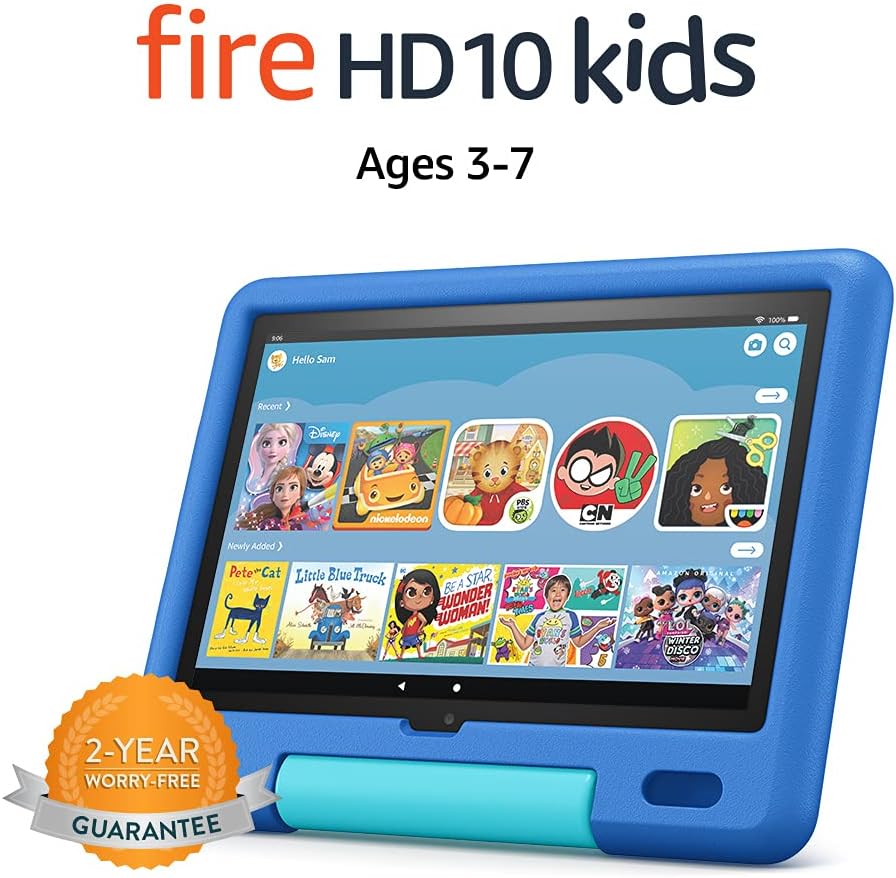
Image: The Amazon Fire HD 10 Kids Tablet, shown in its Sky Blue Kid-Proof Case, displaying the Amazon Kids+ user interface with various educational and entertainment apps.
Co je zahrnuto
Your Amazon Fire HD 10 Kids Tablet package includes:
- Fire HD 10 tablet (11th Generation)
- Amazon Kid-Proof Case with stand/handle
- Amazon 9W power adapter
- USB-C (2.0) charging cable
- Vestavěná dobíjecí baterie
- 1-year Amazon Kids+ subscription (auto-renews at applicable rate)
Nastavení
1. Počáteční nabíjení
Before first use, fully charge your Fire HD 10 Kids Tablet. Connect the provided USB-C cable to the tablet's USB-C port and the 9W power adapter to a wall outlet. A full charge from 0% to 100% typically takes approximately 4 hours while the device is in standby mode.
2. Zapnutí a vypnutí
- Zapnutí: Stiskněte a podržte tlačítko napájení na boku tabletu, dokud se nezobrazí logo Amazonu.
- Vypnutí: Press and hold the power button until a power-off dialog appears on the screen. Select "Power Off" or "Shut Down".
- Restartovat: If the tablet is unresponsive, press and hold the power button for approximately 40 seconds until it restarts.
3. Počáteční konfigurace
Po prvním zapnutí postupujte podle pokynů na obrazovce:
- Vyberte svůj jazyk.
- Connect to a Wi-Fi network. The tablet supports dual-band 802.11a/b/g/n/ac standards (2.4 GHz and 5.0 GHz networks).
- Register your tablet to an Amazon account. If you do not have one, you will be prompted to create one.
- Nastavte si časové pásmo.
4. Setting Up Amazon Kids+ and Parental Controls
The Fire HD 10 Kids Tablet includes a 1-year subscription to Amazon Kids+, offering thousands of ad-free books, games, videos, and apps. Parental controls are integrated to manage your child's experience.
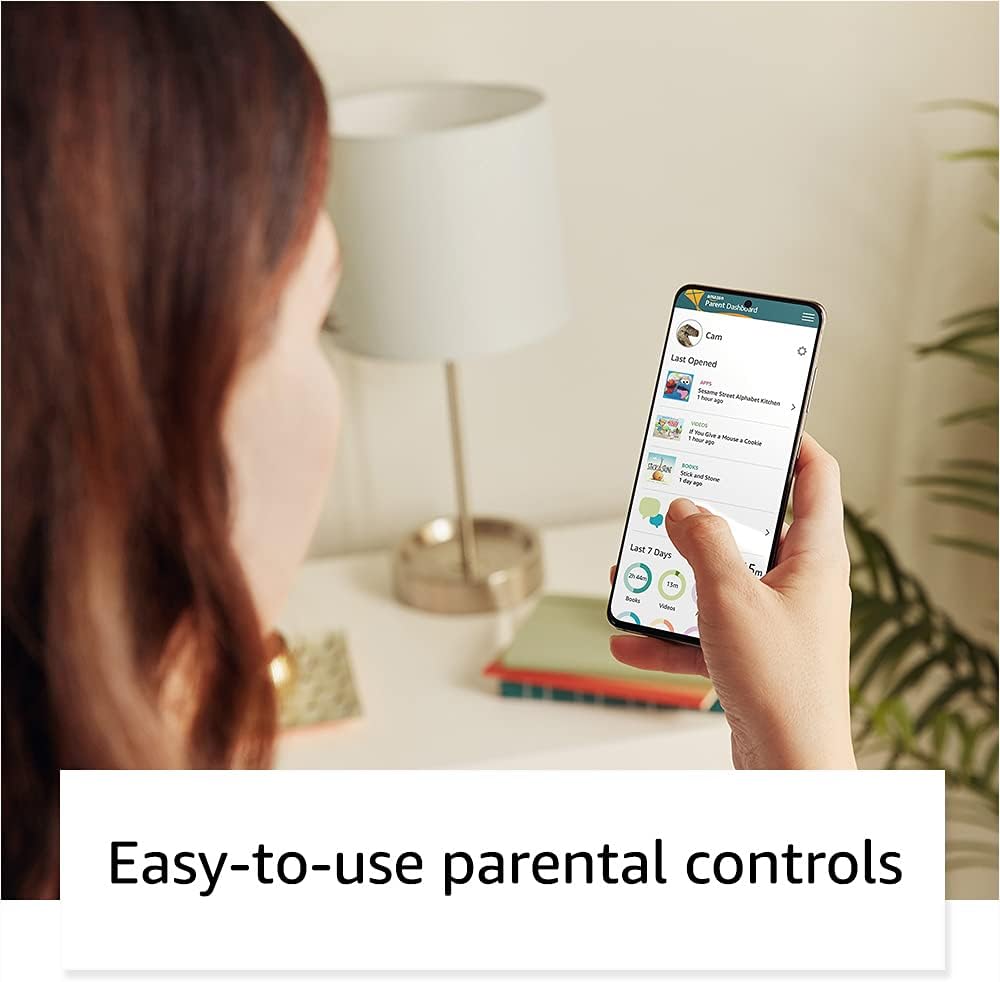
Image: A parent interacting with the Amazon Parent Dashboard on a smartphone, demonstrating the ease of managing parental controls for the Fire Kids Tablet.
To set up profiles and parental controls:
- After registering your tablet, you will be guided to create child profiles.
- Přístup k Amazon Parent Dashboard z jakéhokoli web browser or the Amazon Kids+ app on your own device.
- From the Parent Dashboard, you can:
- Filtrujte obsah podle věku dítěte.
- Stanovte si denní časové limity pro používání tabletu.
- Stanovte si vzdělávací cíle.
- Grant access to additional content from your Amazon library or third-party apps like Netflix and Disney+.
- Spravovat web browser access and approved contacts for communication.
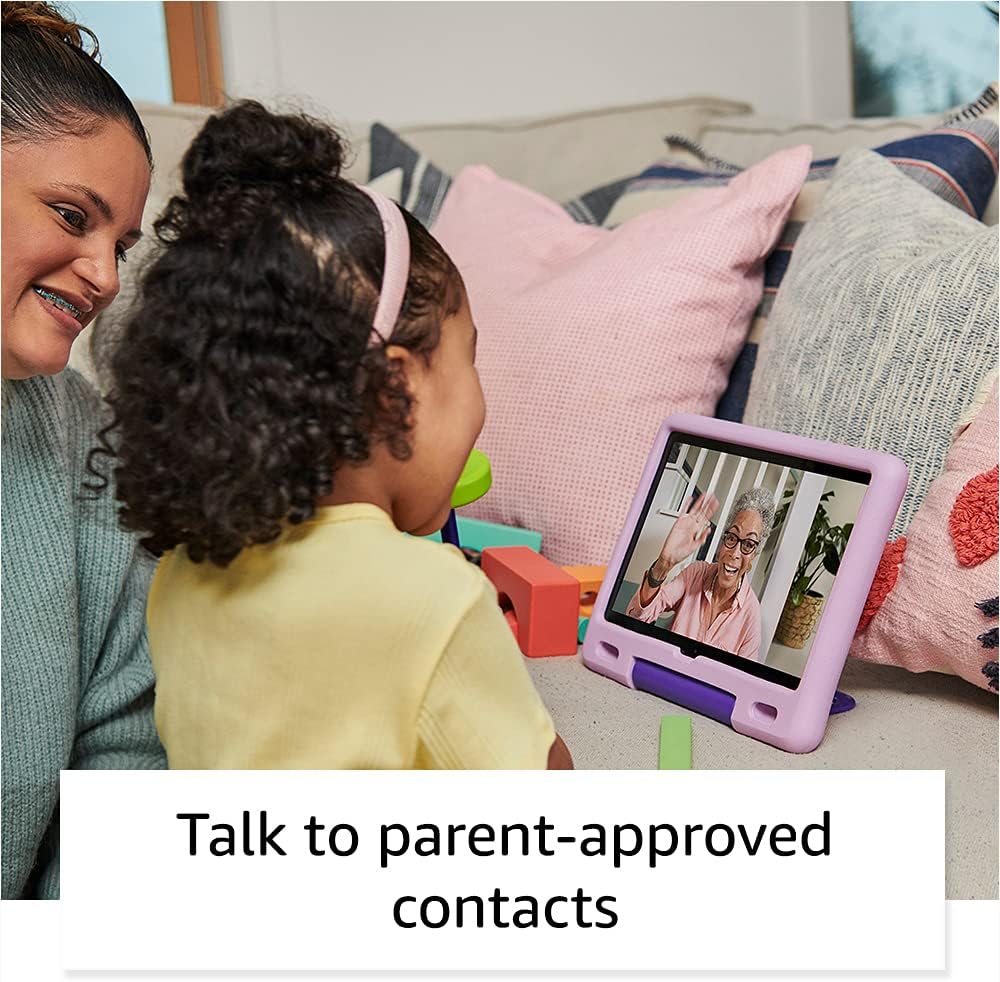
Image: A child happily engaged in a video call with a grandparent on the Amazon Fire HD 10 Kids Tablet, highlighting the communication features with parent-approved contacts.
Obsluha tabletu
1. Navigace v rozhraní
The Fire HD 10 Kids Tablet features a touch-sensitive screen. Use gestures such as tapping, swiping, and pinching to interact with the device.
- Domovská obrazovka: Displays apps, books, videos, and games available to the child.
- Přejeďte prstem dolů: Přístup k rychlému nastavení a oznámením.
- Přejeďte nahoru: Return to the home screen (if applicable in certain apps).

Image: A child holding and interacting with the Amazon Fire HD 10 Kids Tablet, which displays an educational game, illustrating the tablet's design for young users.
2. Using Amazon Kids+
Amazon Kids+ provides a curated selection of age-appropriate content. Content is categorized for easy discovery.

Image: A vibrant grid of various app icons, including characters from popular children's media and educational titles, representing the wide range of content available through Amazon Kids+.
- Browsing Content: Navigate through categories like "Books," "Videos," "Apps," and "Games."
- Stahování obsahu: Tap on an item to download it for offline use. Ensure sufficient storage is available.
- Managing Content: Parents can add or remove content via the Parent Dashboard.
3. Funkce kamery
The tablet is equipped with a 2 MP front-facing camera and a 5 MP rear-facing camera, both capable of 720p HD video recording.
- Otevřete aplikaci Fotoaparát z domovské obrazovky.
- Tap to switch between front and rear cameras.
- Klepnutím na tlačítko spouště můžete pořídit fotografie nebo spustit/zastavit nahrávání videa.
4. Audio and Volume Control
The tablet features dual integrated speakers and a 3.5 mm stereo jack for headphones. External volume controls are located on the side of the tablet.
- Press the volume up/down buttons to adjust audio levels.
- Connect headphones to the 3.5 mm jack for private listening.
Údržba
1. Čištění tabletu
Čištění tabletu:
- Power off the device and unplug it from any power source.
- Použijte měkký hadřík, který nepouští vlákna dampened with water to wipe the screen and exterior.
- Nepoužívejte abrazivní čisticí prostředky, rozpouštědla nebo aerosolové spreje.
- Nedovolte, aby se do žádných otvorů dostala vlhkost.
2. Péče o baterie
Chcete -li prodloužit životnost baterie:
- Nevystavujte tablet extrémním teplotám (horkým ani nízkým).
- Charge the tablet regularly, but avoid leaving it fully discharged for extended periods.
- For optimal performance, use the provided Amazon 9W power adapter and USB-C cable.
3. Skladování
The tablet comes with 32 GB of internal storage (24.2 GB available to user). You can expand storage up to 1 TB using a microSD card.
- Insert a microSD card into the designated slot to add additional storage for photos, videos, and some apps.
- Regularly manage downloaded content to free up space if needed.
Odstraňování problémů
Běžné problémy a řešení
| Problém | Řešení |
|---|---|
| Tablet se nezapne. | Ensure the tablet is charged. Connect to the power adapter for at least 30 minutes. If still unresponsive, perform a hard reset by holding the power button for 40 seconds. |
| Obrazovka nereaguje. | Restartujte tablet. Pokud problém přetrvává, ujistěte se, že je obrazovka čistá a bez nečistot. |
| Problémy s připojením k Wi-Fi. | Check if other devices can connect to the Wi-Fi network. Restart your Wi-Fi router. On the tablet, go to Wi-Fi settings, forget the network, and reconnect. |
| Aplikace jsou pomalé nebo padají. | Close unused apps. Clear app cache (via Parent Dashboard). Ensure sufficient storage space is available. Restart the tablet. |
| Baterie se rychle vybíjí. | Reduce screen brightness. Close background apps. Disable Wi-Fi when not in use. Check for app updates. |
Obnovení továrního nastavení
A factory reset will erase all data on your tablet and restore it to its original factory settings. This should be a last resort for persistent issues.
- Go to the Parent Profile.
- Přejděte na Nastavení > Možnosti zařízení > Obnovit výchozí tovární nastavení.
- Potvrďte své rozhodnutí.
Specifikace
| Zobrazit | 10.1” 1080p Full HD (1920 x 1200) s 224 ppi, hlinitokřemičité sklo |
| Velikost | 8.2” x 10.6” x 1.1” (209 mm x 269 mm x 27 mm) |
| Hmotnost | 25.2 unce (716 gramů) |
| CPU a RAM | Osmijádrový 2.0 GHz s 3 GB RAM |
| Skladování | 32 GB internal (24.2 GB user available), expandable up to 1 TB via microSD |
| Životnost baterie | Až 12 hodin smíšeného používání |
| Doba nabíjení | Approximately 4 hours with included 9W adapter |
| Wi-Fi připojení | Dual-band 802.11a/b/g/n/ac (2.4 GHz and 5.0 GHz), WEP, WPA, WPA2 security |
| Porty | USB-C (2.0) pro nabíjení, slot pro microSD kartu |
| Zvuk | 3.5mm stereo jack, dva integrované reproduktory |
| Senzory | Akcelerometr, senzory okolního světla |
| Kamery | 2 MP front-facing, 5 MP rear-facing, 720p HD video recording |
| Mikrofony | 2 vestavěné mikrofony |
| Věkové rozmezí | 3-7 years (WARNING: CHOKING HAZARD – Small parts. Not for children under 3 years.) |
| Generace | 11. generace, vydání 2021 |
Záruka a podpora
1. 2-Year Worry-Free Guarantee
Your Amazon Fire HD 10 Kids Tablet comes with a 2-year worry-free guarantee. If the tablet breaks, you can return it, and Amazon will replace it for free. This guarantee covers defects in materials and workmanship under normal use.
For detailed terms and conditions, please refer to the warranty information provided with your purchase or visit the Amazon webmísto.
2. Zákaznická podpora
For further assistance, technical support, or warranty claims, please contact Amazon Customer Service. You can find support options on the official Amazon webmísto:
Můžete také navštívit Stránka podpory zařízení Amazon for FAQs and troubleshooting guides specific to Fire tablets.


