Zavedení
This manual provides comprehensive instructions for the setup, operation, and maintenance of your TOPELOTEK Kids Tablet 7 inch. Please read this manual thoroughly before using the device to ensure proper functionality and safety.

Image: The TOPELOTEK Kids Tablet in Rose Red, featuring its protective case with integrated handles and a kickstand. The screen shows a child-friendly interface with icons for video, gallery, music, and a calculator.
Co je v krabici
Ověřte, zda jsou v balení přítomny všechny položky:
- 1x Android Kids Tablet for toddlers (Lanyard not included)
- 1x AC adaptor
- 1x Tablet User Manual
- 1x Free Kid-Proof Case
Konec produktuview a funkce
The TOPELOTEK Kids Tablet is designed for young users, featuring a durable construction and a user-friendly interface. Key features include:
- 7palcový HD displej: A 1024x600 resolution screen for clear visuals.
- Pouzdro odolné proti dětem: A durable silicone case with handles and an adjustable stand, designed to protect against drops and bumps.
- Dual System Design: Offers both a standard Android 9 Pie interface and the iWawa Child System for a controlled, child-friendly environment.
- Rodičovská kontrola: Tools to manage content, applications, and screen time.
- Skladování: 32GB internal storage, expandable up to 512GB via SD card.
- Životnost baterie: Approximately 8-10 hours of normal use with a 3500mAh battery.
- Konektivita: Wi-Fi (802.11n).

Obrázek: Podrobný view of the tablet's protective case, illustrating its robust design with features like airbag corners, reinforced edges, and a handle that can also accommodate a lanyard for carrying.

Image: A child demonstrating the tablet's portability, showing how it can be carried using a lanyard around the neck or held by its integrated handles, making it convenient for travel.
Nastavení
1. Počáteční nabíjení
Before first use, fully charge the tablet. Connect the provided AC adaptor to the tablet's charging port and plug it into a power outlet. The charging indicator will illuminate. A full charge typically takes several hours.
2. Zapnutí/vypnutí
- Zapnutí: Stiskněte a podržte tlačítko napájení na boku tabletu, dokud se obrazovka nerozsvítí.
- Vypnutí: Stiskněte a podržte tlačítko Napájení a poté z možností zobrazených na obrazovce vyberte možnost „Vypnout“.
- Restartovat: Stiskněte a podržte tlačítko napájení a poté z možností vyberte „Restartovat“.
3. Průvodce počátečním nastavením
Upon first power-on, the tablet will guide you through an initial setup process. This includes selecting your language, connecting to a Wi-Fi network, and setting up a Google account (optional, but recommended for app downloads).
4. Vložení SD karty (volitelné)
To expand storage, locate the SD card slot (usually under a protective flap on the side). Gently insert a microSD card (up to 512GB) until it clicks into place. The tablet will prompt you to format the card for use.
Obsluha tabletu
1. Navigace v rozhraní
The tablet operates on Android 9 Pie and features a dual-system design, allowing you to switch between a standard Android interface and the iWawa Child System.
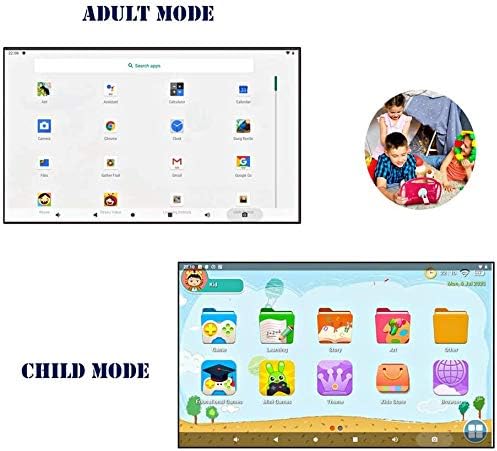
Image: A visual comparison of the tablet's "Adult Mode" (standard Android) and "Child Mode" (iWawa Child System), demonstrating the different user interfaces available.
iWawa Child System
This system provides a safe and engaging environment for children with pre-installed educational apps and games. To access or exit the iWawa system, follow the on-screen prompts or refer to the dedicated iWawa application within the Android interface.
2. Nastavení rodičovské kontroly
The parental control features allow you to manage your child's access to content and applications. These settings are typically found within the iWawa Child System or a dedicated "Parental Control" app in the Android interface.
- Správa aplikací: Select which applications your child can access.
- WebFiltrování stránek: Block or whitelist specific webstránky.
- Časové limity: Set daily usage limits or specific time slots for tablet use.
- Filtrování obsahu: Restrict access to inappropriate content.

Image: The Parental Control interface on a smartphone, illustrating the various options available to parents for managing their child's tablet usage, including app and webpřístup na stránky.
3. Instalace aplikací
You can download additional applications from the Google Play Store. Ensure the tablet is connected to Wi-Fi and you are logged into a Google account.
- Open the "Play Store" app.
- Hledat desired applications (e.g., Netflix, Khan Academy Kids, YouTube Kids).
- Select the app and tap "Install".

Image: A collage featuring various animated characters and the tablet, emphasizing its access to a wide range of educational and entertainment applications available through the Google Play Store.
4. Připojení Wi-Fi
Chcete-li se připojit k bezdrátové síti:
- Přejděte do „Nastavení“ > „Síť a internet“ > „Wi-Fi“.
- Zapněte Wi-Fi.
- Vyberte požadovanou síť ze seznamu.
- Pokud se zobrazí výzva, zadejte heslo a klepněte na „Připojit“.
5. Scénáře použití
The tablet's design makes it versatile for various uses, including travel.

Image: The tablet securely mounted to a car seat headrest, showcasing its utility for entertainment and learning during car journeys, allowing hands-free viewing for children.
Údržba
1. Čištění tabletu
Use a soft, lint-free cloth to clean the screen and exterior of the tablet. For stubborn smudges, slightly damphadřík vodou. Nepoužívejte agresivní chemikálie ani abrazivní materiály.
2. Péče o baterie
- Vyhněte se častému úplnému vybíjení baterie.
- Nevystavujte tablet extrémním teplotám.
- Používejte pouze dodanou nabíječku nebo certifikovanou kompatibilní nabíječku.
3. Aktualizace softwaru
Periodically check for software updates to ensure optimal performance and security. Go to "Settings" > "System" > "Advanced" > "System update" to check for and install available updates.
Odstraňování problémů
| Problém | Možná příčina | Řešení |
|---|---|---|
| Tablet se nezapne | Slabá baterie; havárie softwaru. | Charge the tablet for at least 30 minutes. If still unresponsive, perform a hard reset by holding the power button for 10-15 seconds. |
| Tablet freezes or is unresponsive | Application error; system overload. | Close unresponsive apps. If the tablet remains frozen, perform a soft reset by holding the power button until it restarts. |
| Nelze se připojit k Wi-Fi | Nesprávné heslo; problém s routerem; Wi-Fi vypnuto. | Ensure Wi-Fi is enabled and the password is correct. Restart your Wi-Fi router. Try connecting to another network to isolate the issue. |
| Charging port issues / Tablet not charging | Loose connection; damaged port; faulty cable/adapter. | Ensure the charging cable is securely connected. Try a different USB cable and AC adapter. Inspect the charging port for any visible damage or debris. If the issue persists, contact customer support. |
| Nízký úložný prostor | Too many apps/files. | Delete unnecessary apps or files. Move media to an inserted SD card. |
Specifikace
| Funkce | Detail |
|---|---|
| Název modelu | KIDS707A-708 Kids tablet |
| Značka | TOPELOTEK |
| Velikost obrazovky | 7 palce |
| Rozlišení obrazovky | 1024x600 |
| Procesor | 1.6 GHz Quad-Core (Allwinner) |
| BERAN | 1 GB |
| Interní úložiště | 32 GB |
| Rozšiřitelné úložiště | Až 512 GB přes kartu MicroSD |
| Operační systém | Android 9 Pie |
| Bezdrátový typ | 802.11n (Wi-Fi) |
| Životnost baterie | Approximately 8-10 hours (3500mAh) |
| Zadní WebRozlišení vačky | 2 MP |
| Hmotnost položky | 1.52 libry |
| Rozměry produktu (DxŠxV) | 8 x 3 x 7 palce |
| Barva | Růže červená |
Záruka a podpora
The TOPELOTEK Kids Tablet comes with a commitment to quality service. This includes:
- Bezplatná výměna: Over 30 days of free exchange support.
- Technická podpora: Whole life technology service support.
For any issues or inquiries, please do not hesitate to contact TOPELOTEK customer service. Contact information can typically be found on the product packaging or the official TOPELOTEK webmísto.
Důležité bezpečnostní informace
- Nevystavujte tablet vodě ani nadměrné vlhkosti.
- Avoid dropping or subjecting the tablet to severe impacts, despite its protective case.
- Tablet chraňte před přímým slunečním zářením a zdroji tepla.
- Supervise young children during tablet use.
- Používejte pouze příslušenství schválené výrobcem.
Video ukázky
Currently, there are no official product videos from the seller available with the necessary metadata for embedding in this manual. Please refer to the written instructions and images for guidance.


