1. Úvod
This manual provides essential information for the safe and efficient operation of your NEBULA by Anker Solar Portable 1080p Projector. Please read it thoroughly before using the device and retain it for future reference.

Obrázek 1: Přední strana view of the NEBULA Solar Portable 1080p Projector.
2. Co je v krabici
Ověřte, zda jsou v balení obsaženy všechny níže uvedené položky:
- NEBULA Solar Portable Projector
- Dálkové ovládání
- Rychlý průvodce
- PD Charger (65W, output 20V/3.25A)
- Kabel USB-C na USB-C
3. Konec produktuview
The NEBULA Solar Portable Projector is designed for versatile entertainment, offering a Full HD 1080p image with 400 ANSI lumens brightness. It supports 4K content and features autofocus and keystone correction for easy setup. The device runs on Android TV 9.0, providing access to over 5,000 applications.
Klíčové vlastnosti:
- Technologie displeje: 0.23DMD v rozlišení 1080p DLP
- Rezoluce: 1920x1080 (Full HD)
- Jas: 400 ANSI lumenů
- Automatické zaostření: 3-second autofocus for clear images.
- Korekce lichoběžníkového zkreslení: Auto (vertical ±40°) and Manual (horizontal ±40°, Quadrilateral ±40°).
- Operační systém: Android TV 9.0 with Google Play Store access.
- Zvuk: Dual 3W speakers with Dolby Digital Plus support. Can function as a portable Bluetooth speaker.
- Konektivita: HDMI, USB-A, Type-C (Power Delivery charging), Wi-Fi (2.4/5GHz), Bluetooth 4.2.
- Životnost baterie: Up to 3 hours of video playtime (in battery mode).
- Integrovaný stojan: Adjustable up to 13 degrees for optimal viewing úhly.

Figure 2: Visual representation of the projector's 1080p image clarity at 400 ANSI lumens.
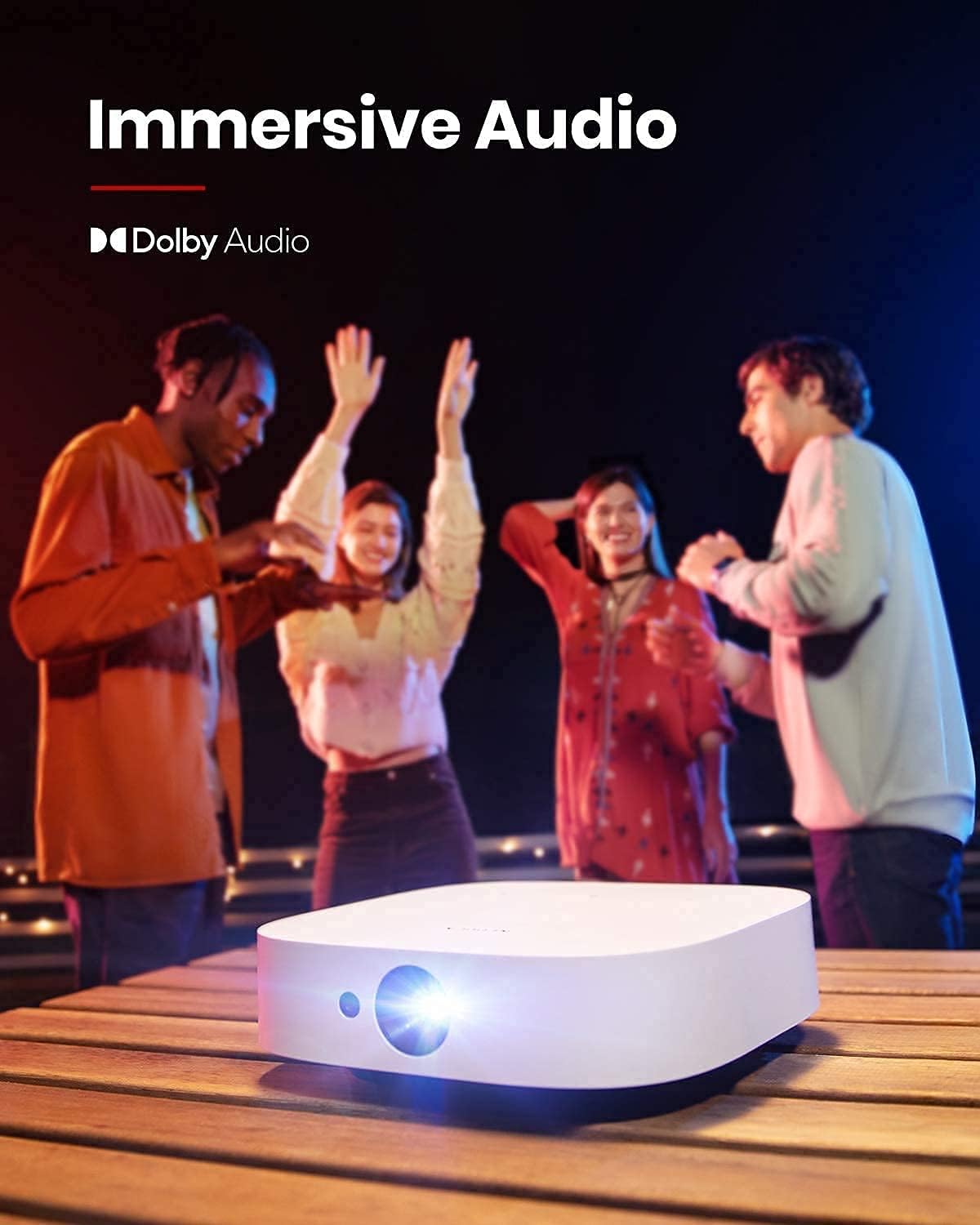
Figure 3: The projector in use for outdoor group viewing, highlighting its portability and battery life.
4. Nastavení
4.1 První zapnutí a nabíjení
- Connect the provided PD charger to the Type-C port on the projector.
- Plug the charger into a power outlet. The projector can be used while charging.
- Press and hold the power button on the projector or remote control to turn it on.
Video 1: A short video demonstrating the charging process and initial power-on of the projector.
4.2 Adjusting Projection Angle
The projector features an integrated stand on its base, allowing for angle adjustments up to 13 degrees. Simply adjust the stand to achieve your desired projection height and angle.
Figure 4: The adjustable stand on the bottom of the projector for angle customization.
4.3 Porty připojení
The rear of the projector provides various ports for connecting external devices:
- HDMI: Connect to laptops, gaming consoles, or other HDMI-enabled devices.
- USB-A: For connecting USB flash drives or other USB accessories.
- Typ C: Primarily for Power Delivery charging.

Obrázek 5: Přesview vstupních/výstupních portů projektoru.
5. Návod k obsluze
5.1 Android TV 9.0 and App Access
The projector runs on Android TV 9.0, providing access to the Google Play Store. You can download and install a wide range of streaming applications and games directly onto the device.
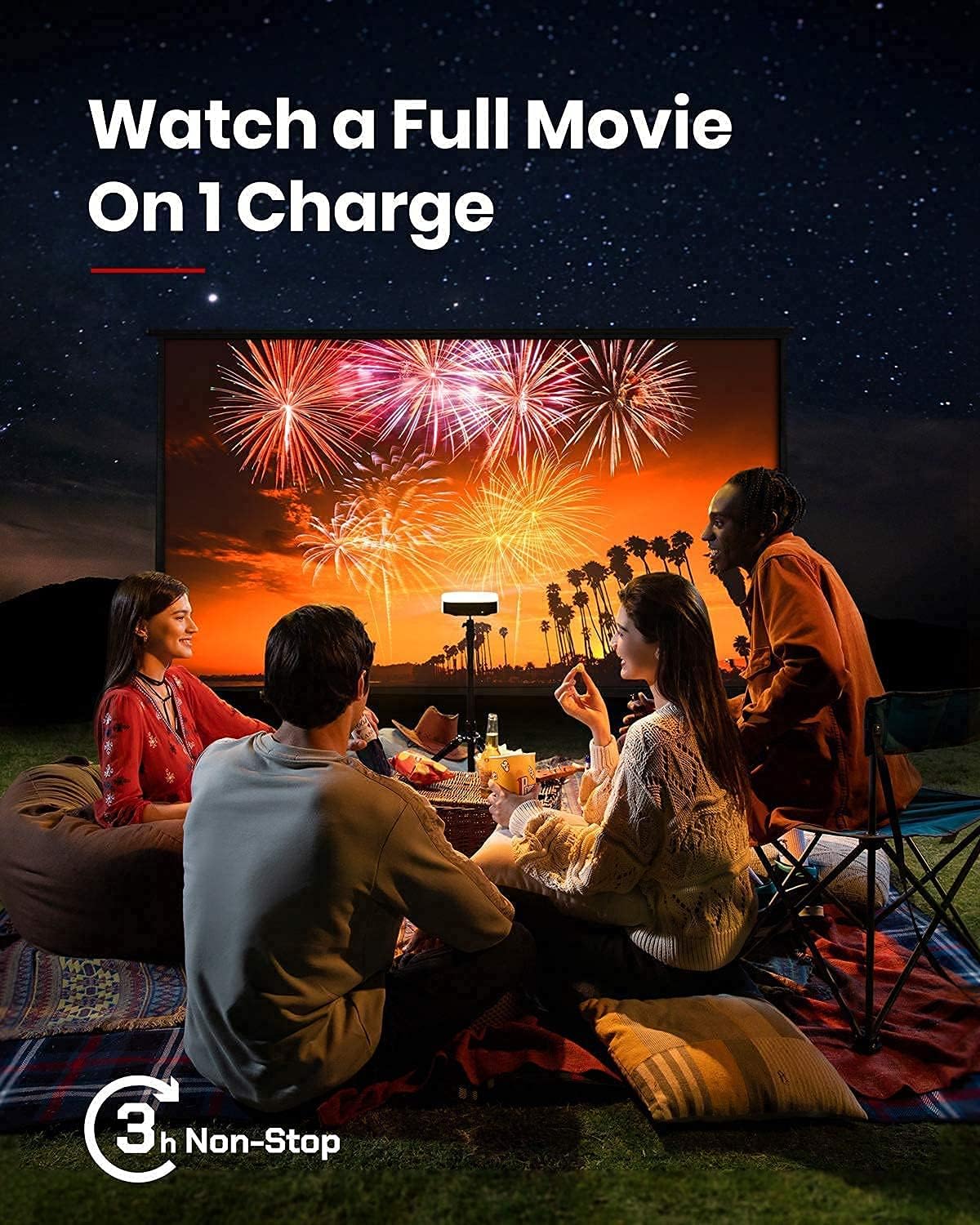
Figure 6: The Android TV 9.0 interface with access to various applications.
5.2 Installing Netflix
To install Netflix, navigate to the Google Play Store and install the "Nebula Manager" app. Within "Nebula Manager", you can then install Netflix. It is recommended to use the "Nebula Connect" app on your phone in mouse mode to control Netflix, as the remote control may have limited functionality with the mobile version of the Netflix app.
Video 2: Instructions on how to install and use Netflix on the projector.
5.3 Screen Mirroring (iOS Devices)
For iOS devices (iPhone, iPad, MacBook), install the "AirScreen" app from the Google Play Store on your projector. Ensure both your projector and iOS device are connected to the same Wi-Fi network. Then, use the "Screen Mirroring" function on your iOS device to connect to the projector.
Video 3: A guide on how to screen mirror and cast content from an iPhone to the projector.
5.4 Přehrávání z USB flash disku
To play movies or media from a USB flash drive, install a file management app (e.g., File Explorer, File Manager) and a video player from the Google Play Store. Insert your USB flash drive into the USB-A port and use the file manager to access and play your content.
5.5 Automatické ostření a korekce lichoběžníkového zkreslení
The projector features 3-second autofocus. To trigger autofocus, slightly move the device or press the dedicated "focus" button on the remote. For keystone correction, the device supports auto vertical (±40°) and manual horizontal (±40°) and quadrilateral (±40°) adjustments. If the image is tilted, disable auto keystone correction via "Settings > Projector Settings > Keystone Correction" and manually adjust both vertical and horizontal keystone correction.

Figure 7: The autofocus feature ensures a clear image automatically.

Figure 8: Keystone correction allows for adjusting the image shape to be rectangular.
6. Údržba
Pro zajištění dlouhé životnosti a optimálního výkonu projektoru dodržujte tyto pokyny pro údržbu:
- Čištění: K čištění vnější strany projektoru použijte měkký, suchý hadřík. Na čočku použijte speciální hadřík a roztok na čištění čoček. Nepoužívejte abrazivní čisticí prostředky.
- Skladování: Store the projector in a cool, dry place away from direct sunlight and extreme temperatures. If storing for extended periods, ensure the battery is partially charged (around 50%) to maintain battery health.
- Větrání: Během provozu se ujistěte, že ventilační mřížky nejsou zablokované, aby nedošlo k přehřátí.
7. Řešení problémů
This section addresses common issues you might encounter with your NEBULA Solar Portable Projector.
- Netflix App Control Issues: If the remote control has limited functionality with Netflix, use the "Nebula Connect" app on your smartphone in mouse mode for better navigation.
- iOS Screen Mirroring Failure: Ensure both the projector (with "AirScreen" installed) and your iOS device are connected to the same Wi-Fi network. Some protected content may not mirror due to DRM restrictions.
- Image Tilted/Distorted: If the projected image is tilted, turn off auto keystone correction via "Settings > Projector Settings > Keystone Correction" and manually adjust both vertical and horizontal keystone correction.
- Baterie se rychle vybíjí: The projector offers different brightness modes. "Battery Mode" (80% volume, Wi-Fi off) provides up to 3 hours. "Standard Mode" offers 2 hours. Ensure the device is fully shut down (hold power button and select "Shut down") rather than just standby to prevent battery drain.
- Hlučnost ventilátoru: In "Normal Brightness Mode," the fan may be noticeable. For quieter operation, use the less-bright "Battery Mode."
- App Compatibility/Performance: Some apps may experience issues due to the Android TV 9.0 version. Ensure apps are updated to their latest versions.
8. Specifikace
| Funkce | Detail |
|---|---|
| Rozměry produktu | 7.56 x 7.57 x 2.15 palce |
| Hmotnost položky | 2.77 libry |
| Číslo modelu položky | D2131 |
| Baterie | 1 lithium-iontová baterie (součástí balení) |
| Technologie displeje | 0.23DMD v rozlišení 1080p DLP |
| Rezoluce | 1920x1080 |
| Jas | 400 ANSI lumenů |
| Životnost LED | 30,000 hodin |
| Poměr házení | 1.2 |
| Nastavení zaostření | 3sekundové automatické ostření |
| Korekce lichoběžníkového zkreslení | Auto (vertical ±40°), Manual (horizontal ±40°, Quadrilateral ±40°) |
| HDMI | x 1 |
| USB-A | x 1 |
| Typ-C | x 1 (Power Delivery charging) |
| BERAN | 2GB DDR |
| ROM | 8GB eMMC |
| Baterie | 20,000mAh / 3.7V |
| Reproduktor | 2×3W |
| Wi-Fi | Duální frekvence 2.4/5 GHz |
| Bluetooth | BT4.2 |
| Hluk ventilátoru | <30dB |
| OS | Android TV 9.0 |
| Chromecast | Podporováno |
| Pracovní režimy | Projector Mode, Bluetooth Speaker Mode |
| App Store | Google Play |
| Doba přehrávání videa | 3 hours (battery mode); 2 hours (standard mode) |
| Doba nabíjení | 3 hours with Power Delivery 20V-3.25A |
| Audio dekódování | Dolby supported |
| Dekódování videa | HDR10 |
9. Záruka a podpora
Your NEBULA Solar Portable Projector is covered by a manufacturer's warranty. For detailed warranty information, technical support, or service inquiries, please visit the official NEBULA brand store or contact customer support.
Official NEBULA Store: https://www.amazon.com/stores/Nebula/page/A836DB9B-3AD4-4696-A071-A0A11B4E59A2


