1. Konec produktuview
The TP-Link Archer TX50E is a high-performance AX3000 Wi-Fi 6 Bluetooth 5.3 PCIe Adapter designed for desktop PCs. It leverages the latest Wi-Fi 6 standard to deliver extreme speeds, ultra-low latency, and uninterrupted connectivity, making it suitable for demanding applications like immersive gaming and VR. The adapter features a customized heat sink and gold-plated contactors for enhanced stability and longevity.
Klíčové vlastnosti:
- Wi-Fi 6 Performance: Delivers speeds up to 2.4 Gbps (2402 Mbps on 5 GHz + 574 Mbps on 2.4 GHz) with 1024-QAM and 160 MHz bandwidth.
- Ultra nízká latence: Revolutionary OFDMA and MU-MIMO technologies reduce lag for responsive gaming and VR experiences.
- Bluetooth 5.3: Achieves 2× faster speeds and 4× broader coverage than Bluetooth 4.2, enabling seamless connection with various peripherals.
- Široké pokrytí: Equipped with two high-gain antennas to extend Wi-Fi range.
- Prémiové sestavení: Features a customized heat sink for efficient thermal dissipation and gold-plated contactors for improved stability and oxidation resistance.
- Pokročilé zabezpečení: Supports WPA3, the latest network security standard, for enhanced network protection.
2. Obsah balení
Ověřte, zda jsou v balení přítomny všechny položky:

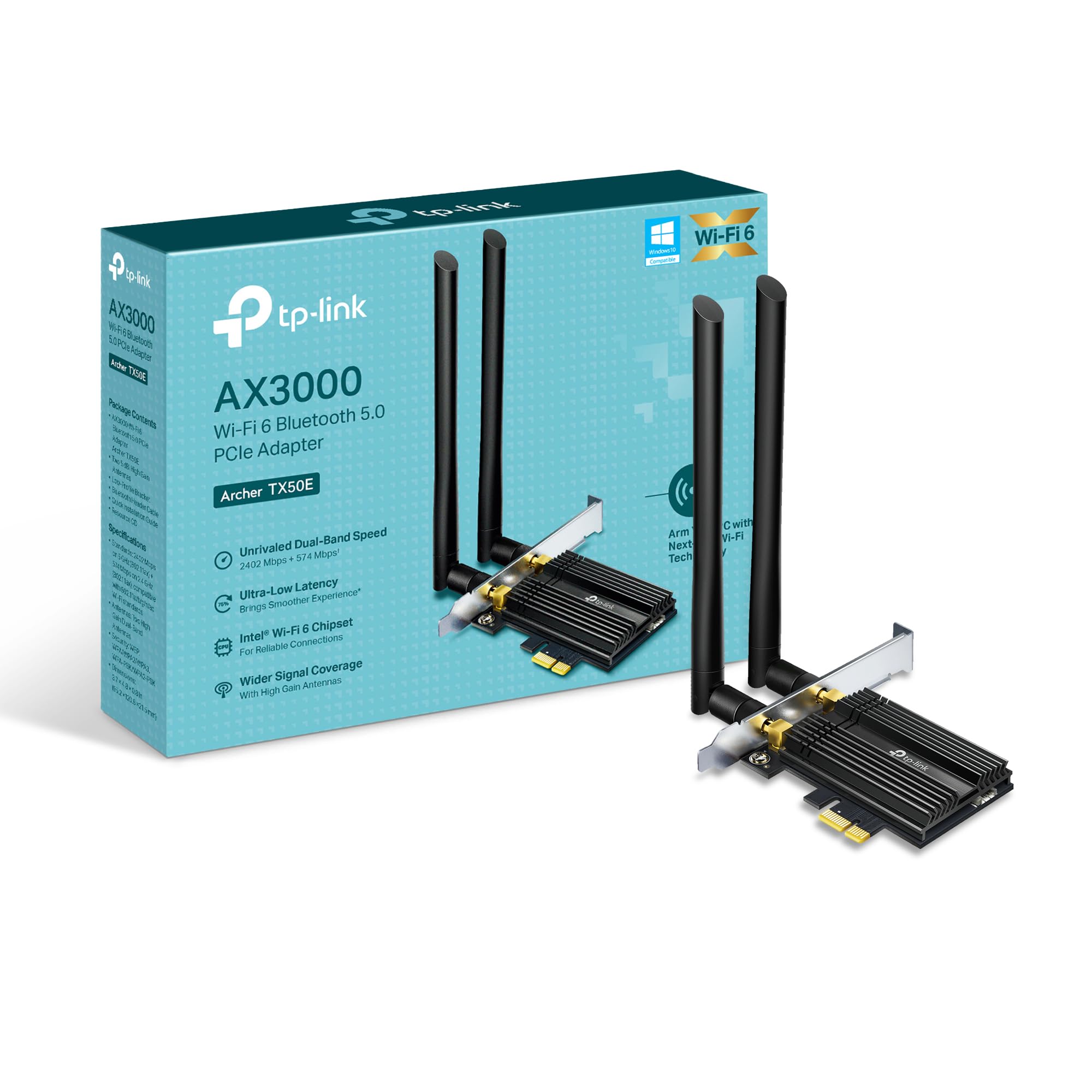
Image: TP-Link Archer TX50E retail box showing the adapter and included accessories.
- TP-Link Archer TX50E Wi-Fi 6 Bluetooth 5.3 PCIe Adapter
- Two High-Gain Antennas
- Bluetooth USB kabel
- Zdrojové CD
- Průvodce rychlou instalací
- Low-Profile Konzola
3. Instalace hardwaru
Než začnete:
- Ensure your computer is powered off and unplugged from the power source.
- Ground yourself to discharge any static electricity before handling components.
- Refer to your computer's manual for specific instructions on opening the case.
Instalace krok za krokem:
Obrázek: Přední strana view of the TP-Link Archer TX50E adapter with antennas.
- Vypnutí a odpojení: Vypněte počítač a odpojte napájecí kabel ze zásuvky.
- Otevřete skříň počítače: Pro přístup k základní desce sejměte boční panel skříně počítače.
- Connect Bluetooth USB Cable: Connect the provided Bluetooth USB cable to the adapter's Bluetooth header.
- Vyhledejte sloty: Identify an available PCI Express X1 slot on your motherboard and an F_USB connector (usually labeled USB910 or similar).
- Vložkový adaptér: Carefully insert the Archer TX50E adapter into the chosen PCIe X1 slot. Ensure it is seated firmly.
- Připojte kabel USB: Connect the other end of the Bluetooth USB cable to the F_USB connector on your motherboard. This connection is essential for Bluetooth functionality.
- Secure Adapter and Antennas: Secure the adapter with a screw to the computer case. Then, connect the two high-gain antennas to the adapter's connectors. Adjust their position for optimal signal reception.
- Zavřít PC skříň: Vyměňte boční panel skříně počítače.
- Zapnutí: Zapojte napájecí kabel zpět do zásuvky a zapněte počítač.
Vizuální návod k instalaci:
Video: A step-by-step guide demonstrating the physical installation of the TP-Link Archer TX50E PCIe adapter into a desktop computer.
4. Instalace ovladače
After hardware installation, you need to install the Wi-Fi and Bluetooth drivers for the adapter to function correctly. Poznámka: Do NOT run the Bluetooth and Wi-Fi driver installers at the same time.
Step-by-Step Driver Installation:
- Insert CD or Download Drivers: Insert the provided resource CD into your computer's CD/DVD drive. If your computer does not have a CD/DVD drive, download the latest drivers from the official TP-Link website (search for Archer TX50E).
- Run Autorun: Once the CD is inserted, an Autorun window should appear. Click to run `Autorun.exe`. If it doesn't appear, navigate to 'This PC' or 'My Computer', open your CD/DVD drive, and manually run `Autorun.exe`.
- Instalace ovladačů Wi-Fi: In the TP-Link driver installation utility, select the option to install the Wi-Fi drivers. Follow the on-screen instructions to complete the installation. You may need to restart your computer after this step.
- Instalace ovladačů Bluetooth: After the Wi-Fi drivers are installed and your computer has restarted (if prompted), run the `Autorun.exe` again or manually launch the Bluetooth driver installer. Follow the on-screen instructions to complete the Bluetooth driver installation. Another restart may be required.
For a visual guide on driver installation, please refer to the setup video provided in the Hardware Installation section.
5. Návod k obsluze
Připojení k Wi-Fi:
- After successful driver installation, click the Wi-Fi icon in your system tray (usually in the bottom-right corner of your screen).
- Zobrazí se seznam dostupných bezdrátových sítí. Vyberte požadovanou síť.
- Klikněte na tlačítko „Připojit“ a v případě potřeby zadejte bezpečnostní klíč sítě (heslo).
- Váš počítač by nyní měl být připojen k síti Wi-Fi.
Párování zařízení Bluetooth:
- Ensure your Bluetooth device is in pairing mode (refer to your device's manual).
- On your computer, go to 'Settings' > 'Devices' > 'Bluetooth & other devices'.
- Zapněte Bluetooth, pokud již není povolen.
- Klikněte na „Přidat Bluetooth nebo jiné zařízení“ a vyberte „Bluetooth“.
- Vyberte zařízení ze seznamu a dokončete proces párování podle pokynů na obrazovce.
6. Řešení problémů
If you encounter issues with your Archer TX50E adapter, try the following common troubleshooting steps:
- Žádné připojení k Wi-Fi:
- Ujistěte se, že je adaptér správně usazen ve slotu PCIe.
- Verify that the antennas are securely connected.
- Check Device Manager to ensure Wi-Fi drivers are installed and the device is recognized without errors.
- Try updating or reinstalling the Wi-Fi drivers.
- Restartujte počítač a bezdrátový router.
- Bluetooth nefunguje:
- Confirm the Bluetooth USB cable is properly connected to both the adapter and the motherboard's F_USB header.
- Check Device Manager to ensure Bluetooth drivers are installed and the device is recognized without errors.
- Verify that Bluetooth is enabled in your computer's settings.
- Try updating or reinstalling the Bluetooth drivers.
- Pomalé rychlosti nebo přerušované připojení:
- Ensure your router supports Wi-Fi 6 (802.11ax) for optimal performance.
- Adjust the position of the antennas for better signal reception.
- Move your computer closer to the router or reduce obstacles between them.
- Zkontrolujte, zda nedochází k rušení jinými elektronickými zařízeními.
- Aktualizujte firmware routeru.
If these steps do not resolve your issue, please contact TP-Link Technical Support.
7. Technické specifikace
| Funkce | Specifikace |
|---|---|
| Model | Archer TX50E |
| Bezdrátové Standardní | Wi-Fi 6 (802.11ax/ac/b/g/n) |
| Verze Bluetooth | Bluetooth 5.3 |
| Rozhraní | PCI Express |
| Rychlost přenosu dat | Až 2402 Mb/s (5 GHz), 574 Mb/s (2.4 GHz) |
| Podpora operačního systému | Windows 11, 10 (64-bit) |
| Zabezpečení | WPA3 |
| Rozměry (D x Š x V) | 9.53 x 12.09 x 2.16 cm |
| Hmotnost položky | 90.72 g (0.2 libry) |
| Hardwarové rozhraní | Bluetooth |
| Kompatibilní zařízení | Stolní počítač, notebook |
8. Záruka a technická podpora
TP-Link nabízí 2-letá záruka for this product. Additionally, free 24/7 technická podpora is available to assist you with any questions or issues you may encounter.
Pro další pomoc navštivte oficiální podporu TP-Link. webwebu nebo se přímo obraťte na jejich zákaznický servis.


