1. Úvod
Welcome to the user manual for your Orbic Journey V Verizon Postpaid 4G LTE Flip Phone. This guide provides essential information on setting up, operating, maintaining, and troubleshooting your device. The Orbic Journey V is a compact and reliable flip phone designed for clear communication and essential smart features, running on the KaiOS operating system and supporting 4G LTE connectivity.
Please read this manual thoroughly to ensure proper use and to maximize the performance and longevity of your phone.
2. Nastavení
2.1. Vybalení a obsah balení
Upon opening your Orbic Journey V package, verify that all components are present:
- Telefon Orbic Journey V Flip
- Dobíjecí lithium-iontová baterie
- Nabíječka
2.2. Instalace baterie
- Najděte kryt baterie na zadní straně telefonu.
- Gently pry open the battery cover using the designated notch.
- Zarovnejte zlaté kontakty baterie s vývody uvnitř přihrádky na baterii.
- Pevně zatlačte baterii dolů, dokud nezacvakne na místo.
- Replace the battery cover, ensuring it is securely latched.
2.3. Instalace SIM karty
Your Orbic Journey V requires a Nano-SIM card for cellular service. Ensure the phone is powered off before inserting or removing the SIM card.
- Remove the battery cover and the battery as described in Section 2.2.
- Locate the SIM card slot, typically near the battery compartment.
- Insert the Nano-SIM card into the slot with the gold contacts facing down and the notched corner aligned with the slot's guide.
- Jemně zatlačte SIM kartu, dokud nezapadne na místo.
- Znovu nainstalujte baterii a kryt baterie.
2.4. První zapnutí a nabíjení
To power on your phone for the first time, press and hold the Power/End Call button until the screen illuminates. It is recommended to fully charge the phone before first use.
- Připojte nabíječku k nabíjecímu portu telefonu.
- Zapojte nabíječku do standardní elektrické zásuvky.
- Na obrazovce se zobrazí indikátor nabíjení.
- Po úplném nabití odpojte nabíječku.
3. Ovládání telefonu
3.1. Phone Layout and Keys
Familiarize yourself with the physical components and buttons of your Orbic Journey V.
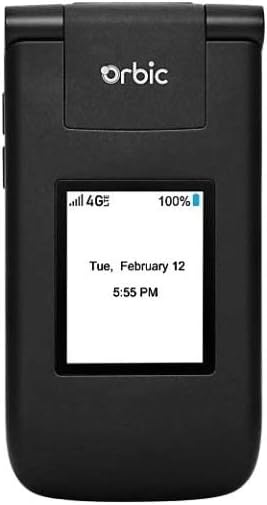
Obrázek 3.1: Přední strana view of the Orbic Journey V, closed. The external display shows signal strength, battery level, and the current time and date.

Figure 3.2: Orbic Journey V in open position, revealing the main screen and the full alphanumeric keypad with navigation buttons.

Obrázek 3.3: Zadní view of the Orbic Journey V, highlighting the main camera lens and the Verizon branding.
- Externí displej: Shows time, date, notifications, and caller ID when the phone is closed.
- Interní displej: Main screen for navigating menus, viewing content, and interacting with applications.
- Navigation Key (D-Pad): Používá se k pohybu v nabídkách a výběru možností.
- Center Select Key: Potvrzuje výběr.
- Call/Send Key: Zahajuje hovory a přijímá příchozí hovory.
- Tlačítko ukončení hovoru/vypnutí: Ukončí hovory, vrátí se na domovskou obrazovku a zapne/vypne telefon.
- Tlačítko Zpět/Vymazat: Návrat na předchozí obrazovku nebo smazání znaků.
- Tlačítka hlasitosti: Adjusts call volume, media volume, and ringer volume.
- Klávesa fotoaparátu: Rychlý přístup k funkcím fotoaparátu.
3.2. Základní navigace
The Orbic Journey V operates on KaiOS. Use the Navigation Key to scroll through menu options and the Center Select Key to open applications or confirm actions.
- From the home screen, press the Navigation Key (up, down, left, right) to access shortcuts or navigate the main menu.
- Press the Center Select Key to open the main application menu.
- Press the Back/Clear key to go back to the previous screen.
3.3. Uskutečňování a přijímání hovorů
- Chcete-li zavolat: Enter the phone number using the keypad and press the Call/Send key. Alternatively, navigate to Contacts, select a contact, and press the Call/Send key.
- Chcete-li přijmout hovor: When the phone rings, press the Call/Send key.
- Ukončení hovoru: Press the End Call/Power key.
3.4. Odesílání a přijímání zpráv
- Odeslání zprávy: From the main menu, select 'Messages'. Choose 'New Message', enter the recipient's number or select from contacts, type your message using the keypad, and press 'Send'.
- To Receive a Message: New messages will typically display a notification on the screen. Navigate to the 'Messages' application to view vaší doručené pošty.
3.5. Použití fotoaparátu
The Orbic Journey V is equipped with front and rear cameras. The rear camera is located on the upper-right back of the phone.
- To Open Camera: Press the dedicated Camera key or navigate to the 'Camera' application from the main menu.
- Chcete-li pořídit fotografii: Frame your shot on the screen and press the Center Select key to capture the image.
- Viewfotografie: Access your photos through the 'Gallery' application.
3.6. Connectivity (Bluetooth, Wi-Fi)
Your phone supports Bluetooth and Wi-Fi for wireless connectivity.
- Bluetooth: Go to 'Settings' > 'Network & Connectivity' > 'Bluetooth'. Turn Bluetooth on, and the phone will search for available devices. Select a device to pair.
- Wi-Fi: Go to 'Settings' > 'Network & Connectivity' > 'Wi-Fi'. Turn Wi-Fi on, select an available network, and enter the password if required.
4. Údržba
4.1. Čištění telefonu
To keep your phone in optimal condition, clean it regularly:
- K otření obrazovky a těla použijte měkký hadřík, který nepouští vlákna.
- Vyhněte se používání agresivních chemikálií, abrazivních čisticích prostředků nebo aerosolových sprejů.
- Ensure the phone is powered off and unplugged before cleaning.
4.2. Péče o baterie
Správná péče o baterii může prodloužit její životnost:
- Vyhněte se extrémním teplotám.
- Nenechávejte telefon nabíjet po plně nabití příliš dlouho.
- If the phone will not be used for an extended period, store it with a partial charge (around 50%).
4.3. Aktualizace softwaru
Pravidelné aktualizace softwaru poskytují nové funkce, vylepšení zabezpečení a opravy chyb.
- Připojte telefon k Wi-Fi.
- Go to 'Settings' > 'Device' > 'Software Update'.
- Postupujte podle pokynů na obrazovce a zkontrolujte a nainstalujte všechny dostupné aktualizace.
5. Řešení problémů
This section addresses common issues you might encounter with your Orbic Journey V.
5.1. Telefon se nezapíná
- Ensure the battery is correctly installed and charged. Connect the charger and wait a few minutes before attempting to power on.
- Try removing and reinserting the battery, then attempt to power on again.
5.2. Poor Call Quality or No Signal
- Check your location for network coverage. Move to an area with better signal.
- Ujistěte se, že je vaše SIM karta správně vložena.
- Restartujte telefon.
- Verify that your account with Verizon is active and in good standing.
5.3. Rychlé vybíjení baterie
- Zavřete nepoužívané aplikace běžící na pozadí.
- Snižte jas obrazovky.
- Vypněte Wi-Fi, Bluetooth nebo GPS, když je nepoužíváte.
- Check for and install any available software updates, as these often include battery optimizations.
5.4. Software or Navigation Issues
- If the phone is unresponsive, try a soft reset by removing and reinserting the battery.
- Ujistěte se, že je software telefonu aktuální.
- Pokud problémy přetrvávají, zvažte obnovení továrního nastavení (Poznámka: Tímto se smažou všechna data v telefonu. Nejprve si zálohujte důležité informace.). Navigate to 'Settings' > 'Device' > 'Reset Phone'.
6. Specifikace
| Funkce | Detail |
|---|---|
| Název modelu | Orbic Journey V |
| Značka | Orbic |
| ASIN | B08971YYM1 |
| Operační systém | KaiOS |
| Bezdrátový nosič | Verizon |
| Buněčná technologie | LTE |
| Technologie připojení | Bluetooth, WiFi |
| Form Factor | Překlopit |
| Barva | Černý |
| Velikost obrazovky | 5.8 palce (velikost obrazovky pro postavení) |
| Rezoluce | 1520 x 720 |
| Vlastnosti fotoaparátu | Přední, zadní |
| Audio Jack | Žádný konektor pro sluchátka |
| Baterie | 1 lithium-iontová baterie (součástí balení) |
| Hmotnost položky | 12.8 unce |
| Rozměry balení | 5 x 3 x 3 palce |
| Datum první dostupnosti | 26. května 2020 |
7. Záruka a podpora
For warranty information and technical support regarding your Orbic Journey V phone, please refer to the documentation provided with your purchase or contact Orbic directly. You can also visit the official Orbic webmísto pro zdroje podpory.
For service-related inquiries, please contact your wireless carrier, Verizon.
- Výrobce: Orbic
- Bezdrátový nosič: Verizon


