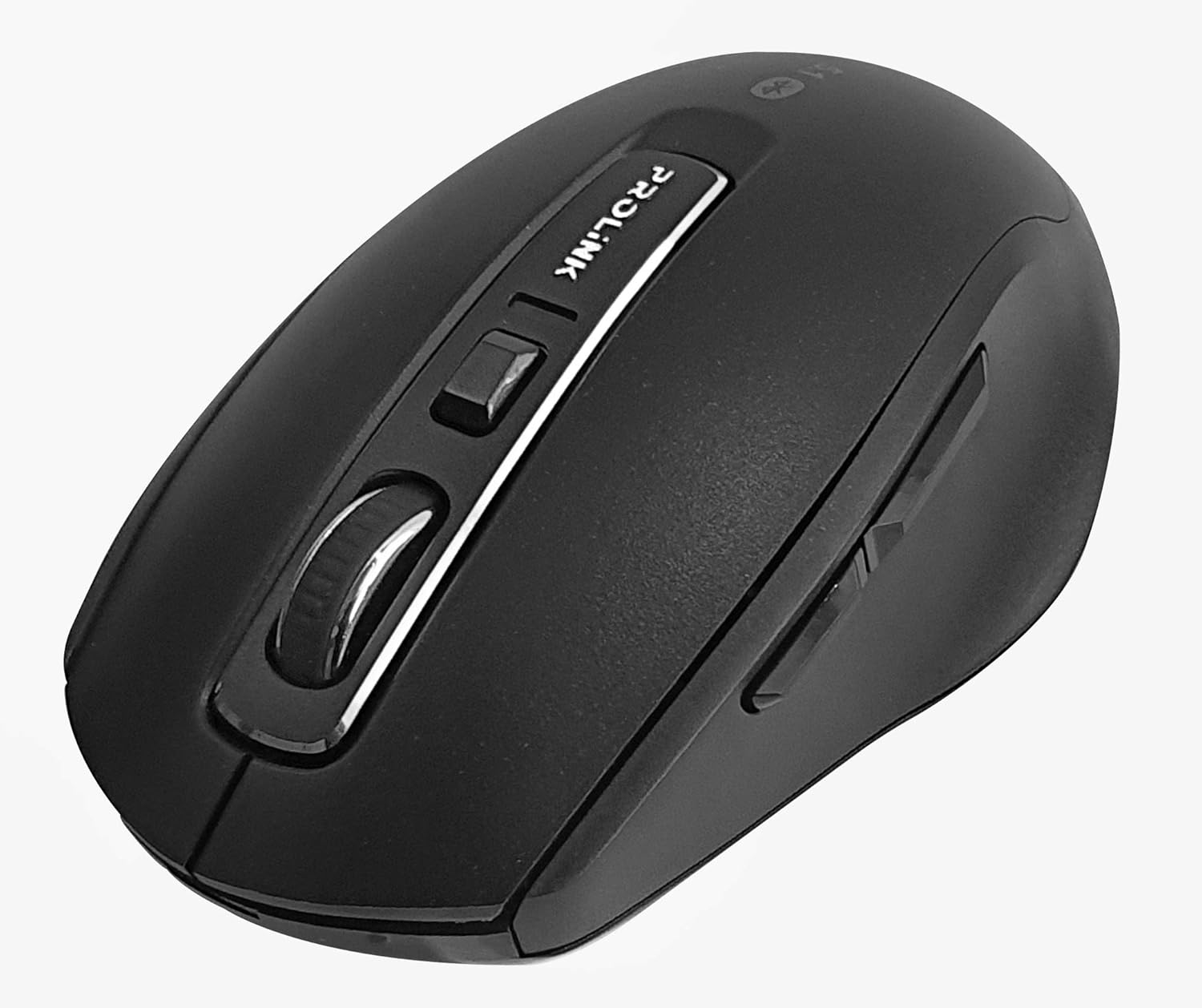
Obrázek: Shora dolů view of the Prolink PMB8502 Bluetooth Wireless Optical Mouse.
1. Úvod a konecview
The Prolink PMB8502 Bluetooth Mouse is designed for seamless wireless control of your desktop, laptop, or tablet. It features Bluetooth 5.2 connectivity, an ergonomic design, and adjustable DPI settings for personalized comfort and precision. This manual provides detailed instructions for setup, operation, maintenance, and troubleshooting.
Klíčové vlastnosti:
- Bluetooth 5.2 connectivity (backward compatible with 5.1/5.0/4.2/4.1/4.0)
- Up to 27 months battery life (based on supplied batteries)
- Nastavitelné DPI: 800/1200/1600
- 6-button design including back and forward buttons
- Ergonomický design pro pohodlné používání
- Operating range of up to 10 meters

Image: Prolink PMB8502 mouse highlighting its Bluetooth 5.2, battery life, DPI, and range features.
2. Obsah balení
- Prolink PMB8502 Bluetooth Wireless Optical Mouse
- 1 x AA baterie (předinstalovaná nebo samostatně dodávaná)
- Uživatelská příručka (tento dokument)
3. Pokyny k nastavení
3.1. Instalace baterie
- Najděte kryt přihrádky na baterie na spodní straně myši.
- Jemně posuňte nebo zvedněte kryt a otevřete přihrádku.
- Vložte jednu baterii typu AA a ujistěte se, že kladný (+) a záporný (-) pól správně odpovídají označením uvnitř přihrádky.
- Nasaďte kryt přihrádky na baterie zpět, dokud bezpečně nezacvakne.
3.2. Párování Bluetooth
Before pairing, ensure your device (computer, laptop, tablet) has Bluetooth enabled.
- Zapněte myš pomocí vypínače, který se nachází na spodní straně.
- Press and hold the Bluetooth 'Connect' button (usually located near the On/Off switch or within the battery compartment) for 3-5 seconds until the LED indicator on the mouse begins to flash, indicating it is in pairing mode.
- Na svém zařízení přejděte do nastavení Bluetooth.
- Hledat new devices. The mouse should appear as "Prolink PMB8502" or similar.
- Select the mouse from the list to complete the pairing process. The LED indicator on the mouse will stop flashing and remain solid for a few seconds, then turn off, indicating a successful connection.

Obrázek: Přední strana view of the Prolink PMB8502 mouse, showing its ergonomic shape.
4. Návod k obsluze
4.1. Funkce tlačítek
- Levé tlačítko myši: Standardní výběr a aktivace.
- Kliknutí pravým tlačítkem: Zpřístupňuje kontextové nabídky.
- Rolovací kolečko: Posouvá dokumenty a web pages vertically. Can also be pressed for middle-click functionality.
- Tlačítko pro nastavení DPI: Located below the scroll wheel. Press to cycle through DPI settings (800/1200/1600).
- Tlačítko vpřed: Naviguje vpřed web prohlížeče popř file průzkumníci.
- Tlačítko Zpět: Naviguje zpět web prohlížeče popř file průzkumníci.
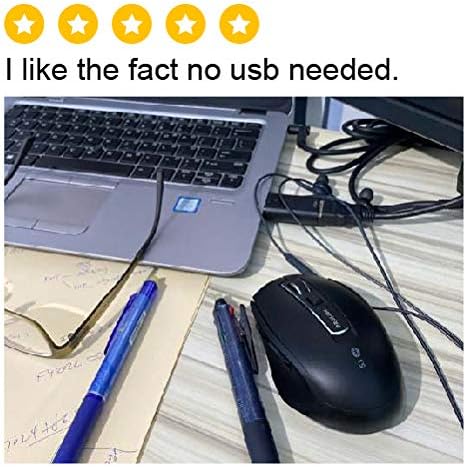
Obrázek: Boční view of the Prolink PMB8502 mouse, illustrating the placement of the back and forward navigation buttons.
4.2. Nastavení DPI
The mouse offers three DPI (Dots Per Inch) settings: 800, 1200, and 1600. Press the DPI button located below the scroll wheel to switch between these sensitivities. A higher DPI setting results in faster cursor movement across the screen.
4.3. Řízení spotřeby
- Vypínač: To conserve battery life, turn off the mouse using the switch on its underside when not in use for extended periods.
- Automatický režim spánku: The mouse automatically enters a sleep mode after more than 10 minutes of inactivity. To wake it up, simply move the mouse or click any button.
5. Údržba
5.1. Čištění
To clean the mouse, use a soft, dry, lint-free cloth. For stubborn dirt, slightly damphadřík vodou nebo jemným čisticím roztokem. Nepoužívejte agresivní chemikálie, abrazivní čisticí prostředky ani nestříkejte tekutiny přímo na myš.
5.2. Výměna baterie
When the mouse performance degrades or the LED indicator suggests low battery, replace the AA battery following the steps in Section 3.1. Dispose of used batteries responsibly according to local regulations.
6. Řešení problémů
- Mouse not connecting or erratic movement:
- Ujistěte se, že je myš zapnutá.
- Zkontrolujte stav baterie a v případě potřeby ji vyměňte.
- Ujistěte se, že je na vašem zařízení povoleno Bluetooth.
- Try re-pairing the mouse with your device (refer to Section 3.2).
- Přesuňte myš blíže k zařízení, abyste vyloučili problémy s dosahem.
- Ujistěte se, že žádné jiné silné bezdrátové signály neruší připojení Bluetooth.
- Cursor not moving smoothly:
- Vyčistěte optický senzor na spodní straně myši.
- Používejte myš na čistém, nereflexním povrchu.
- Upravte nastavení DPI na úroveň, která vám vyhovuje.
- Tlačítka nereagují:
- Zkontrolujte stav baterie.
- Ensure the mouse is properly connected via Bluetooth.
- Restartujte počítač nebo zařízení.
7. Specifikace
| Funkce | Detail |
|---|---|
| Tlačítka | 6 |
| Senzor | Optický |
| Rozlišení DPI | 800/1200/1600 DPI |
| Rozhraní | Bluetooth 5.2 (backward compatible with Bluetooth 5.1/5.0/4.2/4.1/4.0) |
| Rychlost hlášení USB | 125 Hz |
| FPS | 2400 krát/sec |
| Provozní vlhkost | 30%RH - 95%RH |
| Provozní teplota | -20 °C až +60 °C |
| Operační systém | Windows 7 / 10 / 11, Mac OS 10.2 above |
| Rozměry (D x Š x V) | 108 mm x 66.7 mm x 40.2 mm |
| Hmotnost | 69.2g (product only) |
| Typ baterie | 1 x AA baterie |

Image: Graphic displaying the technical specifications of the Prolink PMB8502 mouse.
8. Záruka a podpora
The Prolink PMB8502 Bluetooth Wireless Optical Mouse typically comes with a 3-letá záruka from the date of purchase. Please refer to your purchase receipt or the official Prolink webkonkrétní záruční podmínky platné ve vašem regionu naleznete na webových stránkách.
For technical support, troubleshooting assistance, or warranty claims, please visit the official Prolink website or contact their customer service department. Contact information can usually be found on the product packaging or the Prolink official webmísto.
Online zdroje:

Image: Prolink PMB8502 mouse with a "3 Year Warranty" label, indicating product assurance.


