1. Úvod
This manual provides essential information for the setup, operation, maintenance, and troubleshooting of your ASUS ROG Zephyrus G14 14-inch Gaming Laptop. Please read this manual thoroughly to ensure proper usage and to maximize the performance and longevity of your device.
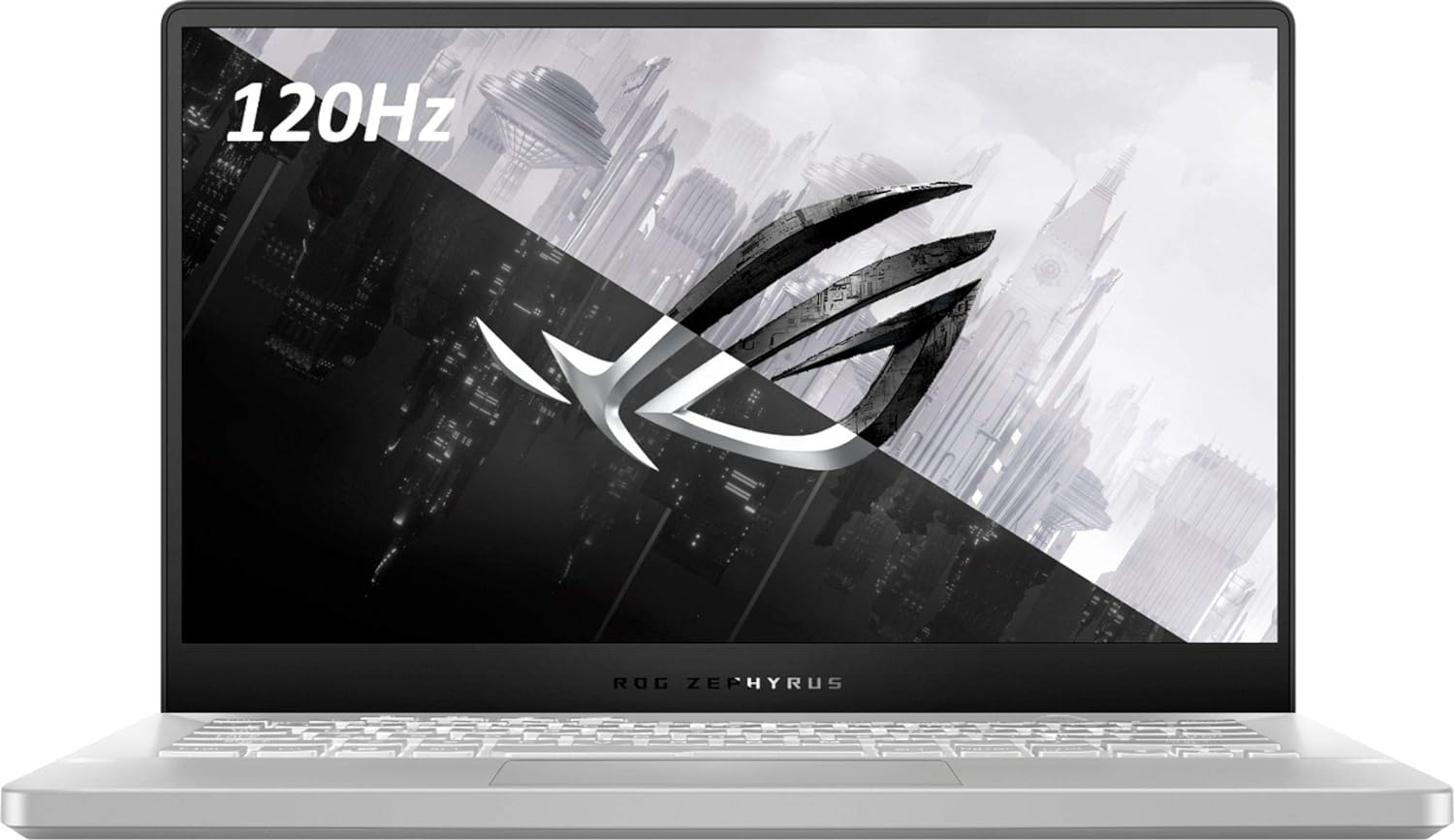
Obrázek 1: Přední strana view of the ASUS ROG Zephyrus G14 Laptop.
2. Nastavení
2.1 Vybalení a počáteční kontrola
- Opatrně vyjměte notebook a veškeré příslušenství z obalu.
- Verify that all components are present: laptop, power adapter, and any included documentation.
- Zkontrolujte notebook, zda není fyzicky poškozen. Pokud zjistíte poškození, okamžitě kontaktujte prodejce.
2.2 Připojení napájecího adaptéru
- Připojte síťový adaptér do napájecího konektoru na notebooku.
- Zapojte napájecí kabel do zásuvky ve zdi.
- Rozsvítí se kontrolka baterie, což znamená, že se notebook nabíjí.
2.3 První zapnutí
- Otevřete víko notebooku.
- Stiskněte tlačítko napájení, které se nachází v pravém horním rohu klávesnice.
- Follow the on-screen instructions to complete the initial setup of Windows 10 Home.
3. Ovládání notebooku
3.1 Klávesnice a touchpad
The ASUS ROG Zephyrus G14 features a full-sized keyboard and a precision touchpad. Familiarize yourself with the layout and special function keys (Fn keys) for quick access to system settings like volume, brightness, and Wi-Fi.

Figure 2: Keyboard and Touchpad Layout.
3.2 Funkce displeje
Your laptop is equipped with a 14-inch display offering a 1920 x 1080 pixel resolution. For optimal viewing, ensure display drivers are up to date.
3.3 I/O porty
Notebook nabízí několik portů pro připojení externích zařízení:
- Levá strana: 1x 3.5mm Combo Audio Jack, 1x HDMI 2.0b, 1x USB 3.2 Gen 2 Type-C (supporting DisplayPort / power delivery / G-SYNC).
- Pravá strana: 2x USB 3.2 Gen 1 Type-A, 1x USB 3.2 Gen 2 Type-C.

Figure 3: Left Side Ports.

Figure 4: Right Side Ports.
3.4 Řízení spotřeby
The laptop is designed for efficient power usage. To optimize battery life, adjust screen brightness, close unused applications, and utilize power-saving modes available in Windows settings. The average battery life is approximately 8 hours under typical usage conditions.
4. Údržba
4.1 Pokyny pro čištění
- K čištění obrazovky a šasi použijte měkký hadřík, který nepouští vlákna.
- Pro odolné skvrny, dampen the cloth lightly with water or a screen-safe cleaning solution.
- Vyhněte se agresivním chemikáliím nebo abrazivním materiálům.
- Regularly clean the keyboard and touchpad to prevent dust buildup.
4.2 Péče o baterii
- Vyhněte se častému úplnému vybíjení baterie.
- Pokud notebook delší dobu nepoužíváte, skladujte jej na chladném a suchém místě.
- If the battery performance significantly degrades, contact ASUS support for replacement options.
4.3 Aktualizace softwaru
Regularly update your operating system (Windows 10 Home) and drivers to ensure optimal performance, security, and compatibility. ASUS provides utility software to assist with driver updates.
5. Řešení problémů
Tato část se zabývá běžnými problémy, se kterými se můžete setkat při používání notebooku.
5.1 Problémy s napájením
- Notebook se nezapne: Ensure the power adapter is securely connected and the wall outlet is functional. If the battery is completely drained, allow it to charge for a few minutes before attempting to power on.
- Laptop stuck in reboot loop: Try performing a hard reset by holding the power button for 15 seconds. If the issue persists, it may indicate a hardware problem; contact support.
5.2 Problémy se zobrazením
- Žádné zobrazení na obrazovce: Connect an external monitor to verify if the issue is with the laptop's internal display. Ensure display drivers are updated.
5.3 Výkon a teplo
- Laptop runs hot: Ensure ventilation vents are clear and not obstructed. Consider using the laptop on a hard, flat surface. High temperatures during intensive tasks (like gaming) are normal, but excessive heat during light use may indicate an issue.
5.4 Fingerprint Reader Issues
- Fingerprint reader inconsistent: Ensure your finger is clean and dry. Re-register your fingerprints in Windows Hello settings if accuracy is consistently low.
5.5 Keyboard Backlight
- Uneven keyboard backlight: This can be a characteristic of some keyboard designs. Ensure backlight settings are adjusted to your preference using the dedicated function keys or ASUS software.
6. Specifikace
| Funkce | Detail |
|---|---|
| Název modelu | Zephyrus 14 (GA401IV-BR9N6) |
| Procesor | AMD Ryzen 9 (3 GHz) |
| Grafický koprocesor | NVIDIA GeForce RTX 2060 (dedikovaná) |
| BERAN | 16 GB DDR4 (3200 MHz) |
| Skladování | 1 TB SSD (Solid State) |
| Velikost displeje | 14 palce |
| Rozlišení obrazovky | 1920 x 1080 pixelů |
| Operační systém | Windows 10 Home |
| Bezdrátový typ | 802.11ax |
| I/O porty | 4x USB 3.0 Ports (including Type-C with DisplayPort/Power Delivery/G-SYNC), 1x HDMI 2.0b, 1x 3.5mm Combo Audio Jack |
| Průměrná životnost baterie | 8 hodiny |
| Hmotnost položky | 3.64 libry |
| Rozměry produktu | 12.8 x 8.7 x 0.7 palce |
| Speciální funkce | Anti Glare Coating, Fingerprint Reader, HD Audio, Spill Resistant |
Note: Some configurations may feature upgraded components such as 40GB RAM or Windows 11 Pro, depending on the specific purchase variant.
7. Záruka a podpora
7.1 Záruka na produkt
Your ASUS ROG Zephyrus G14 laptop comes with a standard manufacturer's warranty. For professionally upgraded components like RAM and SSD, a 1-year standard warranty is typically provided. Please refer to the warranty card included with your product for specific terms and conditions, or visit the official ASUS support webmísto.
7.2 Technická podpora
For technical assistance, driver downloads, or service inquiries, please visit the official ASUS support website or contact their customer service. Have your product model number (GA401IV-BR9N6) and serial number ready when contacting support.
Oficiální podpora ASUSu: https://www.asus.com/support/


