1. Úvod
This manual provides essential information for the safe and efficient operation of your ASUS ROG Strix XG27WQ gaming monitor. Please read this manual thoroughly before using the product to ensure proper setup, usage, and maintenance. Retain this manual for future reference.
The ASUS ROG Strix XG27WQ is a 27-inch WQHD (2560 x 1440) curved gaming monitor designed for an immersive visual experience. It features a native 165Hz refresh rate, 1ms MPRT response time, ASUS Extreme Low Motion Blur (ELMB) technology, FreeSync Premium Pro, and DisplayHDR 400 support.
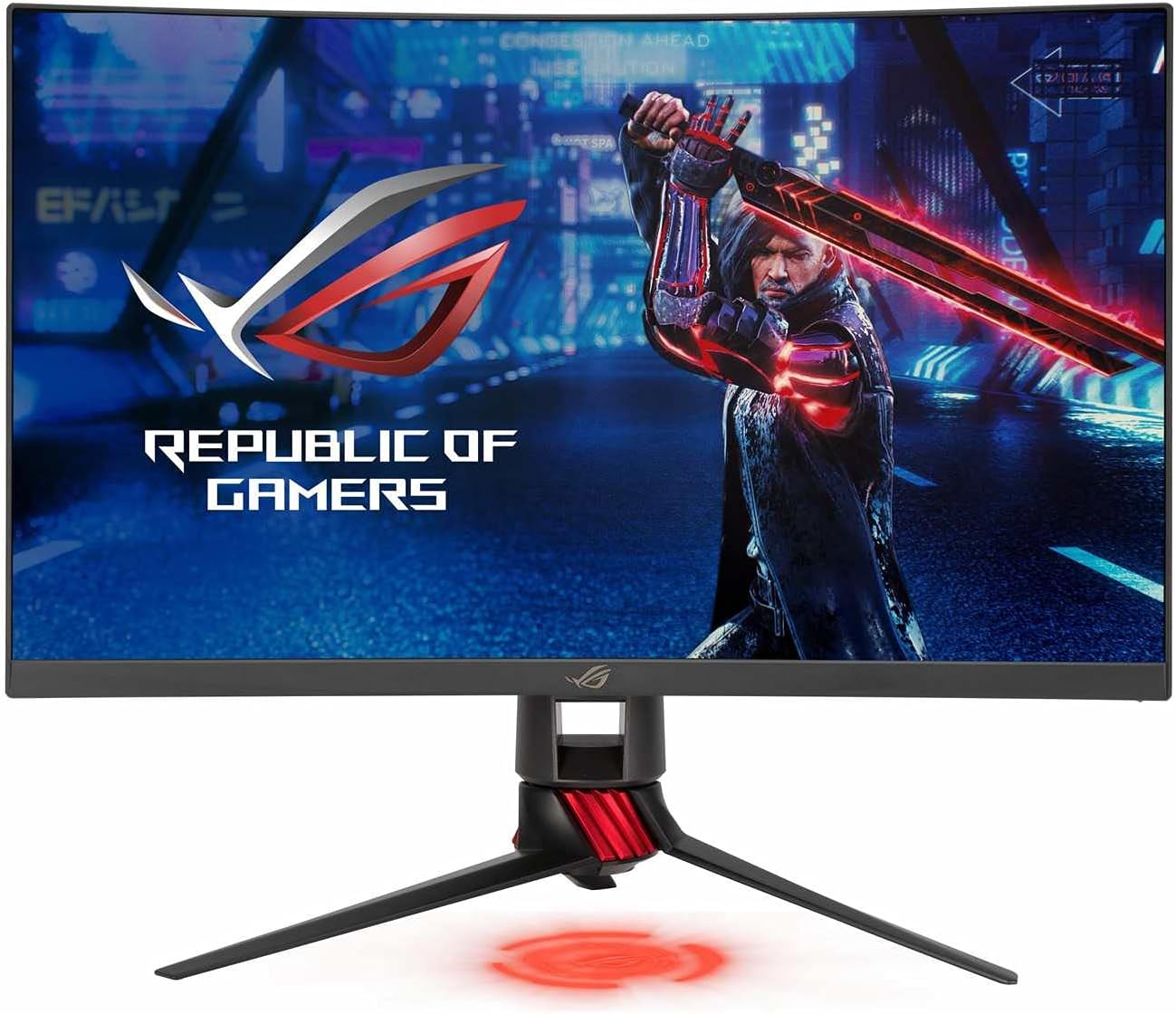
Obrázek 1: Přední strana view of the ASUS ROG Strix XG27WQ gaming monitor, showcasing its curved display and stand.
2. Bezpečnostní informace
- Zdroj napájení: Use only the power adapter and cable supplied with your monitor. Ensure the power outlet is properly grounded.
- Větrání: Neblokujte větrací otvory. Ponechte kolem monitoru dostatečný prostor pro správné proudění vzduchu, abyste zabránili přehřátí.
- Tekutina a vlhkost: Keep the monitor away from water, rain, or any wet environments. Do not spill liquids onto the monitor.
- Čištění: Disconnect the power cable before cleaning. Use a soft, dry cloth. Avoid using liquid or aerosol cleaners.
- Umístění: Place the monitor on a stable, flat surface. Avoid placing it in direct sunlight or near heat sources.
- Servis: Nepokoušejte se monitor opravovat sami. Veškerý servis svěřte kvalifikovanému servisnímu personálu.
3. Obsah balení
Verify that your package contains the following items. If any item is missing or damaged, contact your retailer.
- ASUS ROG Strix XG27WQ Monitor
- Základna stojanu monitoru
- Stojan na monitor
- Napájecí adaptér
- Napájecí kabel
- Kabel DisplayPort
- HDMI kabel
- Upstream kabel USB 3.0
- Rychlý průvodce
- Záruční list
4. Nastavení
4.1 Sestavení stojanu monitoru
- Položte monitor čelní stranou dolů na měkký, čistý povrch, abyste zabránili poškrábání.
- Připevněte krk stojanu k zadní straně panelu monitoru. Ujistěte se, že bezpečně zacvakne na místo.
- Připevněte základnu stojanu k krku stojanu. Utažením pojistného šroubu ve spodní části základny jej zajistěte.
4.2 Propojovací kabely
Připojte potřebné kabely k odpovídajícím portům na monitoru a počítači nebo jiných zařízeních.

Obrázek 2: Zadní view of the monitor, illustrating the location of various input ports and the stand attachment point.
- Moc: Connect the power adapter to the monitor's DC-in port, then plug the power cord into a power outlet.
- DisplayPort: For optimal performance and to utilize the 165Hz refresh rate, connect the DisplayPort cable from your computer's graphics card to the monitor's DisplayPort input.
- HDMI: Connect an HDMI cable from your computer or console to one of the monitor's HDMI inputs. Note that HDMI 2.0 supports up to 144Hz at WQHD resolution.
- USB Upstream: Connect the USB 3.0 upstream cable from your computer to the monitor's USB upstream port to enable the monitor's USB 3.0 downstream ports.
- USB downstream: Connect USB devices (e.g., keyboard, mouse) to the monitor's USB 3.0 downstream ports.
- Audio jack: Připojte sluchátka nebo externí reproduktory k 3.5mm audio konektoru.
4.3 První zapnutí
After connecting all cables, press the power button located on the back of the monitor to turn it on. The monitor will automatically detect the active input source.
5. Návod k obsluze
5.1 Zapnutí/vypnutí
Press the power button on the rear of the monitor to turn it on or off.
5.2 Navigace v nabídce OSD
The monitor features a 5-way joystick and several hotkeys on the rear for navigating the On-Screen Display (OSD) menu and quick access to functions.
- joystick: Push the joystick up, down, left, or right to navigate menu options. Press the joystick in to confirm a selection.
- Klávesové zkratky: Dedicated buttons provide shortcuts to features like GamePlus, GameVisual, and input selection.
5.3 Klíčová nastavení OSD
- Hraní: Adjust settings such as OverDrive, FreeSync Premium Pro, ELMB, and refresh rate.
- Obraz: Control brightness, contrast, sharpness, and aspect ratio.
- Barva: Fine-tune color temperature, saturation, and gamma.
- Výběr vstupu: Ručně přepínejte mezi vstupy DisplayPort a HDMI.
- Nastavení systému: Access general monitor settings like OSD language, OSD timeout, and LED indicators.
6. Údržba
6.1 Čištění monitoru
- Před čištěním vždy vypněte monitor a odpojte napájecí kabel.
- K jemnému otření obrazovky a vnějších povrchů použijte měkký hadřík, který nepouští vlákna.
- Na odolné skvrny lehceampen the cloth with water. Avoid using alcohol-based cleaners, ammonia, or abrasive materials, as these can damage the screen coating.
6.2 Skladování
If storing the monitor for an extended period, disconnect all cables, clean it thoroughly, and pack it in its original packaging if possible. Store in a cool, dry place.
7. Řešení problémů
If you encounter issues with your monitor, refer to the following troubleshooting guide. If the problem persists, contact ASUS customer support.
| Problém | Možné řešení |
|---|---|
| Žádná síla | Ensure the power cord is securely connected to the monitor and a working power outlet. Check the power adapter connection. |
| Žádný signál | Verify that the video cable (DisplayPort or HDMI) is securely connected to both the monitor and your computer. Ensure the correct input source is selected in the OSD menu. Check if your computer is powered on and not in sleep mode. |
| Obraz je příliš tmavý nebo příliš světlý | Adjust the brightness and contrast settings in the OSD menu (Image section). |
| Obraz je rozmazaný nebo zkreslený | Check the display resolution settings on your computer to ensure they match the monitor's native resolution (2560x1440). Adjust sharpness in the OSD menu. |
| Blikání obrazovky | Ensure your graphics card drivers are up to date. Check the refresh rate setting on your computer and in the OSD menu. Try a different video cable. |
| No audio from headphones/speakers | Ensure the audio cable is properly connected. Check the volume settings on the monitor and your computer. |
8. Specifikace
The following table outlines the technical specifications for the ASUS ROG Strix XG27WQ monitor.

Obrázek 3: Strana view of the monitor, indicating its physical dimensions.
| Funkce | Specifikace |
|---|---|
| Model | XG27WQ |
| Velikost obrazovky | 27 palce |
| Typ panelu | VA |
| Rezoluce | 2560 1440 x XNUMX XNUMX (WQHD) |
| Poměr stran | 16:9 |
| Zakřivení | 1500R |
| Obnovovací frekvence | 165 Hz (nativní) |
| Doba odezvy | 1 ms (MPRT) |
| Podpora HDR | Displej HDR 400 |
| Adaptivní synchronizace | FreeSync Premium Pro |
| Jas | 400 cd/m² (typické) |
| Kontrastní poměr | 3000:1 (typický) |
| Zobrazení barev | 16.7 milionu |
| Video porty | 1 x DisplayPort 1.2, 2 x HDMI 2.0 |
| USB porty | 3 x USB 3.0 (1 Upstream, 2 Downstream) |
| Audio porty | Konektor sluchátek 3.5mm |
| Spotřeba energie | 10W (typický) |
| Rozměry (se stojanem) | Cca. 75.03 x 53.04 x 26 cm |
| Hmotnost (se stojanem) | 6.2 kg |
9. Záruka a podpora
This ASUS product comes with a limited warranty. The specific terms and duration of the warranty may vary by region and local laws. Please refer to the warranty card included in your package for detailed information.
Pro technickou podporu, pomoc s řešením problémů nebo servisní dotazy navštivte oficiální stránky podpory ASUS. website or contact your local ASUS customer service center. You may need your product's serial number and proof of purchase when seeking support.
Podpora ASUS Webmísto: https://www.asus.com/support/


