1. Konec produktuview
The MEIZE 10-inch Android Tablet K105 is a versatile device designed for both productivity and entertainment. Featuring a 10.1-inch HD display, a quad-core processor, and the Android 9.0 Pie operating system, it offers a smooth user experience. This tablet supports dual SIM cards for cellular connectivity and includes a 6000mAh battery for extended usage.

Obrázek: Přední strana view of the MEIZE 10-inch Android Tablet K105, displaying its home screen with various application icons.
2. Co je v krabici
Upon unboxing your MEIZE K105 tablet, please verify that all the following items are included:
- MEIZE 10-inch Android Tablet K105
- AC adaptér
- USB kabel
- Uživatelská příručka (tento dokument)

Image: The MEIZE tablet alongside its included accessories, such as the charging cable and power adapter.
3. Product Layout and Components
Seznamte se s fyzickým uspořádáním tabletu:
- Vypínač: Nachází se na boku, slouží k zapnutí/vypnutí tabletu nebo k probuzení/uspání obrazovky.
- Tlačítka hlasitosti: Upravte úroveň zvukového výstupu.
- USB port: Pro nabíjení a přenos dat.
- Sluchátkový jack: Pro připojení drátových sluchátek.
- Přední kamera: Pro videohovory a selfie (2.0 MP).
- Zadní kamera: Pro pořizování fotografií a videí (5.0 MP).
- Reproduktor: Audio výstup.
- Slot pro SIM/SD kartu: Houses the dual SIM card slots and the microSD card slot for expandable storage.

Obrázek: Detail view of the MEIZE tablet's side, showing the open cover for the SD card and dual SIM card slots.

Image: Diagram highlighting the locations of the 2.0 MP front camera and 5.0 MP rear camera on the MEIZE tablet.
4. Nastavení
4.1 Nabíjení tabletu
Before first use, fully charge your tablet. Connect the USB cable to the tablet's USB port and the AC adapter, then plug the adapter into a power outlet. The battery indicator on the screen will show charging status.
4.2 Zapnutí/vypnutí
- Zapnutí: Press and hold the Power button until the MEIZE logo appears.
- Vypnutí: Stiskněte a podržte tlačítko Napájení, dokud se nezobrazí nabídka možností napájení, poté vyberte „Vypnout“.
- Spánek/probuzení: Krátce stiskněte tlačítko Napájení.
4.3 Průvodce počátečním nastavením
The first time you power on the tablet, you will be guided through an initial setup process. Follow the on-screen prompts to select your language, connect to Wi-Fi, set up your Google account, and configure other basic settings.
4.4 Vložení SIM karet a SD karty
The MEIZE K105 supports dual SIM cards and expandable storage via a microSD card.
- Locate the SIM/SD card slot cover on the side of the tablet.
- Opatrně otevřete kryt.
- Insert your SIM cards into the designated SIM1 and SIM2 slots with the gold contacts facing down.
- Insert your microSD card (up to 128GB, not included) into the SD card slot until it clicks into place.
- Bezpečně zavřete kryt slotu.

Image: Detailed diagram showing how to correctly insert SIM cards (SIM1, SIM2) and an SD card into their respective slots on the MEIZE tablet.
5. Ovládání tabletu
5.1 Navigace na domovské obrazovce
The home screen is your central hub. Swipe left or right to access different panels. Tap on app icons to open applications. Swipe down from the top of the screen to access the notification panel and quick settings.
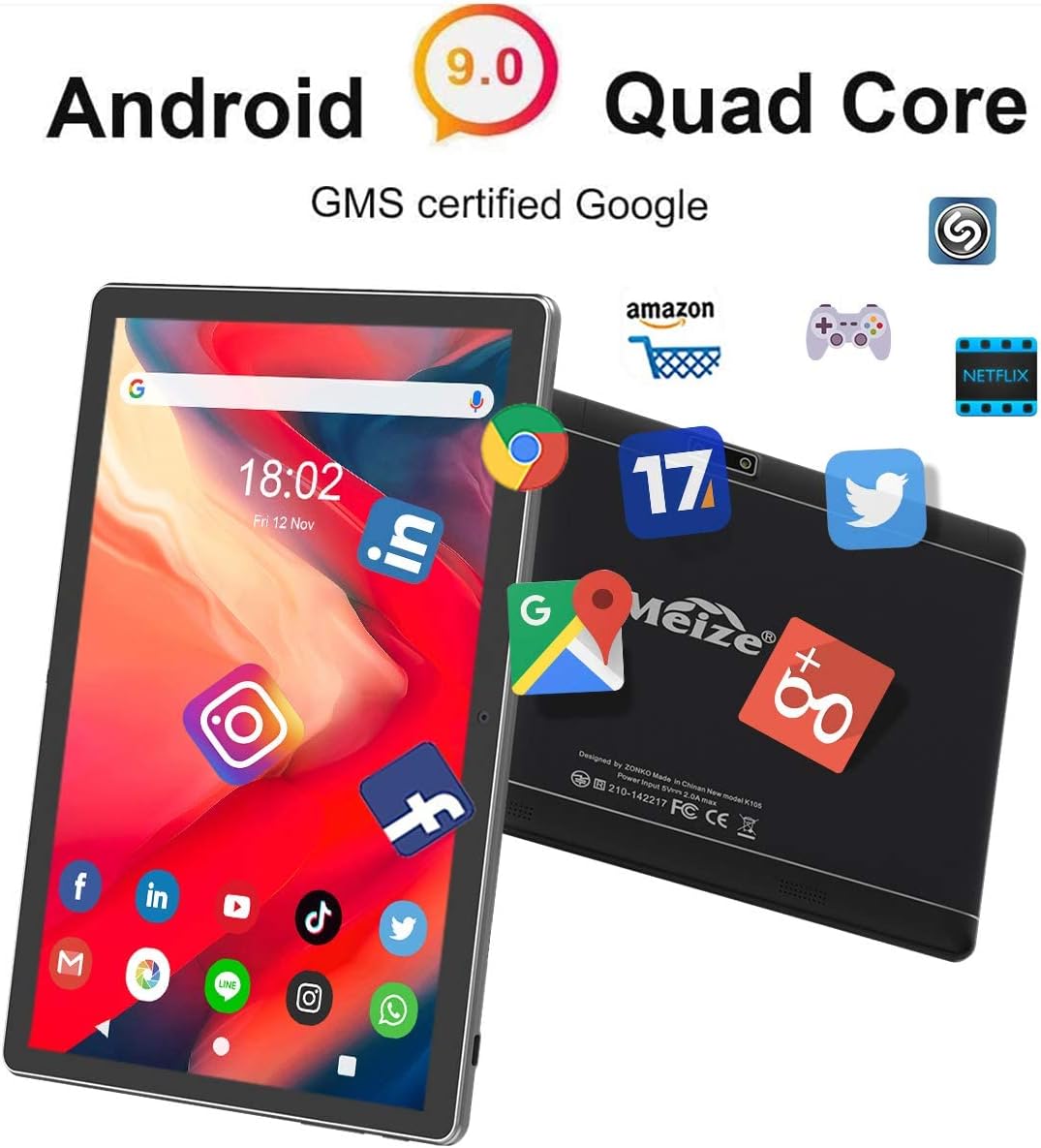
Image: The MEIZE tablet displaying its home screen filled with various application icons, demonstrating the user interface.
5.2 Připojení k Wi-Fi
- Přejít na Nastavení > Síť a internet > Wi-Fi.
- Zapněte Wi-Fi.
- Vyberte ze seznamu požadovanou síť Wi-Fi.
- Pokud se zobrazí výzva, zadejte heslo a poté klepněte na Připojit.
5.3 Párování Bluetooth
- Přejít na Nastavení > Připojená zařízení > Bluetooth.
- Zapněte Bluetooth.
- Ujistěte se, že zařízení, které chcete spárovat, je v režimu párování.
- Vyberte zařízení ze seznamu dostupných zařízení a dokončete párování podle pokynů na obrazovce.
5.4 Making Calls and Using Cellular Data
With inserted SIM cards, your tablet can function as a large phone. Use the pre-installed Phone app to make calls and the Messages app for SMS. Ensure mobile data is enabled in Nastavení > Síť a internet > Mobilní síť to use cellular data.
5.5 Použití kamery
Open the Camera app from your home screen or app drawer. You can switch between front and rear cameras, select photo or video mode, and adjust basic settings like flash or timer.
5.6 Správa úložiště
Your tablet comes with 32GB of internal storage. You can expand this by inserting a microSD card (up to 128GB). To view využití úložiště, přejděte na Nastavení > Skladování.
5.7 Installing and Uninstalling Apps
- Instalovat: Otevřete aplikaci Obchod Google Play, vyhledejte požadovanou aplikaci a klepněte na Instalovat.
- Odinstalovat: Přejít na Nastavení > Aplikace a oznámení, vyberte aplikaci a klepněte na Odinstalovat. Alternatively, long-press the app icon on the home screen or app drawer and drag it to "Uninstall."

Image: A person holding the MEIZE tablet, watching a video, demonstrating its use for entertainment.
6. Údržba
6.1 Čištění
K čištění obrazovky a těla tabletu používejte měkký hadřík, který nepouští vlákna. Nepoužívejte agresivní chemikálie ani abrazivní materiály, které by mohly poškodit povrch.
6.2 Péče o baterii
To prolong battery life, avoid exposing the tablet to extreme temperatures. It is recommended to keep the battery charge between 20% and 80% for optimal longevity. Avoid completely draining the battery frequently.
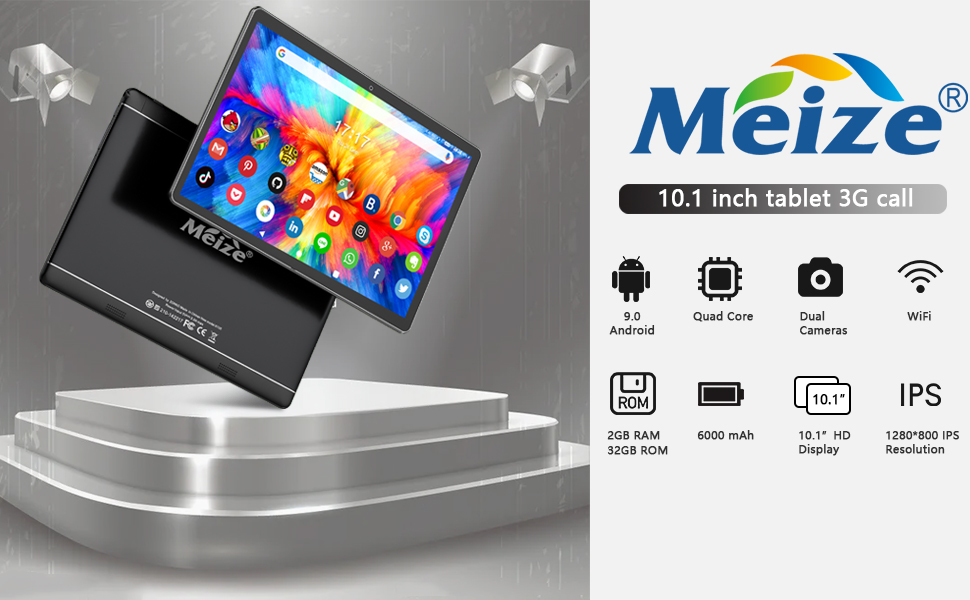
Image: Graphic illustrating the 6000mAh battery capacity of the MEIZE tablet, highlighting its endurance for video, browsing, and e-book reading.
6.3 Aktualizace softwaru
Pravidelně kontrolujte aktualizace systému, abyste se ujistili, že váš tablet má nejnovější funkce a bezpečnostní záplaty. Přejděte na Nastavení > Systém > Moderní > Aktualizace systému.
6.4 Backup Data
Pravidelně zálohujte důležitá data do cloudové služby nebo na externí úložné zařízení, abyste předešli jejich ztrátě.
7. Řešení problémů
Pokud máte s tabletem problémy, vyzkoušejte následující řešení:
- Tablet se nezapne: Ujistěte se, že je tablet nabitý. Před opětovným zapnutím jej připojte k nabíječce alespoň na 30 minut.
- Tablet je pomalý nebo nereaguje: Close unused applications. Restart the tablet. Clear cache data from apps in Nastavení > Aplikace a oznámení.
- Problémy s připojením Wi-Fi: Ujistěte se, že je povolena Wi-Fi. Restartujte Wi-Fi router. V nastavení tabletu zapomeňte na síť a znovu se připojte.
- Pády aplikací: Ensure the app is updated to the latest version. Clear the app's cache and data in Nastavení > Aplikace a oznámeníV případě potřeby aplikaci znovu nainstalujte.
- Obnovení továrního nastavení (poslední možnost): Pokud problémy přetrvávají, bude možná nutné provést obnovení továrního nastavení. Warning: This will erase all data on your tablet. Přejít na Nastavení > Systém > Moderní > Obnovit možnosti > Vymazat všechna data (obnovení továrního nastavení).
V případě problémů, které se vám nepodaří vyřešit pomocí těchto kroků, kontaktujte prosím zákaznickou podporu.
8. Specifikace
Key technical specifications for the MEIZE 10-inch Android Tablet K105:
| Funkce | Specifikace |
|---|---|
| Velikost displeje | 10.1 palce |
| Rozlišení obrazovky | 1280 x 800 (HD) |
| Operační systém | Android 9 Pie |
| Procesor | Čtyřjádrový 1.3 GHz |
| BERAN | 2 GB |
| Interní úložiště | 32 GB |
| Rozšiřitelné úložiště | Až 128 GB (microSD) |
| Zadní kamera | 5 MP |
| Přední kamera | 2 MP |
| Kapacita baterie | 6000 XNUMX mAh |
| Bezdrátové připojení | Wi-Fi (802.11bgn), Bluetooth, GPS |
| Mobilní podpora | Dual SIM (2G/3G) |
| Hmotnost položky | 1.85 libry |
| Rozměry produktu | 9.84 x 6 x 0.5 palce |
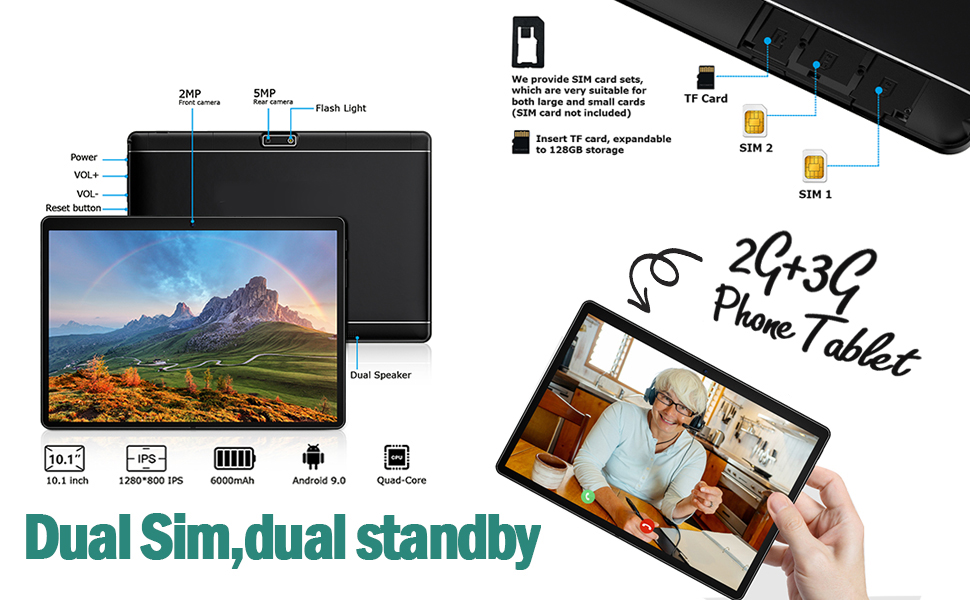
Image: A visual summary of the MEIZE tablet's technical specifications, including processor, memory, camera, and battery details.
9. Záruka a podpora
MEIZE provides a 1-year return and exchange service for this product. If you have any questions or require assistance, please contact our customer service team. We are available to assist you 24 hours a day.
For customer service inquiries, please refer to the contact information provided with your purchase or visit the official MEIZE support webmísto.


