Konec produktuview
The ASUS ROG Strix G17 is a high-performance gaming laptop designed for serious gaming and multitasking. It features advanced components and intelligent cooling solutions to deliver an exceptional user experience.
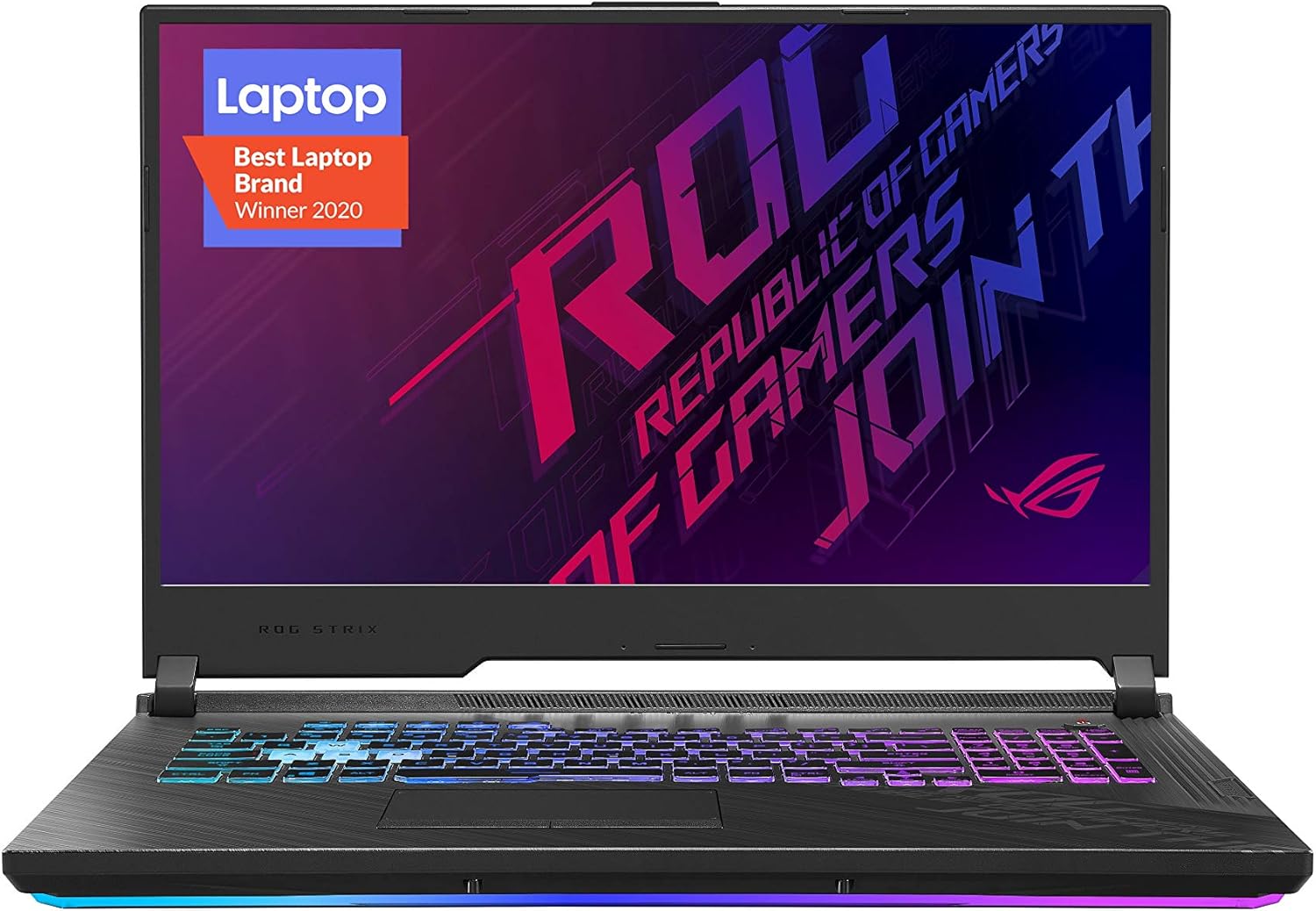
Obrázek: Přední strana view herního notebooku ASUS ROG Strix G17, showcasinjeho displej a klávesnici.
Klíčové vlastnosti
- NVIDIA GeForce RTX 2070 8GB GDDR6 with ROG Boost: Delivers powerful graphics performance for demanding games and applications.
- 10th Gen Intel Core i7-10750H Processor: Provides high processing power for smooth multitasking and gaming.
- 17.3" 144Hz 3ms Full HD IPS-Type Display: Offers a fast and vibrant visual experience with a high refresh rate.
- 16GB DDR4 3200MHz RAM: Ensures efficient memory performance for various tasks.
- 512GB PCIe NVMe M.2 SSD: Provides fast storage and quick boot times.
- Windows 10 Home: Pre-installed operating system for immediate use.
- Gig+ Wi-Fi 6 (802.11ax): Offers ultra-fast wireless connectivity.
Nastavení
Počáteční zapnutí
Before first use, ensure the laptop is connected to the power adapter.
- Připojte napájecí adaptér do vstupního portu napájení notebooku.
- Zapojte napájecí adaptér do elektrické zásuvky.
- Otevřete víko notebooku.
- Press the power button located on the top-right of the keyboard deck to turn on the laptop.
- Follow the on-screen instructions to complete the Windows 10 setup process. This includes setting up your user account, network connection, and privacy settings.
Připojení periferií
The ROG Strix G17 provides various ports for connecting external devices.

Obrázek: Boční view notebooku, se zvýrazněním USB a audio portů.
- USB porty: Connect USB devices such as mice, keyboards, external hard drives, or USB flash drives.
- Port HDMI: Pro rozšířené zobrazení připojte externí monitor nebo televizor.
- Audio jack: Připojte sluchátka nebo externí reproduktory.
- Ethernetový port: Pro stabilní přístup k internetu se připojte k pevné síti.
Obsluha notebooku
Klávesnice a touchpad
The laptop features a full-sized keyboard with customizable RGB lighting and a precision touchpad.

Obrázek: Shora dolů view klávesnice a touchpadu notebooku.
- Funkční klávesy (Fn): Use in combination with F1-F12 keys for quick access to system functions like volume control, brightness adjustment, and Wi-Fi toggle.
- ROG Key: Dedicated key to launch the ASUS Armoury Crate software for system monitoring and performance tuning.
- Gesta touchpadu: Supports multi-touch gestures for navigation, zooming, and scrolling. Refer to Windows settings for customization.
Nastavení zobrazení
Optimize your visual experience with the 17.3" 144Hz display.
- Obnovovací frekvence: The display is set to 144Hz by default for smooth visuals. You can verify or change this in Windows Display Settings.
- Jas: Adjust screen brightness using the Fn + F7 (decrease) and Fn + F8 (increase) keys.
- Externí displej: To connect an external monitor, use the HDMI port. Press Fn + F9 to cycle through display modes (PC screen only, Duplicate, Extend, Second screen only).
Údržba
Čištění
- Obrazovka: Použijte měkký hadřík, který nepouští vlákna dampOpláchněte vodou nebo čističem obrazovek. Vyhněte se agresivním chemikáliím.
- Klávesnice a šasi: Použijte měkký, suchý hadřík. Na odolnou špínu použijte lehceamp cloth can be used, ensuring no liquid enters the components.
- Průduchy: Periodically clean the air vents with compressed air to prevent dust buildup, which can affect cooling performance.
Aktualizace softwaru
Pravidelně aktualizujte operační systém a ovladače, abyste zajistili optimální výkon a zabezpečení.
- Aktualizace systému Windows: Access Windows Update settings to check for and install the latest operating system updates.
- Aktualizace ovladačů: Use the pre-installed ASUS Armoury Crate or MyASUS application to check for and install the latest drivers for your hardware components, including graphics drivers.
Péče o baterie
Pro prodloužení životnosti baterie:
- Vyhněte se častému úplnému vybíjení baterie.
- Pokud notebook delší dobu nepoužíváte, skladujte jej na chladném a suchém místě.
- Pro dlouhodobé skladování nabijte baterii na přibližně 50–60 %.
Odstraňování problémů
Běžné problémy a řešení
| Problém | Řešení |
|---|---|
| Notebook se nezapne | Ensure the power adapter is securely connected to both the laptop and a working power outlet. Try a different outlet. If battery is completely drained, allow it to charge for a few minutes before attempting to power on. |
| Žádný displej na obrazovce | Check screen brightness (Fn + F8). Ensure no external monitor is set as the primary display (Fn + F9). Restart the laptop. |
| Problémy s připojením Wi-Fi | Check if Wi-Fi is enabled (Fn + F10). Restart your router/modem. Update Wi-Fi drivers via MyASUS or ASUS support webmísto. |
| Přehřívání během používání | Ensure air vents are clear and unobstructed. Use the laptop on a hard, flat surface. Adjust fan profiles in Armoury Crate. Consider cleaning internal components if dust buildup is suspected (professional service recommended). |
Obnova systému
In case of severe software issues, you may need to perform a system recovery.
- Windows Recovery Environment: Access through Windows Settings > Update & Security > Recovery. Options include Reset this PC (keep files or remove everything) or Advanced startup for more recovery tools.
- ASUS Recovery Partition: Some models may have a dedicated recovery partition. Consult ASUS support for specific instructions if needed.
Specifikace
| Funkce | Detail |
|---|---|
| Model | G712LW-ES74 |
| Procesor | 10th Gen Intel Core i7-10750H (12M Cache, up to 5.0GHz) |
| Grafika | NVIDIA GeForce RTX 2070 8GB GDDR6 s technologií ROG Boost |
| Zobrazit | 17.3" 144Hz 3ms Full HD (1920x1080) IPS-Type |
| BERAN | 16GB DDR4 3200 MHz |
| Skladování | 512GB PCIe NVMe M.2 SSD |
| Operační systém | Windows 10 Home |
| Bezdrátové připojení | Gig+ Wi-Fi 6 (802.11ax) |
| Rozměry (DxŠxV) | 15.7 x 11.6 x 1 palce |
| Hmotnost | 6.28 libry |
Záruka a podpora
ASUS provides warranty coverage for its products. For detailed warranty information, please refer to the warranty card included with your product or visit the official ASUS support webmísto.
- Online podpora: For drivers, manuals, FAQs, and troubleshooting guides, visit the Podpora ASUS Webmísto.
- Kontaktujte podporu: If you require further assistance, you can contact ASUS customer service through their website or the MyASUS application.
- Aplikace MyASUS: The pre-installed MyASUS application offers system diagnostics, software updates, and direct access to customer support.


