Zavedení
This manual provides detailed instructions for the setup, operation, customization, and maintenance of your Xbox Elite Series 2 Wireless Controller. Designed for enhanced performance and adaptability, this controller offers a professional-grade gaming experience on Xbox One, Xbox Series X|S, and Windows 10 devices.
Obsah balení
- Xbox Elite Series 2 Wireless Controller
- Set of 6 thumbsticks (2 standard, 2 classic, 1 tall, 1 wide dome)
- Set of 4 paddles (2 medium, 2 mini)
- 2 D-pads (standard, faceted)
- Thumbstick-adjustment tool
- Nabíjecí dok
- USB-C kabel
- Přepravní pouzdro
Nastavení
Počáteční nabíjení
Before first use, fully charge your controller. The controller features a built-in rechargeable battery with up to 40 hours of battery life, depending on usage and accessory attachment.
- Používání nabíjecího doku: Place the controller on the charging dock. The dock can be placed inside the carrying case or used externally.
- Přímé připojení USB-C: Connect the included USB-C cable directly to the controller and a power source (e.g., Xbox console, PC, or USB wall adapter).

The Xbox Elite Series 2 Wireless Controller can be charged using the included charging dock or directly via the USB-C cable.
Připojení k vašemu zařízení
The Xbox Elite Series 2 controller supports multiple connection methods:
- Xbox Wireless: Press the Pair button on the controller and your Xbox console. The Xbox button on the controller will flash and then become solid when connected.
- Bluetooth: Hold the Pair button on the controller for 3 seconds to enter Bluetooth pairing mode. On your Windows 10 PC or other Bluetooth-enabled device, go to Bluetooth settings and select the controller to pair.
- USB-C kabel: Connect the controller directly to your Xbox console or PC using the included USB-C cable for a wired connection.
Obsluha ovladače
Vyměnitelné komponenty
The Elite Series 2 controller features interchangeable components to adapt to your play style:
- Paletky: Easily swap between different thumbstick shapes and heights (standard, classic, tall, wide dome) by pulling them off and snapping new ones into place.
- D-pady: Choose between the standard cross-shaped D-pad or the faceted D-pad for precise directional input.
- Pádla: Attach up to four paddles to the back of the controller. These paddles can be mapped to any button function, allowing for advanced inputs without removing your thumbs from the thumbsticks.

The controller's rear features four customizable paddles for additional input options.

Jasné view of the back of the controller, showing where the paddles attach and the trigger lock switches.
Hair Trigger Locks
Activate the hair trigger locks on the back of the controller to reduce trigger travel, allowing for faster firing in games. There are three settings for each trigger (RT and LT).
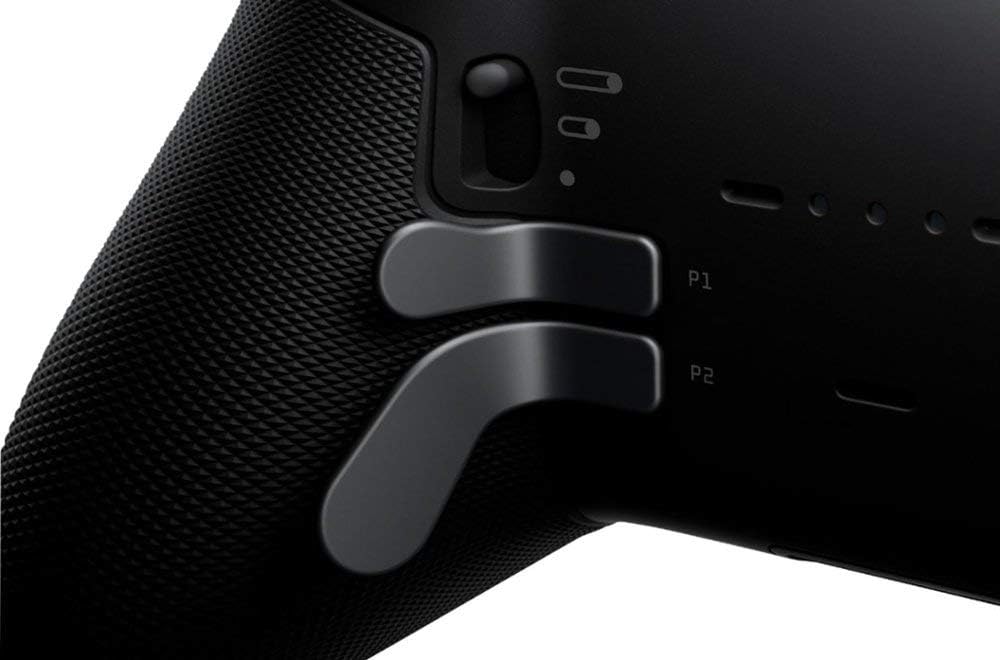
The trigger locks offer three distinct positions to adjust the trigger pull distance.
Přizpůsobení a personalizace
The Xbox Accessories App (available on Xbox consoles and Windows 10) provides extensive customization options for your Elite Series 2 controller:
- Mapování tlačítek: Remap any button, including the paddles, to suit your preferences.
- Stick Sensitivity: Adjust the sensitivity curves of the thumbsticks for precise control.
- Trigger Dead Zones: Fine-tune the activation and deactivation points of the triggers.
- Ovládání vibrací: Adjust the intensity of the controller's vibration motors.
- Profile Řízení: Vytvořte a uložte více vlastních profesionálůfiles for different games or play styles. You can store up to three profiles directly on the controller and switch between them using the Profile tlačítko.
Thumbstick Tension Adjustment
Use the included thumbstick-adjustment tool to change the tension of each thumbstick. There are three tension settings (low, medium, high) to provide varying levels of resistance.
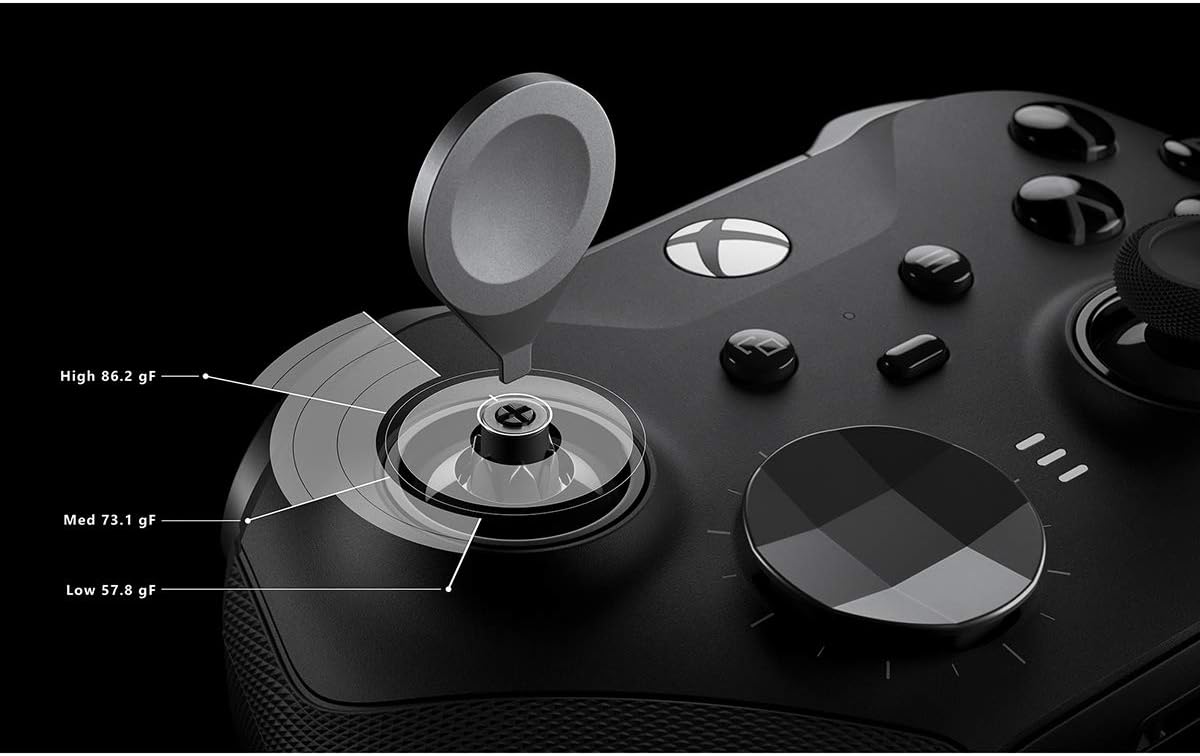
The thumbstick tension can be adjusted to three distinct levels using the provided tool.

Thumbstick set to low tension.

Thumbstick set to medium tension.

Thumbstick set to high tension.

The tall thumbstick option provides increased precision for aiming.
Údržba
Proper care will extend the life and performance of your controller:
- Čištění: K čištění ovladače používejte měkký, suchý hadřík. Nepoužívejte abrazivní čisticí prostředky ani rozpouštědla.
- Skladování: When not in use, store the controller and its components in the included carrying case to protect them from dust and damage.
- Péče o baterie: To maintain battery health, avoid fully discharging the battery frequently. Recharge the controller regularly.

The included carrying case provides secure storage for the controller and its accessories.

The durable carrying case protects the controller during transport and storage.
Odstraňování problémů
Problémy s připojením
- Ujistěte se, že je ovladač nabitý.
- Verify that your Xbox console or PC's wireless/Bluetooth is enabled.
- Try re-pairing the controller with your device.
- If using a wired connection, ensure the USB-C cable is securely connected to both the controller and the device.
Button or Stick Responsiveness
- Ujistěte se, že se kolem tlačítek nebo páček neusazují žádné nečistoty.
- Check the controller's calibration in the Xbox Accessories App.
- Update the controller's firmware via the Xbox Accessories App.
Aktualizace firmwaru
Regularly check for and install firmware updates for your controller using the Xbox Accessories App. Updates can improve performance, add features, and resolve issues.
Specifikace
| Funkce | Detail |
|---|---|
| Číslo modelu | FST-00011 |
| Rozměry (D x Š x V) | 19.69 x 19.66 x 8.76 cm (7.75 x 7.74 x 3.45 palce) |
| Hmotnost | 800 g (1.76 lb) |
| Konektivita | Xbox Wireless, Bluetooth, USB-C |
| Životnost baterie | Až 40 hodin (nabíjecí) |
| Kompatibilita | Xbox One, Xbox Series X|S, Windows 10 |
| Datum vydání | 30. dubna 2020 |
Záruka a podpora
The Xbox Elite Series 2 Wireless Controller typically comes with a manufacturer's warranty. Based on common warranty periods, a 3-month warranty from Microsoft is generally provided for this product. Please retain your proof of purchase for warranty claims.
For technical support, troubleshooting assistance, or warranty service, please visit the official Xbox Support website or contact Xbox customer service. Refer to the official Xbox website for the most current support information and contact details.


