1. Úvod
This manual provides essential information for setting up, configuring, and maintaining your GIGABYTE Z590 AORUS Xtreme motherboard. Please read these instructions carefully before proceeding with installation to ensure proper functionality and to prevent damage to your components.
2. Konec produktuview
The GIGABYTE Z590 AORUS Xtreme is a high-performance E-ATX motherboard designed for 11th and 10th Gen Intel Core Series Processors. It features robust power delivery, advanced thermal solutions, and extensive connectivity options.

Obrázek 2.1: Shora dolů view of the GIGABYTE Z590 AORUS Xtreme motherboard, showcasing the CPU socket, DIMM slots, and heatsinks.
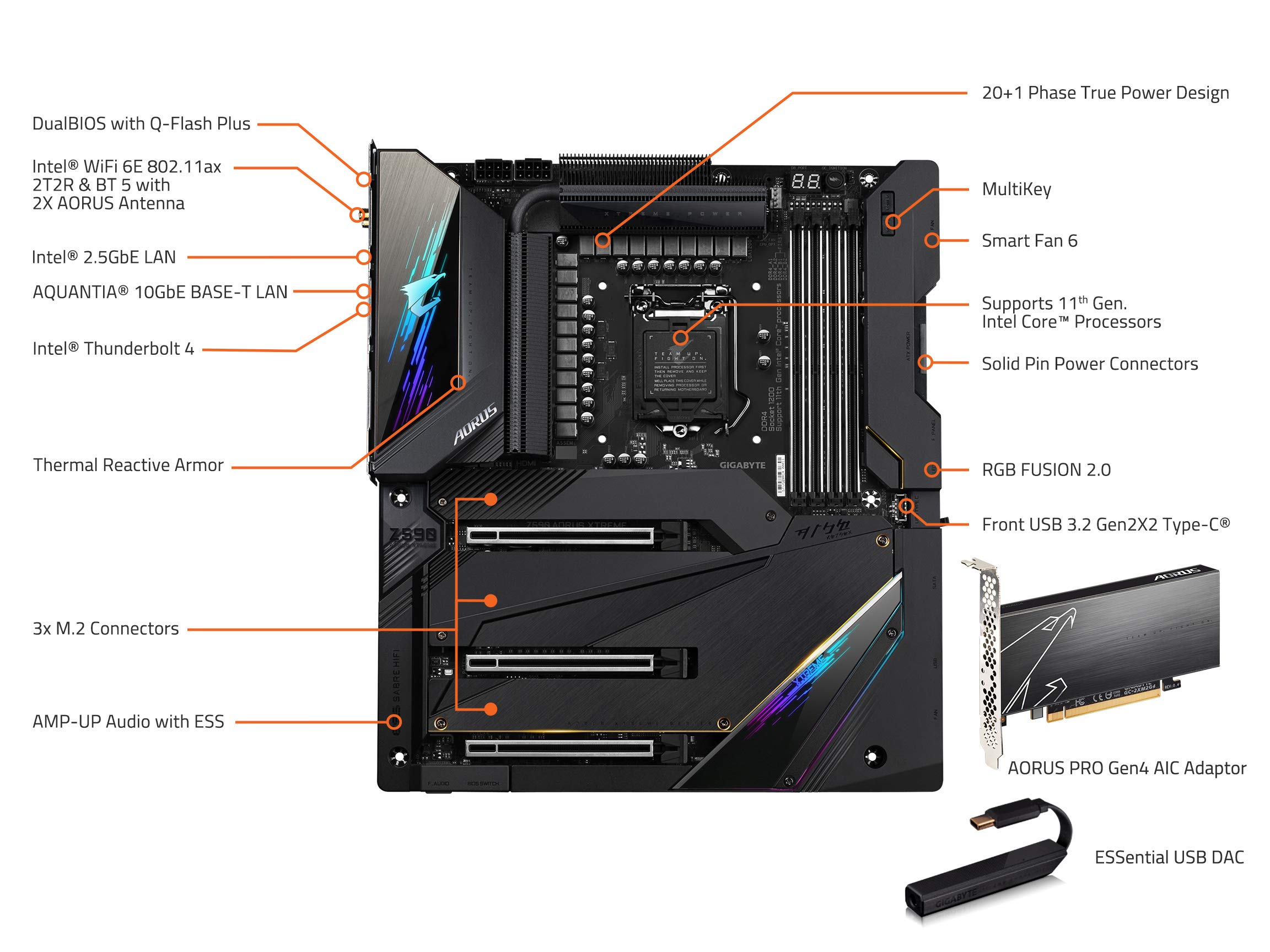
Obrázek 2.2: Detailní view of the motherboard with key components labeled, including the CPU socket, DDR4 DIMM slots, M.2 connectors, and various headers.

Obrázek 2.3: Úhlové view highlighting the VRM heatsinks and the integrated I/O shield design.
3. Nastavení
3.1 Vybalení a kontrola
Carefully remove the motherboard from its packaging. Inspect for any visible damage. Ensure all accessories listed in the package contents are present.
3.2 Instalace komponent
Before installing any components, ensure your system is powered off and unplugged. Wear an anti-static wrist strap to prevent electrostatic discharge (ESD) damage.
3.2.1 Instalace CPU
- Otevřete páčku patice procesoru.
- Zarovnejte procesor s paticí a ujistěte se, že zlatý trojúhelník na procesoru odpovídá trojúhelníku na patici.
- Opatrně vložte procesor do patice, aniž byste na něj tlačili.
- Zavřete páčku patice, abyste zajistili procesor.
3.2.2 Instalace RAM
- Otevřete klipy na obou koncích slotů DIMM.
- Zarovnejte zářez na paměťovém modulu DDR4 se zářezem ve slotu DIMM.
- Pevně zatlačte na oba konce paměťového modulu, dokud klipsy nezacvaknou na místo.
3.2.3 Instalace úložného zařízení (M.2 SSD)
The motherboard supports multiple M.2 NVMe PCIe 4.0/3.0 x4 SSDs. Refer to Figure 2.2 for M.2 slot locations.
- Remove the M.2 heatsink cover.
- Vložte disk M.2 SSD do slotu pod úhlem 30 stupňů.
- Gently push down the SSD and secure it with the provided screw or standoff.
- Znovu nasaďte kryt chladiče M.2.
3.2.4 Instalace grafické karty (GPU)
- Otevřete pojistku na slotu PCIe x16.
- Align the graphics card with the slot and press down firmly until it is fully seated and the clip locks.
- Připevněte grafickou kartu k šasi pomocí šroubů.
3.3 Připojení napájení
Connect the 24-pin ATX main power connector and the 8-pin + 8-pin ATX 12V power connectors from your power supply to the motherboard. Ensure all connections are secure.
4. Provoz
4.1 První spuštění
After assembling all components and connecting peripherals, power on your system. The motherboard will perform a Power-On Self-Test (POST). If successful, the system will proceed to boot from your installed operating system or prompt for BIOS setup.
4.2 Konfigurace BIOSu
Chcete-li vstoupit do nastavení BIOSu, stiskněte DEL key during the POST process. The BIOS allows you to configure system settings such as boot order, CPU/memory frequencies, fan speeds, and more. Refer to the GIGABYTE website for detailed BIOS manuals and updates.
4.3 Instalace ovladače
After installing your operating system, install the necessary drivers for the motherboard components. These include chipset drivers, LAN drivers, Wi-Fi drivers, audio drivers, and any other specific utility drivers. Drivers can be found on the GIGABYTE official webstránky pro váš konkrétní model základní desky.
5. Údržba
5.1 Čištění
Regularly clean your computer system to prevent dust buildup, which can lead to overheating. Use compressed air to remove dust from heatsinks, fans, and other components. Ensure the system is powered off and unplugged before cleaning.
5.2 Aktualizace systému BIOS
Pravidelně kontrolujte GIGABYTE website for BIOS updates. BIOS updates can improve system stability, add support for new hardware, and fix bugs. Follow the instructions provided by GIGABYTE carefully when performing a BIOS update to avoid system damage.
6. Řešení problémů
Tato část se zabývá běžnými problémy, se kterými se můžete setkat.
- Bez napájení: Ensure all power cables (24-pin ATX, 8-pin ATX 12V) are securely connected to the motherboard and power supply. Verify the power supply switch is on.
- Bez displeje: Check that the graphics card is properly seated in its PCIe slot and connected to the power supply (if required). Ensure the monitor cable is securely connected to the graphics card and the monitor. Try reseating RAM modules.
- Nestabilita/pády systému: This can be caused by various factors. Check CPU and GPU temperatures. Verify RAM is correctly installed and compatible. Ensure drivers are up to date. Consider resetting BIOS to default settings.
- Spouštěcí zařízení nenalezeno: Check SATA/M.2 cable connections for your storage devices. Verify boot order in BIOS. Ensure the operating system is properly installed on the selected boot drive.
7. Specifikace
Key specifications for the GIGABYTE Z590 AORUS Xtreme Motherboard:
| Funkce | Specifikace |
|---|---|
| Zásuvka CPU | LGA 1200 |
| Kompatibilní procesory | Procesory Intel Core 11. a 10. generace |
| Čipová sada | Intel Z590 |
| Typ RAM | DDR4 (dvoukanálová, bez ECC, bez vyrovnávací paměti) |
| Sloty DIMM | 4 |
| Rychlost paměti | Up to 3200 MHz (O.C. support) |
| Skladování | Triple Ultra-Fast NVMe PCIe 4.0*/3.0 x4 M.2 |
| LAN | AQUANTIA 10GbE BASE-T LAN, Intel 2.5GbE LAN |
| Bezdrátový | Intel WiFi 6E 802.11ax 2T2R & BT 5 |
| USB porty | USB 3.2 Gen2X2 Type-C, USB 3.2 Gen2, USB 3.2 Gen1, USB 2.0 |
| Blesk | Intel Thunderbolt 4 Onboard |
| Zvuk | SNR 127dB AMP-UP Audio with High-End ESS SABRE 9018K2M DAC |
| Form Factor | E-ATX |
| Rozměry (DxŠxV) | 14.96 x 12.36 x 5.12 palce |
| Hmotnost | 4.76 libry |
8. Informace o záruce
GIGABYTE motherboards typically come with a limited manufacturer's warranty. The duration and terms of the warranty may vary by region and retailer. Please retain your proof of purchase for warranty claims. For detailed warranty information, visit the official GIGABYTE webnebo kontaktujte svého místního prodejce.
9. Podpora
For further assistance, technical support, or to download the latest drivers and BIOS updates, please visit the official GIGABYTE support webmísto:
https://www.gigabyte.com/support
You may also contact GIGABYTE customer service directly through their webstránky pro konkrétní dotazy.


