1. Úvod
The HUAWEI B311-221 4G LTE WiFi Router is designed to provide high-speed internet access. It supports 4G LTE CAT4 with download speeds up to 150Mbps and Wi-Fi speeds up to 300Mbps (802.11n). This router allows you to share a 3G/4G network connection with up to 32 Wi-Fi enabled devices, including tablets, mobile phones, and laptops. Its plug-and-play functionality makes it suitable for various environments where traditional broadband internet may not be available. The HUAWEI HiLink app offers convenient management of your network and connected devices.
2. Obsah balení
Pečlivě zkontrolujte obsah balení. Pokud některá položka chybí nebo je poškozena, kontaktujte svého prodejce.
- 1 x HUAWEI B311-221 4G LTE WiFi Router
- 1 x ethernetový kabel
- 1 x napájecí adaptér
- 1 x Průvodce rychlým startem
3. Konec produktuview
3.1 Přední View

This image shows the front of the HUAWEI B311-221 router, featuring a clean white design with indicator lights for power, network status, Wi-Fi, and signal strength. The HUAWEI logo is visible at the bottom center.
3.2 Zadní View a porty
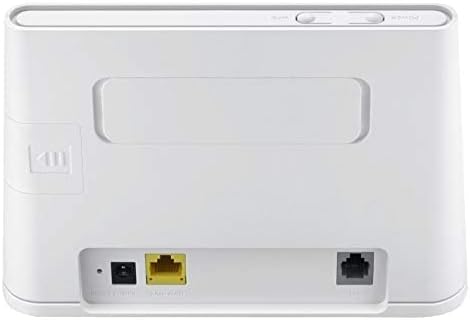
Zadní část view of the router displays the various ports for connectivity. These include the power input, a Gigabit Ethernet LAN/WAN port (yellow), and an RJ11 port for voice services.
3.3 Slot pro SIM kartu

This image highlights the integrated SIM card slot located on the side of the router, which is essential for 4G LTE connectivity. The slot is shown open, indicating where the SIM card should be inserted.
3.4 Kontrolky

A close-up of the router's top panel, showing the indicator lights for Power, Wi-Fi, Network Mode, and Signal Strength. These lights provide visual feedback on the router's operational status.
4. Pokyny k nastavení
Follow these steps to set up your HUAWEI B311-221 router:
- Vložte SIM kartu: Locate the SIM card slot on the side of the router. Carefully insert your standard-sized 3G/4G SIM card into the slot until it clicks into place. Ensure the SIM card is activated by your service provider.
- Připojte napájení: Connect the power adapter to the router's power input port and then plug it into a power outlet. The router will automatically power on.
- Zapnutí: Press the Power button on the router. The Power indicator light should turn on.
- Internetové připojení: Wait for the Network Mode and Signal Strength indicator lights to stabilize. A solid blue or green light typically indicates a successful 4G LTE connection.
- Připojit zařízení:
- Wi-Fi: On your device (laptop, phone, tablet), search for available Wi-Fi networks. Select the network name (SSID) printed on the label at the bottom of your router. Enter the Wi-Fi password (Key) also found on the label.
- Ethernet: For wired connections, connect an Ethernet cable from the router's LAN/WAN port to your computer or other network device.
- Rozhraní pro správu přístupu: Otevřete a web browser on a connected device and enter the default IP address (usually 192.168.8.1) to access the router's web management page. Log in using the default username and password (found on the router label or in the Quick Start Guide).
- HUAWEI HiLink App: For easier management, download the HUAWEI HiLink app from your device's app store. Connect your phone to the router's Wi-Fi and use the app to monitor network status, manage connected devices, and configure settings.
5. Návod k obsluze
5.1 Připojení zařízení
The router supports up to 32 Wi-Fi devices simultaneously. Ensure your devices are within the Wi-Fi coverage area for optimal performance.

This diagram illustrates the Wi-Fi coverage provided by the HUAWEI B311-221 router within a typical home environment, showing multiple devices connected wirelessly.
5.2 Přístup k internetu
Once connected, devices can access the internet via the 4G LTE network. The router provides high-speed data for streaming, browsing, and online activities.

This image demonstrates the router's capability to deliver 4G internet at speeds up to 150Mbps to a connected laptop, facilitating fast downloads and online activities.
5.3 Using the HUAWEI HiLink App
The HUAWEI HiLink app allows you to:
- Check network strength and status.
- Read SMS messages received on the router's SIM card.
- Set data usage limits.
- View and manage all connected devices.
- Modify Wi-Fi settings (SSID, password).
Ensure your smartphone is connected to the router's Wi-Fi network to use the app.
6. Údržba
To ensure optimal performance and longevity of your HUAWEI B311-221 router, follow these maintenance guidelines:
- Umístění: Umístěte router na otevřené místo, mimo dosah překážek, velkých kovových předmětů a dalších elektronických zařízení, která by mohla způsobovat rušení.
- Čištění: K čištění routeru používejte měkký, suchý hadřík. Nepoužívejte tekuté čisticí prostředky ani aerosoly.
- Větrání: Ujistěte se, že ventilační otvory routeru nejsou blokovány, aby nedošlo k přehřátí.
- Aktualizace firmwaru: Pravidelně kontrolujte aktualizace firmwaru prostřednictvím routeru web management interface or the HUAWEI HiLink app. Keeping the firmware updated ensures the best performance and security.
- Cyklus napájení: If you experience minor issues, try power cycling the router by unplugging it from the power outlet for 10 seconds and then plugging it back in.
7. Řešení problémů
Pokud narazíte na problémy s routerem, podívejte se na následující běžné problémy a jejich řešení:
| Problém | Možné řešení |
|---|---|
| Žádné připojení k internetu |
|
| Pomalá rychlost Wi-Fi |
|
| Cannot access router management page |
|
| Signál Wi-Fi často klesá |
|
8. Specifikace
| Funkce | Detail |
|---|---|
| Značka | HUAWEI |
| Název modelu | B311-221 |
| Číslo modelu položky | B311-221 |
| Rozměry produktu | 18.1 x 12.6 x 3.6 cm |
| Hmotnost položky | 218 gramů |
| Barva | Bílý |
| Technologie připojení | Wi-Fi, 4G LTE |
| Standard bezdrátové komunikace | 802.11 XNUMX n |
| Třída frekvenčního pásma | Jedno pásmo (2.4 GHz) |
| Maximální rychlost Wi-Fi | Až 300 Mbps |
| Max 4G LTE Speed | Až 150 Mbps |
| Ethernetové porty | 1 x Gigabit Ethernet LAN/WAN port |
| Hlasový port | 1x port RJ11 |
| Slot pro SIM kartu | Integrated (Standard SIM) |
| Speciální funkce | WPS, HUAWEI HiLink App Management |
| Kompatibilní zařízení | Smart TV, Tablet, Personal Computer, Laptops, Phones, Gaming Devices |
| Baterie jsou součástí dodávky | Žádný |
| Operační systém (kompatibilita) | Windows (and other OS via Wi-Fi/Ethernet) |
9. Informace o záruce
This HUAWEI product is covered by a limited warranty. The specific terms and duration of the warranty may vary depending on your region and local regulations. Please refer to the warranty card included in your product package or visit the official HUAWEI webPodrobné informace o záruce naleznete na webových stránkách. Uschovejte si doklad o koupi pro případ reklamace.
10. Podpora
For technical support, product inquiries, or service requests, please contact HUAWEI customer support through one of the following methods:
- Online podpora: Visit the official HUAWEI support webweb s nejčastějšími dotazy, průvodci řešením problémů a možnostmi kontaktování.
- HUAWEI HiLink App: Use the support features available within the HiLink application.
- Servisní horká linka: Refer to your Quick Start Guide or HUAWEI's official website for regional service hotline numbers.
When contacting support, please have your product model (B311-221) and serial number ready.