Zavedení
This manual provides detailed instructions for the setup, operation, maintenance, and troubleshooting of your Amcrest 5Series 4K NVR 16-Channel NV5216 Network Video Recorder. Please read this manual thoroughly before using the device to ensure proper functionality and safety.

Image: Amcrest 5Series 4K NVR NV5216, showcasing its 4K UHD resolution, 16 channels, H.265 compression, 20TB HDD capacity, two-way talk, 320Mbps bandwidth, HDMI output, and plug-and-play installation.
1. Nastavení
1.1 Obsah balení
Ověřte, zda jsou v balení přítomny všechny komponenty:
- Amcrest 5Series 4K NVR (NV5216)
- Napájecí adaptér
- USB myš
- Síťový kabel
- Rychlý průvodce
- Mounting Screws for Hard Drive (Hard Drive Not Included)
1.2 Překročení hardwaruview
Familiarize yourself with the ports and indicators on the NVR.
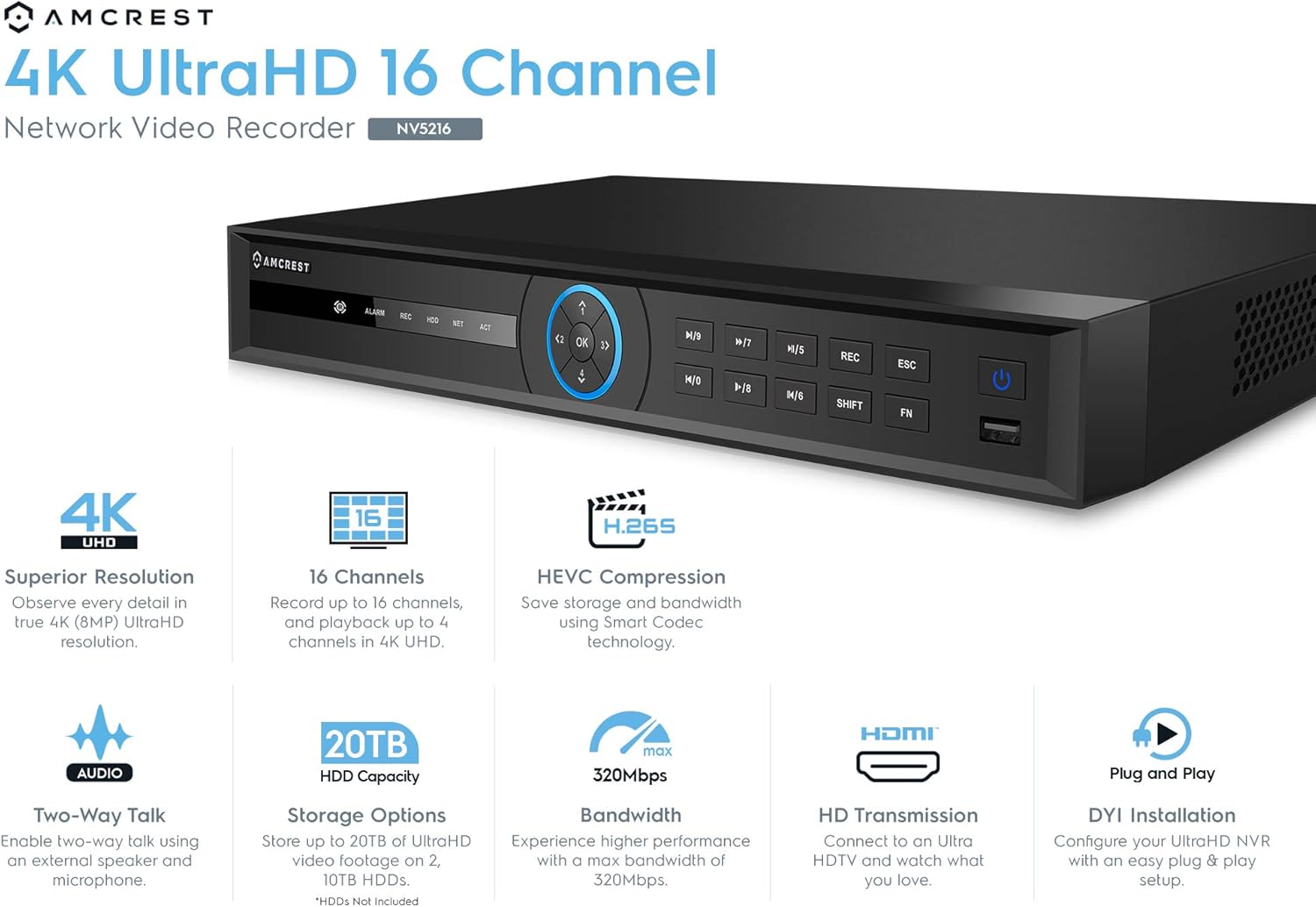
Image: Front panel of the Amcrest NV5216 NVR, showing the LED indicator, control panel buttons (OK, navigation, M/7, M/8, REC, ESC, SHIFT, FN), USB 3.0 port, and On/Off power button.
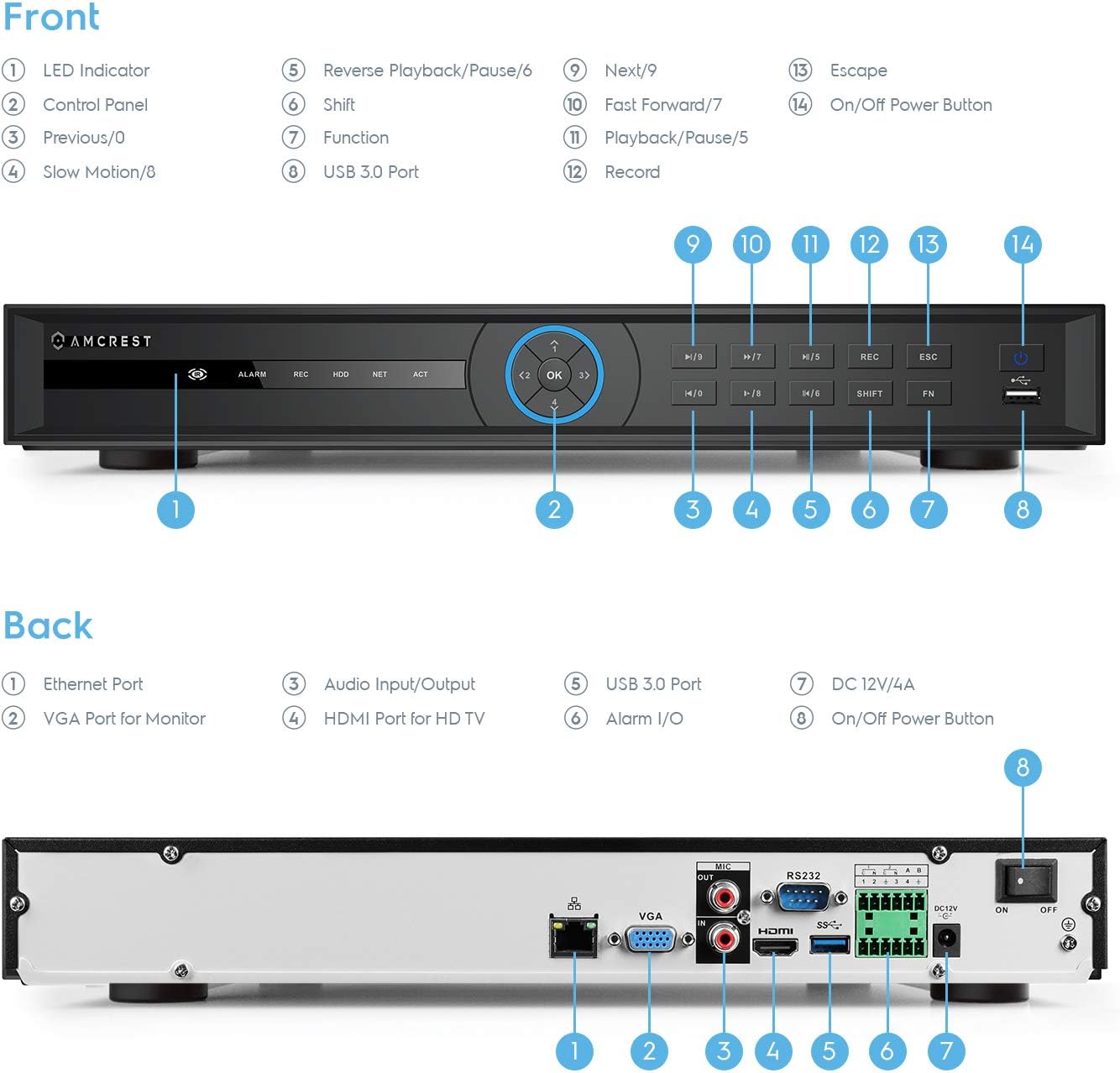
Image: Back panel of the Amcrest NV5216 NVR, illustrating the Ethernet port, VGA port for monitor, Audio Input/Output, HDMI port for HD TV, USB 3.0 port, Alarm I/O, DC 12V/4A power input, and On/Off power button.
1.3 Instalace pevného disku
The NVR supports up to two 10TB hard drives (not included). Follow these steps to install a hard drive:
- Odšroubujte a sejměte horní kryt NVR.
- Připojte datové a napájecí kabely SATA z NVR k pevnému disku.
- Připevněte pevný disk k šasi NVR pomocí dodaných šroubů.
- Nasaďte horní kryt a upevněte jej šrouby.
1.4 Počáteční připojení
Connect the NVR to your network and display:
- Connect the NVR to your router using the provided Ethernet cable. This NVR requires a hard-wired connection directly to your router to operate.
- Připojte monitor k portu HDMI nebo VGA zařízení NVR.
- Připojte USB myš k USB portu na NVR.
- Connect the power adapter to the NVR and a power outlet.
- Press the power button to turn on the NVR.
1.5 Průvodce počátečním nastavením
Upon first boot, the NVR will guide you through an initial setup wizard to configure basic settings such as language, date/time, network, and password. Follow the on-screen prompts.
1.6 Správa fotoaparátu
The NV5216 supports Amcrest WiFi and Wired IP cameras, as well as limited compatibility with third-party IP cameras. To add cameras:
- Ensure your IP cameras are powered on and connected to the same network as the NVR.
- Access the NVR's camera management interface (usually found in the main menu under "Camera" or "Device Search").
- The NVR will scan for available cameras. Select the cameras you wish to add and follow the prompts to configure them.
2. Návod k obsluze
2.1 Živě View
After setup, the NVR will display the live feed from connected cameras. You can view up to 4 channels at 4K resolution simultaneously. The NVR will adjust the resolution of remaining channels to 1080P at 30fps if more than 4 channels are viewed současně.
2.2 Konfigurace nahrávání
NVR podporuje různé režimy nahrávání:
- Ruční nahrávání: Ruční spuštění a zastavení nahrávání.
- Plánované nahrávání: Nastavte konkrétní časy pro nepřetržité nahrávání.
- Záznam detekce pohybu: Record only when motion is detected by the camera. Configure motion detection zones and sensitivity in the camera settings.
The NVR utilizes H.265 compression technology, which optimizes storage space without compromising video quality, allowing for longer recording times.
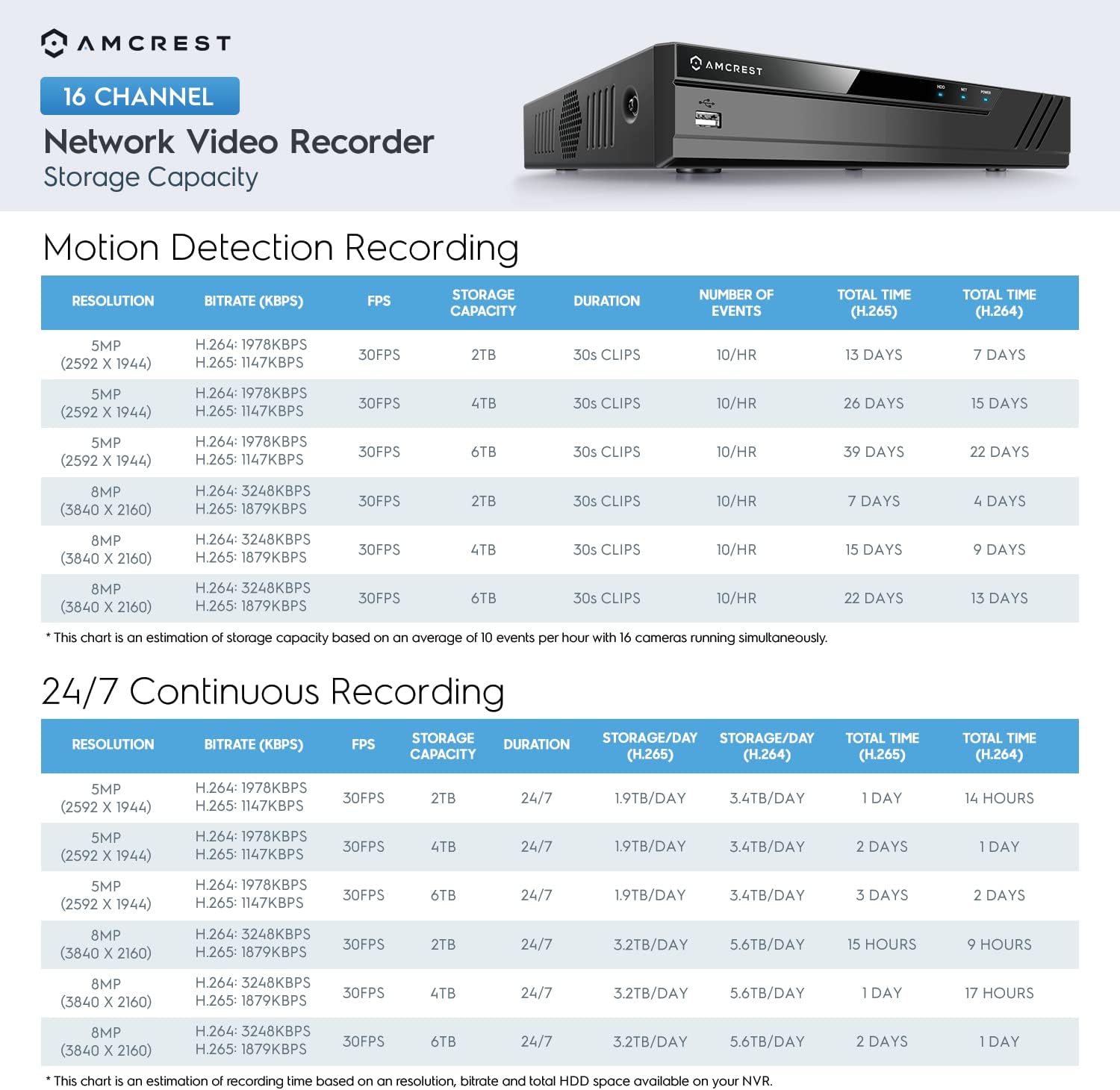
Image: A chart detailing estimated storage capacity for the Amcrest NV5216 NVR under various resolutions (5MP, 8MP) and recording types (Motion Detection, 24/7 Continuous) using H.264 and H.265 compression.
2.3 Přehrávání
Na review zaznamenané footage:
- Access the "Playback" function from the NVR's main menu.
- Select the desired date, time, and camera channel.
- Pro navigaci v souboru použijte ovládací prvky přehrávání (přehrávání, pozastavení, rychlé přehrávání vpřed, přehrávání vzad).tage.
2.4 Remote Access (Amcrest View Aplikace)
Access your NVR remotely using the Amcrest View app on your smartphone or tablet:
- Stáhněte si „Amcrest“ View" app from your device's app store (available for iPhone, iPad, and Android).
- Open the app and register an account if you don't have one.
- Scan the QR code displayed on the NVR's monitor (found in the network settings or device info) to add the NVR to your app.
- Po přidání můžete view živé přenosy, přehrávání nahrávek a správa nastavení odkudkoli s připojením k internetu.
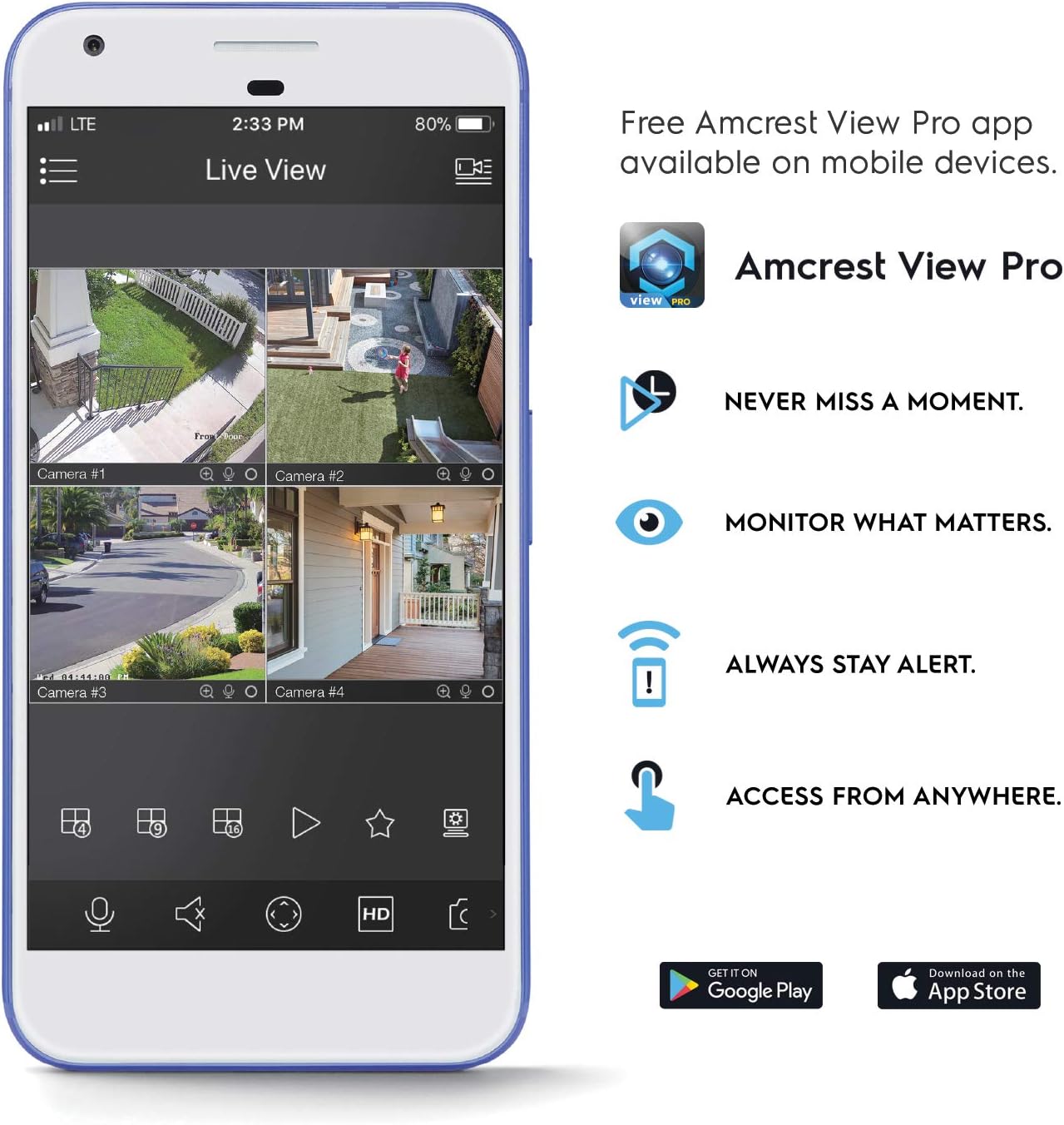
Image: A smartphone screen displaying the Amcrest View Pro app, showing a multi-camera live view interface. The app allows users to monitor, access, and stay alert from anywhere.
Video: An Amcrest overview video titled "Simple. Reliable. Secure." This video provides a general introduction to Amcrest security solutions and their benefits, including remote monitoring of loved ones and property.
3. Údržba
3.1 Správa pevných disků
Regularly check the status of your hard drives through the NVR's storage settings. Ensure sufficient space is available for continuous recording. You can configure the NVR to overwrite older footage automatically when the hard drive is full.
3.2 aktualizací firmwaru
Pravidelně kontrolujte Amcrest webweb s aktualizacemi firmwaru. Udržování firmwaru vašeho NVR aktuálního zajišťuje optimální výkon, zabezpečení a přístup k novým funkcím. Pečlivě dodržujte pokyny dodané s balíčkem aktualizace firmwaru.
3.3 Čištění
To maintain the NVR's longevity, keep it in a clean, dust-free environment. Use a soft, dry cloth to clean the exterior. Do not use liquid cleaners or aerosols.
4. Řešení problémů
4.1 Žádný video výstup
- Check all video cable connections (HDMI/VGA) to the monitor and NVR.
- Ujistěte se, že je monitor zapnutý a nastavený na správný vstupní zdroj.
- Verify the NVR is powered on and its power indicator light is active.
4.2 Kamery se nezobrazují
- Ověřte, zda jsou kamery zapnuté a připojené k síti.
- Ensure the NVR and cameras are on the same local network.
- Check camera IP addresses and network settings within the NVR's camera management interface.
- Verify camera compatibility with the NV5216.
4.3 Problémy se vzdáleným přístupem
- Ujistěte se, že má NVR aktivní připojení k internetu.
- Verify that the Amcrest View app is updated to the latest version.
- Check network firewall settings on your router; port forwarding may be required for direct access, though the app often uses P2P for easier setup.
4.4 Problémy s nahráváním
- Check if a hard drive is installed and properly initialized in the NVR's storage settings.
- Verify that recording schedules or motion detection settings are correctly configured.
- Ujistěte se, že pevný disk má dostatek volného místa.
5. Specifikace
| Číslo modelu | NV5216 |
| Kanály | 16-kanál |
| Rozlišení nahrávání | 1080p/3MP/4MP/5MP/6MP/8MP (4K)/12MP |
| Žít View/ Přehrávání | Up to 4CH @ 4K @ 30fps simultaneously (remaining channels 1080P @ 30fps) |
| Podpora pevných disků | Up to 2 x 10TB (20TB total) (Hard Drives Not Included) |
| Komprese videa | H.265 |
| Konektivita | Ethernet (hard-wired connection required), USB 3.0 (rear), USB 2.0 (front) |
| Video výstup | hdmi, vga |
| Provozní podmínky | +14°F ~ +131°F (-10°C ~ +55°C) |
| Rozměry | 17.09 x 14.53 x 5.55 palce |
| Hmotnost položky | 6.41 libry |
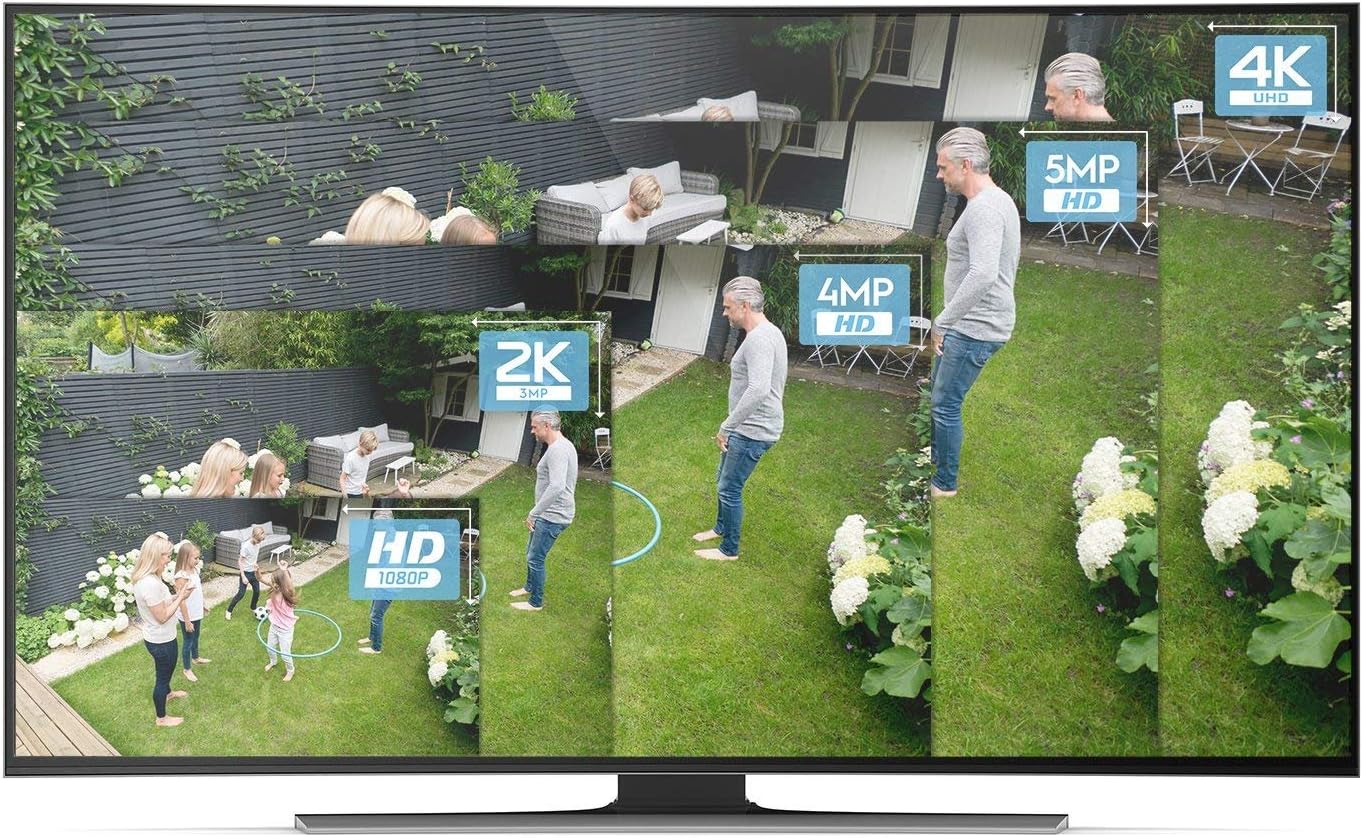
Image: A visual comparison demonstrating the clarity and detail difference between various video resolutions, including HD (1080p), 2K (3MP), 4MP, 5MP, and 4K (8MP).
6. Záruka a podpora
6.1 Záruka na produkt
The Amcrest NV5216 NVR is guaranteed for a full year from the date of purchase. This warranty is offered with US Support and US Warranty exclusively by Amcrest.
6.2 Technická podpora
For technical assistance, troubleshooting, or warranty claims, please contact Amcrest Support. Refer to the official Amcrest webweb s nejaktuálnějšími kontaktními informacemi a zdroji podpory.


